

The program called “PC App Store” isn’t a legitimate store at all – it behaves like adware/browser-hijacker on Windows and is routinely reported after downloading software from sketchy sites. Once in, it tampers with Chrome and Edge: forces your default search to Yahoo or DSR Search, injects extra search engines, and flips the “On startup” page.
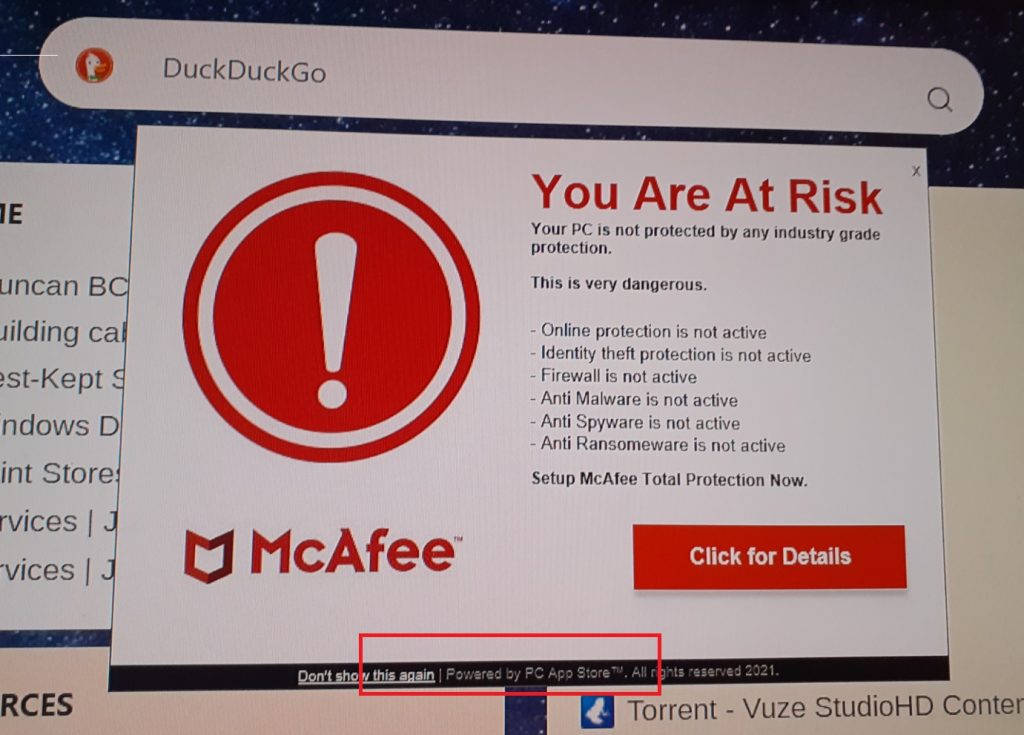
In some cases Chrome crashes or won’t launch until reinstalled, and extensions – even password managers – get corrupted. Users also report aggressive pop-ups: a full-screen white overlay about every six hours with a jingle and the footer “Powered by PC App Store TM. All rights reserved 2025,” plus fake McAfee warnings designed to scare you.
We tested that SpyHunter successfully removes Pc App Store* and we recommend using it. It will block Pc App Store from reinstalling itself and it will make sure your device is clean from any malware.
 Try Free For 7 Days*
Buy now15% OFF if you buy straight without trial.
 OFFER
OFFERUnder the hood, traces often sit in C:\Users\<name>\PC App Store\, a watchdog process (“Watchdog of PC APP STORE”) may keep things alive, and the Apps list may show a stubborn entry pointing to a missing Uninstaller.exe, so standard uninstall fails while the browser remains hijacked.
Given these behaviors, treat PC App Store as malware and remove it promptly. The guide below – or the recommended removal tool (SpuHunter 5) – will help you deal with it.
Pc App Store Virus Removal
What really frustrates me about this rogue software is how it presents itself as a legitimate app only to then put every roadblock possible in your path to keep you from uninstalling it. It took me hours of research to figure out a working way to get rid of everything this malware installs on your PC. But now I finally got it, and I invite you to use this next guide to free yourself from PC App Store.
First, I suggest you try to get rid of this malware the easy way
Quick Removal Steps for PC App Store
- 1.1Open the Start Menu, type Apps & Features > press Enter.
- 1.2Look for anything named Pc App/Pc App Store/PCapp. Also look for items called “nwjs“, “nw_store“, “Fast!”, or “Get Fast!” – those are also related to the malware and you might find them in your PC.
- 1.3Try to uninstall all suspicious software that you find.
- 1.4Once the uninstallation completes, restart your PC and see if you are still noticing sings of the malware’s presence.
This quick method will rarely do the job, but it’s worth a try. If the malware is still there, proceed to the detailed steps below.
SUMMARY:
Before you begin the guide, know that it can take upwards of an hour, so arm yourself with patience. Also, inexperienced users might find some of the steps confusing.
If don’t have the time or experience to see this guide through, I recommend using SpyHunter 5 instead. It’s a powerful anti-malware tool that can find and delete threats like this one while also saving you a ton of time. You can find SpyHunter linked on this page.
How to Remove the PC App Store Adware
There are two things you must do to prepare for the removal:
- Install LockHunter – it’s a totally free tool that unlocks files that you can’t delete normally. You are likely to encounter such files when trying to remove PC App Store.
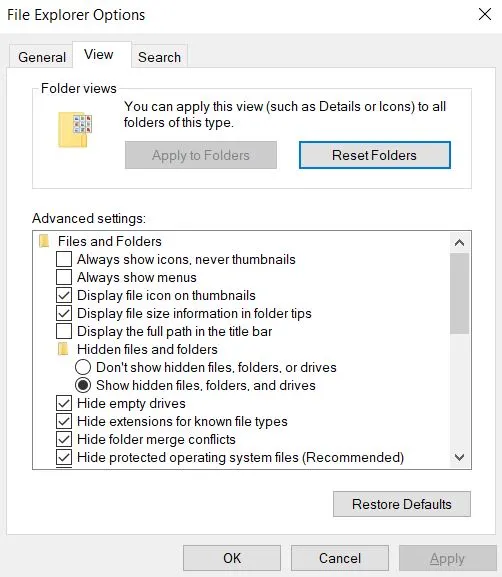
- Search for File Options in the Start Menu, open View, enable Show Hidden Files and Folders, and click Apply > OK. Some of the malware files could be hidden and you need to be able to see them to delete them.
Now you are ready for the removal.
How to Uninstall PCAppStore from the Task Manager
You must first get rid of the rogue processes this malware runs. Open the Task Manager by pressing Ctrl + Shift + Esc and click More Details if the list isn’t expanded.
Delete PC App Store Processes in the Task Manager
- 1.1Search the list of processes for any of the following:
– Pc App/Pc App Store
– PCapp.exe
– fa_rss
– NW_store.exe
– BazBesSAS
– nwjs
– nw_store - 1.2If you see one or more of these processes, do the following for each one: Right-click the process, and select Open File Location.
- 1.3Go back to the folder, then go up one level to the previous folder (the one that contains the malware folder). You can do this by clicking the upwards arrow in the top-left in front of the folder path.
- 1.4Now delete the entire malware folder. If it refuses to get deleted because some of its files are still in use, make sure you’ve got LockHunter installed, then right-click the folder and select the “What’s locking this folder?” option.
- 1.5In the next window, you’ll get the option to delete it, so click that and the folder will be gone.
Repeat these steps for all other rogue processes found in the Task Manager.
Important!
If you are not allowed to delete any of the files/folders because of restricted access, do this:
- 0.1Right-click the folder, go to Properties, and open the Security tab.
- 0.2Click Advanced, then click Change, and type “everyone” in the text field.
- 0.3Select Check Names, then OK, and enable the two Replace options in the previous window.
- 0.4Click Apply and then OK and now you’ll be able to delete that folder.
We tested that SpyHunter successfully removes Pc App Store* and we recommend using it. It will block Pc App Store from reinstalling itself and it will make sure your device is clean from any malware.
Try Free For 7 Days*
Buy now15% OFF if you buy straight without trial.
How to Delete PC App Store Virus Files
There are almost certainly more rogue files and folders left on your PC, and you’ll need to find them manually in order to delete them.
Find and Delete PC App Store Files in Your System
- 1.1Here are the locations where you must search for them:
C:\Users\%USERNAME% – look for folders named PC App or nwjs, or any of the other names I listed above (the process names).
C:\Users\%USERNAME%\AppData\Roaming\fa – delete the “fa” folder (could also be “fa_rss“).
C:\Users\administrator\a9c2w\ – delete the “a9c2w” folder
C:\ProgramData\Microsoft\Windows\Start Menu\Programs – delete anything that looks linked to the malware. - 1.2Also, in each of these locations, if you notice a file or folder with the process names I listed in the previous section, delete them too.

Stop the PC App Store McAfee Pop-up
To make sure that the PC App Store pop-up doesn’t appear again, you must also check your startup items and scheduled tasks. The malware has likely made changes there that could allow it keep spamming you even after you’ve seemingly removed it, so here’s what you need to do.
Disable PC App Store Tasks
- 1.1Type Startup in the Start Menu and hit Enter.
- 1.2Then look through the list and if you see any of the names I already mentioned (PC App Store, PCapp, NW_store.exe, etc.), disable them and close the window.
- 1.3
 Next, use the Start Menu again to search for Task Scheduler and open it.
 - 1.4Click Task Scheduler Library in the top-left and begin checking each of the listed tasks. Double-click them and open their Actions tabs to see what they run.
- 1.5If any given task is set to open a suspicious page, download something, or run a suspicious executable or script, you must delete it.
- 1.6Make sure to explore all of the listed tasks in this way or you could miss something and allow PC App Store to return.
Get Rid of PC App Store McAfee Popups Through the Registry Editor
Lastly, you need to make sure that any entries created by this malware in the system registry are deleted. Here’s how to do it:
Remove PC App Store Items From the Registry
- 1.1Type “regedit” in the Start Menu, right-click the Registry Editor > Run as Administrator.
- 1.2Press Ctrl + F and search for “pcapp“. If the search finds anything, delete the respective key (folder) in the left panel. Then search again, delete the next found item, and keep doing that until all relevant keys are removed.
- 1.3Then search for each of the following and delete any relevant items:
– fa_rss
– NW_store.exe
– BazBesSAS
– nwjs
– nw_store - 1.4
 In case you are unable to delete a given key due to restricted access, do this:
Right-click the blocked key > Permissions > Advanced > Change. Type “everyone” in the text field, then click Check Names, then OK.
- 1.5
 In the previous window, enable the two options that start with “Replace“.
 - 1.6Click Apply and OK and now you’ll be able to delete that key.
This is the final step for this guide. After you complete it, I am confident that you’ll have fully removed the rogue PC App Store software.
Is PC App Store a Virus?
Despite its name, PC App Store is not a legitimate application marketplace and definitely not a harmless utility. It’s not a virus in the classical sense – it doesn’t replicate like worms or overwrite system files like destructive file-infectors. Instead, it falls into the category of adware and browser hijackers, sometimes bundled with potentially unwanted programs (PUPs). Once installed, it embeds itself into Windows and begins altering your browsing environment without consent.
The most common signs are hijacked settings in Chrome and Edge: your default search engine gets switched to Yahoo, additional engines are injected into your list, and the “On startup” option is overwritten with a specific page.
This leads to a constant funnel of ads, shady search results, and unwanted redirects. Chrome users often report instability – crashes right after install or refusal to open until the browser is reinstalled. Extensions, including sensitive ones like password managers, may be corrupted.
On the system level, PC App Store plants itself in user folders like C:\Users\<name>\PC App Store\, often leaving behind broken uninstallers.
A background process called “Watchdog of PC APP STORE” may be used for persistence. Even after you try to uninstall it, the entry can linger in your Apps list, pointing to a missing Uninstaller.exe, which is why many victims believe they removed it only to find traces remain.
How Dangerous Is PC App Store?
PC App Store is best described as moderately dangerous malware. It is not a ransomware strain that encrypts your files, nor does it overtly steal your banking credentials by itself. The real risks come from how it manipulates your browsing, system behavior, and overall trust in what you see on screen.
- The hijacked search results are more than just annoying – they often deliver ad-heavy pages or links to unsafe websites, increasing your exposure to further infections.
- The fake McAfee pop-ups it spawns are classic scare tactics, pressuring users to click misleading alerts.
- Some people also encounter relentless full-screen overlays that appear every few hours, play a jingle, and block all activity until dismissed.
Corruption of extensions, especially password managers, introduces indirect but serious security implications. If your extensions fail or are replaced, your stored credentials could be at risk. Add to that the difficulty of removal – the watchdog process and broken uninstallers mean that simply deleting the visible folder won’t stop it – and you have a piece of software that erodes both system stability and user trust.
For these reasons, PC App Store should be considered malware and dealt with as quickly as possible.
How to Avoid PC App Store in the Future
Most people already know the basics: don’t grab games, fonts, or other “freebies” from shady websites, don’t pirate software, and don’t click on random download links. Many of the infections tied to PC App Store started exactly this way – users thought they were getting a font or a game, but instead wound up with a hijacker that crashed Chrome, corrupted extensions, and filled their screens with pop-ups. If you keep tempting fate with unsafe downloads, you’ll keep running into trouble. Beyond the obvious, there are a few practical steps that can dramatically reduce the chances of running into PC App Store or similar adware.
- Disable automatic downloads
In Chrome and other browsers, you can force the browser to ask you where to save files before downloading. This way, nothing gets silently pulled onto your system. Given that PC App Store often sneaks in through disguised installers, this one setting can save you from ever launching the wrong file. - Use enhanced security in your browser
Modern browsers have hidden gems in their privacy settings. In Chrome or Edge, enable “Enhanced protection” and “Always use secure connections” under Privacy and Security. These settings make it harder for rogue pages like the ones pushing PC App Store to deliver their payloads. - Install an ad-blocker
Adware thrives on fake pop-ups and redirects, exactly the tactics PC App Store uses with its scareware McAfee alerts and payment nags. A reputable ad-blocker can filter out many of these traps before they even load.
Take these steps, and your odds of running into PC App Store again drop sharply.
Leave a Reply