

Smmsky.co
Smmsky.co is a browser hijacker virus that infects iPhone devices with the help of low-quality apps that have the hijacker as a built-in feature. Smmsky.co shouldn’t be allowed to stay in your device’s system for long because it could potentially compromise the device’s security.
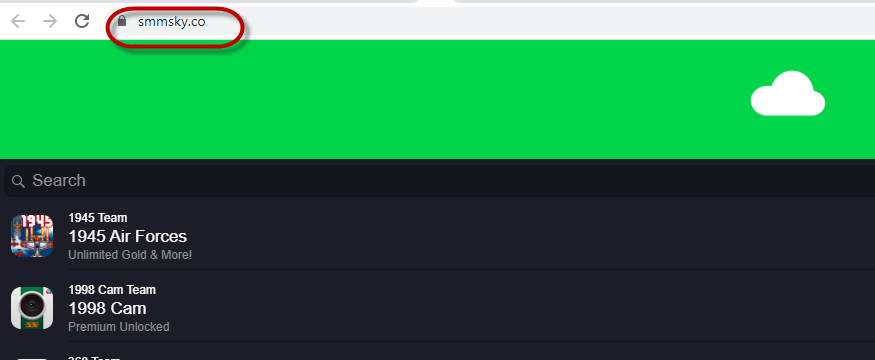
The Smmsky.co Virus
The goal of the Smmsky.co virus is mainly advertising-oriented. The Smmsky.co virus is supposed to draw more traffic to certain websites by causing your Safari or Chrome browser to open them automatically.
Each successful site redirect generates a small amount of money for the developers of Smmsky.co on the basis of the Pay-Per-View model. Understandably, this means that this hijacker would keep spamming you with its page redirects for as long as it stays active on your iPhone. Furthermore, to maximize the revenue it could earn from site ads, it may also start putting obstructive banners and pop-ups on your screen that won’t go away unless you tap on them. Doing so, however, is highly inadvisable because you don’t know what site you may get sent to. For example, it’s possible that you end up getting sent to a webpage that’s not safe and that may contain viruses, Trojans, or other threats.
To remove Smmsky.co successfully, you are advised to try the guide steps in the following lines. Also, after you uninstall the hijacker, be sure to be more careful with your future downloads so that you don’t end up with another similar app in the future that you would need to remove.
SUMMARY:
| Name | Smmsky.co |
| Type | Browser Hijacker |
Remove Smmsky.co Virus from iPhone

For starters, what should be done is to close any pop-ups and banners that are currently shown on the screen of your device. This should typically not be a problem but in some instances, a pop-up may refuse to go away at first, requiring additional actions to remove it.
First, take a look at the pop-up and see if there’s a checkbox or a button somewhere on it that says something along the lines of “Don’t show alerts/ads from this site”. If there is such a checkbox/button, tap on it. Next, close the pop-up by selecting its X/Close button. Note that sometimes, this may not close the pop-up and/or redirect you to some questionable site. If this happens, avoid interacting with any of the contents of the newly-opened page and promptly close it. It is possible the aforementioned checkbox appears after you’ve tried to close the pop-up, in which case you should still tap on it.
If there isn’t an X/Close button for the pop-up or if interacting with it doesn’t work, double-tap the home button of your iPhone to see the preview of all apps that are currently opened on your device and force close all of them from that screen by swiping them up or selecting the “Close all” button.
If even trying to Force Quit all opened apps doesn’t get the pop-up away from your screen, turn off your device by holding down the Power Button until the Power Off option shows on your screen and then swipe it down. Wait for your iPhone to fully shut down and then start it back up.

Once any obstructing pop-ups are gone from your screen, look at the apps you have on your iPhone/iPad. Usually, iOS malware comes from third-party apps that aren’t downloaded from Apple’s official App Store so if you have any such apps that you have installed around the time you started having problems, it is safe to assume that this app is the reason for your browsers getting hijacked and for the pop-ups you see on your screen. Because of this, we suggest you remove any such app from your device – simply tap-hold the app until an X/- icon appears on it and then tap that icon to uninstall the app.

Next, open the Settings of your iPhone and scroll down until you find the icon for the Safari browser. Now, look at the Block Pop-ups and Fraudulent Website Warning options – if they are disabled, enable them. This should keep most types of obstructive and annoying pop-ups from showing on your display and should also prevent Safari from getting rerouted to potentially unsafe sites.
The next thing you should do is look at the Safari search engine settings. If the search engine you see there isn’t the one you normally use and would like to be the default one for Safari, change to the search engine you want.
Now, you are advised to clean the Safari history and browsing data. There should be a button towards the bottom of the list of Safari settings labeled Clear History and Browsing Data. Tap on it and wait for the browser to get cleaned. Note that this action will likely log you out of all site accounts that you have been logged in from your browser.
Know that if you have any other browsers installed on your iPhone such as Chrome or Safari, you should do the same procedure with them as well. Go to Settings, open the settings for the other browsing apps that you have, enable their security features and clear their browsing history and data.

Lastly, in more severe cases, it is possible that none of the previous steps get rid of the malware. If this happens to you, the last option you can try is to perform a Factory Reset of your device. To some users this may sound scary because they fear of losing data but iPhones already have a build-in backup feature that, for most devices and users, is enabled by default and it automatically backs up the user’s data on the iCloud. To check if your data is getting backed up too, go to Settings, and tap on your Apple ID at the top. Next, tap on the iCloud icon and look at different apps that are getting their data backed up on the iCloud. All of them should be enabled so that no data is lost during the Factory Reset so if there are ones that are not toggled on and you don’t want to lose data related to them, toggle on the backup feature for this specific app(s).
Important!: Some users may consider making a manual iCloud backup by selecting the iCloud Backup option. This, however, is usually not recommended because this may result in the malware getting backed up as well so when you restore your data from the backup, you may end up back where you started.
After you are all set up, go back to the main Settings screen, find the General settings and tap on it. Now, scroll down until you find the Reset option and select it – you will be required several times to confirm that you indeed want to reset your iPhone so provide confirmation and follow the prompts. Once the process is over, there should no longer be any malware on your device.

Leave a Reply