

If you have an extension called QuickSeek in your browser, it should come as no surprise if your default search engine has been changed and your browser is now “Managed by your organization” according to a message shown in the browser menu and the Settings page. This is all typical browser hijacker behavior that can be very frustrating and obstruct your regular workflow. The good news is I’ve got just the solution for you.
We tested that SpyHunter successfully removes QuickSeek* and we recommend using it. It will block QuickSeek from reinstalling itself and it will make sure your device is clean from any malware.
 Try Free For 7 Days*
Buy now15% OFF if you buy straight without trial.
 OFFER
OFFER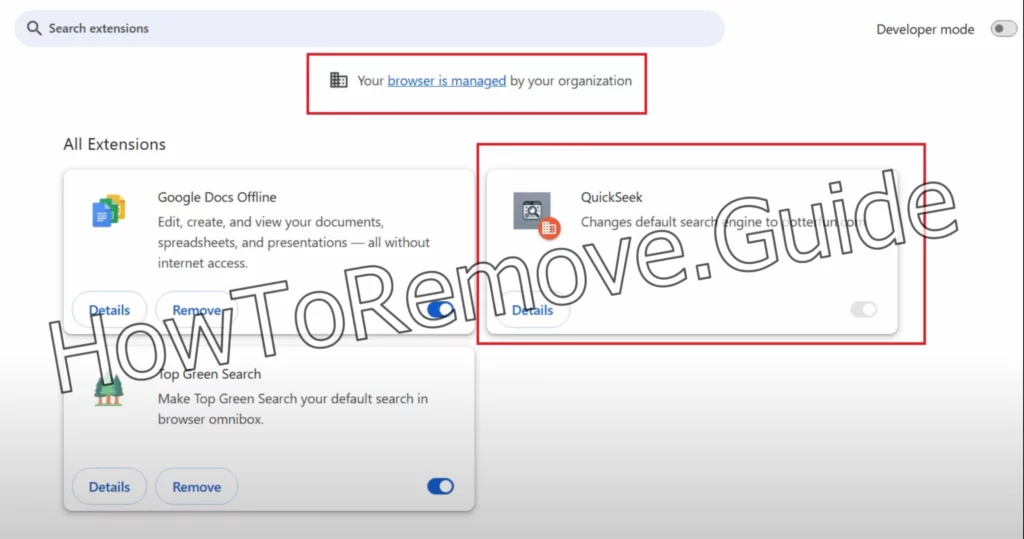
You see, QuickSeek is nothing new and I’ve covered similar annoyances many times before. Signer Digital and Bolingor.co.in are two examples of similar hijackers that function in pretty much the same way. Such hijackers are notoriously tricky to remove if you don’t know what you are doing, but since I already have quite a bit of experience with this type of malware, I can help you get rid of it. Just follow the steps in the guide below or use the recommended tool and you’ll have no problem deleting QuickSeek from your PC and browser.
QuickSeek Removal Guide
If you haven’t already tried to delete QuickSeek, I suggest you first try the simpler steps. Those won’t always be effective but are a good start. And if you get lucky and they work for you, all the better – you won’t have to spend any more time on the hijacker’s removal. So here’s what you do first:
- Open your browser and once you’re in, find the Extensions or Add-ons section. This is where all the extra tools you’ve added to your browser live. Look closely at each one.
- Naturally, first look for QuickSeek and if you see it, click its Remove button if it’s available (there might be no Remove button).
- If something else seems off—like an extension promising “faster browsing” or “optimized searches”—it’s probably up to no good. Don’t hesitate; remove anything that doesn’t look right.
- Next, check your Privacy and Security settings.
- Pay close attention to Site Permissions. Hijackers often sneak in by getting permission to send notifications or pop-ups. If there’s a website you don’t recognize, revoke its access immediately.
After you’ve done this, restart your browser. This is like hitting the reset button for your changes. If the hijacker’s still there, don’t panic. We’re just getting started.
SUMMARY:
If the quick steps didn’t get the job done, you can still get rid of QuickSeek using the advanced guide below. However, note that its completion will take about an hour and it will require at least a base level of technical proficiency.
In case you are totally inexperienced in the field of troubleshooting software problems or you simply don’t have enough time to spare, an alternative I can offer is the powerful removal tool SpyHunter 5. It’s really easy to use and will rid you of QuickSeek in no time. You’ll find it linked on this page should you decide to give it a go.
How to Remove QuickSeek From Your Browser
The main trick QuickSeek and other similar hijackers use to keep themselves in the browser is a rogue third-party policy that lets them block the browser’s settings.
Open the affected browser, click its menu, and look at the very bottom. If there’s a “Managed by your organization” note written there, it means that there’s indeed such a policy and you need to deal with it first before being able to clean your browser.

To get to the bottom of this, Chrome users should type chrome://policy into the address bar. Edge users can use edge://policy, and other browsers have similar commands (just swap in the name of your browser).
Once you’re there, you’ll see a list of active policies. Take a good look at the Values section and if you see any policy values made of random letters, jot those down—you’ll need them later.
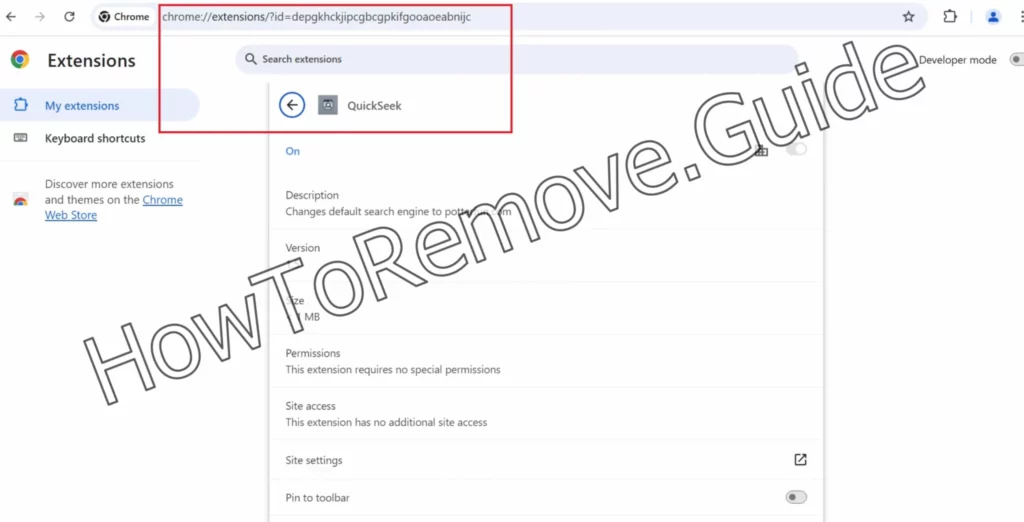
Now, head back to the Extensions page, but this time, enable Developer Mode. This gives you more details about each extension, including their IDs. Save the QuickSeek ID and the IDs of any other suspicious extensions.
If the hijacker is blocking you from accessing this page, there’s a workaround. For Chrome users, navigate to this folder on your computer:
C:\Users[Your Username]\AppData\Local\Google\Chrome\User Data\Default\Extensions
Delete everything in this directory.
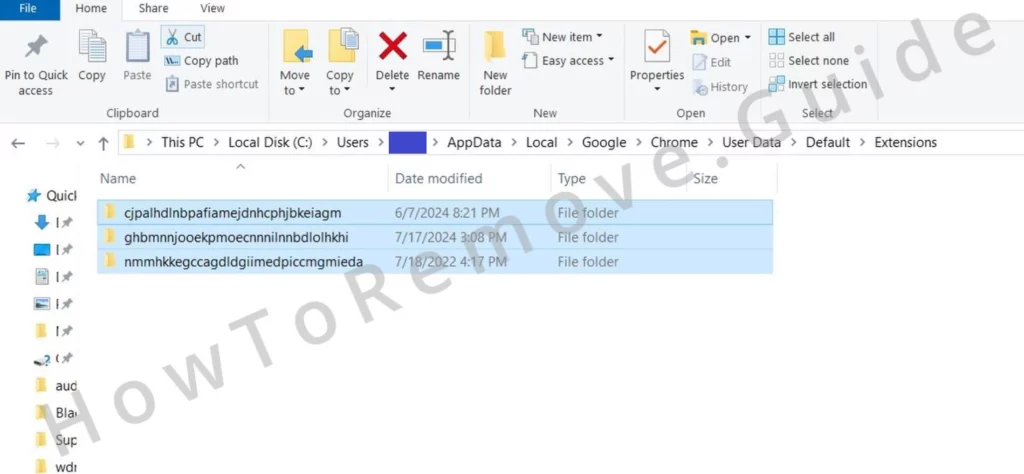
It’s like sweeping the slate clean for your extensions. Other browsers have similar directories; you’ll just need to locate them.
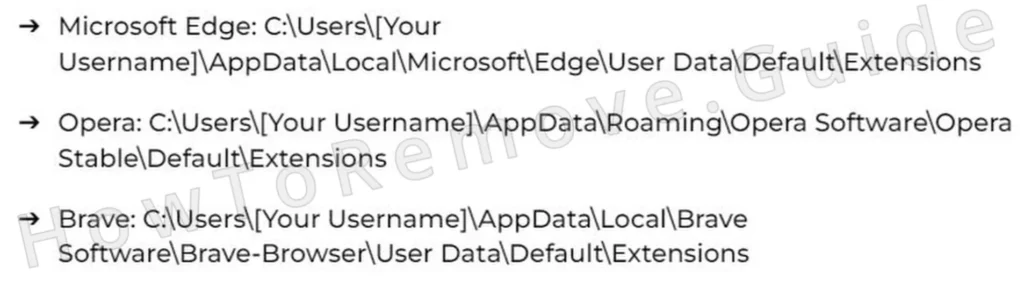
Once that’s done, return to your extensions page to collect the rogue IDs.
Video walkthrough for this step:
We tested that SpyHunter successfully removes QuickSeek* and we recommend using it. It will block QuickSeek from reinstalling itself and it will make sure your device is clean from any malware.
Try Free For 7 Days*
Buy now15% OFF if you buy straight without trial.
How to Delete QuickSeek Virus Policies
Now it’s time for a Registry cleanup. The hijacker keeps records of its policy in the Registry so you must go there and delete anything related to them.
To access the Registry Editor, type regedit in the Start Menu > Right-click > Open as administrator.
Once you’re in the Registry Editor, use the search function (Edit > Find) to look for entries linked to the rogue policy values or extension IDs you noted earlier. If you find anything, delete it on the spot. Be thorough—run multiple searches to make sure nothing is left behind.
Sometimes, the registry fights back. If an entry refuses to be deleted, right-click on it, select Permissions, and then go to Advanced settings.
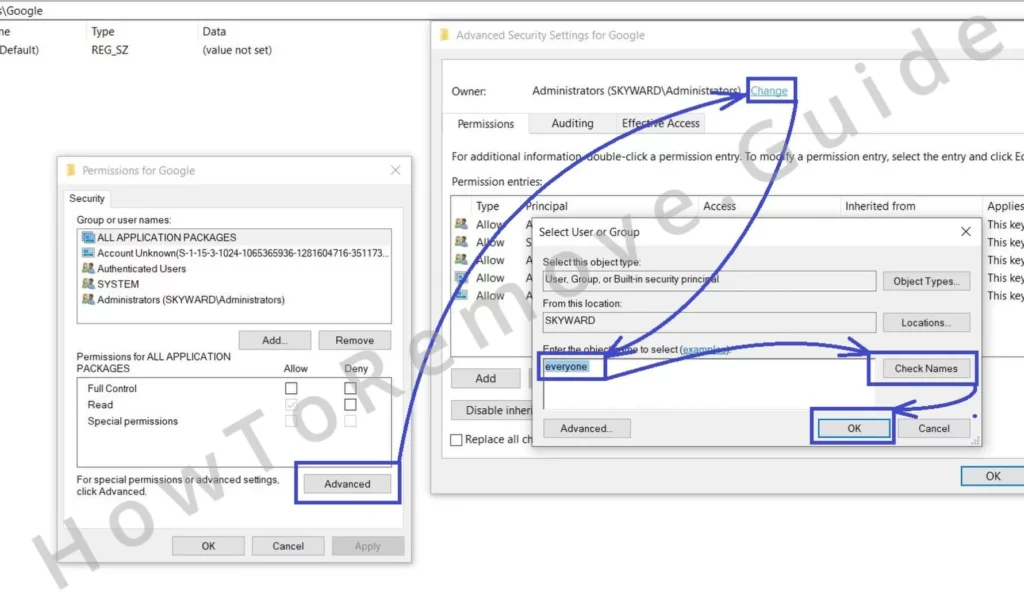
Open Change, type “Everyone,” and save your changes. In the previous page, tick the two Replace options and click Apply > OK.
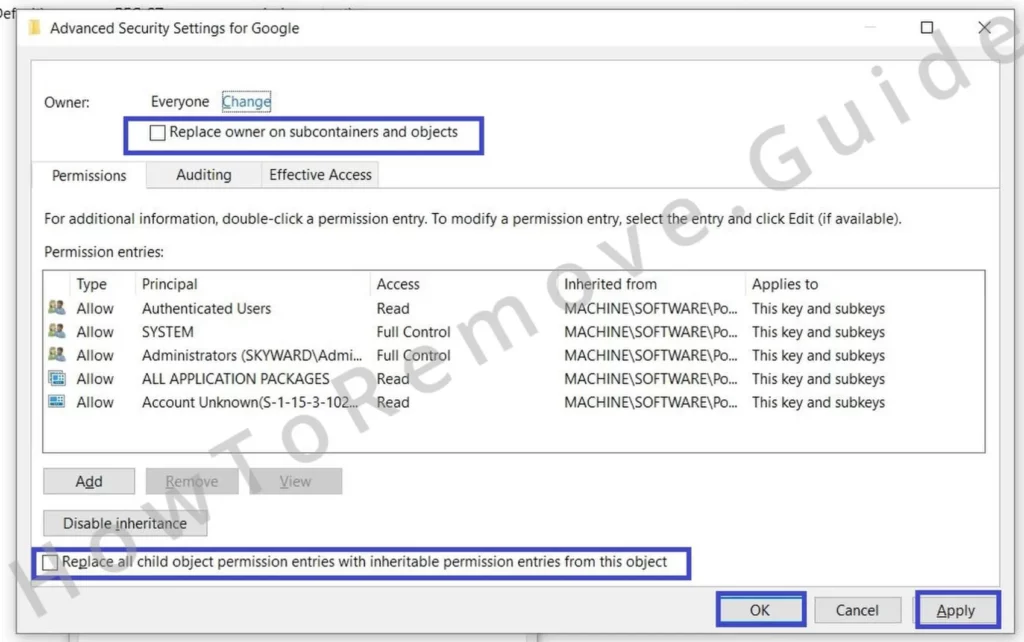
Here’s the important part: be careful. Messing with the registry can cause system issues if you delete the wrong thing. If you’re not 100% sure about an entry, do some quick research before removing it. Once you’ve cleaned out the registry, restart your browser and see if the hijacker is finally gone.
Video walkthrough for this step:
Other Ways to Get QuickSeek Malware Policies
If you’re still having trouble, don’t worry. There are a few other tricks up our sleeve that will let you get ri of QuickSeek policies.
One option is the Group Policy Editor. Open the Start Menu, type “edit group policy,” and navigate to Administrative Templates.
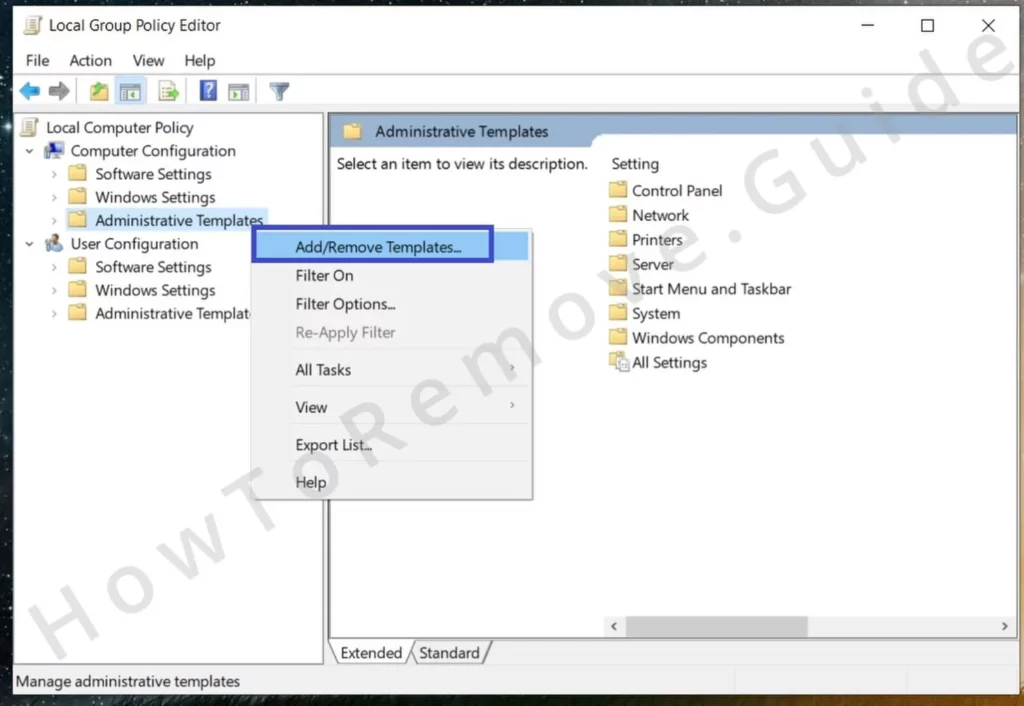
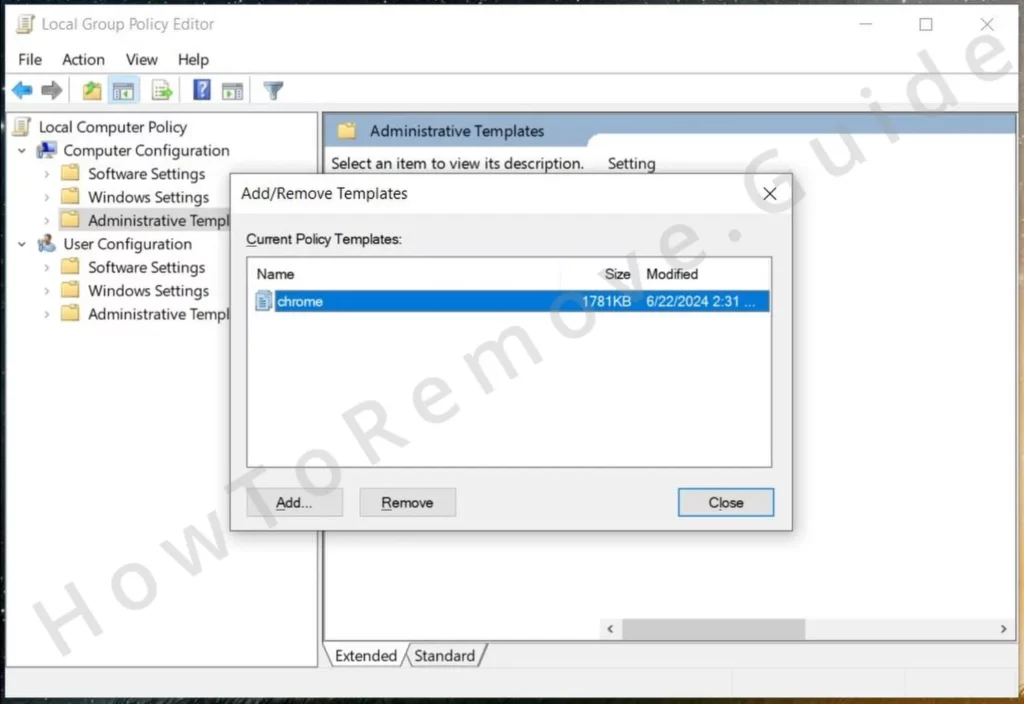
Right-click, choose Add/Remove Templates, and remove any suspicious entries.
For Chrome users, there’s also the Chrome Policy Remover Tool. It’s a small, handy utility that wipes out rogue policies with just a few clicks. Download it, run it as an administrator, and let it automatically run its policy removal script.
If you’re still feeling stuck, consider watching our video walkthrough below. Seeing someone else go through the steps can make all the difference.
Video walkthrough for this step:
Manual Group Policy Removal
Automatic Group Policy Removal
Uninstall QuickSeek From Chrome, Edge, and Other Browsers
Once the hijacker is gone, you’ll want to clean up the mess QuickSeek has left behind. Start by revisiting the Extensions page. Do one final sweep for anything suspicious and delete it.
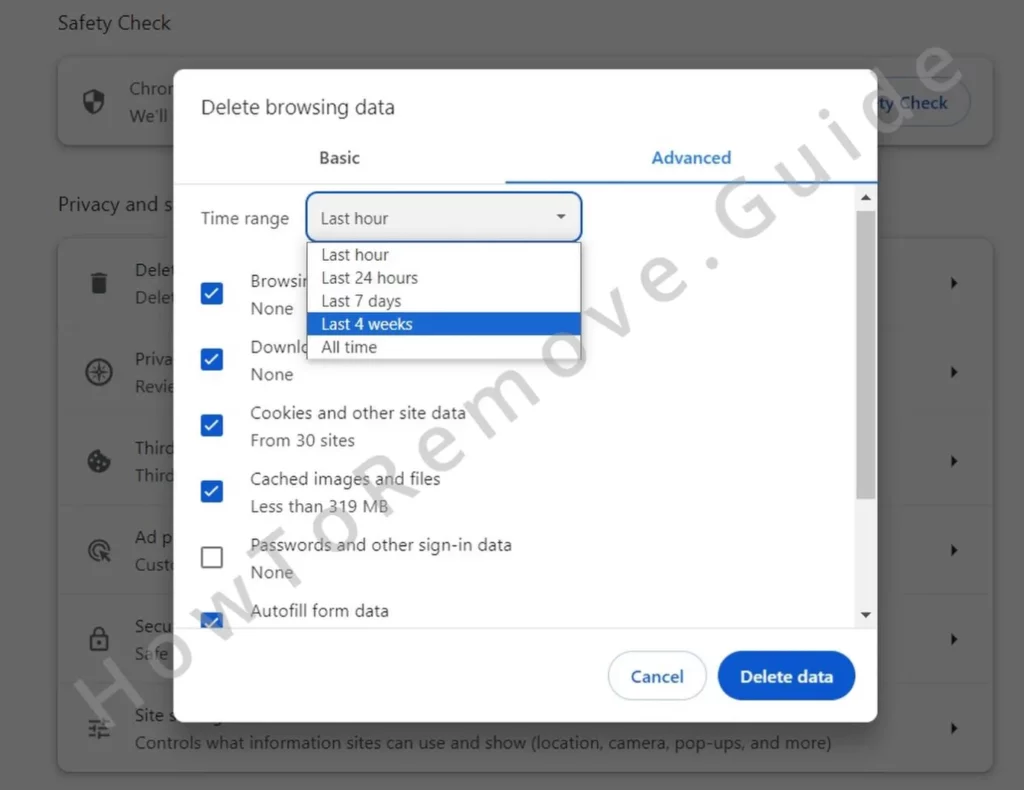
Next, clear your cache and cookies. This is a crucial step—it gets rid of any leftover data that might still be tied to the hijacker. Go to your browser’s Clear Data settings, set the range to “All Time,” and delete everything except saved passwords.
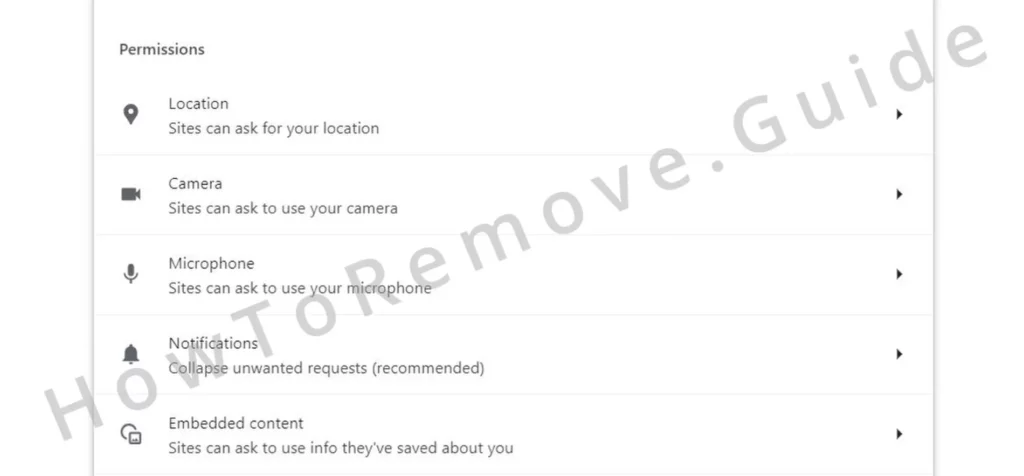
Double-check your Site Permissions (under Site Settings). Make sure no unauthorized websites have snuck back in. Then, head to the search engine settings.
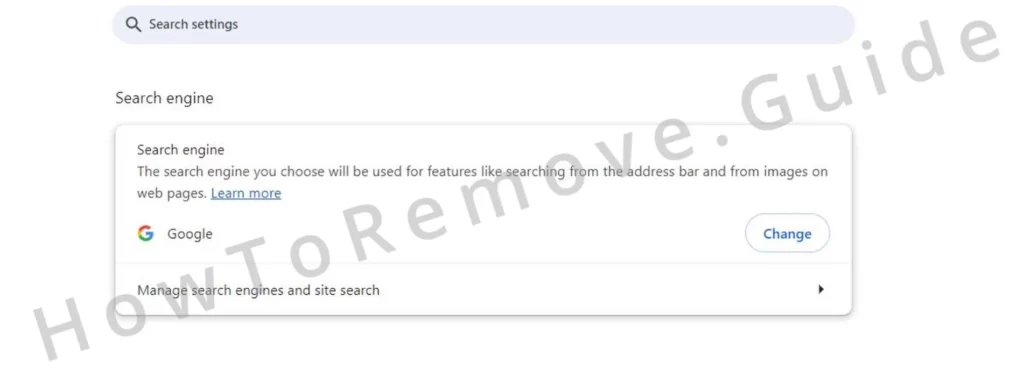
Hijackers love to swap out your default search provider for something shady. Restore your preferred search engine and remove anything unfamiliar from the Manage Search Engine Settings.
Finally, inspect the On Startup and Appearance settings. If you see any strange URLs or changes, revert them to default. This ensures the hijacker doesn’t have a way back in.
Video walkthrough for this step:
Chrome
Microsoft Edge
Mozilla Firefox
Staying Ahead of the Game
Getting rid of QuickSeek is one thing; making sure it doesn’t come back is another. The best way to stay safe is to adopt smart browsing habits. Be cautious about what you download. Extensions or software from unverified sources are like open invitations for hijackers.
It’s also a good idea to do regular checkups. Review your extensions, settings, and permissions every so often. Think of it as routine maintenance for your browser.
If you want an extra layer of protection, invest in a good antivirus program. Tools like SpyHunter 5 are designed to catch threats before they become a problem. Running a full system scan can save you a lot of time and frustration in the long run.
Final Thoughts
Dealing with a browser hijacker like QuickSeek isn’t fun, but it’s manageable if you know what to do. Start with the easy steps—they’re often enough to solve the problem. If not, don’t hesitate to dive into the advanced methods outlined here.
The key is to stay patient and thorough. Every step you take brings you closer to a clean, secure browsing experience. And remember: once your browser is back in your hands, a little vigilance goes a long way in keeping it that way. Stay safe out there, and happy browsing!
Leave a Reply