

ManualFinderApp is a recently observed trojanized installer presented as a legitimate Windows MSI. The sample (hash: d0838244e7ebd0b4…) is attributed to “ManualFinder” and was originally signed by GLINT SOFTWARE SDN. BHD., whose certificate has since been revoked. Execution typically occurs via silent install (msiexec /qn /i) and is often initiated by a JavaScript scheduled task that launches node.exe to run a GUID-named script from %LOCALAPPDATA%\TEMP\.
Post-install, persistence has been seen through scheduled tasks and WScript execution from the user’s temp directory. Activity consistent with spyware includes browser enumeration and termination, attempts to access Chromium “Web Data,” and registry queries for security products. Observed command-and-control and distribution infrastructure includes mka3e8[.]com, y2iax5[.]com, and portal[.]manualfinder[.]com.
Deployment is linked to PUPs such as OneStart, AppSuite-PDF/PDF Editor, with some variants switching into infostealer mode after an update flag like --cm=--fullupdate. Reported user-visible symptoms include cmd windows flashing, wallpaper anomalies, and deceptive pop-ups. ManualFinderApp is not a Windows component and should be removed promptly; persistence artifacts and temp-path executables must be accounted for during cleanup.
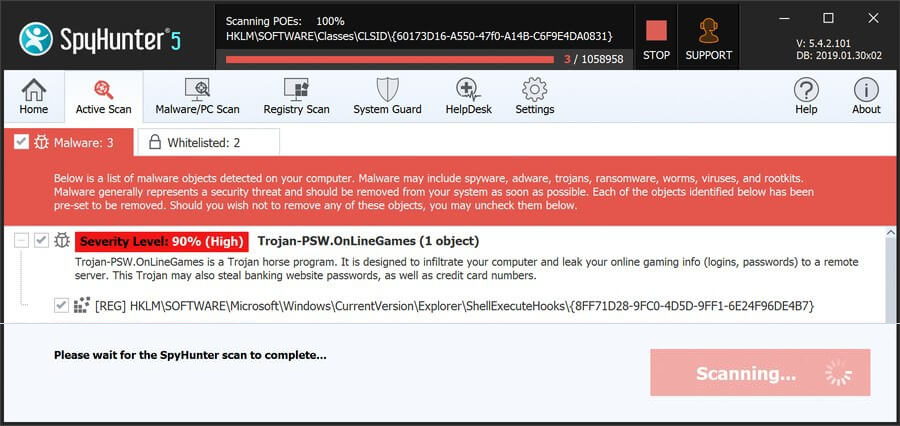
ManualFinderApp may expose your browser to redirects, ads, and persistent unwanted components. Install SpyHunter Pro to scan for risks, remove related threats, and enable real-time protection.
 OFFER
OFFER*Source of claim SH can remove it. Trial w/Credit card; image is for illustration; full terms.
How to Remove the ManualFinderApp.exe Malware
Begin with a standard uninstall attempt. Because ManualFinder installs via MSI (msiexec /qn /i) and is linked to bundle installers, an entry may exist in Apps & Features/Programs. If present, removing it is the most direct resolution and takes only minutes. While this step may fail in some cases due to added persistence or later “switch-flip” updates, confirming whether a registered uninstaller exists avoids unnecessary remediation effort.
Quick Steps to Remove ManualFinderApp
- 1.1Open the Start Menu and go to Settings (look for the gear icon). This is where you control your system preferences, hardware settings, and app management.
- 1.2In Settings, select Apps. This screen lists every installed program and lets you sort them by name, size, or installation date.
- 1.3Sort the list by Installation Date so recent installations appear first. This makes it easier to spot suspicious new software, including ManualFinderApp.
- 1.4Check through the list for ManualFinderApp or any unknown entries. If you find one, select it, click Uninstall, and confirm the prompts to remove it.
-
1.5Once uninstalled, open File Explorer and navigate to:
C:\Users\YourUsername\AppData\Local\ProgramsSearch here for leftover folders related to ManualFinderApp, as traces can remain after uninstallation.
- 1.6If you find a folder tied to ManualFinderApp, right-click it, select Delete, and remove it manually. Restart your computer afterward to apply changes and confirm if it’s still present.
If the malware remains, don’t panic – the advanced steps below will cover deeper removal.
SUMMARY:
Advanced Steps to Remove Manual Finder App
If ManualFinderApp is active, it produces observable artifacts that aid containment. Look for running processes such as ManualFinderApp.exe or node.exe executing GUID-named JavaScript from %TEMP%, recent msiexec silent installs for ManualFinder-v2.0.196.msi, and connections to domains like mka3e8[.]com. Live activity also includes PowerShell/WMI browser checks and subsequent taskkill on Chrome/Edge to unlock credential stores. Investigate while these indicators are present to accelerate triage.
1. Preparing for the ManualFinderApp Removal
- 1.1
 Open the Start Menu and search for Folder Options. Click it, go to the View tab, enable Show hidden files, folders, and drives, and hit Apply. This ensures no concealed components of ManualFinderApp slip past your search.
 - 1.2Download and install LockHunter, a reputable tool for unlocking files that Windows won’t let you delete. It’s lightweight, ad-free, doesn’t require registration, and is especially useful for stubborn malware files.
We understand if you don’t want to use third-party software and we generally try to keep our guides entirely “hands-on”. However, in this case, you may need this app to eliminate some malware files which is an essential part of the removal process.
But don’t worry, LockHunter won’t ask for money, doesn’t have ads, and doesn’t even require a registration. You can download and install it in about two minutes.
Task Manager Cleanup: End ManualFinderApp Processes
Removing malware almost always requires a thorough Task Manager cleanup. You need to carefully examine the processes running there, identify potential rogue ones, and delete them alongside their data. The steps below show you how to do that.
2. How to Delete ManualFinderApp Processes in the Task Manager
- 2.1Press Ctrl + Shift + Esc to open Task Manager, which shows both visible and background processes.
- 2.2If you see the simplified view, click More details to expand it and view the Processes tab and other sections.
- 2.3
 Click the CPU or Memory column headers to sort by usage. Malware processes often consume significant resources, so high-usage items are worth checking.
(Note: malware almost never uses its real name, so don’t expect to see “ManualFinderApp” listed here.)
- 2.4Right-click anything suspicious and select Open file location to see where it’s stored.
- 2.5If the file appears to be part of ManualFinderApp, try deleting its entire folder. If Windows blocks you, right-click the folder, choose What’s locking this file?, and let LockHunter remove it.
- 2.6Go back to Task Manager, select the suspicious process, and click End Task to stop it from running.
Find and Delete ManualFinder.exe Malware Files
Do not assume removal is complete after deleting obvious files. This campaign spreads components across user temp paths and persistence points, including scheduled tasks that execute node.exe and WScript launches from %TEMP%. Leftover GUID-named scripts (e.g., …or.js/…of.js) or temp-resident binaries can restore functionality. A thorough check of temp locations and user-level persistence is required to prevent reactivation.
3. How to Get Rid of ManualFinderApp Files
-
3.1Open File Explorer and check the following folders:
C:\ProgramData\Microsoft\Windows\Start Menu\Programs\StartupC:\Users\YourUsername\AppData\Roaming\Microsoft\Windows\Start Menu\Programs\StartupLook for any suspicious shortcuts, scripts, or executable files that could launch ManualFinderApp at startup.
- 3.2Delete everything in those folders except for desktop.ini. If you can’t remove something, use LockHunter.
-
3.3Go to:
C:\Program FilesC:\Program Files (x86)Search for oddly named or recently modified folders that may belong to ManualFinderApp and delete them permanently.
-
3.4Also check:
C:\Users\YourUsername\AppData\Local\ProgramsC:\Users\YourUsername\AppData\Roaming\Microsoft\Windows\Start Menu\ProgramsRemove anything unusual or tied to ManualFinderApp.
-
3.5
 Navigate to:
C:\Users\YourUsername\AppData\Local\TempSelect all files with Ctrl + A, then press Delete. This clears temporary files, which malware often uses for hidden scripts or reinstallation attempts.
Get Rid of ManualFinderApp Tasks in the Task Scheduler
Review Task Scheduler entries set by the installer chain. Hosts tied to this activity commonly contain tasks that minimize cmd.exe and invoke node.exe against a GUID-named JavaScript in %LOCALAPPDATA%\TEMP\, sometimes using names like sys_component_health_<GUID>. These tasks can reinstall or relaunch ManualFinder after apparent cleanup. Identify and remove tasks referencing temp-path scripts or local node.exe copies under %APPDATA%\NodeJs\ or %LOCALAPPDATA%\Programs\nodejs\.
4. Eliminate ManualFinderApp Scheduled Tasks
- 4.1
 Open the Start Menu, type Task Scheduler, and press Enter. In the left panel, click Task Scheduler Library to see every scheduled task.
 - 4.2Double-click each task to inspect it. In the Actions tab, note what file or script it launches and when.
- 4.3Focus on tasks pointing to executables in AppData, Roaming, or other obscure folders. These are often connected to ManualFinderApp.
- 4.4If a task looks suspicious, note its full file path from the Actions tab, then delete the task from the library.
- 4.5Using File Explorer, navigate to the path you noted and delete the file or script.
- 4.6Repeat for every unfamiliar task. Missing even one ManualFinderApp-related task can allow it to return after a reboot.
Clear the Windows Registry From ManualFinderApp Items
The Registry cleanup step is important, but you should engage with it only if you are confident you won’t delete something that you aren’t supposed to. In all other cases, I recommend opting for SpyHunter to perform the cleanup for you. Now, in case you can take care of this step yourself, here’s what you need to do:
5. Remove ManualFinderApp Through the Registry
- 5.1Press Win + R, type regedit, and press Enter to open the Registry Editor.
- 5.2Press Ctrl + F and type ManualFinderApp to search for related keys.
- 5.3When a match appears, right-click the corresponding folder in the left panel and select Delete. Press F3 to continue searching.
- 5.4Repeat the search using names of any other suspicious programs or processes you found earlier.
- 5.5Search again specifically for ManualFinderApp to catch obscure entries.
-
5.6Manually check the following registry paths for startup and service entries:
HKCU\Software\Microsoft\Windows\CurrentVersion\RunHKCU\Software\Microsoft\Windows\CurrentVersion\RunOnceHKCU\Software\Microsoft\Windows\CurrentVersion\Policies\Explorer\RunHKLM\Software\Microsoft\Windows\CurrentVersion\RunHKLM\Software\Microsoft\Windows\CurrentVersion\RunOnceHKLM\Software\Microsoft\Windows\CurrentVersion\Policies\Explorer\RunHKEY_LOCAL_MACHINE\Software\Microsoft\Windows\CurrentVersion\RunServicesHKEY_LOCAL_MACHINE\Software\Microsoft\Windows\CurrentVersion\RunServicesOnceHKEY_LOCAL_MACHINE\Software\Microsoft\Windows\CurrentVersion\RunOnce\SetupHKEY_LOCAL_MACHINE\SYSTEM\CurrentControlSet\servicesOnly remove entries that reference ManualFinderApp or clearly malicious programs. Deleting the wrong registry keys can damage your system.
Once you’ve removed everything, restart your PC. Keep an eye on performance and startup behavior to confirm the threat is gone.
What Is ManualFinderApp.exe?
ManualFinder is best classified as a trojanized installer, not a legitimate Windows component. It is delivered through aggressive ad campaigns that promote “free” utilities such as PDF Editor/AppSuite-PDF and OneStart. In many cases, a JavaScript-based scheduled task launches node.exe from a user directory to execute a GUID-named script in %TEMP%, which then performs a silent MSI install (e.g., msiexec /qn /i ManualFinder-v2.0.196.msi). Although some samples were code-signed – notably by GLINT SOFTWARE SDN. BHD. – that certificate has been revoked, removing a key trust signal.
After installation, persistence is commonly maintained via Task Scheduler and WScript executions from the user’s temporary paths. Activity observed on affected hosts is consistent with spyware/infostealer behavior: enumerating and terminating browsers (Chrome/Edge), accessing Chromium “Web Data” stores, and probing registry locations associated with security products. Several affected environments also reported an update switch (e.g., --cm=--fullupdate) that turns an initially benign-looking PDF editor into an infostealer. Network telemetry has tied infections to infrastructure including mka3e8[.]com, y2iax5[.]com, and portal[.]manualfinder[.]com. Community timelines note increased push activity beginning August 17, 2025 (15:00 UTC).
End-user symptoms can include brief cmd flashes, wallpaper anomalies, and deceptive pop-ups; terminating ManualFinderApp often closes the malicious window, but scheduled tasks can quickly relaunch it. Given this delivery chain, capabilities, and persistence model, ManualFinder meets the practical definition of a trojan. Systems exhibiting these indicators should be treated as compromised and remediated with attention to scheduled tasks, temp-path scripts/binaries, and the silent-install chain that brought the MSI onto the host.
How to Protect Your System From ManualFinderApp in the Future?
Reduce exposure at the source. Do not obtain PDF tools or “manual finders” from advertisements or thin landing pages; the campaign behind ManualFinder used ad-driven distribution and bundled installers. Acquire software directly from vendors you trust, and treat utilities branded AppSuite-PDF/PDF Editor/OneStart with caution given their role in past chains. Be skeptical of code-signed installers that come via ads; revoked or rotating signers (e.g., the GLINT certificate history) are a red flag.
Harden the browser layer using practices that generalize well:
- Disable automatic downloads: In your browser’s settings, enable “always ask where to save files.” This prevents silent drop-ins to
%TEMP%that later execute viamsiexec /qn /i. - Enable enhanced security: In Chromium browsers, turn on Enhanced protection and Always use secure connections (analogous features exist in other browsers). Stricter checks reduce drive-by and rogue-redirect risk.
- Install an ad-blocker: Quality blockers suppress malicious pop-ups and redirects, reducing exposure to the ad flows used in this campaign.
For organizations, add basic tripwires derived from observed behavior: alert on node.exe executing GUID-named .js from user temp paths; scheduled tasks that call local Node.js under %APPDATA%\NodeJs\ or %LOCALAPPDATA%\Programs\nodejs\; silent msiexec installs from %TEMP%; and outbound connections or DNS lookups to campaign domains such as mka3e8[.]com, y2iax5[.]com, or portal[.]manualfinder[.]com. Where possible, monitor for browser enumeration/termination patterns and access to Chromium “Web Data.” These controls, combined with conservative download habits and stricter browser security, materially lower the chance of encountering ManualFinder again.
