

Searchcalm.com is a counterfeit search engine enforced by a browser hijacker. Telltale signs that you’re dealing with it on your PC include address-bar queries detouring through Searchcalm.com and landing on another engine (often Bing) or suddenly showing Yahoo results. Some victims see it only on the first search or sporadically, which makes it tricky to catch.
Other clues are a replaced home page, a fake “new tab” stuffed with questionable links, and Chrome still showing Google as the default while searches reroute. This post explains how to spot the hijack, roll back its changes, and stop it from returning.
What is Searchcalm.com (Is it a Virus)?
The most accurate description is a browser-level hijacker backed by a fake search front end, so it’s not really a virus, but it’s still something you don’t want on your PC. It operates by abusing browser configuration rather than exploiting the operating system.
It manipulates settings that control where your queries go – commonly replacing the default search or injecting covert entries. In Chrome, it often hides in Manage search engines → “Site search” or appears as a duplicate “Google” that actually points elsewhere. Some variants try to enforce policy-style locks (checkable at chrome://policy) to resist user edits.
Persistence comes from profile data. Indicators are frequently found in Chrome profile files such as Preferences/Preferences_backup, History, Favicons, Network Persistent State, DIPS, ukm_db (+ journal), Tabs_*, and related .log files. Wiping/reseeding a profile without addressing these artifacts can restore the hijack immediately.
How dangerous is Searchcalm.com?
Its danger is twofold: privacy and exposure. Fake engines of this class track browsing (e.g., geolocation, search history, IP address) and may capture sensitive information like login credentials for monetization or resale. Forced redirection routes you toward deceptive pages, aggressive ads, scams, and other unwanted content.
Hijackers like this, and others such as CosmicQuanten and Rongronger.click, are commonly delivered via bundled freeware installers, misleading download buttons, and intrusive ads. They can silently override or lock browser settings, increasing the risk of phishing, credential theft, and further unwanted software. Treat removal and hardening as a priority.
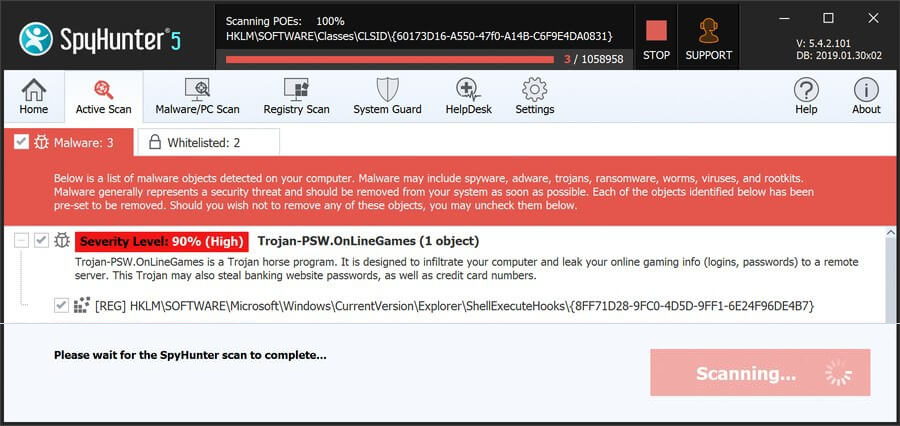
Searchcalm.com may expose your browser to redirects, ads, and persistent unwanted components. Install SpyHunter Pro to scan for risks, remove related threats, and enable real-time protection.
 OFFER
OFFER*Source of claim SH can remove it. Trial w/Credit card; image is for illustration; full terms.
How to Remove Searchcalm.com (Tutorial)
Avoid reacting to scare pop-ups. Audit browser processes, verify notification permissions, and escalate only when confirmed. Document each modification for rollback capability. Searchcalm.com exploits rushed responses and unverified settings to maintain persistence.
Quick Steps to Remove Searchcalm.com
- 1.1Start with visibility before removal: open your daily browser and go into Settings.
In Chrome, click the three dots at the top right.
In Firefox, select the three horizontal bars in the same corner.
Enter Extensions or Add-ons and scan the list for items you don’t remember adding. Because Searchcalm.com can arrive as an add-on, this view often exposes it quickly. - 1.2Problem→diagnosis→fix: unknown add-on present, uncertain trust, remove it after verification. Inspect each entry’s name, icon, permissions, and description. Look for subtle brand lookalikes or excessive permissions. If suspicion remains, click Remove. Still on the fence? Search the exact name in quotes to find community reports, then decide.
- 1.3Cause→effect→action: when sites keep pinging you, permissions likely remain active. Open Privacy and security and choose Site permissions. Check entries for microphone, camera, location, and notifications. Revoke access for domains you don’t distinctly trust. Extra tip: review Background sync if available to cut persistent prompts.
- 1.4Decision-rule: unknown domain equals no permission. Delete any unfamiliar sites from those lists, then close your browser completely and relaunch it so changes load fresh. A full restart of the app helps ensure cached rules don’t linger and lets you confirm the noise is gone.
These quick actions often quiet hijacks without deeper surgery. If homepage, search, or notifications still misbehave, that hints at configuration enforced by policies or files outside normal settings. Proceed methodically through the next sections to remove persistent components and keep them from returning.
SUMMARY:
| Name | Searchcalm.com |
| Type | Browser Hijacker |
| Detection Tool |
We tested that SpyHunter successfully removes Searchcalm.com* and we recommend downloading it. Manual removal may take hours, it can harm your system if you re not careful, and Searchcalm.com may reinstall itself at the end if you don't delete its core files. |
How to Get Rid of Searchcalm.com (Detailed Removal)
Treat unexpected “Managed by your organization” notices as policy enforcement warnings. Remove unauthorized administrative controls before resetting configurations, or they’ll reapply at startup. Searchcalm.com leverages these management layers to restore hijacked browser settings.

1. Identify the Searchcalm.com Policies
- 1.1
 What triggers that management banner? Policies do. In Chrome, type chrome://policy and press Enter; in Edge, use edge://policy. Let the page populate and read through each listed item carefully. Note anything unrelated to your known tools because Searchcalm.com can hide behind neutral labels.
 - 1.2Vague names lead to missed threats, so expand entries and review values. Watch for generic identifiers or suspicious URLs. Take screenshots or write down the exact policy names and values you don’t recognize. Those details will guide you to matching files and keys later.
- 1.3A policy points to an add-on you can’t place. Open the Extensions page and toggle Developer mode on. Record each extension’s ID and install path. With IDs in hand, you can map policies to files, making manual removal accurate instead of guessy.
- 1.4If the Extensions page refuses to open or crashes, bypass the browser UI. Launch File Explorer so you can work directly with extension folders without interference. This avoids scripts that might block management pages.
- 1.5
 Open File Explorer, go to C:\Users[Your Username]\AppData\Local\Google\Chrome\User Data\Default\Extensions, compare folder names to the IDs you captured, and identify the match. After confirming it isn’t a legitimate tool, delete that folder to disrupt the persistence chain tied to the policy and extension.
 - 1.6
 Different browser, same approach. Under AppData for Brave, Opera, or another Chromium-based browser, locate their Extensions directory, match the IDs, then remove the offending folder. Consistency across Chromium simplifies cross-browser cleanup.
 - 1.7Deletion on disk should reflect in the UI. Return to Extensions with Developer mode still enabled and confirm the bad entry is gone. If it reappears, remove it again, disable sync temporarily, and check for residual profile data that might be restoring it on sign-in.
Searchcalm.com may expose your browser to redirects, ads, and persistent unwanted components. Install SpyHunter Pro to scan for risks, remove related threats, and enable real-time protection.
*Source of claim SH can remove it. Trial w/Credit card; image is for illustration; full terms.
Delete Searchcalm.com Virus Policies
Registry policy edits require precision – back up first, confirm key paths, and assume ownership cautiously. Track all deletions for later restoration if instability occurs. Searchcalm.com commonly embeds control keys under vendor-specific registry hives.
2. How to Delete Searchcalm.com Policies Through the Registry
- 2.1How do you change policy keys safely? With a backup. Press Win + R, type regedit, and press Enter to open Registry Editor. Go to File > Export and save a full backup. If something breaks, you can restore this copy and return to a known-good state.
- 2.2You know the policy name or extension ID, but not its location. Hit Ctrl + F or Edit > Find, search for that exact text, and use Find Next repeatedly. Remove entries tied to the hijack, continuing the search until no more matches appear across the registry branches.
- 2.3Additionally, search for the following extension IDs, as those are also known to be linked to this hijacker:
→ ahfgeienlihckogmohjhadlkjgocpleb : Web Store : version 0_2
→ akknpgblpchaoebdoiojonnahhnfgnem : Browser Boost – Extra Tools for Chrome : version 1_3_8
→ albibfnhpoeopdpcpcpcgfeblcpmfcbb : Shopify Navigation Tool : version 1_4_3
→ bbobopahenonfdgjgaleledndnnfhooj : AB Download Manager Browser Integration : version 1_0_7
→ bcjindcccaagfpapjjmafapmmgkkhgoa : JSON Formatter : version 0_7_3
→ bpoadfkcbjbfhfodiogcnhhhpibjhbnh : Immersive Translate – Translate Web & PDF : version 1_15_8
→ ckejmhbmlajgoklhgbapkiccekfoccmk : Mobile simulator – responsive testing tool : version 4_5_1
→ dmghijelimhndkbmpgbldicpogfkceaj : Dark Mode : version 0_5_3
→ fdpohaocaechififmbbbbbknoalclacl : GoFullPage – Full Page Screen Capture : version 8_5
→ gebbhagfogifgggkldgodflihgfeippi : Return YouTube Dislike : version 3_0_0_18
→ gppongmhjkpfnbhagpmjfkannfbllamg : Wappalyzer – Technology profiler : version 6_10_79
→ jabopobgcpjmedljpbcaablpmlmfcogm : WhatFont : version 3_2_0
→ kejbdjndbnbjgmefkgdddjlbokphdefk : Tag Assistant : version 25_77_2_44
→ ljfdccdjpfjpfjbpdiihanpodilolofh : Pause – Stop Mindless Browsing : version 1_0_1
→ mdhellggnoabbnnchkeniomkpghbekko : Page Manipulator : version 0_5_5
→ mhjfbmdgcfjbbpaeojofohoefgiehjai : Chrome PDF Viewer : version 1
→ mnojpmjdmbbfmejpflffifhffcmidifd : Brave : version 1_0_0
→ nhdogjmejiglipccpnnnanhbledajbpd : Vue.js devtools : version 7_7_0
→ okpjlejfhacmgjkmknjhadmkdbcldfcb : User CSS : version 2_2
→ ponfpcnoihfmfllpaingbgckeeldkhle : Enhancer for YouTube™ : version 3_0_6
- 2.4
 A stubborn key refuses deletion. Right-click the key, choose Permissions, click Advanced, then Change next to Owner. Enter Everyone, click Check Names, and press OK. With ownership adjusted, you’ll have rights to modify or remove the key blocking your cleanup.
 - 2.5
 Enable Replace owner on subcontainers and objects, enable Replace all child object permission entries with inheritable permission entries from this object, click Apply, click OK, delete the problematic key, and reboot Windows. After restarting, open the browser to confirm the Managed by your organization message no longer appears.
This gives you the access needed to delete the rogue key.
Alternative Tools to Delete Searchcalm.com Policies
Residual policies may hide in Local Group Policy or vendor templates. Inspect these areas with admin tools, clear caches, and reboot to enforce clean settings. Searchcalm.com frequently uses policy templates to reinstate browser hijacks.
3. Other Ways to Get Rid of Searchcalm.com Policies
- 3.1
 If the registry looked clean but policies remain, open Local Group Policy Editor. Press Win + S, type Edit Group Policy, press Enter, then expand Administrative Templates. Items here can override browser preferences and silently restore undesired values.
 - 3.2
 Unknown template equals removable. Right-click Administrative Templates, choose Add/Remove Templates, and remove entries you don’t recall adding yourself. Clearing stray templates can dissolve policy objects that were used to enforce the hijack’s behavior.
 - 3.3Answer: need a targeted cleanup for Chrome policies? Yes – consider a trustworthy Chrome Policy Remover utility. Install it, then right-click and choose Run as administrator so it can enumerate protected locations and reset hidden policy values thoroughly.
- 3.4A cleaner flagged by Defender isn’t always malicious. If you trust it, click More info followed by Run anyway. After the tool completes, restart the system and recheck chrome://policy or edge://policy. An empty or expected list confirms policy enforcement has been lifted.
Uninstall Searchcalm.com From Chrome, Edge, and Other Browsers
Finalize remediation by reviewing extensions, cached data, permissions, and startup preferences. Confirm the browser launches with stable configurations post-restart. Searchcalm.com typically loses persistence once all profiles and defaults are properly realigned.
4. How to Remove Searchcalm.com From Your Browser
- 4.1Where do unwanted changes usually re-enter? Extensions. Open Extensions or Add-ons and remove anything unfamiliar. If the same entry keeps returning, sign out of the browser’s sync temporarily, remove it again, and proceed so the clean state persists to the cloud later.
- 4.2
 Leftover site data can store rules that trigger redirects. Open Clear browsing data, set Time range to All time, select everything except Saved passwords, and click Clear data. This wipes cookies and caches that commonly drive notification spam or altered search paths.
 - 4.3
 If you don’t remember granting it, revoke it. Go to Privacy and security → Site settings. Review camera, microphone, and notifications permissions, then remove entries you don’t explicitly trust. This stops push pop-ups and background prompts from reappearing.
 - 4.4
 Hijacked search produces odd results and redirect chains. Open Search engine → Manage search engines. Delete unfamiliar providers and set Google, Bing, or DuckDuckGo as default. Confirm no custom URLs remain that could rewrite your queries.
 - 4.5Startup pages keep pulling you off course. Open On startup and Appearance. Replace any unexpected homepage or startup pages with your preferred site, then remove additional URLs. A clean startup prevents surprise tabs and keeps your chosen page consistent.
How to Avoid Searchcalm.com in the Future
Beyond the obvious “don’t click sketchy download buttons,” avoiding Searchcalm.com means hardening the exact places this hijacker abuses. This family typically rides in via bundled installers, deceptive ads/fake download links, and extensions that later turn malicious; once in, it hides in Chrome’s Manage search engines → Site search, seeds covert “Google” entries, or even uses policy-style locks.
- Disable Automatic Downloads. In your browser, go to Settings → Downloads and enable the option to always ask where to save files. This single toggle blocks silent drops from fake “Download” buttons – the kind that frequently lead to hijacks like Searchcalm.com.
- Use Enhanced Security in your browser. In Chromium browsers, open Privacy & Security → Security and turn on Enhanced protection and Always use secure connections. These raise warnings on malicious redirects and downgrade attempts, reducing the odds you’ll land on bogus pages that later steer searches through intermediaries (e.g., the Bing-hops many victims see).
- Install an ad-blocker. It’s not just for fewer interruptions – good blockers stop pop-ups and redirect chains that feed fake new tabs and rogue search pages, cutting off a major delivery vector.
- Harden your search stack. Periodically audit Settings → Search engine → Manage search engines and site search. Delete unknown “Site search” shortcuts (watch for innocuous names with odd targets or a Yahoo icon) and remove duplicate “Google” entries that point to unfamiliar domains.
- Audit extensions and policies. Monthly, prune unused add-ons and verify what’s active (chrome://system → extensions). Check chrome://policy – you shouldn’t see search/homepage policies on a personal device.
- Be mindful of Sync. If you ever see a redirect, pause Sync and clear synced data before signing into new devices; stale profile artifacts can re-seed the hijack even after a clean install.
Finally, stick to official sites/stores, choose Custom/Advanced in installers to deselect extras, and review installed apps periodically for unfamiliar entries.
