

About HybridPetya: don’t let the “ransomware is fading” talk lull you – this thing didn’t retire, it learned new tricks. time out here: if your machine boots with UEFI and you’ve been leaning on Secure Boot as your last shield, assume it’s not enough. HybridPetya revives the Petya/NotPetya stunt, but meaner: instead of nibbling files, it goes for the NTFS Master File Table, so Windows can’t find anything, while a fake CHKDSK screen keeps you calm. Then the big, scary note pops up and asks for $1,000 in Bitcoin – “pay to get your life back.” Don’t.
HybridPetya may expose your browser to redirects, ads, and persistent unwanted components. Install SpyHunter Pro to scan for risks, remove related threats, and enable real-time protection.
 OFFER
OFFER*Source of claim SH can remove it. Trial w/Credit card; image is for illustration; full terms.
Recovery is often not possible without the attackers’ key, and paying just feeds the beast. HybridPetya plants a pre-OS bootkit on the EFI System Partition, dodging Secure Boot checks (think CVE-2024-7344 vibes), crashes you, and takes over before your EDR can even wake up. Remove it first, then try restoring – otherwise you’ll lock the same files twice.

SUMMARY:
HybridPetya Removal and Decryption Guide
The moment you suspect a ransomware incident, cut network access immediately. Unplug the Ethernet cable, turn off Wi-Fi, and stop any VPN session. This limits command-and-control chatter and blocks fresh payloads linked to HybridPetya. Avoid syncing drives or cloud folders until you are confident nothing else will execute or propagate over your network.
With connectivity severed, power the machine down fully. Shutting Windows halts any active encryption threads and stops scheduled components from queuing new tasks tied to persistence. Resist the urge to click around investigating HybridPetya on the affected computer. Use a clean device to read these instructions and gather tools safely.
Taking the system offline and then powered off narrows the blast radius to the current host and preserves forensic clues. Ransomware thrives on uptime and accessible filesystems, so reducing execution time matters. Treat HybridPetya as a live incident rather than a nuisance; containment first, everything else second.
How to Remove HybridPetya
Before attempting any recovery, eliminate the underlying threat. Restoring files while the malware remains risks immediate re-encryption and wasted effort. The safest order is removal, validation, and only then recovery. Treat system changes methodically, keeping notes about what you remove that appears linked to HybridPetya.
There are two broad strategies: manual clean-up or automated scanning. Manual work offers visibility but demands sound Windows hygiene and attention to detail. Components can hide under plausible names, using folders a user often ignores. If you proceed manually, assume HybridPetya may use multiple launch points you must neutralize.
Automated tools can help find leftovers you missed. A reputable anti-malware or EDR scanner can sweep startup locations, scheduled tasks, and common drop paths without guesswork. Keep the system offline during preparation to avoid reactivation. Rebooting only after removal and a secondary scan reduces the odds of HybridPetya relaunching.
Manual removal is workable if you’re precise. Deleting the wrong file can break legitimate software, while missing a single loader can reinstall everything. Combine process inspection with persistence checks. The goal is to stop execution, remove files, and then confirm no autoruns survive that could reload HybridPetya.
If you are ready for careful manual work, proceed in the exact order below. You’ll start with process triage, continue with file locations, and finish by clearing scheduled triggers. Afterward, a full antivirus scan remains recommended to confirm that HybridPetya fragments did not survive in obscure directories.
- Begin with situational awareness rather than deletion. Still offline, open Task Manager with Ctrl + Shift + Esc, expand More details, and switch to Processes and Details to view everything, including child processes that might relate to HybridPetya. Enable command-line columns in Task Manager settings for extra context.
- Suspicious utilization first or names first? Prefer behavior. Look for processes that spike CPU, Memory, or Disk unexpectedly, especially those executing from user-writable paths. If the image name resembles a system binary, check the path – legitimate svchost.exe is under C:\Windows\System32, not %Temp%.
- Found a candidate process that looks off? Confirm by right-clicking it and selecting Open file location to reveal the hosting folder. High-entropy names, recent timestamps, or companion .dll files in %AppData%, %LocalAppData%, or %ProgramData% point to a dropper. Attempt to delete the folder after closing visible apps.
- Can’t delete because the file is in use? That indicates a lock or driver. Diagnose by trying a safe unlocker – install LockHunter on a clean machine, copy the installer, then use it to unlock and delete the file securely. Once removed on disk, return to Task Manager and End task on the matching process.
- Persistence next, because removed binaries often auto-return via scheduled triggers. Launch Task Scheduler from the Start menu, open Task Scheduler Library, and expand subfolders. Look for newly created or oddly named tasks. Read General, Triggers, and Actions to learn how each task starts and what it runs.
- Unsure which tasks are malicious? Ask which ones execute from user paths. Tasks invoking %Temp%, %LocalAppData%, Downloads, or running stray .ps1, .vbs, or random .exe via cmd.exe /c are red flags. Tasks with At logon or On idle triggers commonly try to relaunch removed components silently.
- After confirming a bad task, act in sequence: disable it, then Delete it from Task Scheduler Library, and remove the referenced file path on disk if it still exists. Empty Recycle Bin. As a final pass, run a reputable antivirus scan offline to surface remnants the manual review missed.
How to Decrypt HybridPetya Files
Before any decryption attempt, verify the exact strain. Different families share note styles but use incompatible keys. Use ID Ransomware from a clean machine to upload a ransom note and one encrypted sample, or identify via attacker emails and extensions. This confirms whether the incident involves HybridPetya or another variant.
Remember the removal rule: decrypt only after eradication. Active malware can watch directories and re-encrypt outputs. Maintain offline status until you need to fetch a tool, then reconnect briefly, download safely, and disconnect again. Keep originals read-only while testing – quick copies prevent accidental corruption when dealing with HybridPetya.
Check Emisoft for HybridPetya Decryptors
Emsisoft publishes many free decryptors, and it should be your first search stop. Availability changes. If a decryptor exists for your case, use it exactly as intended and keep logs. The steps below describe typical usage when a matching tool is listed for HybridPetya on the Emsisoft site.
At the time of writing, there appears to be no HybridPetya decryptor on the Emsisoft website. However, this could change in the future and a decryption tool might become available. In case you are reading this once Emsisoft has released a decryption solution for HybridPetya, here’s how to use the tool to release your files:
When ready to check, reconnect to the internet, download the relevant Emsisoft decryptor, and Run as administrator so it can access protected locations impacted by HybridPetya.
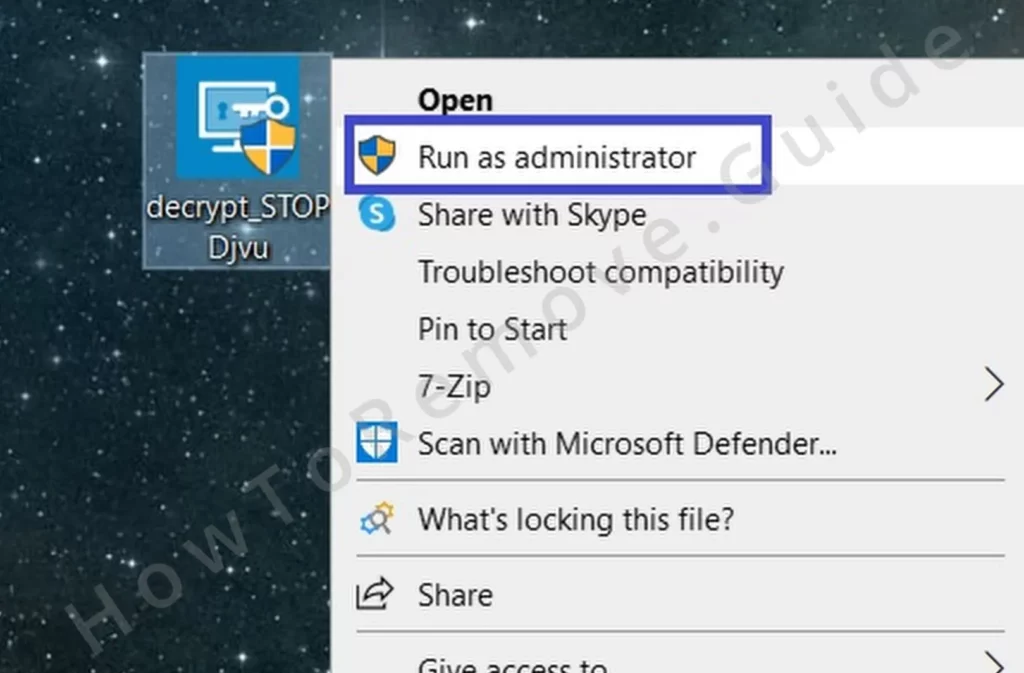
If the tool comes as an installer, complete the setup as prompted. Portable builds can be executed directly. Close other apps to reduce interference and to speed up file enumeration during analysis.
Inside the decryptor, choose Add Folder, then browse to every directory containing encrypted data – documents, desktop folders, shared workspaces, and backup copies. Include mapped drives only if they are safely isolated from production systems.
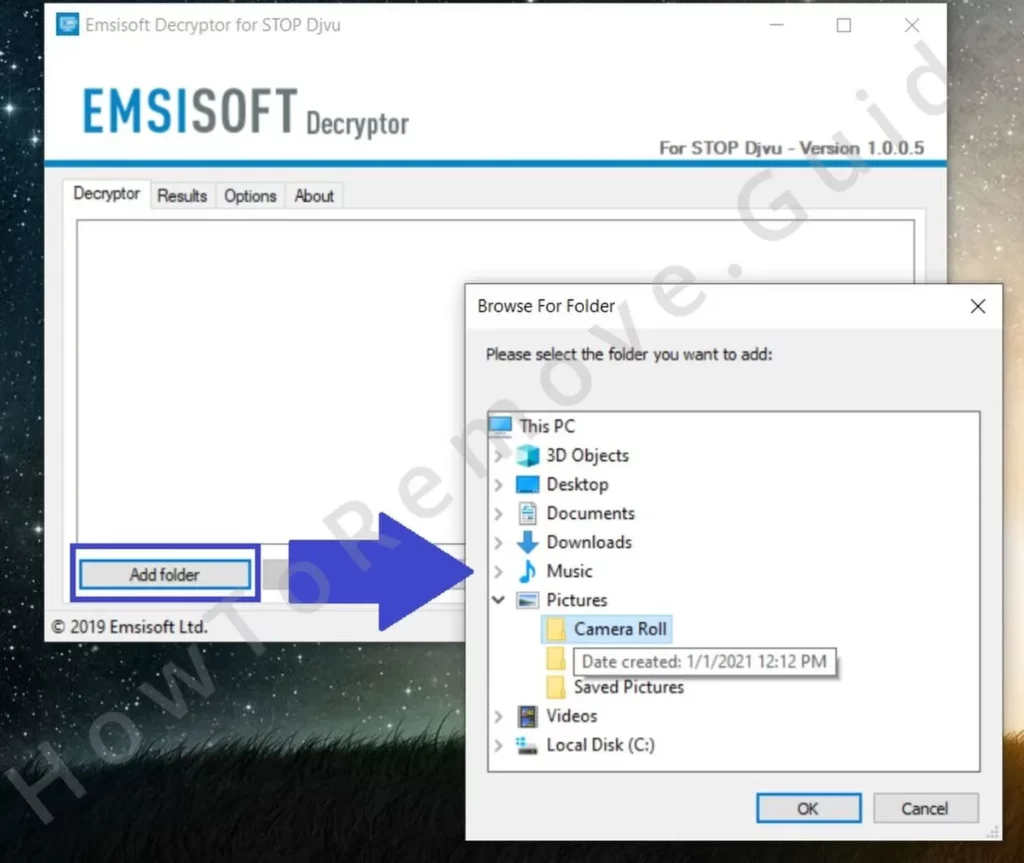
Start the process by clicking Decrypt. Large datasets can take significant time, so let it finish. Avoid moving files during processing. Watch for a log or report indicating how many files were processed and which ones failed.
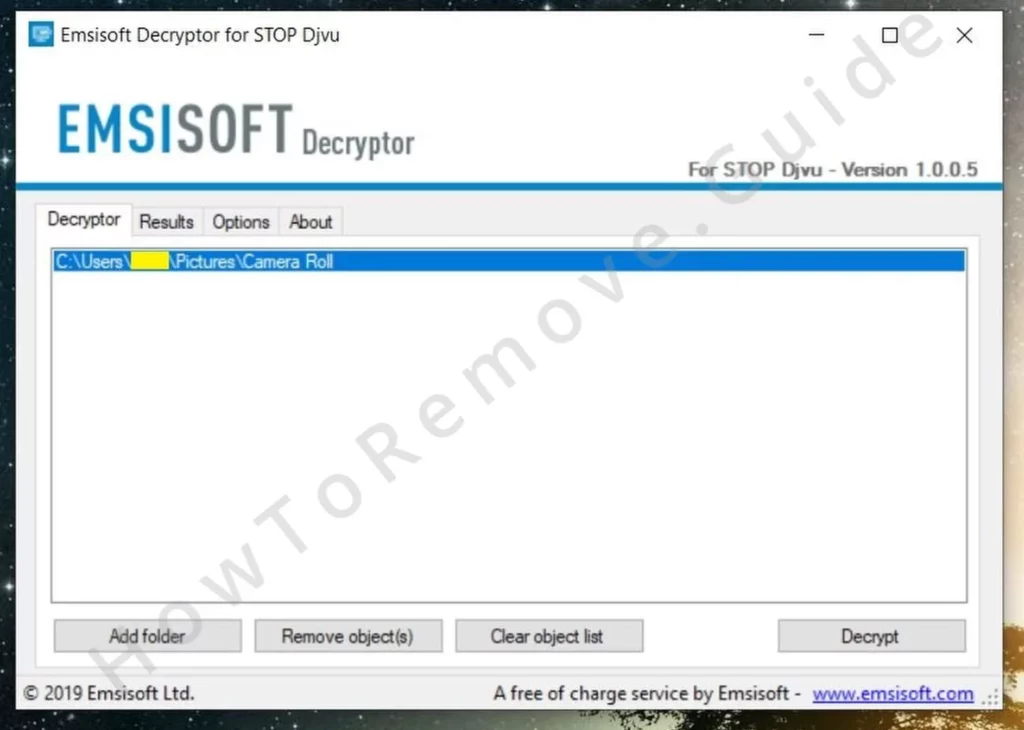
Keep the machine online throughout if the tool requires server-side key lookup. If an offline key was used during the attack, some files may decrypt. With an online key, recovery through this method might not be feasible. Preserve the logs for later review.
Recover HybridPetya Files With PhotoRec
When no decryptor exists or it fails, file recovery can still help. PhotoRec doesn’t unlock encrypted data; it digs for deleted originals the ransomware may have removed. Success varies by disk activity since deletion, so minimize writes. Treat the recovered set as working copies separate from data touched by HybridPetya.
Download and extract PhotoRec, then right-click qphotorec_win.exe and choose Run as administrator for full disk access and fewer permission issues.
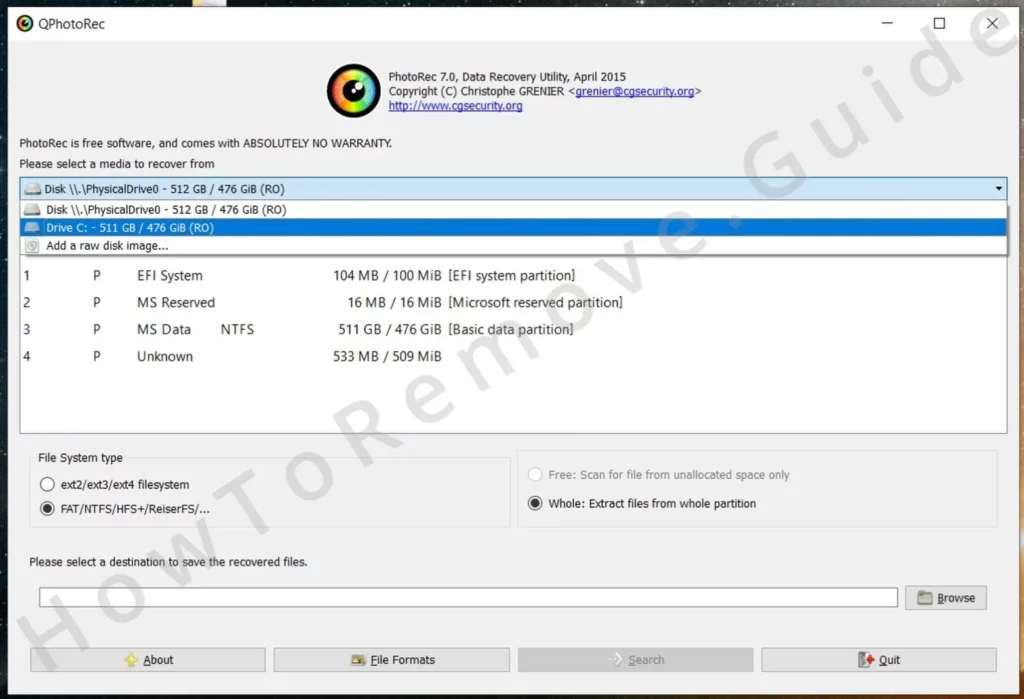
Use the drive selector to pick the affected disk, then select the relevant NTFS partition where the encrypted files reside. Confirm you’re targeting the correct volume by checking size and label.
Narrow the scope for speed by specifying target file formats in File formats. Focusing on documents, archives, and images makes scanning faster and reduces noise during the review phase.
Choose a recovery destination on a different physical disk or an external drive. Writing to the same partition can overwrite remnants you’re trying to salvage and reduce the recovery rate.
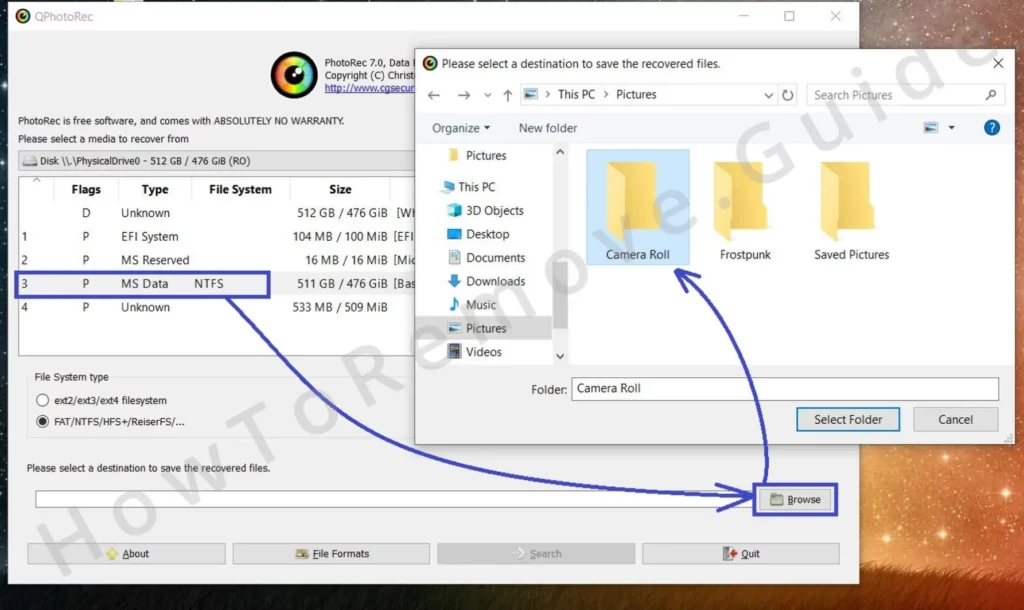
Click Search to begin. Let it run uninterrupted – deep scans can take hours depending on disk size and health. Avoid launching other programs that might create temporary files during this period.
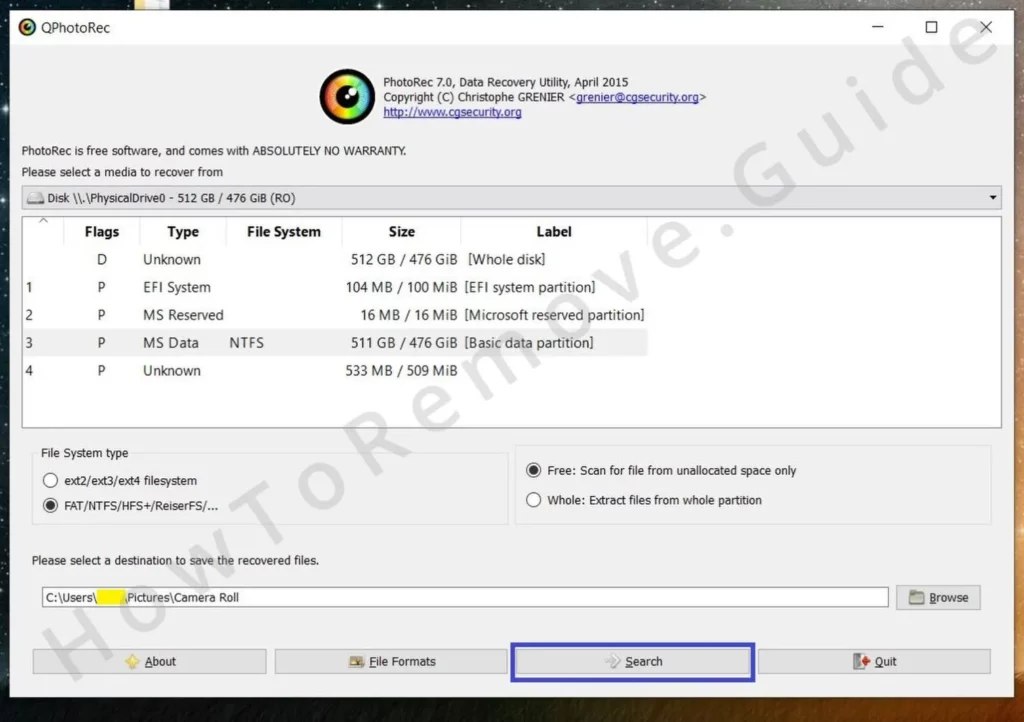
When the scan completes, open the output folders PhotoRec creates and review the results. Sort by type and date, then copy the useful items to a safe workspace. Keep originals unmodified while testing format integrity.
Restore HybridPetya Files With Media_Repair
For partially encrypted or damaged media, Media_Repair reconstructs playable versions using a clean reference. It works with MP3, WAV, MP4, MOV, 3GP, and M4V. The closer your reference matches the original capture settings – resolution, frame rate, codec, and duration – the better your odds after an incident involving HybridPetya.
Download Media_Repair and launch it. Administrative rights help when reading from protected folders or when saving outputs alongside the source material affected by HybridPetya.
In the program, browse to the directory holding the corrupted media and select the files to analyze. Use the upper right-hand icon to scan and let the tool decide which items look repairable.
If items are flagged as fixable, provide a suitable reference file created by the same device and settings. Select it, then click the lower right-hand icon so the tool can model the structure it needs.
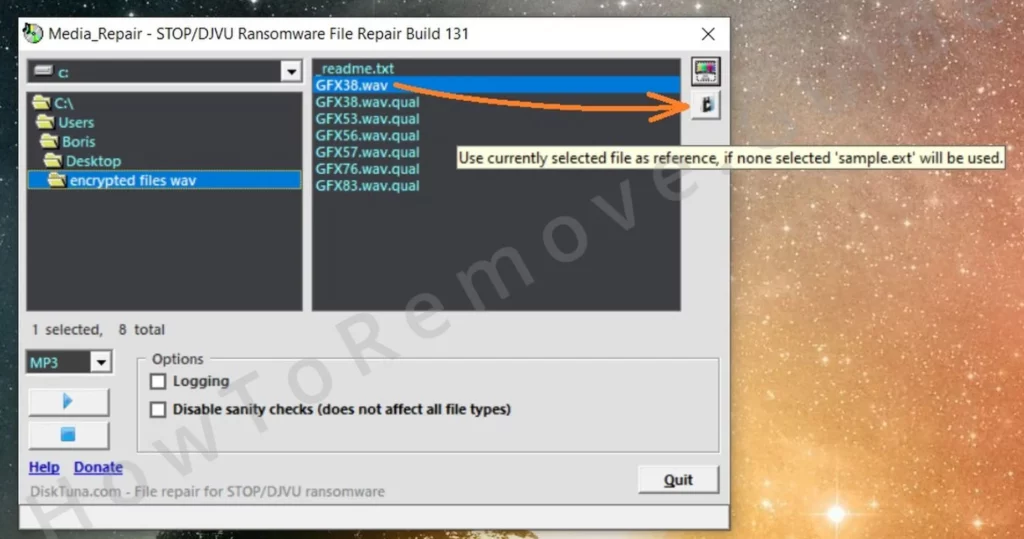
Choose the target files again and press Play to begin reconstruction. The runtime depends on file size and count; keep the system idle to prevent throttling and ensure consistent disk throughput.
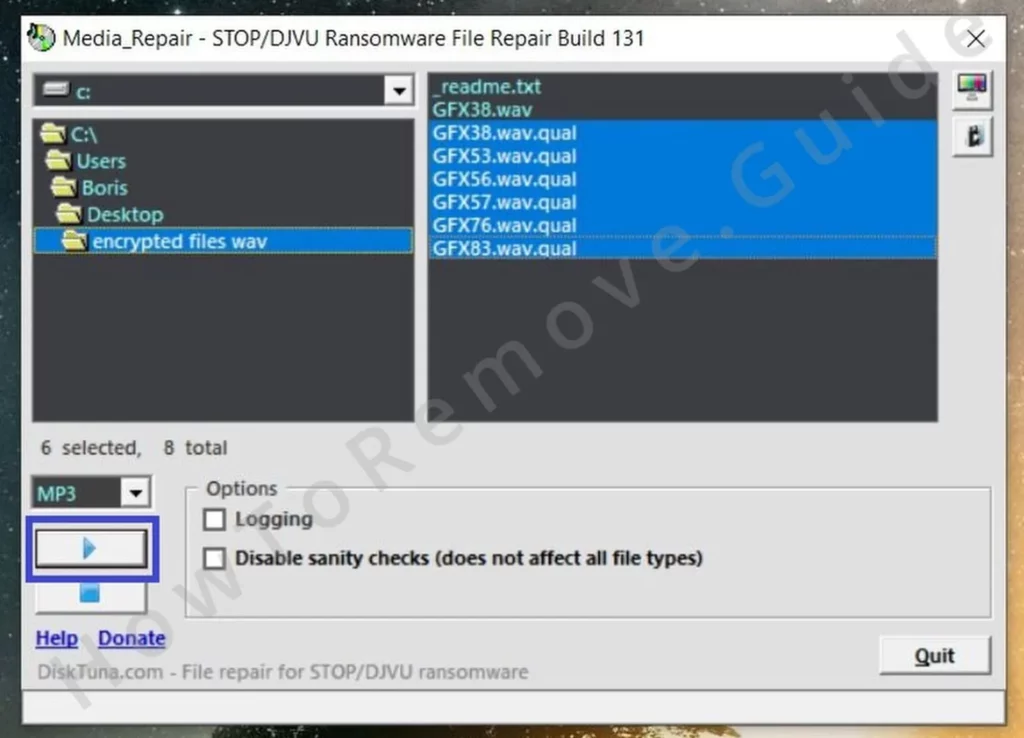
After processing, look for a newly created FIXED folder in the same directory. The tool writes reconstructed copies there so you can compare without touching the damaged originals.
Open the FIXED folder, test playback in a reliable player like VLC, and check audio-video sync, duration, and metadata. Keep any success cases, then archive the inputs and outputs for future reference.
Final Thoughts: Preventing Future Ransomware Attacks
Recovery is only half the story. Maintain offline or immutable backups, patch Windows and third-party software promptly, and enable SmartScreen plus Controlled folder access on supported editions. Be selective with macros, installers, and browser extensions. Most importantly, never pay ransoms; invest that energy in layered defenses and rehearsed incident response.