

Beyond The Dark Malware shows how a trusted gaming platform can be abused to reach ordinary users. The threat appeared as a free Steam title, but it was tied to information theft instead of harmless indie gameplay.
One red flag was the abuse of a Unity-related library file, the kind of component many games need to run. Because that file type can look routine to players, the danger could stay hidden behind Steam branding and positive-looking review activity.
The suspected goal was not just to annoy the victim. The malware, similar to other threats like Trojan:Win32/Cerdigent.A!dha and Trojan:Win32/JScealTaskExec, reportedly looked for browser extensions tied to cryptocurrency wallets, DeFi tools, passwords, and certain gaming accounts, while also creating a path for more unwanted software to be downloaded later.
UnityPlayer.dll may expose your browser to redirects, ads, and persistent unwanted components. Install SpyHunter Pro to scan for risks, remove related threats, and enable real-time protection.
 OFFER
OFFER*Source of claim SH can remove it. Trial w/Credit card; image is for illustration; full terms.
Anyone who installed or opened Beyond The Dark should treat the device as potentially compromised and avoid logging into sensitive accounts until it is checked. If manual cleanup feels too difficult, SpyHunter 5 can be used to help remove unwanted programs and viruses.
Beyond The Dark Malware Removal Guide
The first removal section gives you a faster way to look for Beyond The Dark Malware in the most obvious places before you spend time on the full procedure. Try it before the longer guide. If it removes the visible app and no symptoms return after reboot, the deeper checks may not be necessary.
Quick Manual Removal for Beyond The Dark Malware – Try This First
- 1.1First, go to your downloads folder (This PC > Downloads), sort the items there by date, and see if any suspicious files have been downloaded recently. Found anything fishy? Delete it before continuing.
- 1.2Next, go to the Start Menu, navigate to Settings (the gear icon), and then to Apps.
- 1.3You’ll see all installed programs listed on that page – sort them by installation date and look for Beyond The Dark Malware or anything else that looks suspicious, like UnityPlayer.dll or Unity.dll, unfamiliar, or unwanted.
- 1.4If you find Beyond The Dark Malware or another sketchy app, select it and start the uninstallation process. Be careful when following the uninstallation prompts so that you don’t let anything linked to the program remain on your PC.
-
1.5Afterward, look for the installation directory. You’ll often find it at
C:\UserNames\UserName\AppData\Local\Programs\, but it might also be elsewhere. - 1.6If you find the malware folder, remove it together with any leftover files that might still be in it.
Once those quick checks are complete, reboot and give Windows a moment to load normally. If the same program, process, warning, or suspicious behavior appears again, continue with the complete guide because the infection is likely using persistence points outside the easy uninstall path.
SUMMARY:
How to Fully Get Rid of Beyond The Dark Malware
SpyHunter 5 is placed at the start of the full guide because it can search for Beyond The Dark Malware and related traces automatically, including items that are easy to overlook by hand. You can skip this step, but it is strongly recommended because a complete scan may remove the threat before the advanced steps are needed.
Fastest Removal Option: Use SpyHunter 5
- 1.1Click here to download and install the anti-malware tool on your PC.
- 1.2
 Start SpyHunter 5, click the Buy button and choose between starting your 7-days free trial or directly purchasing the tool.
If you choose to buy SpyHunter 5 now, you can use our discount code, “HTRG15“, for 15% off.
- 1.3
 Once you activate SpyHunter, click Start Scan Now, select the Full Scan option, and let the tool do its job.
 - 1.4
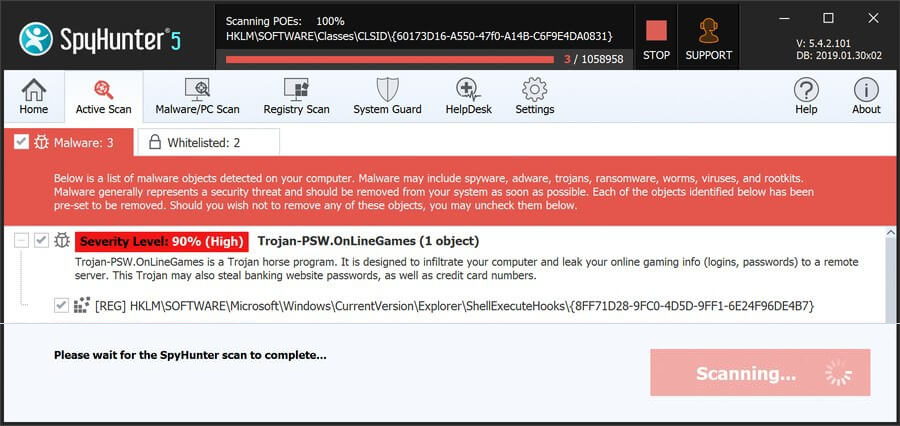
 Once the scan completes (it could take a while, so have patience), you’ll see all malware and other undesirables listed.
Click Next to review the detections and then click Next again to delete all rogue items.
Preparatory Steps for Removing Beyond The Dark Malware
Manual cleanup of Beyond The Dark Malware is easier when Windows is ready to show hidden content and when you have a tool for files that refuse deletion. Complete these preparations first so later folder checks are not blocked by hidden directories or files locked by active rogue processes.
1. Preparing for the Beyond The Dark Malware Removal
- 1.1
 The first preparatory step you must perform is to enable the visibility of hidden files and folders.
Do this by searching for Folder Options in the Start Menu and selecting the View tab. Then activate “Show hidden files and folders” and save the change by clicking Apply and then OK. - 1.2Next, you’ll need to download and install a free utility called LockHunter It’s crucial because it lets you delete files locked by malicious processes.
Some people prefer not to add another program while cleaning their PC, and that is understandable. The reason LockHunter is included here is practical: malware files can remain undeletable until the process holding them is released or removed.
The utility does not require payment or registration, and installation is usually fast. Use it as a focused helper for the folders named in the guide, especially when Windows says a file or folder is currently in use.
Remove Beyond The Dark Malware Processes From the Task Manager
In Task Manager, Beyond The Dark Malware may appear as a process with a generic, misspelled, or unrelated name. Do not expect one exact label. Look for odd resource use, strange publisher details, suspicious file locations, and processes that appeared around the time the problem started.
2. How to Delete Beyond The Dark Malware Processes in the Task Manager
-
2.1This is done through the Task Manager which you can open by pressing
Ctrl + Shift + Esc. - 2.2If it shows a simplified view, click More Details to expand it and see all running processes.
- 2.3
 Sort the list of processes by how much Memory or CPU they are using. Then look out for any that are using unusually large amounts of either resource type and yet don’t seem related to any legitimate programs that you have on your PC.
Note: Don’t expect to find a rogue process named “Beyond The Dark Malware“. Most forms of malware will hide their processes under innocent-looking names.
- 2.4For each dubious process, right-click it and select Open file location. This will lead you to a folder where the data used by this process is stored.
- 2.5You must delete that entire folder, but you’ll likely get an error when you attempt to do that because some of the files there are in use by the malware. The workaround is to use LockHunter: right-click the folder, select “What’s locking this folder?” from the context menu, and click Delete in the next window.
- 2.6After removing the files, go back to Task Manager, write down the name of the rogue process (you’ll need it later), then click it, and click the End Task button to quit it.
Delete Beyond The Dark Malware Virus Files
File cleanup needs patience because Beyond The Dark Malware may leave support files in several Windows locations rather than one obvious folder. Work through each directory in this section and be thorough with Startup, Program Files, AppData, and temporary files, since a small leftover component may be enough to restore the infection.
3. How to Get Rid of Beyond The Dark Malware Files
-
3.1Start by examining the Startup folders at:
C:\ProgramData\Microsoft\Windows\Start Menu\Programs\StartupC:\Users\*Your Username*\AppData\Roaming\Microsoft\Windows\Start Menu\Programs\Startup -
3.2Search them for suspicious files, but if you aren’t what files are rogue, just delete everything in those folders except for the
desktop.inifile, which is a standard system file. -
3.3Next, inspect the
Program FilesandProgram Files (x86)in yourC:drive. Some malware apps will create folders there, so look for anything that looks linked to Beyond The Dark Malware or that is otherwise unrecognized or out-of-place folders. Delete anything suspicious you may find. -
3.4Three other locations you must check are:
C:\Users\%user%\AppData\Local\C:\Users\%user%\AppData\Local\Programs\C:\Users\%user%\AppData\Roaming\Microsoft\Windows\Start Menu\Programs\
Again, if you notice anything fishy in them, it must be deleted. And if there’s a folder you aren’t sure about, it’s probably best to get rid of it. At worst, it will be something harmless linked to a legitimate program in your system. However, if you didn’t recognize its name right away, chances are it’s something you either don’t need or something that’s outright unwanted (like Beyond The Dark Malware ). -
3.5
 Finally, remember to clear the Temp folder. It’s located at
C:\Users\YourUsername\AppData\Local\Temp.
It stores only temporary files, which are all okay to delete. So, to save yourself some time spent looking for malware files, just Ctrl + A to select everything, and then press Delete from your keyboard to delete all of the folder’s contents.
Get Rid of Beyond The Dark Malware Scheduled Tasks
A scheduled task can let Beyond The Dark Malware run again after every restart or launch a file that rebuilds removed components. This is why Task Scheduler deserves a separate check. If a task points to an unknown executable or a suspicious folder, remove the task and then delete the file it launches.
4. Eliminate Beyond The Dark Malware Scheduled Tasks
- 4.1
 Open the Task Scheduler by searching for it in the Start Menu search bar. Then, one by one, review the scheduled tasks in the Task Scheduler Library.
 -
4.2For each task, double-click it and open the Actions tab, where you can learn what it is that the task is set to perform. Look for tasks that run unfamiliar executables, scripts, or anything located in the
AppDataorRoamingdirectories. - 4.3If you come across a task that executes anything suspicious, write down its file path, then right-click the task, and select Delete.
- 4.4After that, go to the file path you saved and delete the file that the task was set to run.
Uninstall the Beyond The Dark Malware Malware App Through the Windows Registry
The registry can store launch points that keep Beyond The Dark Malware connected to Windows startup, so this step can be important after files and tasks are removed. It is also the most sensitive part of the manual process. If you are unsure, let SpyHunter 5 handle registry cleanup instead of deleting entries yourself.
5. Remove Beyond The Dark Malware Through the Registry
- 5.1Type “regedit” in the Start Menu and hit Enter to go to the Registry Editor.
- 5.2Then click Edit > Find to open the search box and then type the exact name of whatever program you tried to uninstall during the quick steps at the start of the guide.
- 5.3Click Find Next and if a result comes up, click the registry key (folder) in the left panel that contains it and delete that key. Perform another search after each deleted key until there are no more results for that search query.
- 5.4Next, search for the name of any other programs you attempted to delete. Also search for the names of processes you ended in the Task Manager earlier in the guide.
-
5.5After you’ve deleted all relevant entries, manually navigate to these registry keys:
HKCU\Software\Microsoft\Windows\CurrentVersion\RunHKCU\Software\Microsoft\Windows\CurrentVersion\RunOnceHKLM\Software\Microsoft\Windows\CurrentVersion\RunHKLM\Software\Microsoft\Windows\CurrentVersion\RunOnceHKLM\Software\Microsoft\Windows\CurrentVersion\Policies\Explorer\RunHKCU\Software\Microsoft\Windows\CurrentVersion\Policies\Explorer\RunHKEY_LOCAL_MACHINE\Software\Microsoft\Windows\CurrentVersion\RunServicesHKEY_LOCAL_MACHINE\Software\Microsoft\Windows\CurrentVersion\RunServicesOnceHKEY_LOCAL_MACHINE\Software\Microsoft\Windows\CurrentVersion\RunOnce\SetupHKEY_LOCAL_MACHINE\SYSTEM\CurrentControlSet\services - 5.6Select each of these keys to reveal their contents in the right panel. Then look for values referencing Beyond The Dark Malware or any unknown applications. Delete only the specific values linked to the malware and leave the keys that contain them intact.
