

High CPU usage from “Endpoint Protection Service” can make even powerful Windows machines stutter, overheat, or drain battery life.
Whether the culprit is Microsoft Defender, Surfshark, F-Secure, or another antivirus module hiding behind this generic label, the problem usually comes down to how security engines scan files, verify signatures, or overlap with other protection software.
This guide unpacks how to identify the exact product responsible, apply safe short-term fixes, and fine-tune scan schedules so your system stays secure without burning CPU cycles.
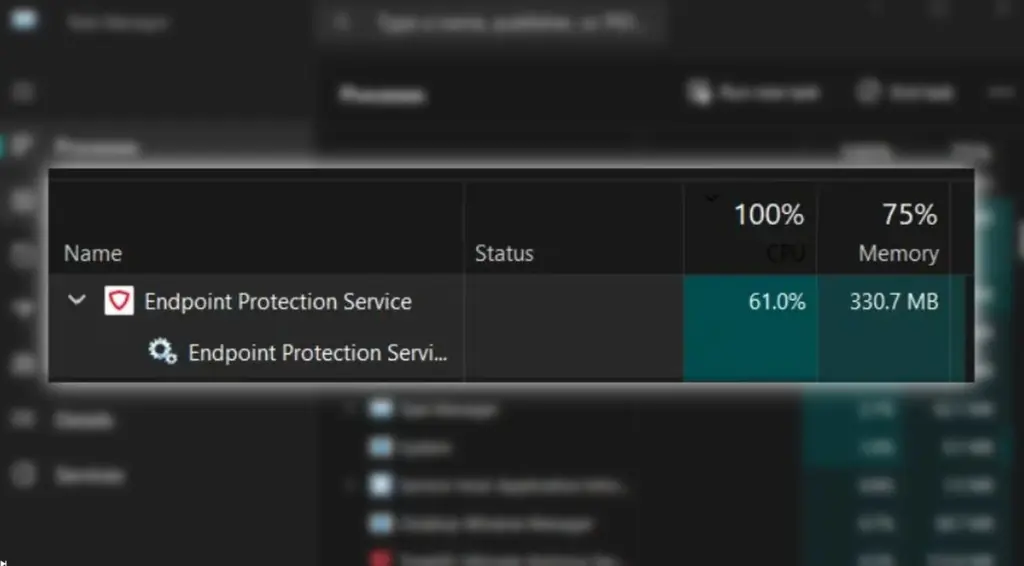
Endpoint Protection Service High CPU on Windows 10/11 – Identify the Actual Product and Process
You see, “Endpoint Protection Service” isn’t a single program – it’s a name many antivirus vendors use for their protection engine.
To find out which one you’re dealing with, open Task Manager, locate Endpoint Protection Service, right-click it, and select Open file location.
The folder path reveals the real product. For example, C:\Program Files\Windows Defender points to Microsoft Defender (MsMpEng.exe), while C:\Program Files (x86)\Surfshark\Endpoint Protection SDK belongs to Surfshark’s bundled antivirus.
F-Secure systems show …\F-Secure\TOTAL\epp\Endpoint Protection SDK, which uses Avira’s engine under the hood.
Sometimes, two processes share the same name – one legitimate, one malicious. If you see duplicates, right-click each one, open its location, and delete any impostor after stopping its helper process. You might need to take folder ownership to remove it.
Corporate devices complicate things further. Tamper protection may prevent you from disabling real-time scanning or adjusting settings, and you might not have administrator rights.
In that case, log CPU usage over time instead of reacting to momentary spikes – open Resource Monitor, watch CPU percentages for a few minutes, and note which process consistently sits at the top. That way you’re diagnosing an ongoing issue, not just a five-second surge caused by a scheduled scan.

Fix Endpoint Protection Service High CPU
Before trying anything complex, establish a clean baseline and avoid false positives caused by brief, normal spikes. Start by making sure the operating system and your security suite are fully updated, since many CPU spikes are fixed by routine engine or definition updates. Give the machine a full reboot afterward to clear stuck scans and pending restarts. If your device runs more than one security tool, decide which one should handle real-time scanning and turn the others’ real-time features off so they don’t compete.
- Update everything – both Windows and your antivirus engine – and restart to flush stuck updates.
- Toggle real-time protection off temporarily. If CPU drops immediately, that’s your culprit. Re-enable protection after the test.
- Check for overlap. If you’ve installed another antivirus, VPN suite, or “security add-on,” make sure only one real-time scanner runs. Surfshark, TotalAV, and Spectrum bundles can each add an extra layer of scanning. Disable their Real-time protection or uninstall that module.
- Avoid peak hours. A full scan during work or gaming time will choke performance.
- Limit Defender’s CPU usage by opening PowerShell (Admin) and running:
Set-MpPreference -ScanAvgCPULoadFactor 30
This caps Defender’s scan load at 30%. - Purge history cache if Defender loops endlessly:
Delete all files in
C:\ProgramData\Microsoft\Windows Defender\Scans\History\Service
and restart.
Lastly, if Defender reports a stubborn file, run a Full scan to identify it, then disable Defender, restart, delete the file, enable Defender, and restart again.
Endpoint Protection Service High CPU During Scans
Full scans consume serious resources. They open, unpack, and analyze every file, including archives and network drives. Real-time protection already guards files as you use them, so you can safely make full scans less frequent or shift them to idle hours.
- To reschedule in Windows Defender, press Win + R, type taskschd.msc, and hit Enter.
- Navigate to Task Scheduler Library → Microsoft → Windows → Windows Defender, open Windows Defender Scheduled Scan, and edit the Triggers tab to choose off-hours.
- Under Conditions, uncheck options that let the scan start while you’re active, and clear Run with highest privileges so the process doesn’t compete with your work.
For other vendors, the same logic applies: move heavy scans to nights or weekends. Many products allow background or idle scans, which only run when the computer is locked or asleep. Limit scan targets too – exclude temporary build folders, virtual machines, or network caches that rebuild daily. I mean, there’s no reason to re-scan gigabytes of transient files that regenerate tomorrow.

Endpoint Protection Service High CPU After Updates
Sometimes CPU spikes appear right after a definition or Windows update. Defender or third-party engines may get stuck verifying new signatures, leading to loops. Start by forcing an update refresh inside the antivirus settings, then restart the PC. If Defender keeps consuming CPU, delete its history cache as noted earlier and restart again.
Persistent spikes may also indicate corruption in system files. Run Command Prompt as Administrator, then execute:
DISM.exe /Online /Cleanup-Image /RestoreHealth
sfc /scannow
Running DISM first repairs the Windows image that SFC relies on. When both complete, reboot. If you use F-Secure, check for Device Protection database updates within its interface – users reported CPU returning to normal immediately afterward. The key is distinguishing a short-lived spike after an update from a process that never calms down.
Endpoint Protection Service High CPU – What Reddit Gets Wrong
Reddit discussions on this issue are full of partial truths and oversimplified advice. Many users recommend turning off Defender completely or excluding its core folders to stop high CPU use.
In contrast, Microsoft documentation advises fine-tuning Defender’s policies, like setting scan CPU limits, reducing thread priority, and running scans only during idle time, rather than broad exclusions that weaken protection and fail to address real-time inspection modules.
Redditors also tend to blame Defender for “scanning itself,” while technical sources show the real culprits include unsigned executables, obfuscated scripts, network shares, and incomplete cache preparation in virtual environments.
Some suggest killing the process or resetting Windows, though official troubleshooting favors updating definitions, clearing the Defender history cache, and running DISM followed by SFC to repair system integrity.
Likewise, users often misidentify their service, when checking file locations would reveal the true vendor behind the CPU spike.
Vendor-specific Fixes for High CPU Use
When you know which product sits behind “Endpoint Protection Service,” the repair becomes more precise. Most suites include several modules – real-time scanning, intrusion prevention, behavioral monitoring, and cloud reputation checks.
Each can be isolated temporarily to test impact. Disable one feature at a time, wait a few minutes, then re-enable it once you’ve found the offending component. Update engines and reboot between tests; many vendors fix these bugs through silent hotfixes.
Surfshark’s antivirus component, for instance, caused major CPU spikes until users turned off Real-time protection in its Antivirus tab. F-Secure’s service (built on Avira’s SDK) often runs heavy right after startup while background apps load. Allow the machine a few minutes to settle, trim startup programs, and update the app to the latest build. If the problem persists, run DISM and SFC in that order, then check again after the system restarts.
Microsoft Defender (MsMpEng) High CPU
Defender’s MsMpEng.exe often misbehaves when scanning its own files or massive folders like build caches or virtual drives. Add these paths to Exclusions in Windows Security:
C:\Program Files\Windows Defender and your heavy project folders.
If that fails, limit CPU with PowerShell as shown earlier, clear Defender’s history, and reboot. When system files are damaged, run SFC /scannow to repair them.
Symantec/Broadcom (ccSvcHst, IDSVia64.sys) High CPU
In Symantec or Broadcom environments, ccSvcHst.exe and IDSVia64.sys can spike during network inspections. Narrow the issue by temporarily disabling Intrusion Prevention or Network Threat Protection modules. If CPU stabilizes, apply the vendor’s hotfix for that driver version, then re-enable protections. Keep only one active network inspection feature if another EDR tool already monitors traffic.
Sophos Endpoint Defense High CPU
Sophos users can toggle modules like Web Control, Ransomware/HMPA, and Machine Learning one by one. Disable a feature, observe performance, then restore it. If driver conflicts occur with backup or encryption tools, reprotect the device from the Sophos Central dashboard to reinstall clean drivers and definitions.
Trend Micro, F-Secure, Elastic Endpoint High CPU
Trend Micro, F-Secure, and Elastic products benefit from similar testing. For F-Secure, let the system idle after boot to complete startup scanning. Update the Device Protection database manually if usage persists.
On Trend Micro or Elastic, disable nonessential modules like behavior monitoring, reschedule full scans to nighttime, and review logs for repeating events or stale updates. I mean, once you spot which module keeps hammering the CPU, tuning becomes straightforward.

Prevent High CPU Use From Endpoint Protection
Prevention hinges on smart exclusions and sane scheduling. Add exceptions for developer folders such as node_modules, build caches, virtual machine images, Docker containers, and database files – anything frequently rewritten and low risk. Avoid scanning backup targets or entire external drives unless necessary.
Stagger full scans and definition updates so they don’t collide, and let each antivirus run by itself; leftover drivers from old security suites can double-scan the same files. Establish a baseline by checking normal CPU in Task Manager or Reliability Monitor after applying these changes. When future updates shift behavior, you’ll notice immediately and know it’s not your imagination.
Endpoint Protection Service – High CPU vs High Memory vs High Disk Use
High CPU means your antivirus is actively inspecting files or running a scan; high memory suggests a leak or self-scanning loop; high disk usage usually indicates indexing or full-scan activity.
Diagnose by opening Task Manager and sorting by each column. If Defender memory climbs over time, excluding its own folder or rebooting can help.
For corruption-related leaks, DISM and SFC repairs may restore stability. F-Secure users reporting long disk activity after startup found it linked to background updates or scheduled scans. Move those to off-hours to keep boot times manageable.
You see, uninstalling isn’t always the answer. If a VPN-bundled antivirus duplicates protection you already have, disabling that one component is safer than removing core endpoint security entirely.
Corporate machines may block uninstall actions anyway, so tuning and scheduling are often the only viable fixes.
Can I Remove the Endpoint Protection Service?
Removing antivirus entirely exposes the system unless another layer immediately takes over. On managed devices, tamper protection or group policy may reinstall it automatically. The safe route is to adjust exclusions, lower scan priority, or limit CPU share instead of removing protection outright. For personal systems, replace it only after installing a verified alternative.
Dealing With Endpoint Protection High CPU Usage – Conclusion
High CPU from Endpoint Protection Service is fixable with a clear sequence: identify the actual product in Task Manager, confirm it isn’t a look-alike process, then update and restart to clear stuck scans.
If the excessive usage persists, test safe tweaks like pausing real-time protection briefly, ensuring only one antivirus is active, rescheduling full scans to idle hours, and adding smart exclusions for heavy folders or the Defender program path.
For Defender, cap scan CPU and clear the history cache if it loops; if system files look corrupted, run DISM followed by SFC. Vendor specifics matter too: disable Surfshark’s real-time module, let F-Secure settle and update, and isolate modules in Symantec, Sophos, Trend Micro, or Elastic.
