

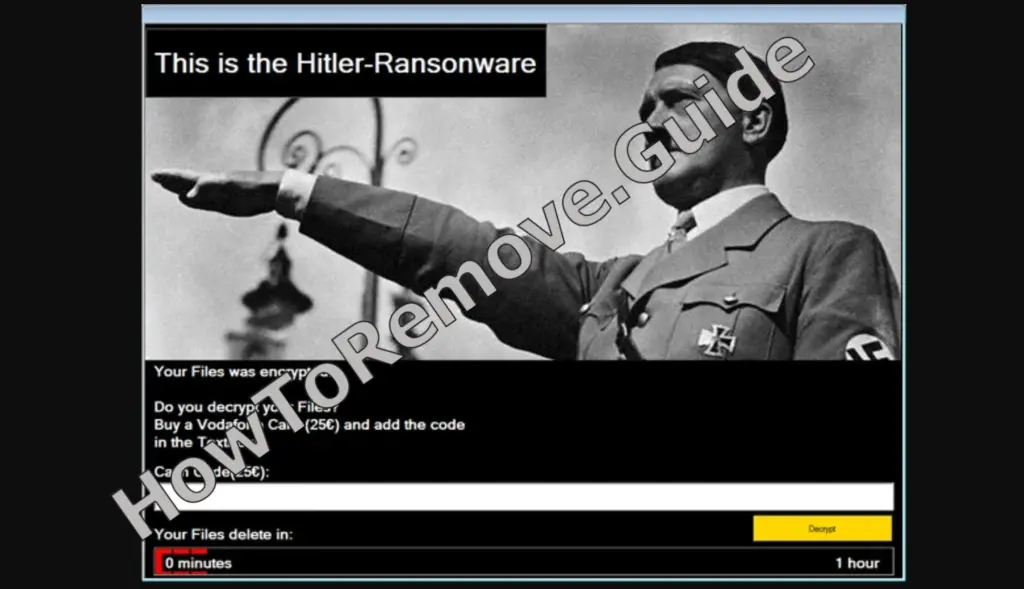
If a pop-up calls itself Hitler Ransomware and slaps a countdown on your screen, treat it as a big red flag immediately. This one poses like a classic encryptor, but it isn’t. It sneaks in with sketchy bundles – think “free exploits” or bundles – then locks your view, asks for €25 on a prepaid card, and starts a one-hour clock. Notice the pattern? Distraction up front, damage later. While you’re watching the timer, it swats down lifelines: Task Manager, Command Prompt, your browser and security apps. That’s not protection; that’s muzzling.
We tested that SpyHunter successfully removes Hitler Ransomware* and we recommend using it. It will block Hitler Ransomware from reinstalling itself and it will make sure your device is clean from any malware.
 Try Free For 7 Days*
Buy now15% OFF if you buy straight without trial.
 OFFER
OFFERHere’s what many miss: there’s no cryptography here. Your files aren’t encrypted – they’re stripped of extensions, then wiped after the timer-forced reboot. Read that again: wiped. So what do you do? Assume it’s hostile, don’t pay, cut power to interrupt the deletion. I’ll show you how to spot it fast, remove it cleanly, and lock down your system before damage snowballs.
SUMMARY:
| Name | Hitler Ransomware |
| Type | Ransomware |
| Detection Tool |
Some threats reinstall themselves if you don’t delete their core files. We recommend downloading SpyHunter to remove harmful programs for you. This may save you hours and ensure you don’t harm your system by deleting the wrong files. |
Hitler Ransomware Removal and Decryption Guide
At the first sign of trouble, sever connectivity. Unplug Ethernet, disable Wi-Fi, and end any VPN. This cuts command-and-control and blocks fresh payloads. Do not sync cloud drives until you are sure no other component will execute or spread. Hitler Ransomware
With networking off, power the computer down completely. Shutting Windows halts active encryption threads and prevents scheduled components from queuing persistence. Avoid poking around on the affected host. Use a separate clean device to read these instructions and assemble tools safely.
Taking the system offline and then powered off limits impact to the current machine and preserves evidence. Ransomware depends on uptime and accessible filesystems; shrinking runtime reduces damage. Treat the event as an incident to contain, not an annoyance to click through.
How to Remove Hitler Ransomware
Eliminate the threat before any recovery attempt. Restoring while malware remains invites immediate re-encryption and wasted work. The safe order is removal, validation, then recovery. Proceed methodically and log what you remove for later review.
Two approaches exist: careful manual cleanup or automated scanning. Manual work gives visibility but requires disciplined Windows hygiene. Components often hide behind plausible names in overlooked folders. If you clean manually, assume multiple launch points that must be neutralized.
Automated tools can catch leftovers you miss. A solid anti-malware or EDR scanner checks startup entries, scheduled tasks, and common drop paths without guesswork. Keep the host offline while preparing. Reboot only after removal and a confirming scan.
Manual removal works if you are precise. Deleting the wrong file can break legitimate software, while overlooking one loader can reinstall everything. Combine process inspection with persistence checks to stop execution, remove files, and confirm no autoruns survive.
If you are ready for manual work, follow the order below: triage processes, clean file locations, then clear scheduled triggers. Afterward, run a full antivirus scan to confirm nothing lingered in obscure directories.
- Start with awareness, not deletions. While still offline, open Task Manager with Ctrl + Shift + Esc, expand More details, and check Processes and Details for the full tree, including child items. Enable the command-line column for context and flag anything tied to Hitler Ransomware exactly once here.
- Prioritize behavior over names. Watch for unexpected CPU, Memory, or Disk spikes, especially from user-writable paths. If a name mimics a system binary, verify its path – genuine svchost.exe resides in C:\Windows\System32, not %Temp%.
- When you spot a likely culprit, right-click and choose Open file location to reveal the folder. High-entropy filenames, fresh timestamps, or companion .dll in %AppData%, %LocalAppData%, or %ProgramData% suggest a dropper. Try deleting the folder after closing open apps.
- Cannot delete because the file is in use? That implies a lock or driver. Use a trusted unlocker – install LockHunter on a clean PC, copy the installer over, then unlock and remove the file securely. After deletion on disk, return to Task Manager and End task on the matching process.
- Check persistence next. Open Task Scheduler from Start, expand Task Scheduler Library and subfolders, and look for newly created or oddly named entries. Inspect General, Triggers, and Actions to learn how each task launches and what it runs.
- When unsure, ask which tasks execute from user paths. Entries invoking %Temp%, %LocalAppData%, Downloads, or launching stray .ps1, .vbs, or random .exe via cmd.exe /c are suspect. Triggers such as At logon or On idle often aim to relaunch removed components silently.
- For any confirmed malicious task: disable it, then Delete it in Task Scheduler Library, and remove its referenced path on disk if present. Empty Recycle Bin. As a final pass, run an offline antivirus scan to surface remnants missed by the manual review.
How to Decrypt Hitler Ransomware Files
Before any decryption attempt, confirm the exact family. Many groups reuse note styles but use incompatible keys. From a clean machine, use ID Ransomware to upload a ransom note and one encrypted sample, or identify by attacker emails and extensions. This verifies whether you are dealing with this strain or something else. Hitler Ransomware
Decrypt only after eradication. Active code can watch folders and re-encrypt outputs. Stay offline until you must download a tool; reconnect briefly, obtain it safely, then disconnect again. Keep originals read-only while testing – quick copies prevent accidental corruption.
Check Emisoft for Hitler Ransomware Decryptors
Emsisoft publishes many free decryptors and is a good first place to search. Availability changes over time. If a matching tool exists for your case, follow its instructions exactly and keep logs. The steps below reflect typical usage when a tool is listed on the Emsisoft site.
At publication time, no dedicated decryptor appears on the Emsisoft website. This may change, and a tool could become available. If you are reading this after Emsisoft has released one, use these steps to attempt file recovery:
When ready, reconnect, download the appropriate Emsisoft decryptor, and choose Run as administrator so it can access protected paths affected earlier.
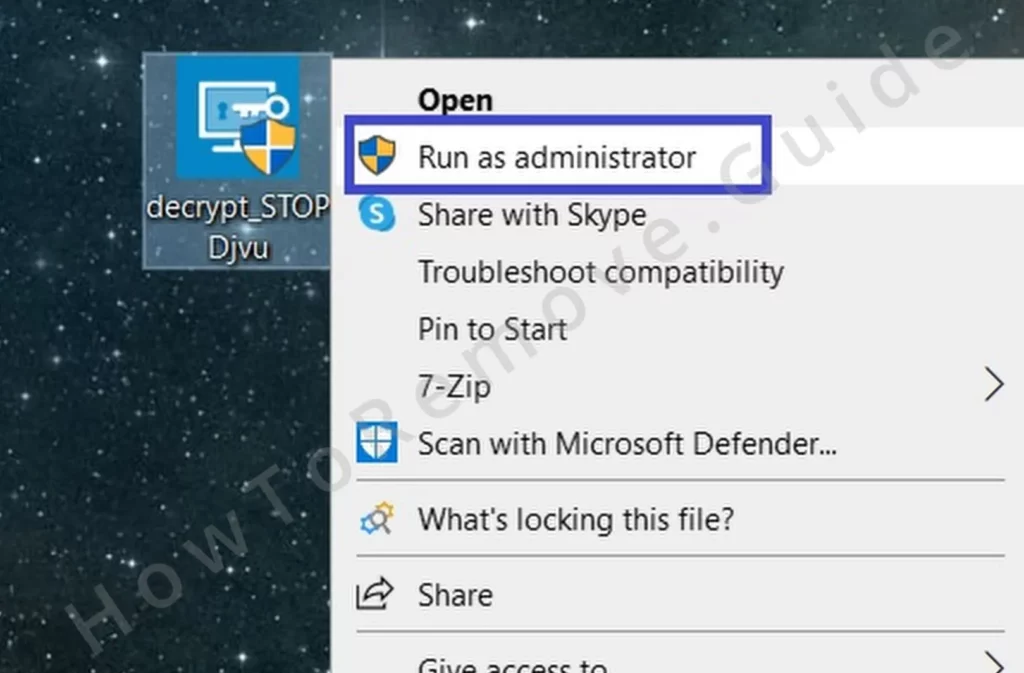
If the package is an installer, complete the setup as prompted. Portable builds can run directly. Close other programs to reduce interference and speed up file enumeration while the tool analyzes targets.
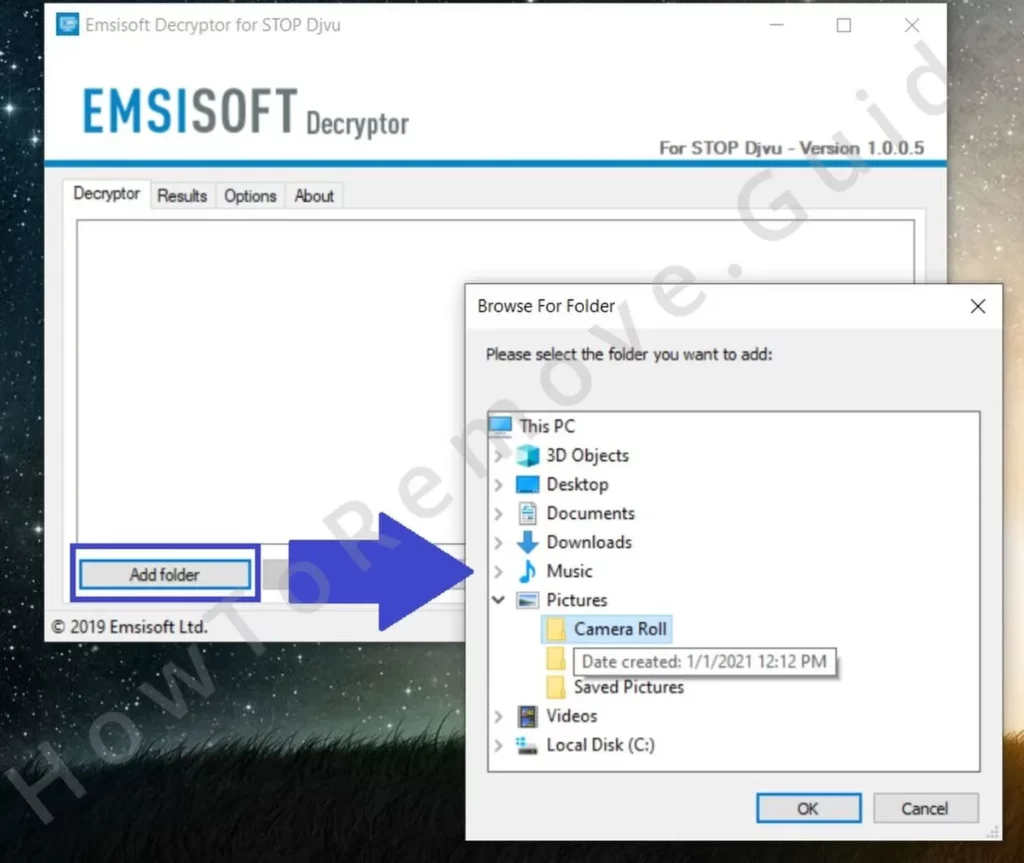
In the decryptor, select Add Folder, then browse to each directory that holds encrypted data – Documents, Desktop, shared workspaces, and backups. Include mapped drives only when they are isolated from production systems.
Click Decrypt to start. For large datasets, expect long runtimes and let the process finish. Avoid moving files while it works. Review the produced log to see totals and failures.
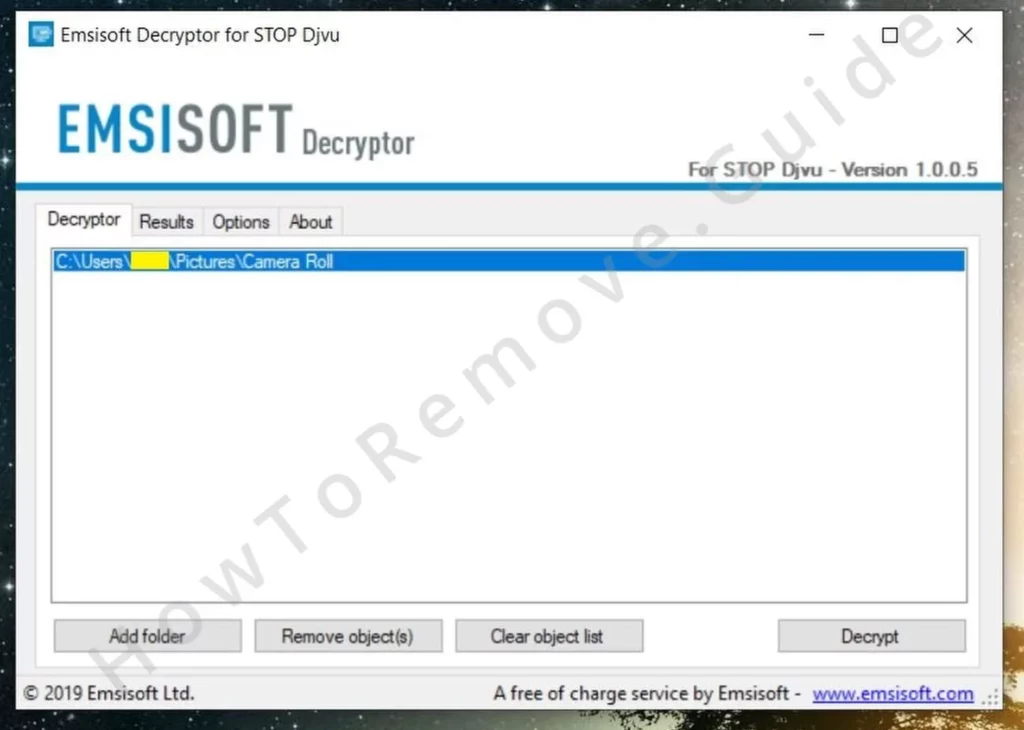
Keep the machine online if the tool relies on a server-side key lookup. If an offline key was used during the intrusion, some files may decrypt; with an online key, recovery via this method may not be possible. Retain the logs for future analysis.
Recover Hitler Ransomware Files With PhotoRec
If no decryptor exists or it fails, carved recovery can still help. PhotoRec does not unlock encrypted data; it searches for deleted originals that may remain on disk. Success depends on subsequent write activity, so minimize changes. Keep recovered items separate from data impacted by Hitler Ransomware.
Download and extract PhotoRec, then right-click qphotorec_win.exe and choose Run as administrator to ensure full disk access and fewer permission prompts.
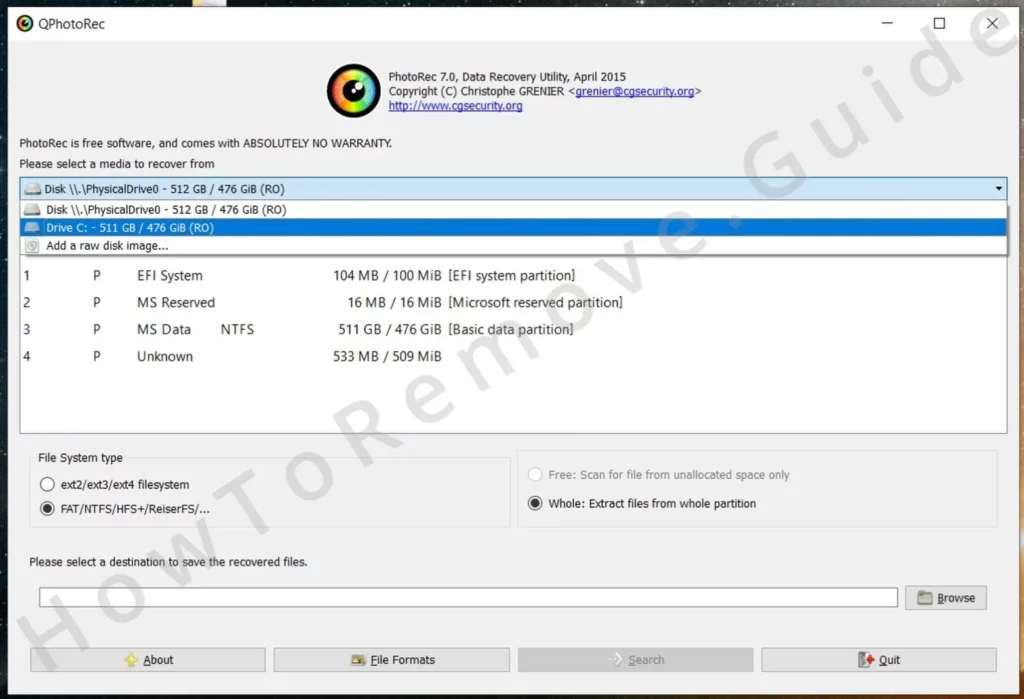
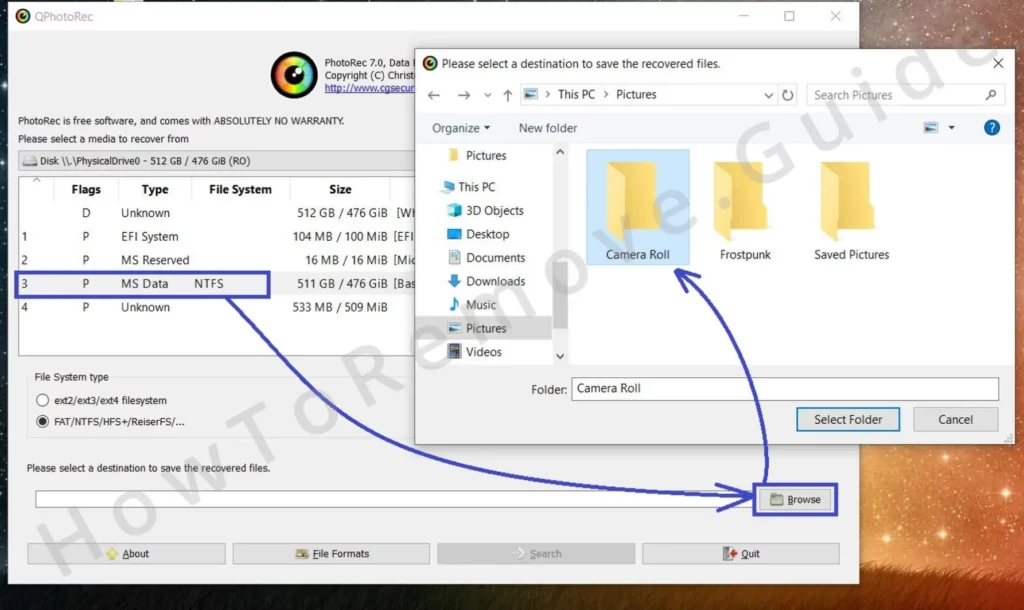
Use the drive selector to choose the affected disk, then pick the correct NTFS partition that held the encrypted files. Confirm volume size and label before proceeding.
For speed, limit targets in File formats. Focusing on documents, archives, and images accelerates scanning and reduces review noise.
Choose a recovery destination on another physical disk or an external drive. Writing to the same partition can overwrite remnants you are trying to salvage.
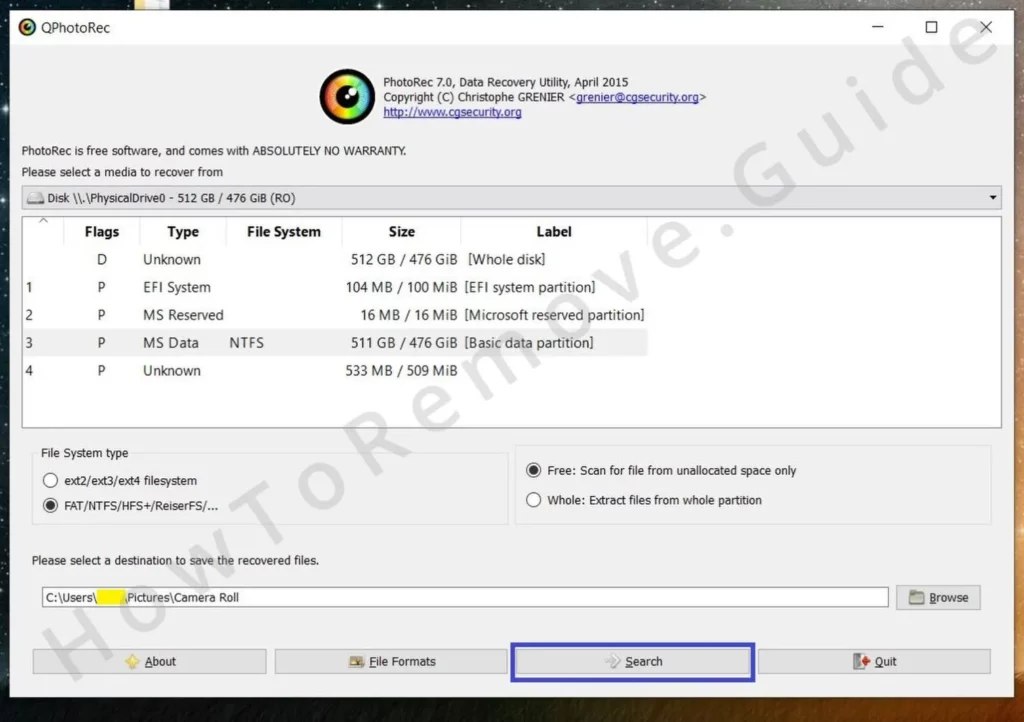
Press Search to begin. Allow the scan to run uninterrupted – deep scans can take hours depending on disk size and health. Avoid starting other programs that generate temporary files.
When the scan completes, open the output folders PhotoRec created and review the findings. Sort by type and date, copy the useful items to a safe workspace, and keep originals unchanged while checking format integrity.
Restore Hitler Ransomware Files With Media_Repair
For partially encrypted or damaged media, Media_Repair can reconstruct playable versions from a clean reference. It supports MP3, WAV, MP4, MOV, 3GP, and M4V. The closer the reference matches the original capture – resolution, frame rate, codec, duration – the better the result.
Download Media_Repair and launch it. Running with administrative rights helps when reading protected folders or saving alongside the affected sources.
Inside the program, open the directory with the damaged media and select the items to analyze. Use the upper right-hand icon to scan; the tool flags files it can attempt to repair.
If items are marked fixable, provide a suitable reference created by the same device and settings. Choose it, then click the lower right-hand icon so the tool can model the required structure.
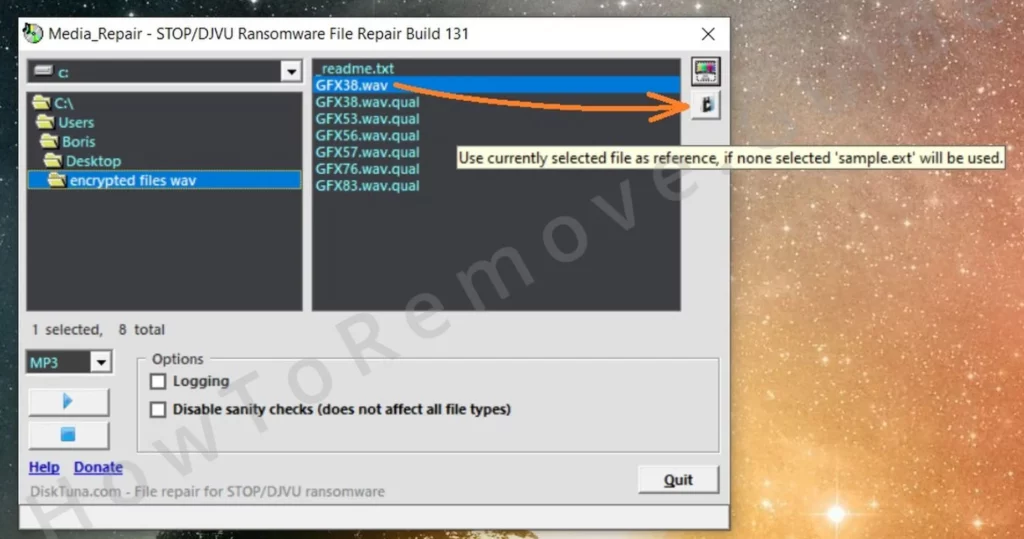
Select the target files again and press Play to start reconstruction. Runtime depends on file size and count; keep the system idle for steady disk throughput.
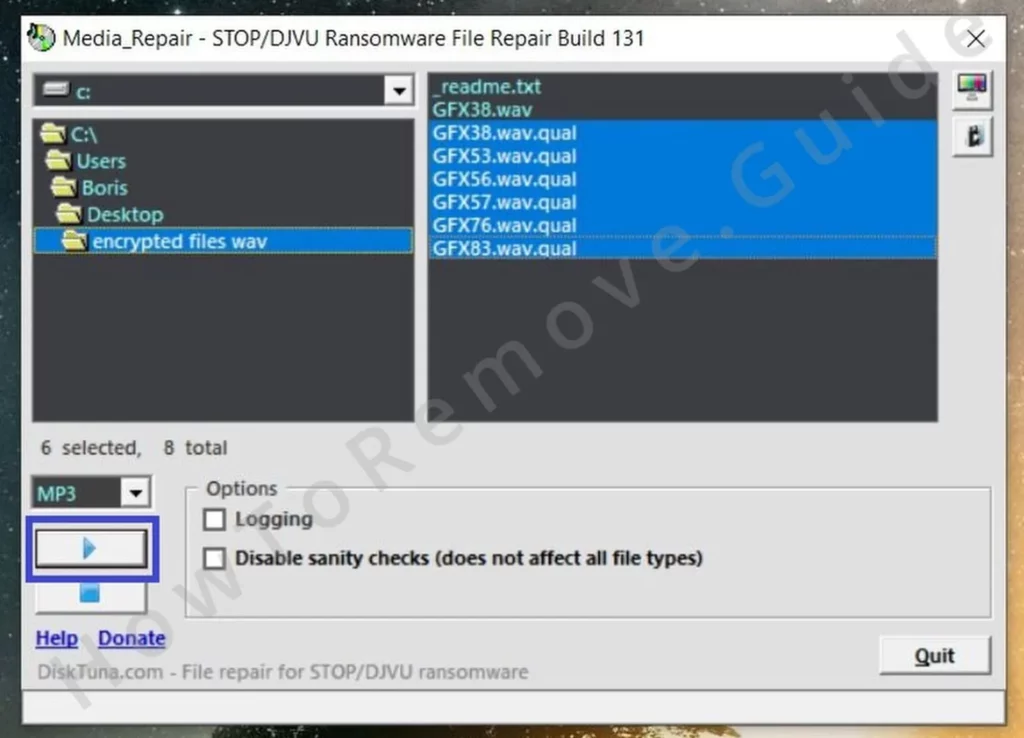
After processing, look for a new FIXED folder in the same directory. The tool writes reconstructed copies there so you can compare them without changing the damaged originals.
Open the FIXED folder, test playback in a reliable player like VLC, and verify audio-video sync, duration, and metadata. Keep successes, then archive both inputs and outputs for reference.
Final Thoughts: Preventing Future Ransomware Attacks
Recovery is only half the plan. Maintain offline or immutable backups, patch Windows and third-party software promptly, and enable SmartScreen plus Controlled folder access where available. Be cautious with macros, installers, and extensions. Do not pay ransoms; invest in layered defenses and a rehearsed incident response.
