

Developers used ModHeader to change how websites sent and received information, which sounds harmless enough, but here is the first warning: the extension also had broad access to browser traffic, giving it far more power than many users probably realized.
After Chrome and Edge disabled it, researchers examined version 7.0.18 and found code that could record domains, create a browser identifier, encrypt data, and prepare a daily upload. Notice the wording here: capability does not prove it happened.
The collector appeared inactive during testing, and no transfer was confirmed, but that does not make the extension safe. It could still inspect or alter traffic, open advertising tabs, and store sensitive headers, session details, internal addresses, or authorization tokens.
So what should you do? Leave it disabled, remove it, and do not sideload an archived copy, because that puts the risk back into your browser. Anyone who used it for work or banking should review sessions and account security.
We tested that SpyHunter successfully removes ModHeader* and we recommend using it. It will block ModHeader from reinstalling itself and it will make sure your device is clean from any malware.
 Try Free For 7 Days*
Buy now15% OFF if you buy straight without trial.
 OFFER
OFFERThe removal guide below explains how to clear the extension and its leftover browser data. If cleanup feels too complicated, or strange behavior continues afterward, SpyHunter 5 can scan the system for malware, unwanted programs, and changes that may remain.
ModHeader Removal Tutorial
The shorter tutorial is placed first so you can test the simplest fix before moving into system-level cleanup. For ModHeader, removing a recently added suspicious app may be enough. If that does not solve the issue, continue with the detailed guide that follows.
Quick Manual Removal for ModHeader – Try This First
- 1.1Open your Start Menu and search for “Apps & Features”. This shows every installed program so you can spot potential threats.
- 1.2Sort the list by Install Date. Malware like ModHeader often disguises itself as a recently added program, so this will help you pinpoint suspicious entries more quickly.
- 1.3Look for anything out of place – programs with strange names, bland or unprofessional icons, or software you don’t remember downloading.
- 1.4If you find a program that raises your suspicions, don’t hesitate. Click Uninstall and follow the prompts. Once that’s done, take it a step further by checking the installation directories for any leftover files.
- 1.5Delete anything that looks like it might be connected to the program you just removed.
Restart Windows after the quick pass and pay attention to the browser during normal use. If ModHeader symptoms continue, do not assume the uninstall failed completely; instead, continue below because the remaining component may be a task, policy, file, or Registry value.
SUMMARY:
| Name | ModHeader |
| Type | Adware/Malware/Spyware |
| Detection Tool |
Some threats reinstall themselves if you don’t delete their core files. We recommend downloading SpyHunter to remove harmful programs for you. This may save you hours and ensure you don’t harm your system by deleting the wrong files. |
How to Remove the ModHeader Virus
The full guide starts with SpyHunter 5 because it can reduce the amount of manual work required. This option is not mandatory, but it is strongly recommended for ModHeader, since an automatic scan may identify related components across several parts of the system.
Fastest Removal Option: Use SpyHunter 5
- 1.1Click here to download and install the anti-malware tool on your PC.
- 1.2Start SpyHunter 5, click the Buy button and choose between starting your 7-days free trial or directly purchasing the tool.
If you choose to buy SpyHunter 5 now, you can use our discount code, “HTRG15“, for 15% off.
- 1.3
 Once you activate SpyHunter, click Start Scan Now, select the Full Scan option, and let the tool do its job.
 - 1.4
 Once the scan completes (it could take a while, so have patience), you’ll see all malware and other undesirables listed.
Click Next to review the detections and then click Next again to delete all rogue items.
Preparatory Steps for Removing ModHeader
The preparation stage prevents two common problems during manual cleanup: hidden folders that users cannot see and files that Windows refuses to delete. ModHeader may rely on both, so complete these setup steps before searching for files or editing system settings.
1. ModHeader Removal Preparatory Steps
- 1.1
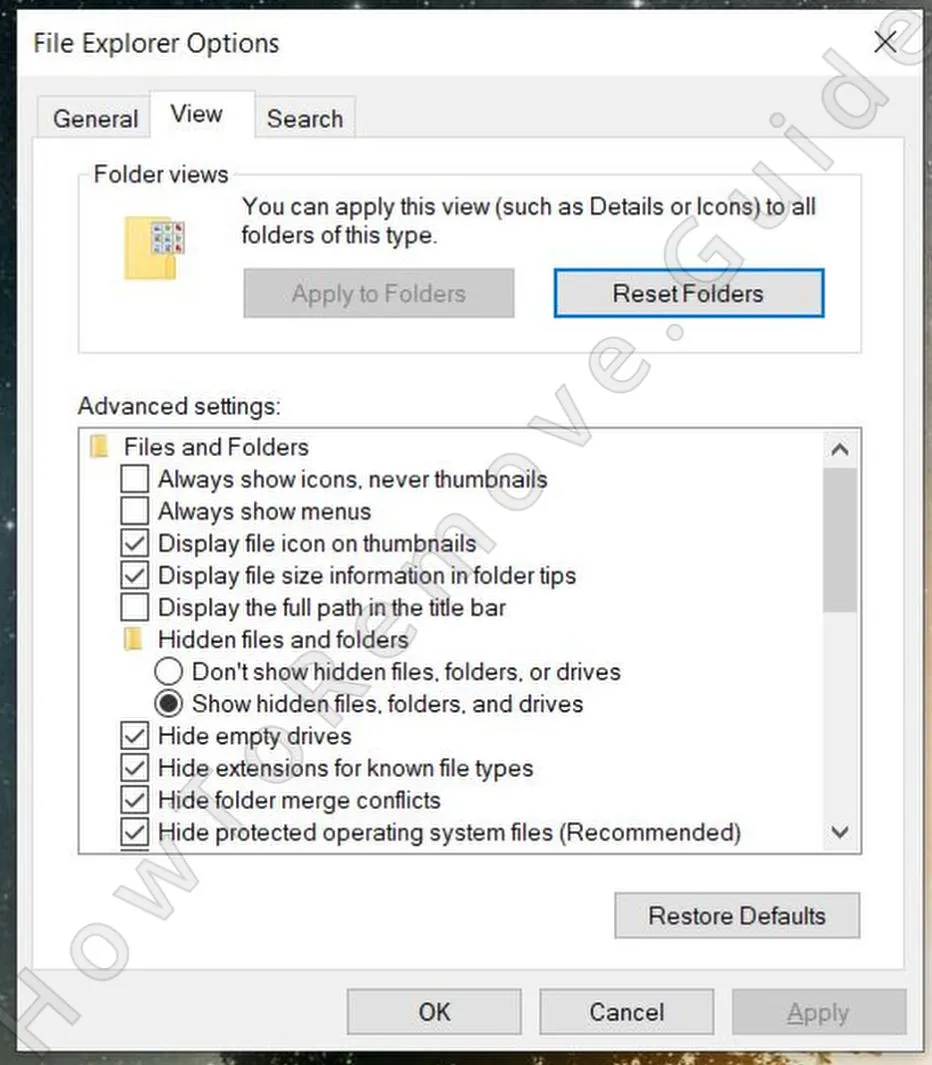 First, open your Start Menu again and search for “Folder Options”. Head to the View tab and check the box that says “Show hidden files, folders, and drives.” Don’t forget to click Apply and OK.
 - 1.2Next, download and install LockHunter – a free and powerful tool that can forcefully delete files that are being blocked by the malware.
LockHunter is suggested because normal deletion is not always enough during adware removal. If ModHeader keeps a file active through a background process, the tool can help remove that file instead of letting it stay on the system.
Delete the ModHeader Virus Files
Search broadly for leftover files because adware support components can be distributed across the profile and startup areas. ModHeader may not use a clear folder name, so check the listed directories carefully and remove suspicious items only when they do not belong there.
2. How to Delete ModHeader Files
- 2.1With adware apps of this type, there are several locations where you are very likely to find related files. The first key directories to check are:
C:\Users\YourUsername\AppData\Roaming
C:\ProgramData\Microsoft\Windows\Start Menu\Programs\Startup
C:\Users\YourUsername\AppData\Roaming\Microsoft\Windows\Start Menu\Programs\Startup - 2.2
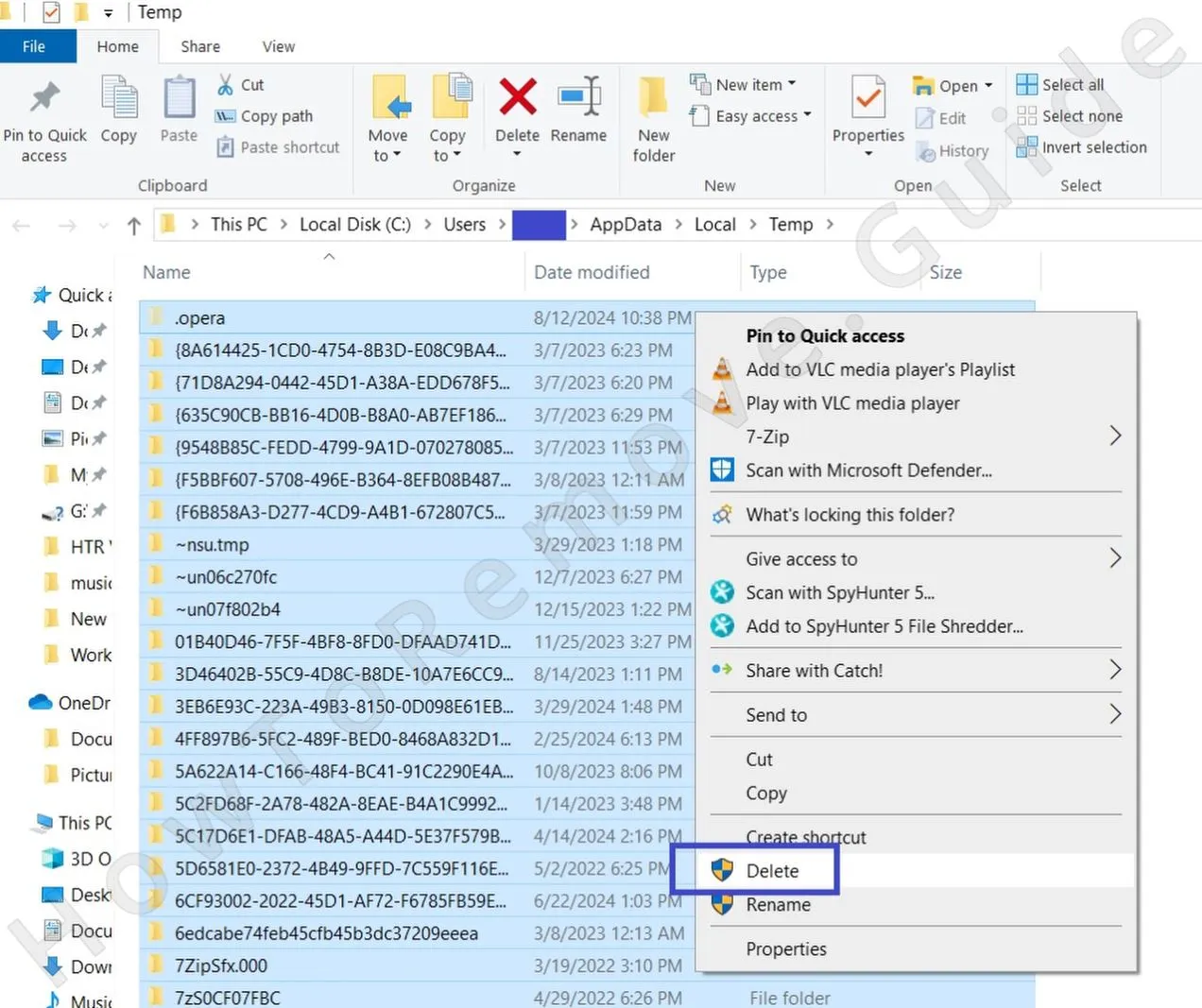 Once you’ve tackled those directories, visit the Temp folder at C:\Users\YourUsername\AppData\Local\Temp. This is like a junk drawer – most of what’s in here is disposable. Select everything (Ctrl + A) and delete it all. Don’t worry, you won’t lose anything important.
 - 2.3Finally, check the Program Files folders:
C:\Program Files
C:\Program Files (x86)
Be cautious here, as these folders contain legitimate software. However, if you see something that seems out of place, don’t ignore it – remove anything that feels suspicious.
Remove ModHeader Malware Tasks From the Task Scheduler
Task Scheduler is a common place for persistence that users forget to inspect. ModHeader may use a scheduled action to run again after login or at intervals. If such a task remains, the adware can return even after its files seem to be gone.
3. How to Remove ModHeader Entries From the Task Scheduler
- 3.1
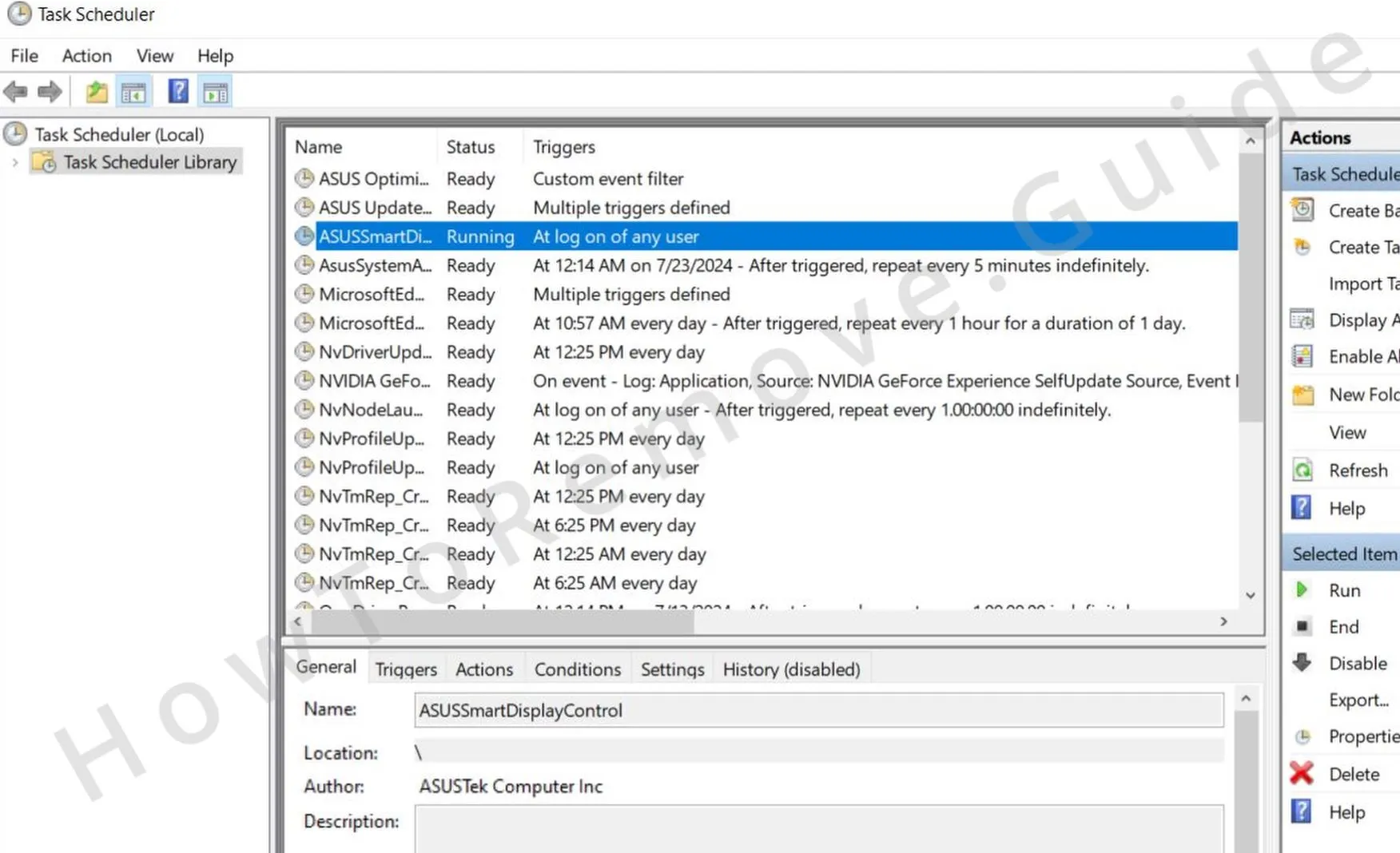 To access your scheduled tasks, type Task Scheduler in the Start Menu search, open the first thing, and click the TashScheduler Library in the top-left.
 - 3.2Go through each task one by one. Double-click to open a task and check its Actions tab. Be on the lookout for anything that launches sketchy .exe files or scripts or attempts to connect to unknown websites.
- 3.3If you spot a task like this, delete it immediately. It’s a tedious step, but missing even one rogue task could undo all your progress.
Get Rid of ModHeader Through the System Registry
Registry cleanup can remove references that keep ModHeader connected to startup behavior or browser configuration. Be careful, because deleting unrelated Registry data can create new problems. SpyHunter 5 is a safer alternative if you prefer not to judge Registry entries manually.
4. How to Remove ModHeader Items From the Registry
- 4.1To remove ModHeader’s fingerprints, open the Registry Editor by typing “regedit” into the Start Menu. Right-click it and choose Run as Administrator.
- 4.2Use the search function (Ctrl + F) to look for entries related to ModHeader. When you find something suspicious, delete it, but be careful.
- 4.3
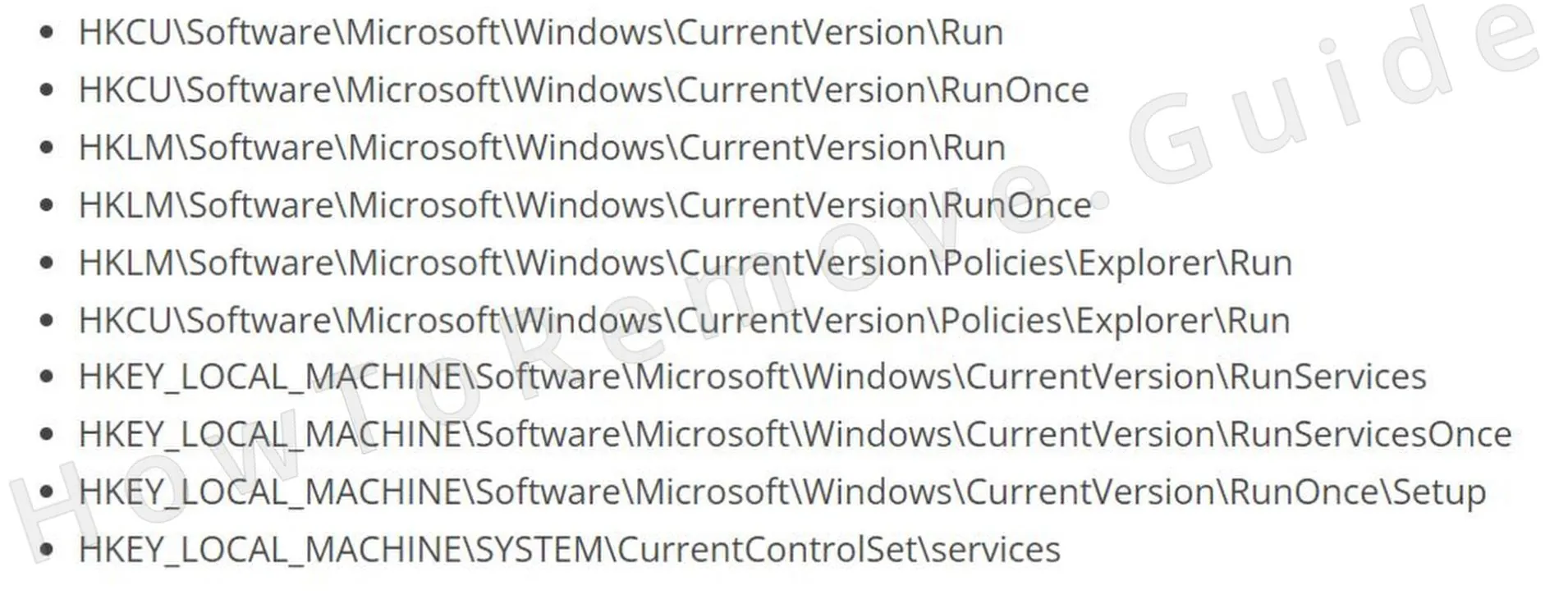 To be extra thorough, manually check these locations:
 - 4.4Look at the entries in the right panel and delete anything that seems off. However, do not delete the specific keys here (the items in the left panel).
Remove ModHeader Browser Policies
Policy entries can make browser settings appear locked or controlled. ModHeader may create those entries so search, extensions, or startup pages cannot be changed through the usual menus. Remove the policies before trying to reset or repair the browser itself.
5. How to Remove Rogue ModHeader Policies
- 5.1
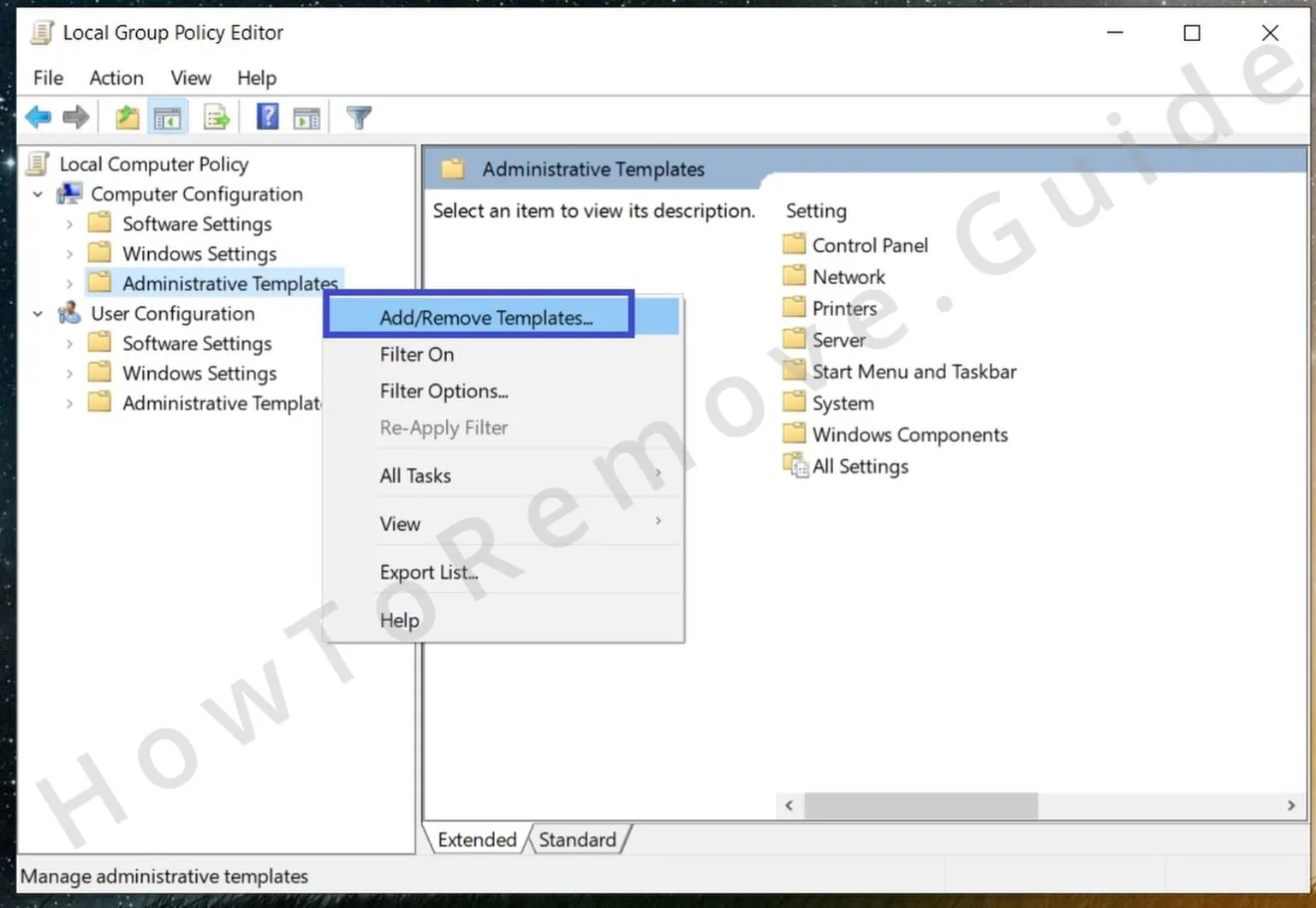 To fix this, open the Group Policy Editor by searching for it in the Start Menu. Navigate to Computer Configuration > Administrative Templates.
 - 5.2
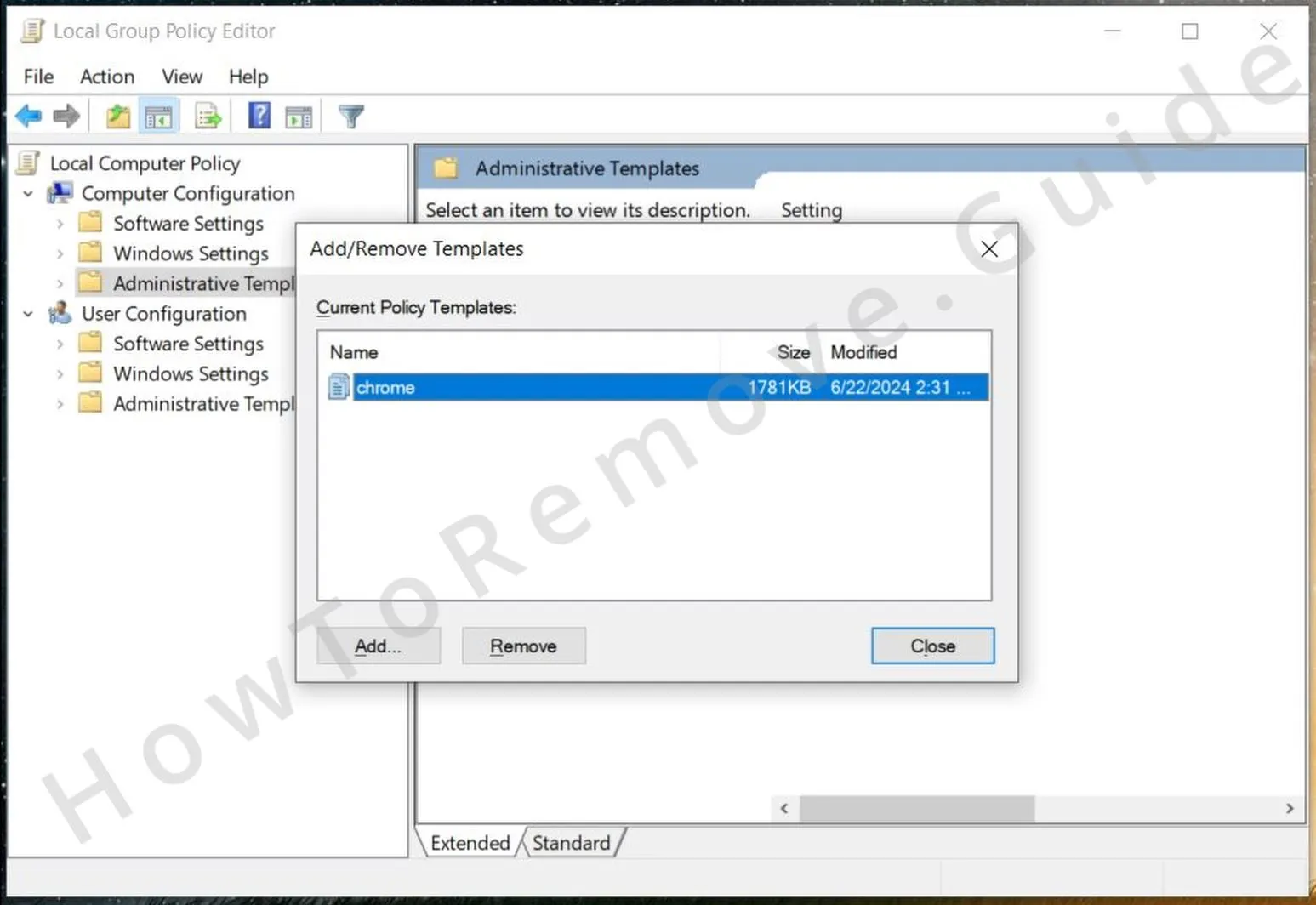 Right-click, select Add/Remove, and clear the list.
 - 5.3If you’re a Chrome user, consider using the free Chrome Policy Remover tool for a quicker fix. You just need to download the tool, run it with administrative privileges, and it will automatically clear any remaining policies from Chrome.
- 5.4And in case you get a warning from Windows, just ignore it by clicking More Info > Run Anyway. This tool is safe, so there’s nothing to worry about.
Uninstall ModHeader From Your Browser
The last step focuses on the browser because that is where most symptoms remain visible. ModHeader may leave modified search settings, notification permissions, extensions, or startup URLs behind. After policy cleanup, these settings can be removed normally and are less likely to come back.
6. How to Remove ModHeader From Your Browser
- 6.1Start with the Extensions section and uninstall anything you didn’t add yourself.
- 6.2
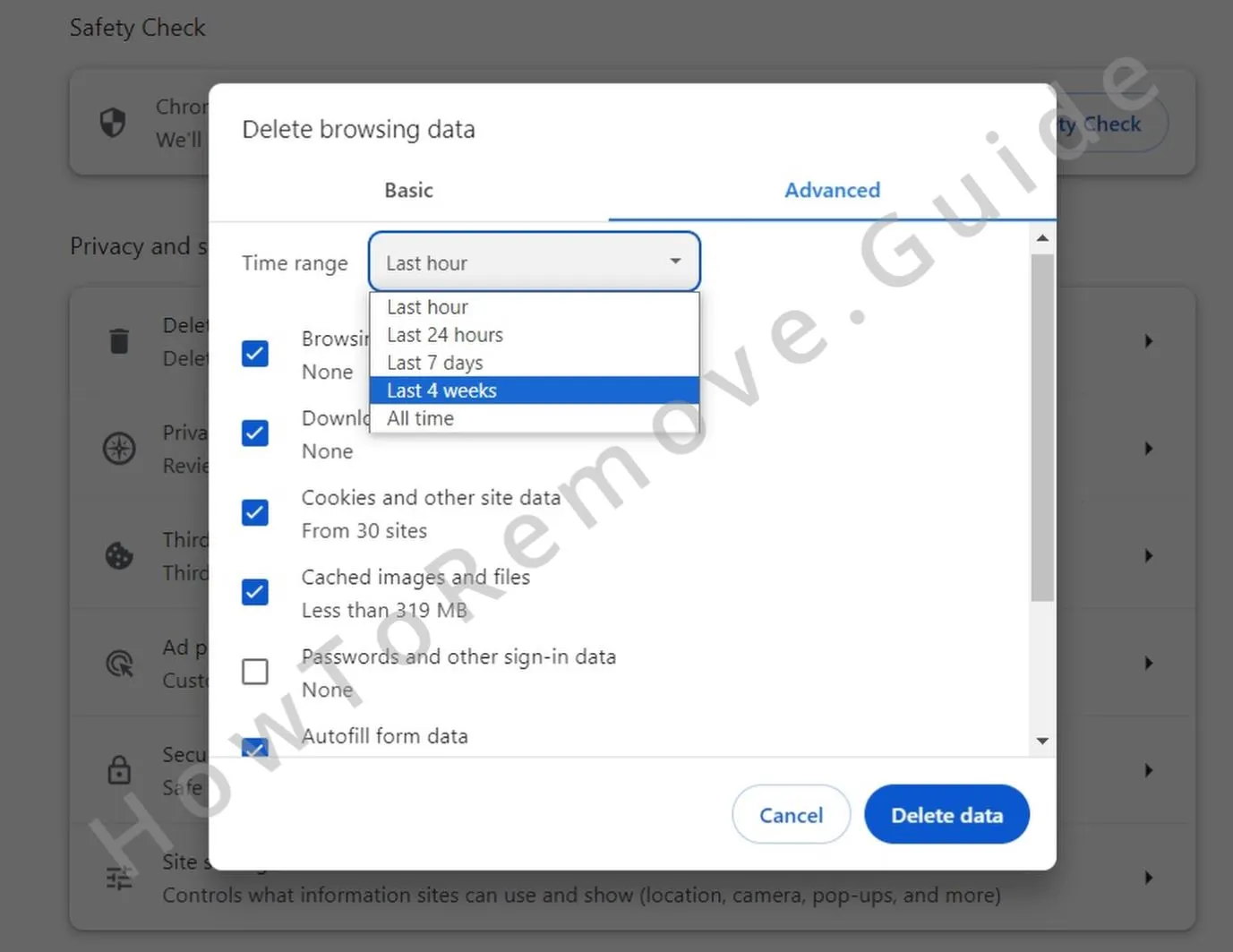 Next, clear your browsing data under Privacy and Security. Choose the All Time range but keep your saved passwords intact.
 - 6.3
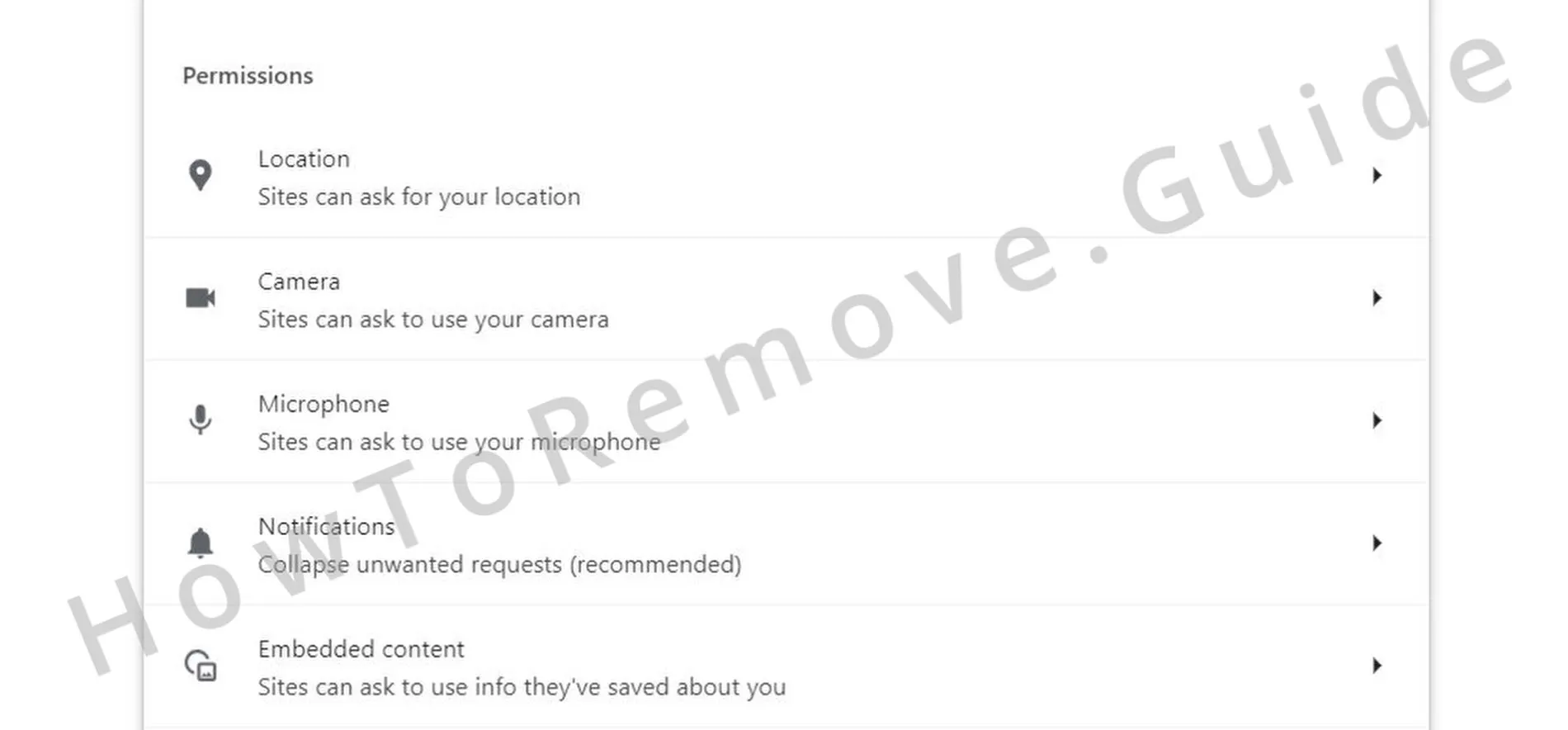 Review your Site Settings and revoke permissions for websites you don’t recognize (check all permissions).
 - 6.4
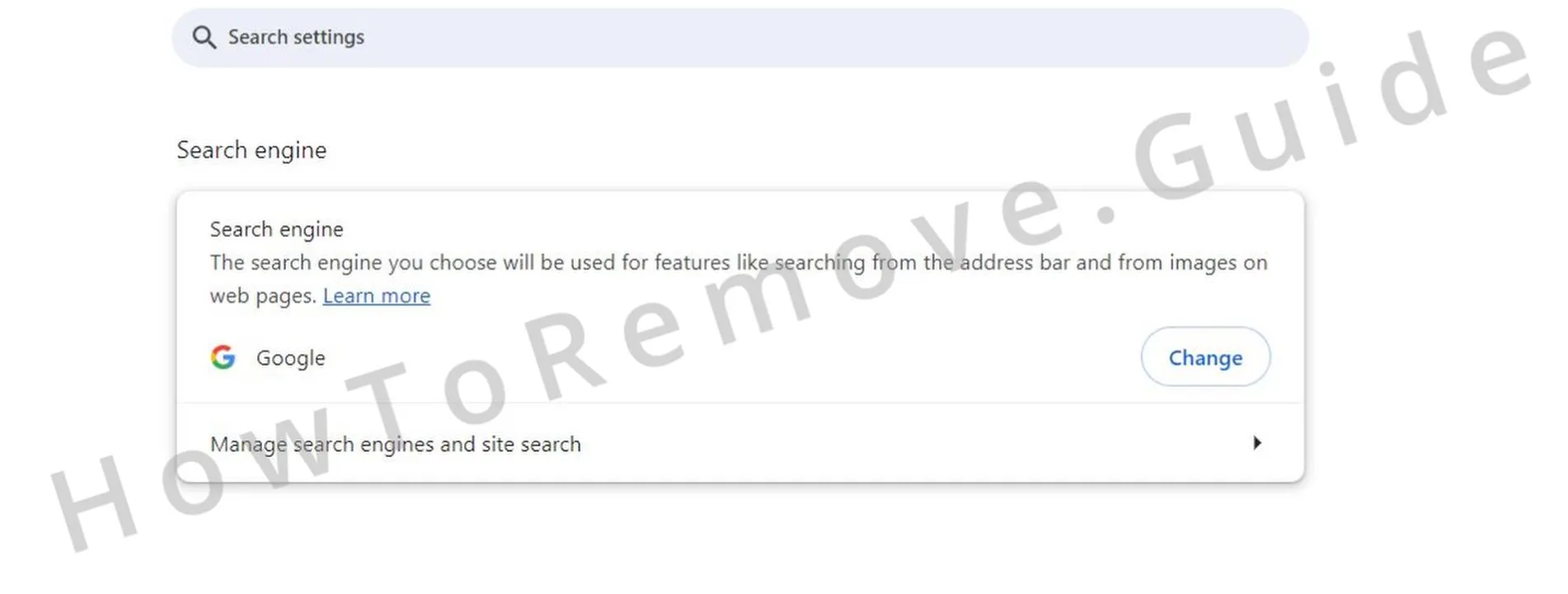 Then, check your default search engine. Make sure it’s set to something you trust. Also, remember to check the Manage Search Engines section and delete any unfamiliar search providers you may see there.
 - 6.5Finally, check the On Startup and Appearance sections. Look for suspicious URLs included there and delete anything you don’t trust.
