

UDisplay.exe is usually presented as part of a USB display or screen-extension package, sometimes appearing with the Chinese name USB显示扩展客户端. On Windows, users have reported it under C:\ProgramData\UDisplay and as a startup item, which makes it load automatically after sign-in.
The risk is that a display utility can look harmless while behaving like a potentially unwanted program. Some examined copies create daemon processes, modify autostart settings, query hardware details through WMI, and show anti-analysis traits such as debugger checks, obfuscation, and unusual sleep loops.
These signs do not prove every UDisplay build is malicious, because USB-to-HDMI adapters often need custom drivers. Still, unexpected installation, unfamiliar publisher names, high CPU use, remote-control-like symptoms, or macOS warnings that the app may damage the computer should be treated seriously.
We tested that SpyHunter successfully removes UDisplay.exe* and we recommend using it. It will block UDisplay.exe from reinstalling itself and it will make sure your device is clean from any malware.
 Try Free For 7 Days*
Buy now15% OFF if you buy straight without trial.
 OFFER
OFFERIf you find UDisplay/UDisplay.exe, VectorGatewa.exe or FDSEC.exe on your device and did not deliberately install it, assume it needs checking before you trust it. The safest response is to follow the removal guide carefully, or use SpyHunter 5 if manual cleanup feels too difficult.
UDisplay Removal Guide
The first removal route is intentionally brief and checks the easiest places where UDisplay might be visible. Complete it before the longer guide. If the threat returns after reboot, the full instructions will help you remove less obvious components.
Quick Manual Removal for UDisplay – Try This First
- 1.1First, go to your downloads folder (This PC > Downloads), sort the items there by date, and see if any suspicious files have been downloaded recently. Found anything fishy? Delete it before continuing.
- 1.2Next, go to the Start Menu, navigate to Settings (the gear icon), and then to Apps.
- 1.3You’ll see all installed programs listed on that page – sort them by installation date and look for UDisplay or anything else that looks suspicious, unfamiliar, or unwanted.
- 1.4If you find UDisplay or another sketchy app, select it and start the uninstallation process. Be careful when following the uninstallation prompts so that you don’t let anything linked to the program remain on your PC.
-
1.5Afterward, look for the installation directory. You’ll often find it at
C:\UserNames\UserName\AppData\Local\Programs\, but it might also be elsewhere. - 1.6If you find the malware folder, remove it together with any leftover files that might still be in it.
After the quick section, restart the PC and see whether the unwanted signs stop. If they continue, the next sections are designed to find persistence points that a simple uninstall or folder deletion may miss.
SUMMARY:
If you are on Windows, continue with the steps below.
If you are on Mac, use our remove ads on Mac guide.
How to Fully Get Rid of UDisplay
The full guide starts with SpyHunter 5 because automated detection can find parts of UDisplay that are not obvious in Windows folders. It is optional, but strongly recommended, and may finish the job before manual registry or task checks.
Fastest Removal Option: Use SpyHunter 5
- 1.1Click here to download and install the anti-malware tool on your PC.
- 1.2Start SpyHunter 5, click the Buy button and choose between starting your 7-days free trial or directly purchasing the tool.
If you choose to buy SpyHunter 5 now, you can use our discount code, “HTRG15“, for 15% off.
- 1.3
 Once you activate SpyHunter, click Start Scan Now, select the Full Scan option, and let the tool do its job.
 - 1.4
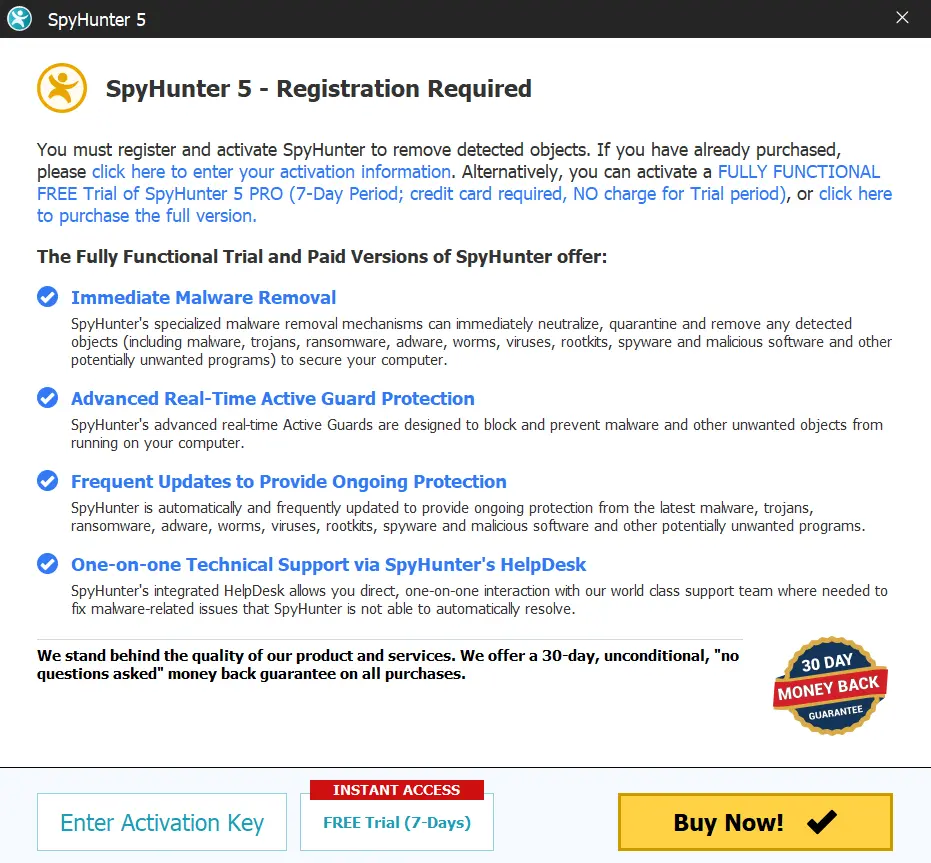 Once the scan completes (it could take a while, so have patience), you’ll see all malware and other undesirables listed.
Click Next to review the detections and then click Next again to delete all rogue items.
Preparatory Steps for Removing UDisplay
To remove UDisplay manually, first make sure Windows shows hidden items and that you have a way to force-delete locked files. These preparations help prevent missed folders and reduce interruptions during the cleanup.
1. Preparing for the UDisplay Removal
- 1.1
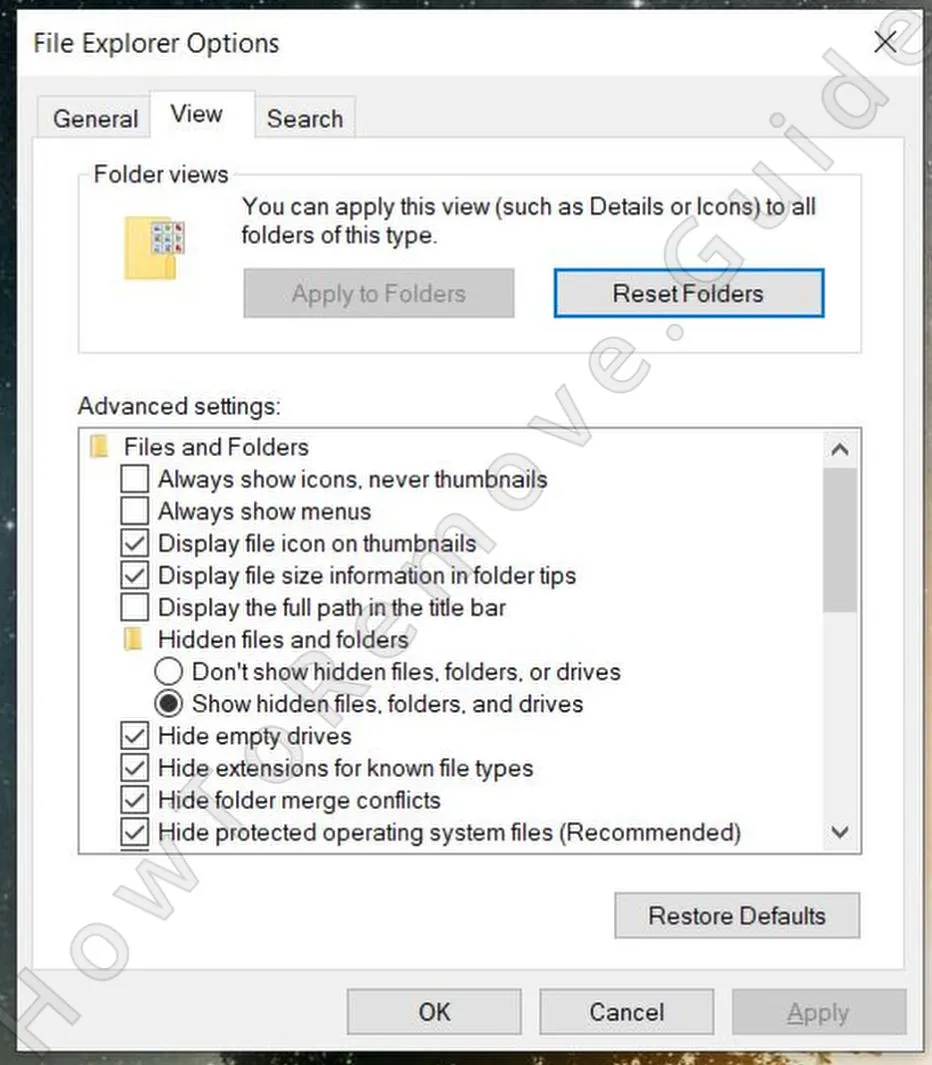 The first preparatory step you must perform is to enable the visibility of hidden files and folders.
Do this by searching for Folder Options in the Start Menu and selecting the View tab. Then activate “Show hidden files and folders” and save the change by clicking Apply and then OK. - 1.2Next, you’ll need to download and install a free utility called LockHunter It’s crucial because it lets you delete files locked by malicious processes.
Some users prefer not to install extra tools, and that is understandable. The reason this guide includes a file-unlocker is that malicious folders may remain protected until the process using them is stopped or released.
LockHunter is free to install and does not ask for payment or registration. Keep it on hand for the moments when Windows says a folder cannot be deleted because it is currently open.
Remove UDisplay Processes From the Task Manager
The process search begins in Task Manager, where active components of UDisplay may still be running. Since names differ between infections, focus on odd behavior, high usage, unknown file paths, and entries you cannot match to legitimate apps.
2. How to Delete UDisplay Processes in the Task Manager
-
2.1This is done through the Task Manager which you can open by pressing
Ctrl + Shift + Esc. - 2.2If it shows a simplified view, click More Details to expand it and see all running processes.
- 2.3
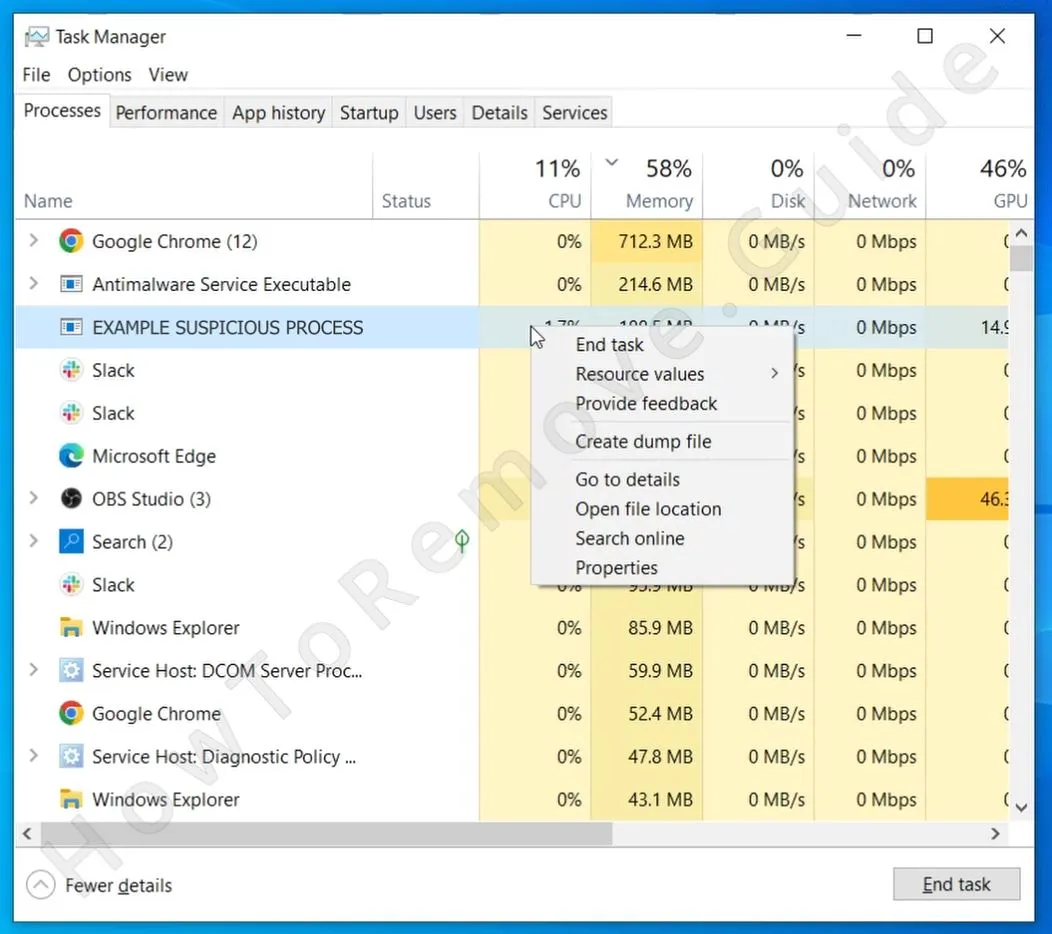 Sort the list of processes by how much Memory or CPU they are using. Then look out for any that are using unusually large amounts of either resource type and yet don’t seem related to any legitimate programs that you have on your PC.
Note: Don’t expect to find a rogue process named “UDisplay“. Most forms of malware will hide their processes under innocent-looking names.
- 2.4For each dubious process, right-click it and select Open file location. This will lead you to a folder where the data used by this process is stored.
- 2.5You must delete that entire folder, but you’ll likely get an error when you attempt to do that because some of the files there are in use by the malware. The workaround is to use LockHunter: right-click the folder, select “What’s locking this folder?” from the context menu, and click Delete in the next window.
- 2.6After removing the files, go back to Task Manager, write down the name of the rogue process (you’ll need it later), then click it, and click the End Task button to quit it.
We tested that SpyHunter successfully removes UDisplay.exe* and we recommend using it. It will block UDisplay.exe from reinstalling itself and it will make sure your device is clean from any malware.
Try Free For 7 Days*
Buy now15% OFF if you buy straight without trial.
Delete UDisplay Virus Files
This stage searches for file remnants connected to UDisplay. Be methodical: helper files can be hidden in several locations, and leaving one startup item or AppData folder behind can allow symptoms to continue.
3. How to Get Rid of UDisplay Files
-
3.1Start by examining the Startup folders at:
C:\ProgramData\Microsoft\Windows\Start Menu\Programs\StartupC:\Users\*Your Username*\AppData\Roaming\Microsoft\Windows\Start Menu\Programs\Startup -
3.2Search them for suspicious files, but if you aren’t what files are rogue, just delete everything in those folders except for the
desktop.inifile, which is a standard system file. -
3.3Next, inspect the
Program FilesandProgram Files (x86)in yourC:drive. Some malware apps will create folders there, so look for anything that looks linked to UDisplay or that is otherwise unrecognized or out-of-place folders. Delete anything suspicious you may find. -
3.4Three other locations you must check are:
C:\Users\%user%\AppData\Local\C:\Users\%user%\AppData\Local\Programs\C:\Users\%user%\AppData\Roaming\Microsoft\Windows\Start Menu\Programs\
Again, if you notice anything fishy in them, it must be deleted. And if there’s a folder you aren’t sure about, it’s probably best to get rid of it. At worst, it will be something harmless linked to a legitimate program in your system. However, if you didn’t recognize its name right away, chances are it’s something you either don’t need or something that’s outright unwanted (like UDisplay). -
3.5
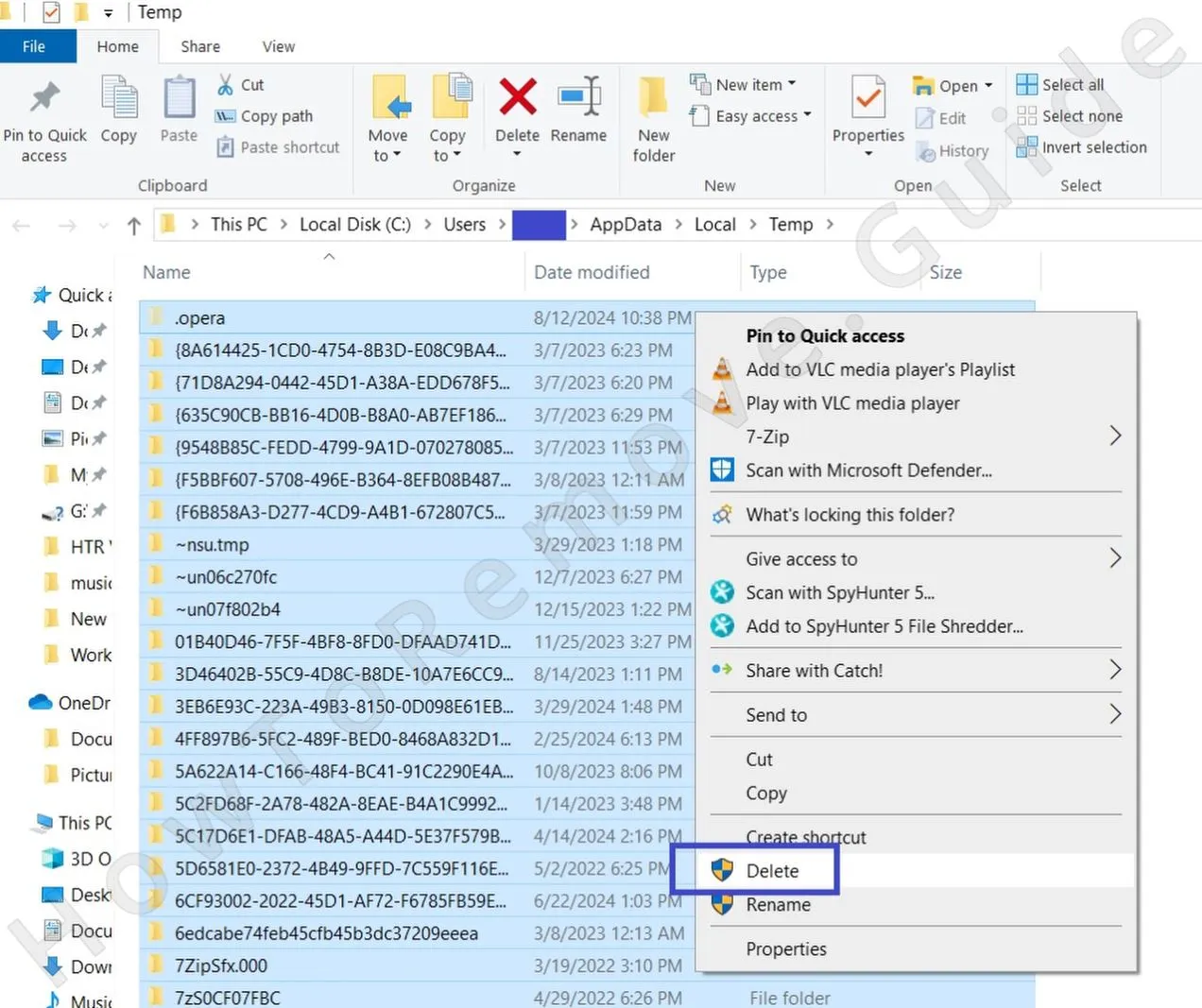 Finally, remember to clear the Temp folder. It’s located at
C:\Users\YourUsername\AppData\Local\Temp.
It stores only temporary files, which are all okay to delete. So, to save yourself some time spent looking for malware files, just Ctrl + A to select everything, and then press Delete from your keyboard to delete all of the folder’s contents.
Get Rid of UDisplay Scheduled Tasks
Use Task Scheduler to check whether UDisplay created an automatic launch rule. Look closely at what each questionable task runs, especially paths inside user folders or temporary locations, and remove only the matching malicious entries.
4. Eliminate UDisplay Scheduled Tasks
- 4.1
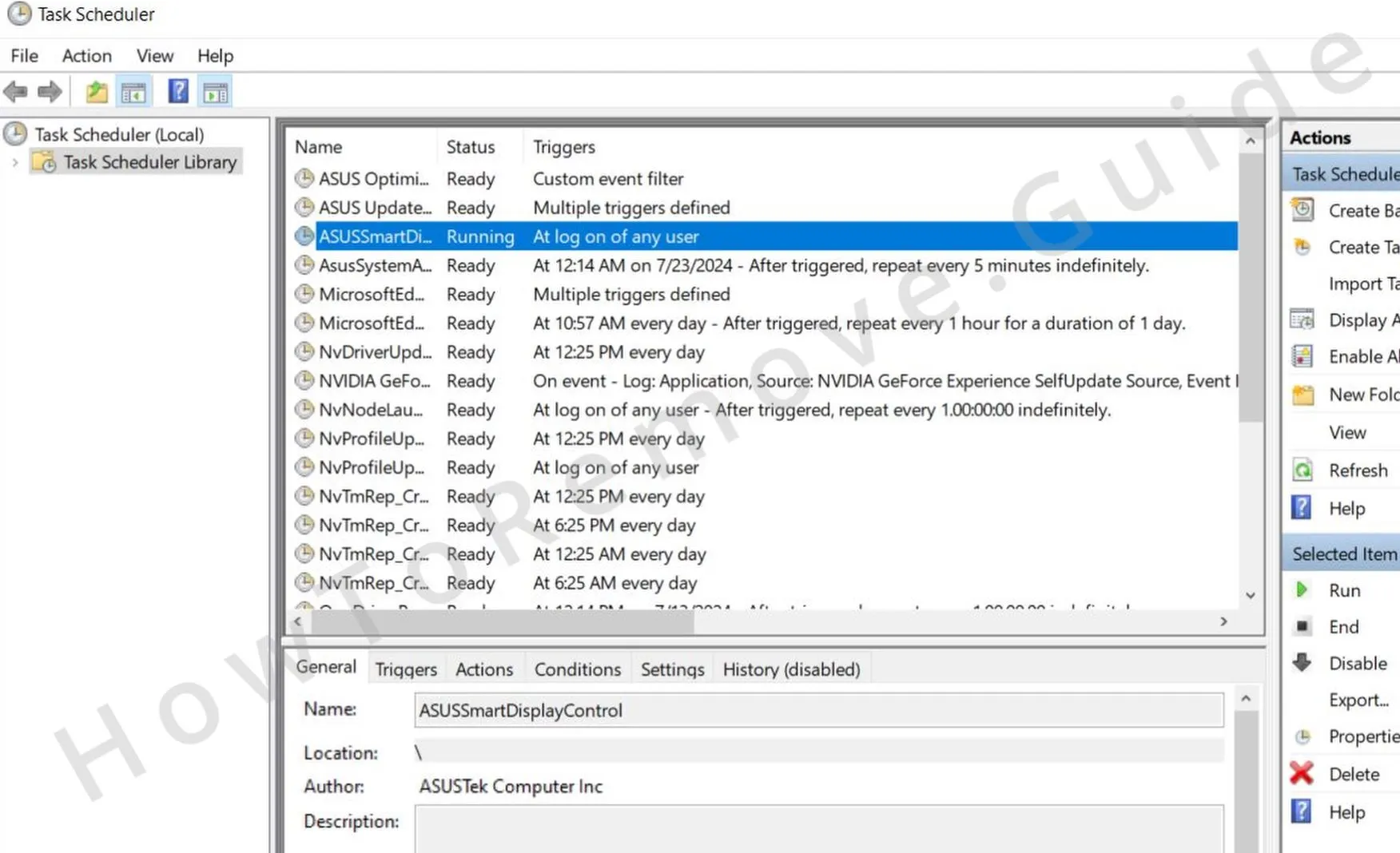 Open the Task Scheduler by searching for it in the Start Menu search bar. Then, one by one, review the scheduled tasks in the Task Scheduler Library.
 -
4.2For each task, double-click it and open the Actions tab, where you can learn what it is that the task is set to perform. Look for tasks that run unfamiliar executables, scripts, or anything located in the
AppDataorRoamingdirectories. - 4.3If you come across a task that executes anything suspicious, write down its file path, then right-click the task, and select Delete.
- 4.4After that, go to the file path you saved and delete the file that the task was set to run.
Uninstall the UDisplay Malware App Through the Windows Registry
Registry values can preserve changes made by UDisplay even after files are removed. This step should be done carefully and selectively. If a value is not clearly tied to the infection, leave it and rely on SpyHunter 5 instead.
5. Remove UDisplay Through the Registry
- 5.1Type “regedit” in the Start Menu and hit Enter to go to the Registry Editor.
- 5.2Then click Edit > Find to open the search box and then type the exact name of whatever program you tried to uninstall during the quick steps at the start of the guide.
- 5.3Click Find Next and if a result comes up, click the registry key (folder) in the left panel that contains it and delete that key. Perform another search after each deleted key until there are no more results for that search query.
- 5.4Next, search for the name of any other programs you attempted to delete. Also search for the names of processes you ended in the Task Manager earlier in the guide.
-
5.5After you’ve deleted all relevant entries, manually navigate to these registry keys:
HKCU\Software\Microsoft\Windows\CurrentVersion\RunHKCU\Software\Microsoft\Windows\CurrentVersion\RunOnceHKLM\Software\Microsoft\Windows\CurrentVersion\RunHKLM\Software\Microsoft\Windows\CurrentVersion\RunOnceHKLM\Software\Microsoft\Windows\CurrentVersion\Policies\Explorer\RunHKCU\Software\Microsoft\Windows\CurrentVersion\Policies\Explorer\RunHKEY_LOCAL_MACHINE\Software\Microsoft\Windows\CurrentVersion\RunServicesHKEY_LOCAL_MACHINE\Software\Microsoft\Windows\CurrentVersion\RunServicesOnceHKEY_LOCAL_MACHINE\Software\Microsoft\Windows\CurrentVersion\RunOnce\SetupHKEY_LOCAL_MACHINE\SYSTEM\CurrentControlSet\services - 5.6Select each of these keys to reveal their contents in the right panel. Then look for values referencing UDisplay or any unknown applications. Delete only the specific values linked to the malware and leave the keys that contain them intact.
