

Malware programs like Kowi SApp are super common nowadays. This and other similar rogue apps like Traw Dapp and Disoaq App basically represent the same thing, only under a different name. At its core, Kowi SApp is a type of adware program whose sole purpose is spam you with intrusive and often unsafe content.
The adware app itself isn’t dangerous as in it won’t directly damage your files or system. However, the browser redirects it’s likely to trigger, combined with the usual misleading pop-ups and notifications these apps are known for, definitely makes this software a security hazard.
We tested that SpyHunter successfully removes Kowi SApp* and we recommend using it. It will block Kowi SApp from reinstalling itself and it will make sure your device is clean from any malware.
 Try Free For 7 Days*
Buy now15% OFF if you buy straight without trial.
 OFFER
OFFERNeedless to say, you’ve got to delete Kowi SApp from your system, but the way to do that is often not as straightforward as you’d like. Depending on the situation, the removal of the removal of this malware may require some advanced troubleshooting steps or the use of a professional anti-malware tool. The good news is that both of these are available below, so go ahead and check our guide in case you need help with eliminating Kowi SApp.
Kowi SApp Removal Tutorial
I will begin this guide with some simpler steps that may, in some cases, be enough to rid you of this malware. And even in case Kowi SApp doesn’t go away after you complete them, they will still serve as the basis for the more advanced actions you’ll need to perfrom next:
- Begin by opening your Start Menu and typing “Apps & Features.” This handy feature will give you a comprehensive look at all the programs installed on your computer.
- To make your search easier, sort the list by Install Date. Newly installed programs are often the culprits when something isn’t right.
- Look for anything labeled Kowi SApp or any program that has an odd name, a bland icon, or one you don’t recall downloading. These suspicious entries might be more than they appear.
- Found something fishy? Click Uninstall and follow the prompts.
- Take the time to scan the entire list and get rid of any other questionable programs.
- After uninstalling, if you know where these programs were installed, go to those directories to hunt down and delete any files or folders associated with Kowi SApp.
Even if this alone doesn’t resolve the issue completely, it’s an important first step.
SUMMARY:
Important! Read Before Continuing
If the guide feels too long or requires more judgment than you’re comfortable with, don’t worry—there’s a simpler option. SpyHunter 5, a robust anti-malware tool, can handle the Kowi SApp issue quickly and effortlessly. Available here, it scans and resolves the problem in minutes, saving you time and avoiding any complicated steps. Whether you’re in a rush or simply want an easy fix, this tool offers a straightforward and effective solution to keep your device secure.
How to Remove the Kowi SApp Virus
To ensure you can find and delete all rogue files linked Kowi SApp, you must first perform these two preparatory steps:
- First, you’ll want to install LockHunter. This lifesaver can obliterate files that Windows stubbornly claims are “in use.”
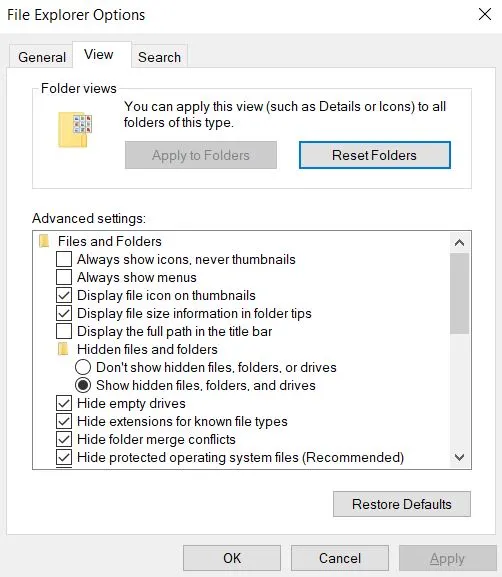
- Once LockHunter is ready to roll, open your Start Menu, search for “Folder Options,” and head to the View tab. Turn on the setting that says “Show hidden files, folders, and drives,” then hit Apply and OK.
This seemingly small step flips the lights on in dark corners where malware loves to hide.
Video walkthrough for this step:
Delete the Kowi SApp Virus Files
It’s now time to carefully and thoroughly look through your system, find any files that the Kowi SApp virus might have created, and delete them.
If you are having trouble with deleting a particular file/folder, ensure you already have LockHunter installed, right-click the item that refuses to be deleted, and click the “What’s locking this…?” option. The next window will give you the option to unblock the file and delte it.
Now here are the folders you must visit first:
- C:\Users\YourUsername\AppData\Roaming
- C:\ProgramData\Microsoft\Windows\Start Menu\Programs\Startup
- C:\Users\YourUsername\AppData\Roaming\Microsoft\Windows\Start Menu\Programs\Startup
Comb through these locations carefully. Anything that looks out of place—cryptic file names, odd subfolders—should raise a red flag. Try deleting these suspicious files. If Windows throws a tantrum and refuses, this is where LockHunter steps in to save the day.
Next up is your Temp folder:
- C:\Users\YourUsername\AppData\Local\Temp
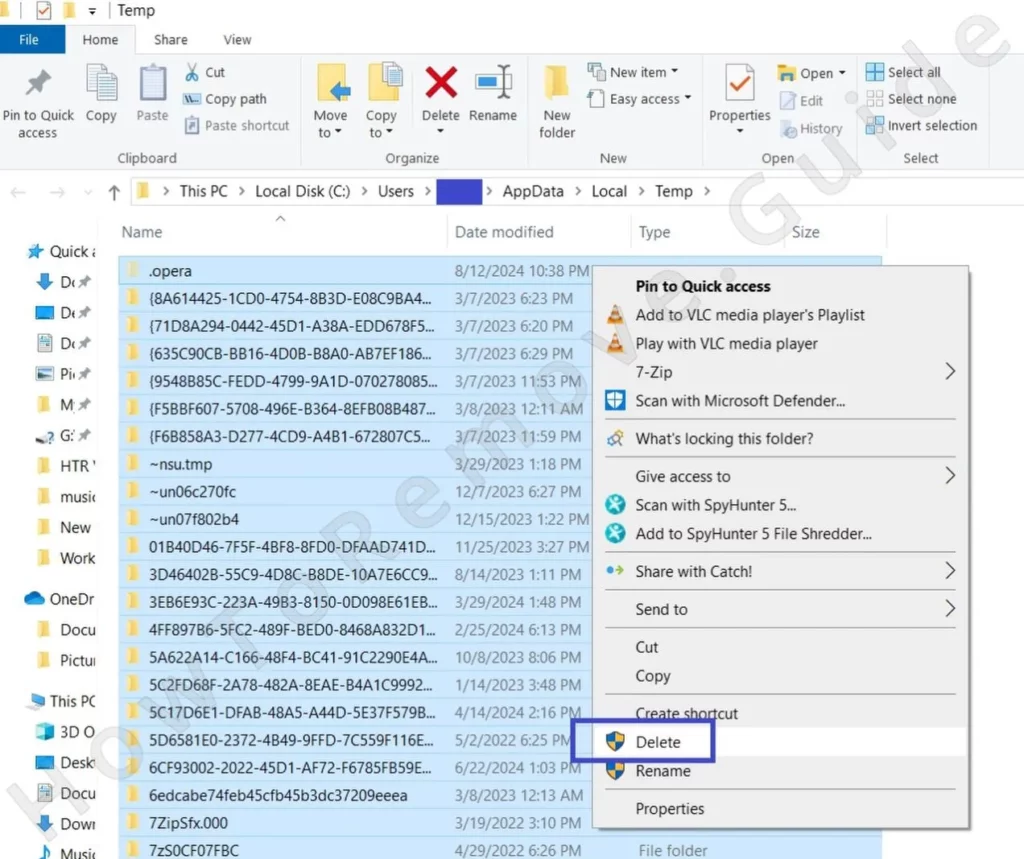
This folder is the equivalent of a catch-all drawer in your kitchen—things pile up here, and some of it is downright useless. Select everything (Ctrl + A) and hit delete. Don’t worry; nothing critical resides here.
Finally, inspect the Program Files folders:
- C:\Program Files
- C:\Program Files (x86)
These folders are home to many legitimate programs, so tread carefully. But if something seems off, trust your gut and remove it.
How to Delete Persistent Files with Lock Hunter
Remove Kowi SApp Malware Tasks From the Task Scheduler
Here’s where things get sneaky. Malware like Kowi SApp often sets up scheduled tasks to keep itself running or reinstall itself after you’ve deleted it. To deal with this, open the Task Scheduler from the Start Menu.
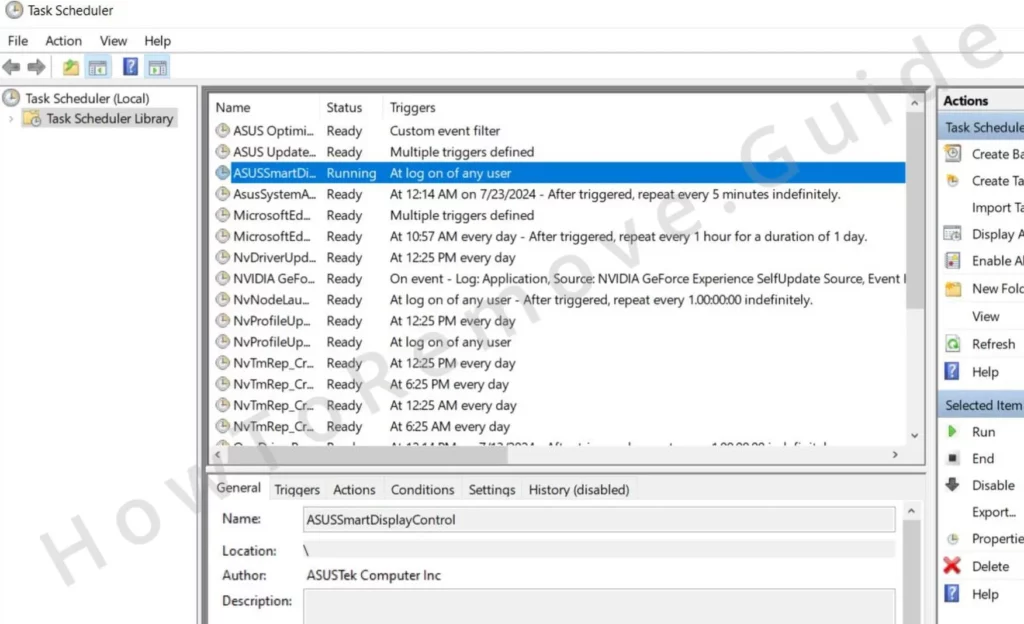
In the Task Scheduler Library, go through each task one by one. Double-click to open them, then check the Actions tab.
Any task launching programs from shady directories like AppData or attempting to access unknown websites is a problem. Delete them immediately. Take your time here; missing even one task could undo all your hard work.
Video walkthrough for this step:
We tested that SpyHunter successfully removes Kowi SApp* and we recommend using it. It will block Kowi SApp from reinstalling itself and it will make sure your device is clean from any malware.
Try Free For 7 Days*
Buy now15% OFF if you buy straight without trial.
Get Rid of Kowi SApp Through the System Registry
The system registry is another hotspot for malware activity. Open the Registry Editor by typing “regedit” in the Start Menu and running it as an administrator. Press Ctrl + F to search for anything related to Kowi SApp. If something suspicious pops up, delete it. But—and this is crucial—be cautious. Delete only the bad entries, not entire folders.
For good measure, manually check these locations in the registry:
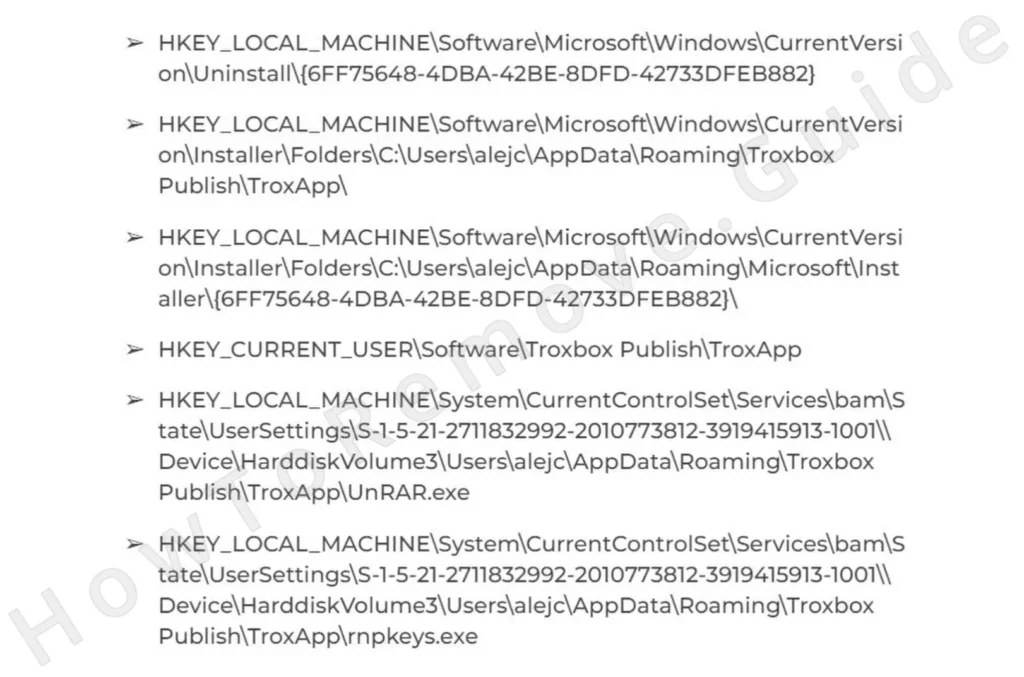
Examine the entries in the right panel. If you see anything sketchy, remove it. Just be careful not to disrupt legitimate keys.
Video walkthrough for this step:
Remove Kowi SApp Browser Policies
Kowi SApp often extends its reach into your web browsers, messing with your settings or hijacking your searches. Open each browser you use and take a good look at its settings. If you see a message saying, “Managed by your organization,” it’s a red flag—Kowi SApp may have tampered with your browser policies.
To fix this, open the Group Policy Editor by searching for it in the Start Menu. Navigate to:
- Computer Configuration > Administrative Templates
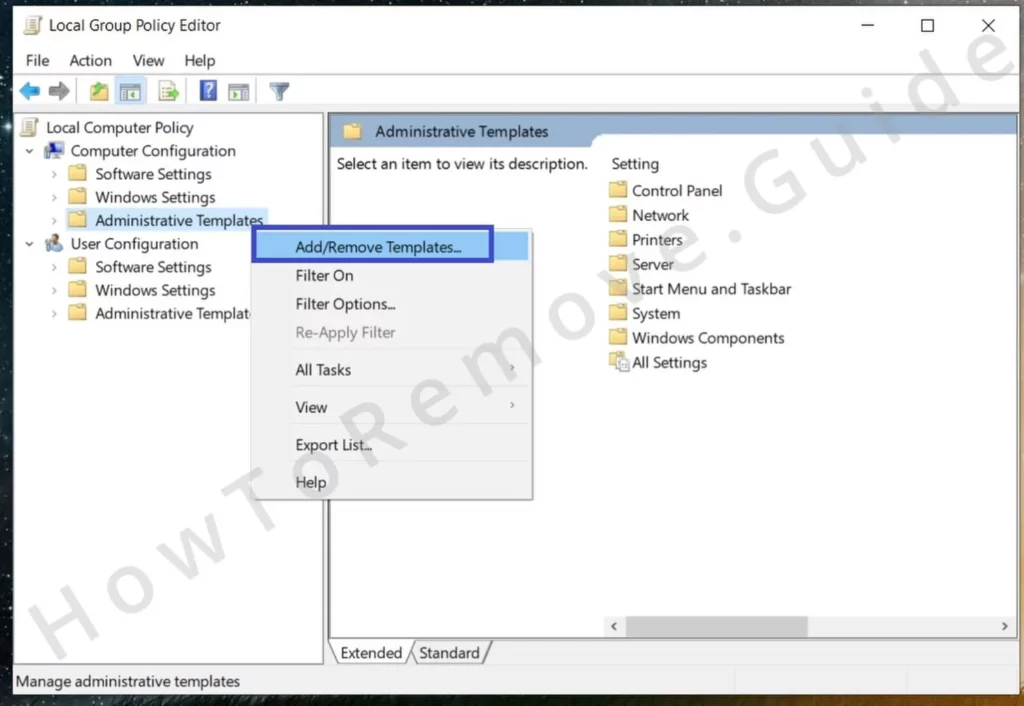
Right-click, select Add/Remove, and clear the list.
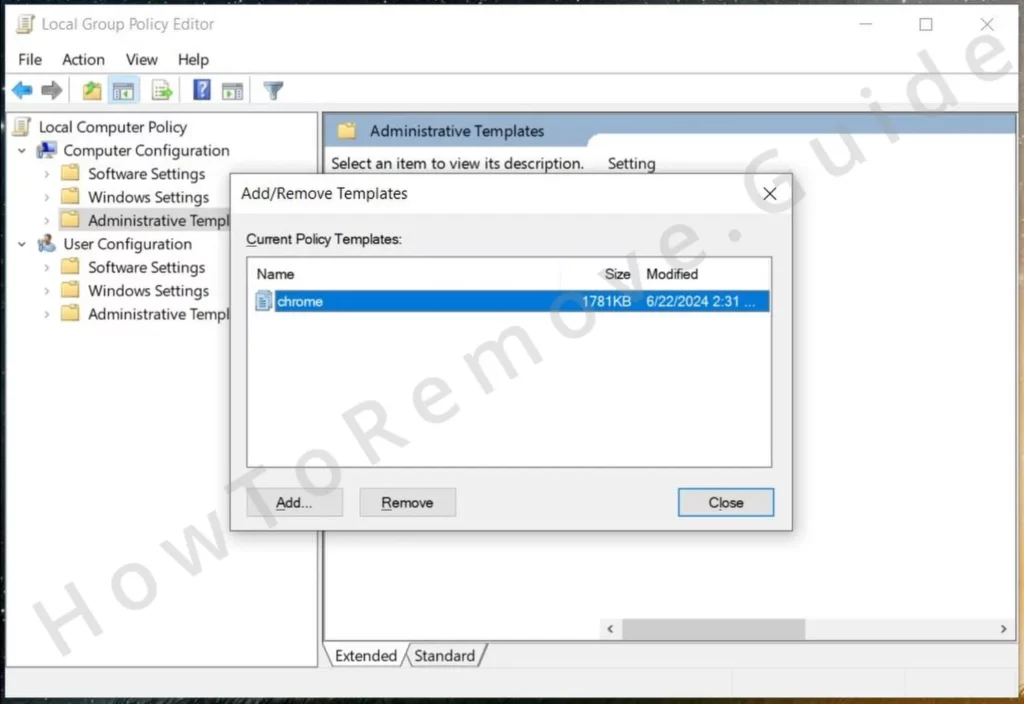
If you’re a Chrome user, you can simplify this step by running a free tool called Chrome Policy Remover. It does the job quickly and effectively.
Video walkthrough for this step:
Manual Group Policy Removal
Automatic Group Policy Removal
Uninstall Kowi SApp From Your Browser
With browser policies back under control, it’s time to clean up any changes introduced by Kowi SApp to the browser’s settings.
Go to your browser’s Extensions section and uninstall anything you didn’t add yourself.
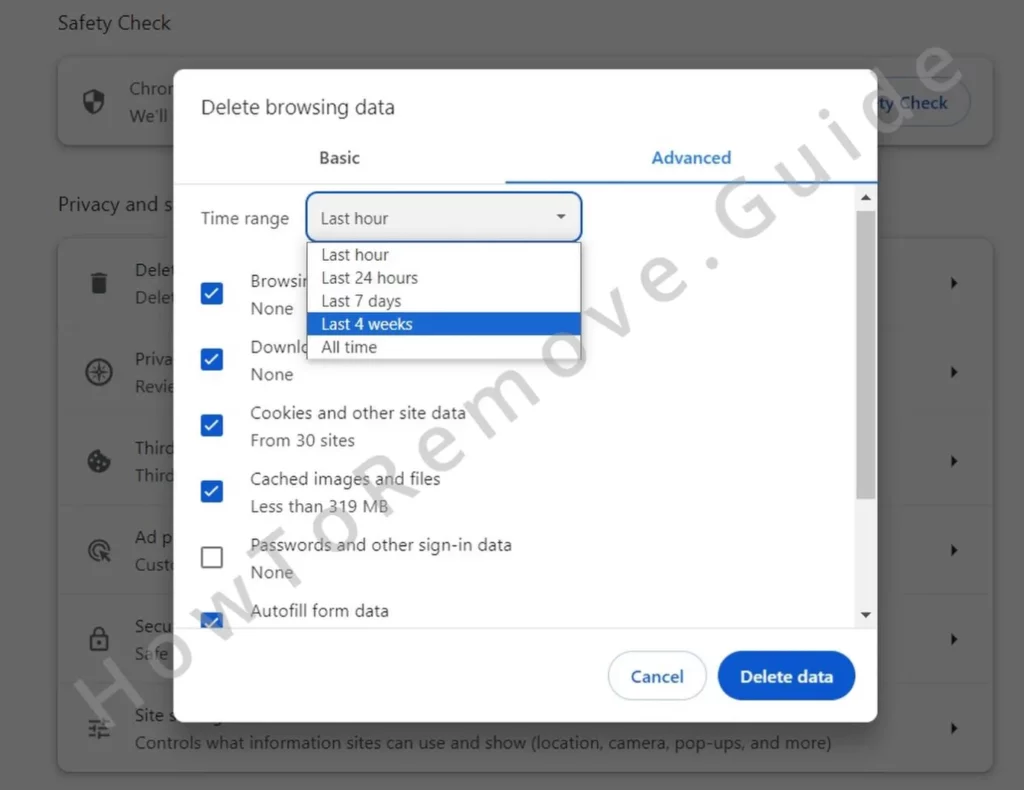
Clear your browsing data under Privacy and Security, selecting the All Time range but keeping your saved passwords intact.
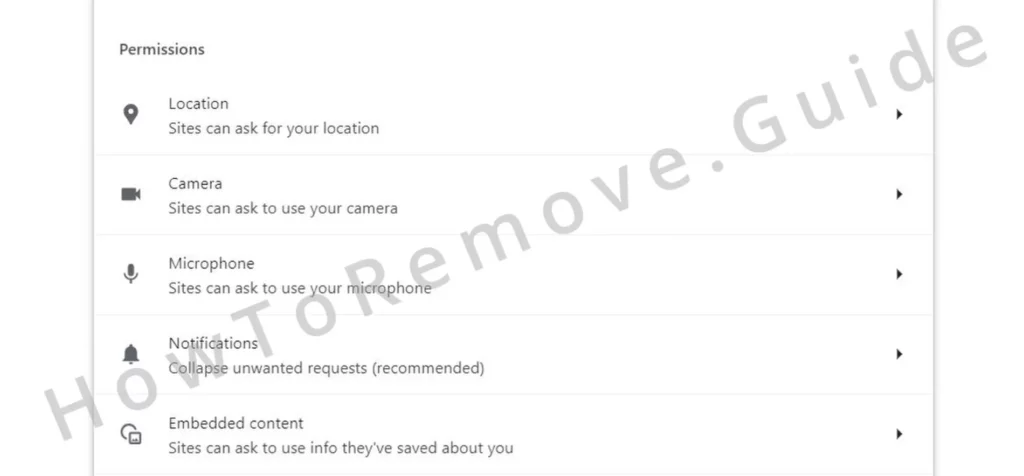
Review your Site Settings and revoke permissions for any websites that don’t belong.
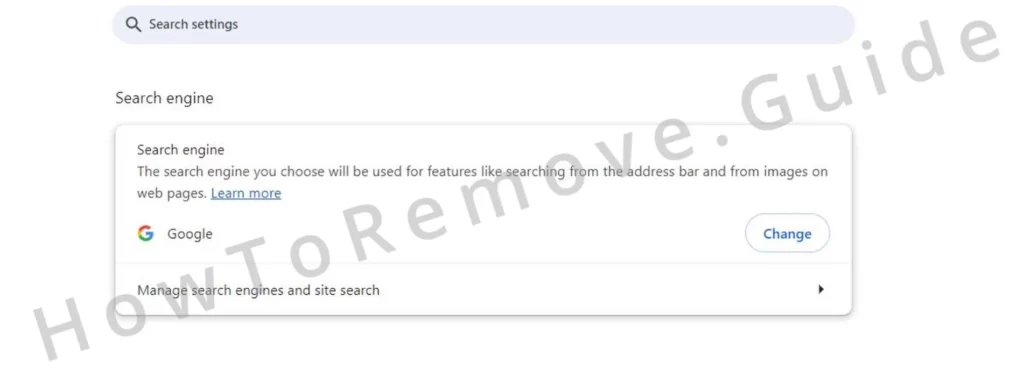
Then, check your default search engine and startup pages, removing anything suspicious.
Video walkthrough for this step:
Chrome
Microsoft Edge
Mozilla Firefox
The Final Word: Stay Sharp
If you’ve followed these steps to the letter, Kowi SApp should now be history. But if the problem persists, don’t hesitate to bring in a professional-grade tool like SpyHunter to perform a deeper clean.
The best defense against malware is a good offense. Be mindful of what you download, stick to trusted sources, and invest in a reliable antivirus program. By staying vigilant and proactive, you can keep your system safe and secure.
Remember, the battle against malware is ongoing, but now you’re equipped with the knowledge and tools to fight back. Keep your guard up and your system strong. You’ve got this.

Leave a Reply