

The appearance of new rogue apps like Disoaq App has become a daily occurrence at this point. This piece of malware is basically just a reskin of other similar rogue programs like Rotq App and Joas App. They all do the same thing, namely, infiltrate your PC through file bundles and automatic downloads and then begin to spam you with ads, intrusive and often distressing notifications with fake messages, and sudden browser redirects. While none of this is directly damaging, these actions of the malware can certainly expose you to scams and other malware that is actually harmful.
We tested that SpyHunter successfully removes Disoaq App* and we recommend using it. It will block Disoaq App from reinstalling itself and it will make sure your device is clean from any malware.
 Try Free For 7 Days*
Buy now15% OFF if you buy straight without trial.
 OFFER
OFFERRogue apps like Disoaq App are notoriously difficult to get rid of if you go about the removal process manually. For this reason, I’ve prepared a full instructional guide that covers all steps needed to eliminate this malware. However, if you prefer a quicker, safer, and more straightforward solution, I strongly suggest using SpyHunter 5 – the professional anti-malware tool that you can find linked on this page.
Disoaq App Removal Steps
Even though rogue software like Disoaq App tends to be tricky to delete manually, it’s still a good idea to first try the simpler and more conventional removal options. In some cases, they could still work and save you time, and even when they don’t, they still serve as a good starting point for the more advanced stuff I’ll show you in a bit. So here’s what you do first:
- First, open up “Apps & Features.” If you don’t know where that is, no problem—just type it into the Start Menu search bar.
- Once you’re in, sort the list of installed apps by the date they were installed. This is a neat trick to spot anything new or unfamiliar.
- If Disoaq App or any suspicious program shows up, click on it and uninstall it. Follow the steps carefully, and don’t rush through the prompts. Malware can sometimes hide extra options during uninstalls.
- But hold up, we’re not done yet. Malware loves leaving behind little pieces of itself to sneak back in. So, open File Explorer and check these two spots:
C:\Program FilesC:\Program Files (x86)
- Look for any folders that don’t belong or that seem sketchy. If you see anything related to Disoaq App or anything you don’t recognize, delete it.
Once that’s done, restart your computer. If things are still off, it’s time to step things up.
SUMMARY:
Important! Read Before Continuing
The full removal guide takes time to complete and it’s also recommended to have some basic experience with software troubleshooting because several of the steps will rely on your personal judgment to decide what to delete. If this sounds like a bit too much, know there’s always the option to remove Disoaq App quickly and safely by using SpyHunter 5, which should make quick work of the malware.
How to Remove the Disoaq App Virus
If you got to this point of the guide, I assume the quick steps above didn’t work, yet you are determined to get rid of this malware the manual way. In this case, you’ll first need to make a couple of preparations
First, download LockHunter. This tool is a lifesaver when it comes to deleting files that Windows won’t let you touch because they’re “in use.” Malware loves to pull this trick to protect itself.
Next, we need to make sure you can actually see all the sneaky files hiding in your system. Open the Start Menu, type in “Folder Options,” and head over to the View tab. Now, check “Show hidden files, folders, and drives.” This exposes any hidden malware files that Disoaq App might be using to stay hidden.
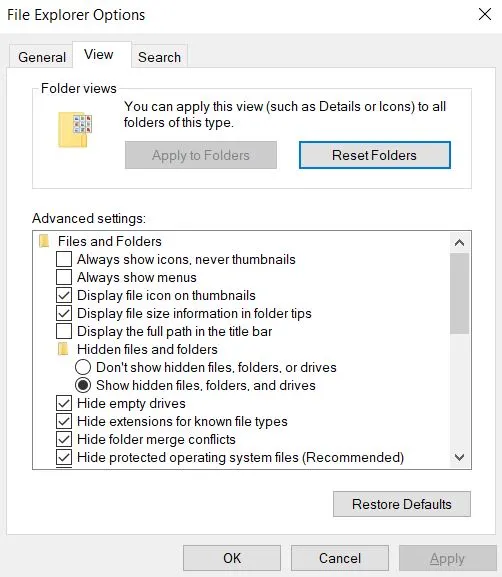
Once these two steps are done, you’re ready for the real cleanup.
Video walkthrough for this step:
Delete Disoaq App Virus Files
You are now properly equipped and prepared to hunt down any files that Disoaq App has created in your system. There are several important locations that you need to check and clean of any rogue files and folders.
Remember: if a particular item is giving you hard time when you attempt to delete it, make sure you have LockHunter installed, then right-click the stubborn item, click “What’s locking this file/folder“, and then click “Delete“.
Now, as for the folders you need to check, start with the following one:C:\Users\YourUsername\AppData\Roaming
Look for any folders with weird or random names. If something looks off, it probably is and must be deleted.
Next up, the Temp folder:C:\Users\YourUsername\AppData\Local\Temp
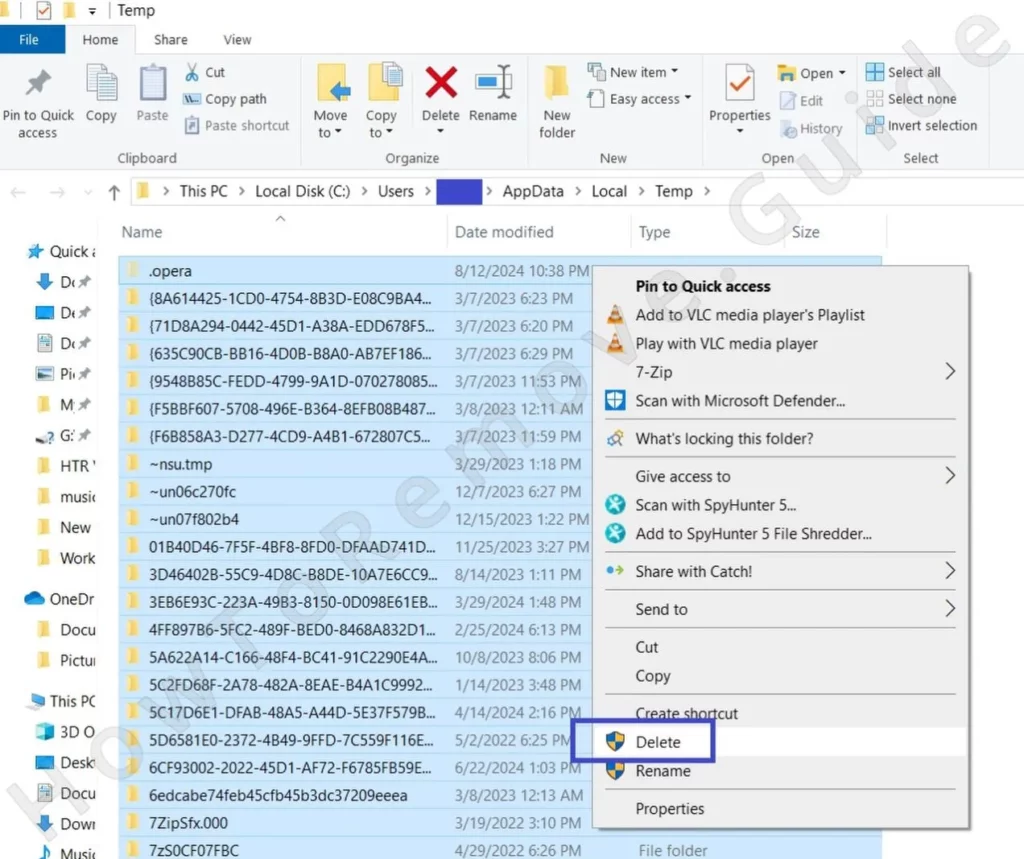
Go ahead and delete everything in there. Don’t worry, this folder only stores temporary files, and cleaning it out won’t harm your system. If Disoaq App has any files in here, they’re gone now.
Now, we need to check the Startup folders. Malware loves to set itself up to launch every time you boot your computer. Check both of these locations:
C:\ProgramData\Microsoft\Windows\Start Menu\Programs\StartupC:\Users\YourUsername\AppData\Roaming\Microsoft\Windows\Start Menu\Programs\Startup
Anything suspicious here? Delete it.
Lastly, while you’re at it, double-check the two Program Files folders in your C: drive again just to be sure nothing slipped by earlier.
How to Delete Persistent Files with Lock Hunter
Remove Disoaq App Malware Tasks From the Task Scheduler
Here’s something a lot of people miss: malware like Disoaq App often uses Task Scheduler to stay alive. It can set up tasks to reopen itself even after you delete its files. Therefore, you must always remember to check for such tasks when you are trying to manually deal with any type of malware.
Open Task Scheduler from the Start Menu – just search for it there. Once inside, go to the Task Scheduler Library.
Click through each task and check the Actions tab. If you see anything running strange files, scripts, or links, delete that task immediately.
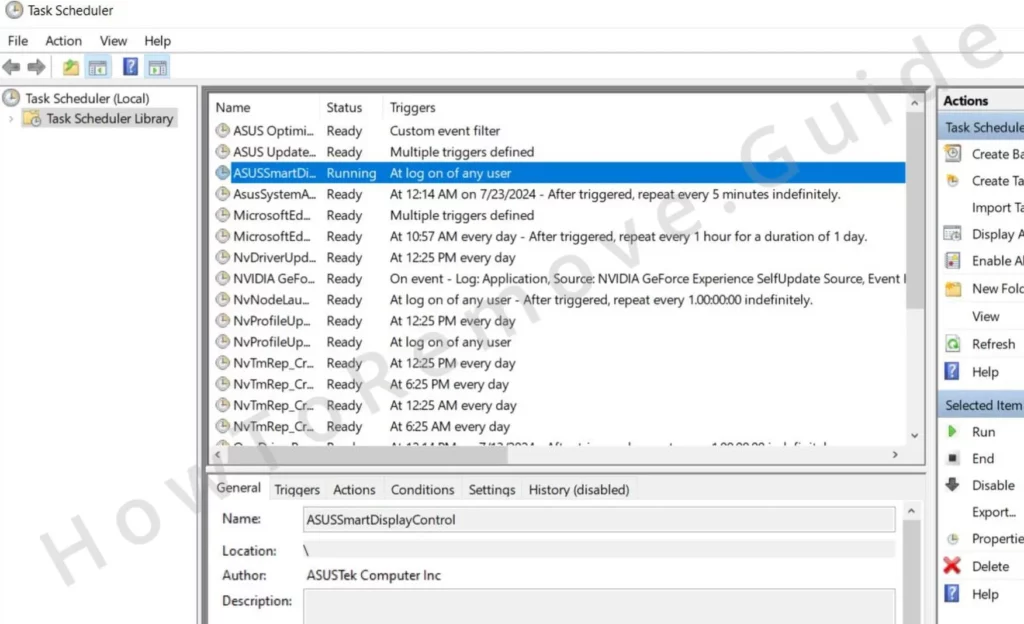
This step is critical. Miss this, and Disoaq App could come crawling back.
Video walkthrough for this step:
Get Rid of Disoaq App Through the System Registry
The next very important step is to clean the system registry from Disoaq App items. Note that this step will require you to do most of the legwork – you’ll have to make some calls on what to delete and what to leave intact. If you aren’t comfortable with that, you can let SpyHunter 5 handle this part. But if you think you can take care of it yourself, here’s what must be done:
Type “regedit” into the Start Menu and run it as administrator. Once inside, use the Find function to search for anything related to Disoaq App.
When/if you find something, delete it. But don’t stop at one search—run multiple searches to catch everything.
Then manually check these locations in the left panel:
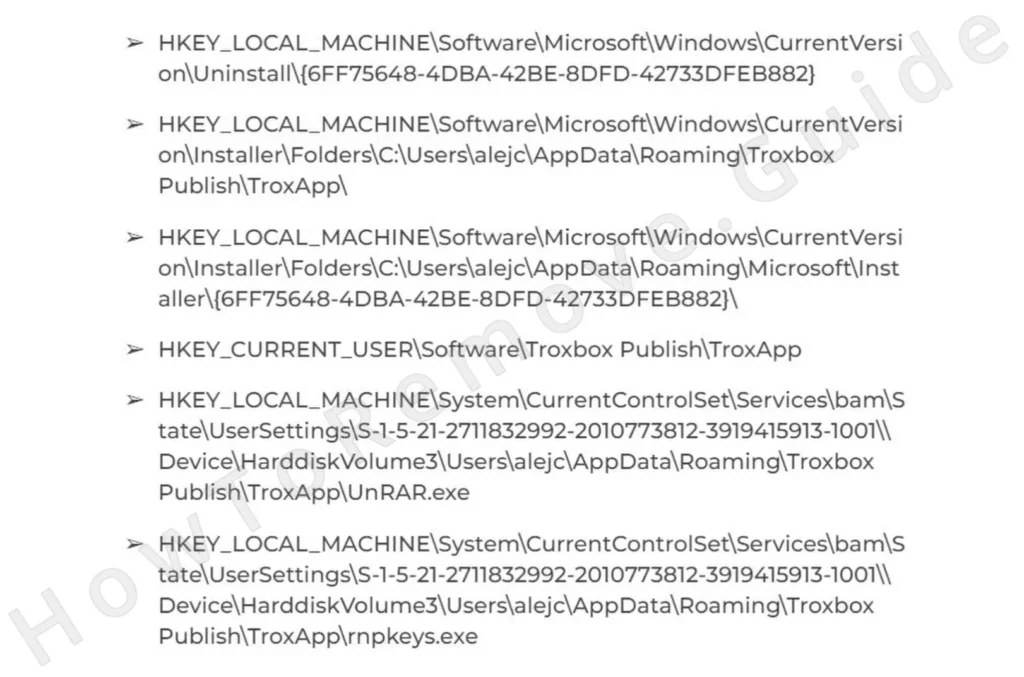
Click each of these keys on the left and then explore its contents in the right panel. If you see any values there that seem suspicious, delete them, but do not delete the key itself – that must stay intact.
Video walkthrough for this step:
Remove Disoaq App Virus Policies
In case Disoaq App has also infiltrated your browser and taken control, it has probably imposed a third-party policy.
This locks down the browser settings and prevents you from restoring unwanted changes made to them. If you see a “Managed by your organization” message in your browser menu, that’s a big red flag.
To fix this, open Group Policy Editor (search for it in the Start Menu), then go to:
Computer Configuration > Administrative Templates.
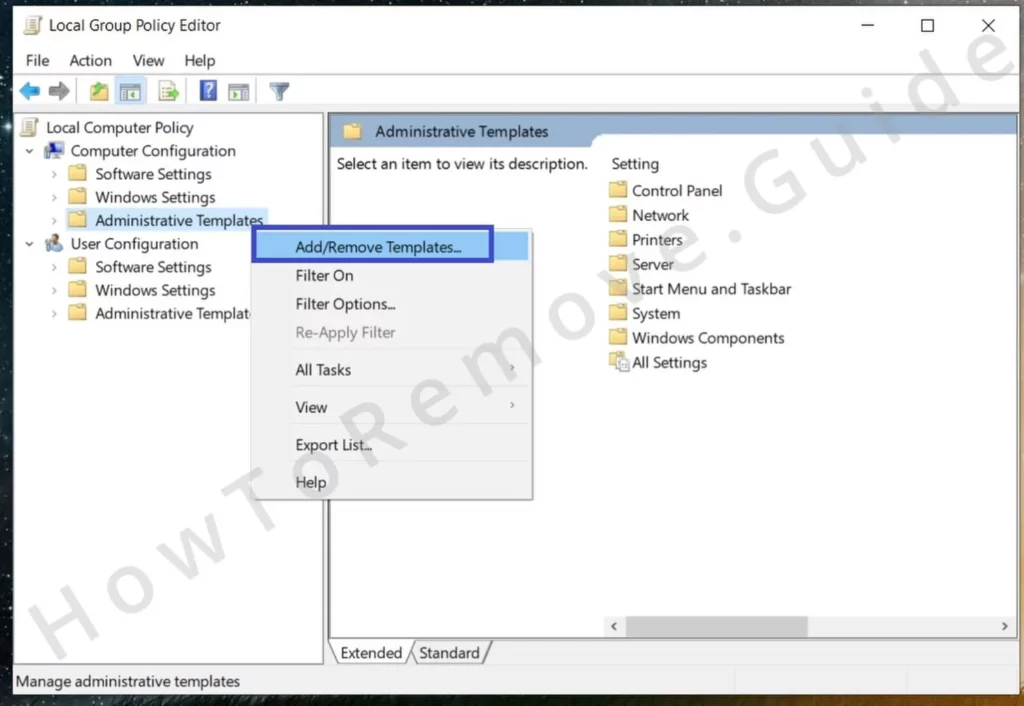
Right-click Administrative Templates, select Add/Remove Templates, and delete everything you find.
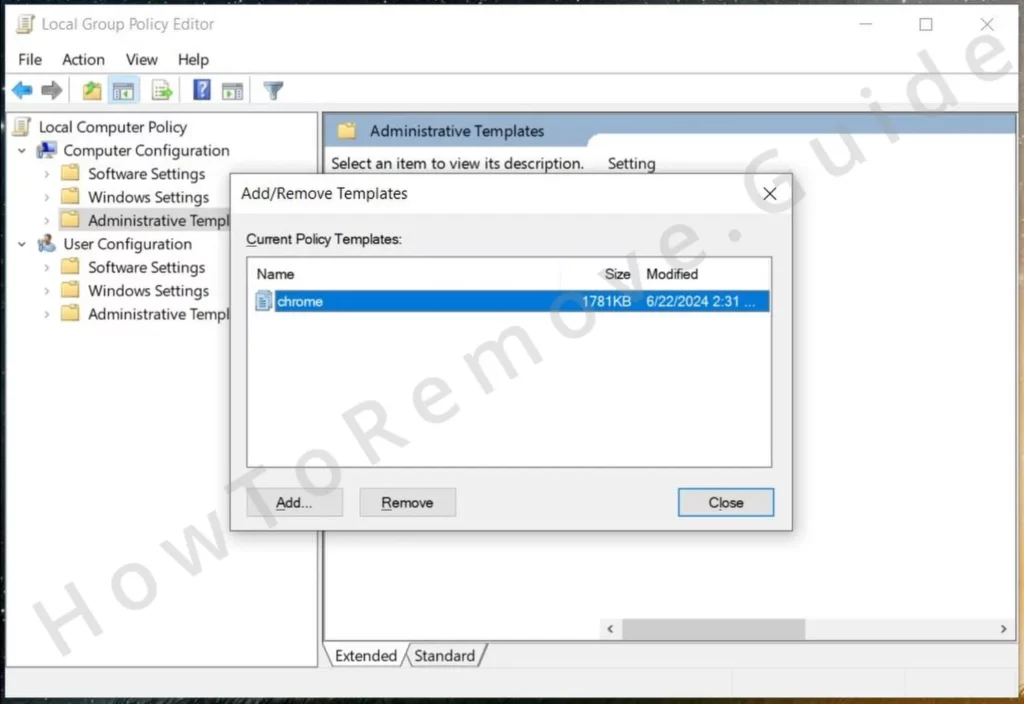
If you’re using Chrome, download the free Chrome Policy Remover tool. Run it as admin, and it’ll wipe those policies clean. Ignore any security pop-ups; it’s safe.
Video walkthrough for this step:
Manual Group Policy Removal
Automatic Group Policy Removal
Uninstall Disoaq App From Your Browser
In case Disoaq App has made any unwanted modifications to your browser, you need to take care of that too. Here are the sections of your browser settings that you must check and clean:
Open your browser’s extensions section and remove anything you don’t recognize. Malware often disguises itself as helpful plugins, so be cautious. If you didn’t install it, delete it.
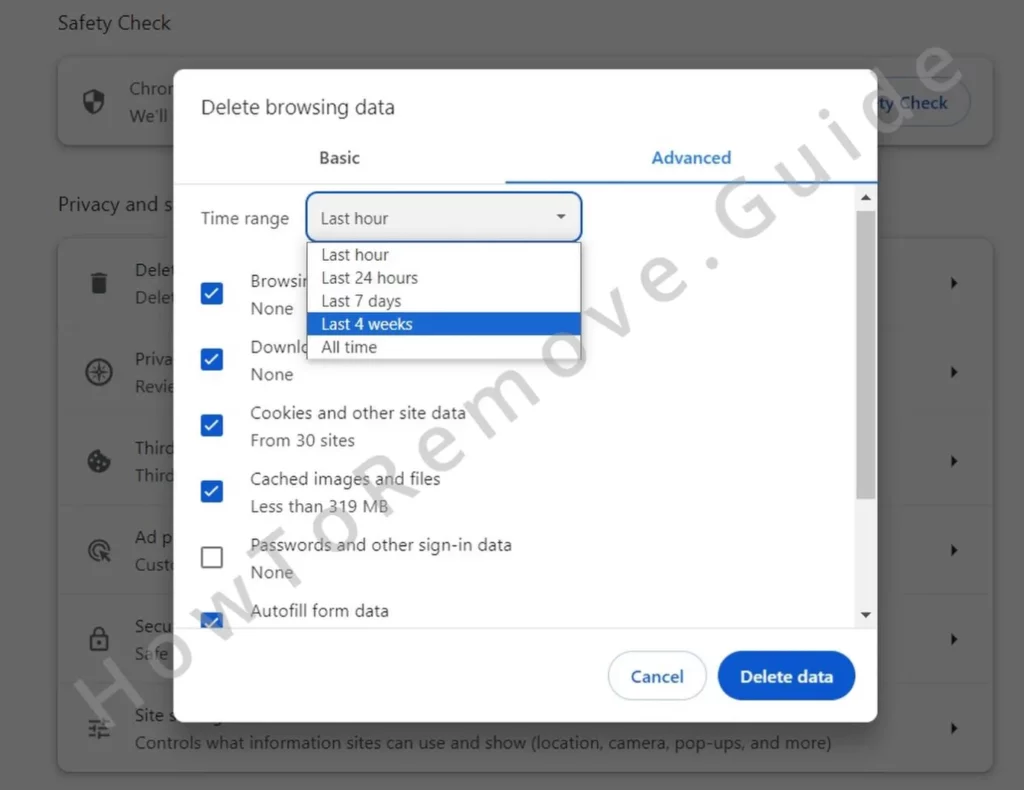
Clear your browsing data by going to the Privacy and Security settings. Choose to delete data for “All Time” to ensure nothing is left behind.
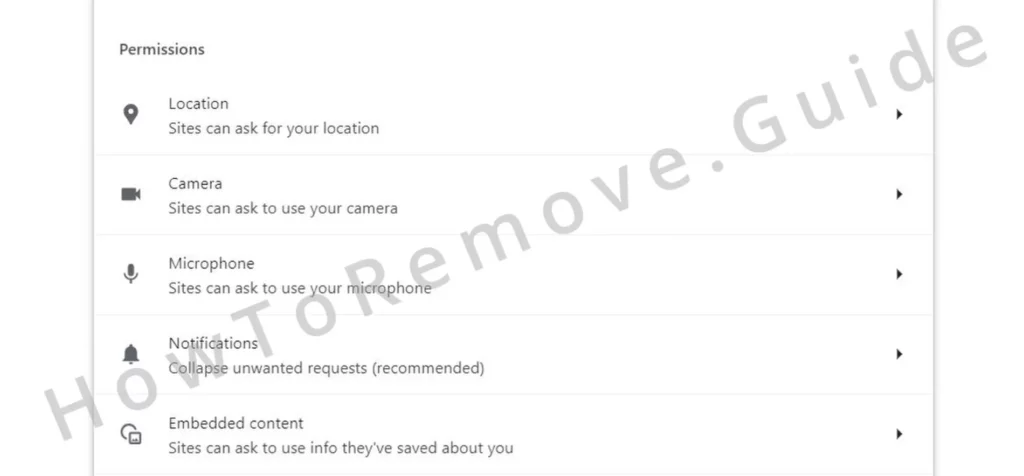
Check the site permissions for rogue URLs and block/remove anything unfamiliar.
Reset your homepage, search engine, and startup settings to defaults you trust. These steps will restore your browser to normal and eliminate any lingering malware influence.
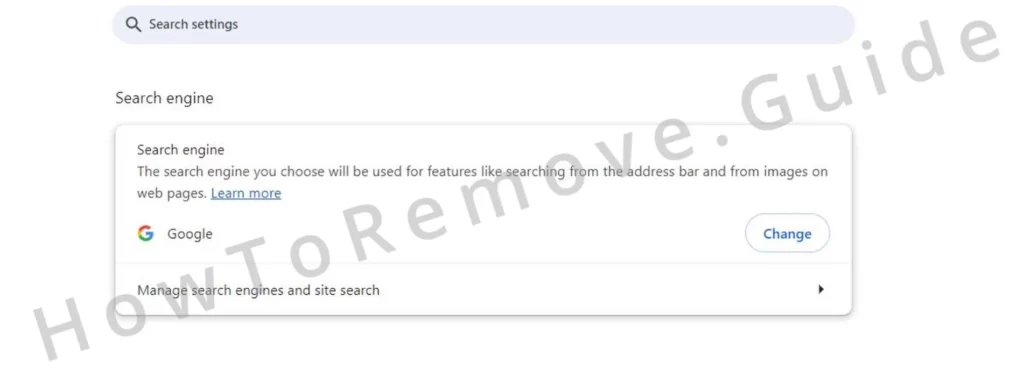
Video walkthrough for this step:
Chrome
Microsoft Edge
Mozilla Firefox
Locking Down Your System Against Future Threats
Congrats, Disoaq App should be gone by now. But let’s make sure this doesn’t happen again.
First, be super cautious about what you download. Malware often sneaks in through shady downloads or bundled software. Always choose custom installation and uncheck anything extra.
Keep your antivirus updated, and run regular scans. Tools like SpyHunter can offer extra protection by catching threats that traditional antiviruses might miss.
Oh, and those system updates? Stop ignoring them. Updates patch security holes that malware loves to exploit. Keep everything updated.
Wrapping It Up
Look, getting rid of malware like Disoaq App isn’t fun, but it’s totally doable if you’re methodical. Start with the easy stuff—uninstalling shady programs and deleting leftover files. If that doesn’t work, dive into the more advanced steps: killing tasks, cleaning the registry, and fixing browser settings.
The key here is patience. Malware like Disoaq App hides in all sorts of places, but if you follow this guide step by step, you’ll kick it to the curb.
Most importantly, stay sharp. Be cautious with what you download, keep your security tools updated, and don’t ignore warning signs. Trust me, it’s a lot easier to prevent malware than to remove it.
Stay safe out there!
Leave a Reply