

Easy2Convert markets itself as a quick PDF converter, yet our analysis indicates it behaves like an unwanted application with risks to privacy and system stability. Beyond file conversion, it can harvest system and browsing details, meddle with browser defaults (search engine, homepage, new-tab), inject ads, and slow the machine. We’ve also seen persistence tricks – self-launching executables (e.g., easy2convertapp.exe, Easy2Convert.exe) and a scheduled task named Easy2ConvertUpdater – plus Python components bundled via PyInstaller and even screenshot capability, all of which raise red flags.
Now, Easy2Convert isn’t alone. It’s part of a whole malware family, including shady programs like Premier Opinion and BBWC. They all have the same goal – flood your screen with garbage and make money off it. One of their favorite tricks is fake security warnings that try to scare you into downloading some “security” app (which, surprise, is also malware).
Sure, you could ignore it for a bit, but that’s not a long-term solution. The sooner you remove Easy2Convert, the better. Stick around – I’ll show you exactly how to get rid of it and keep your PC safe.
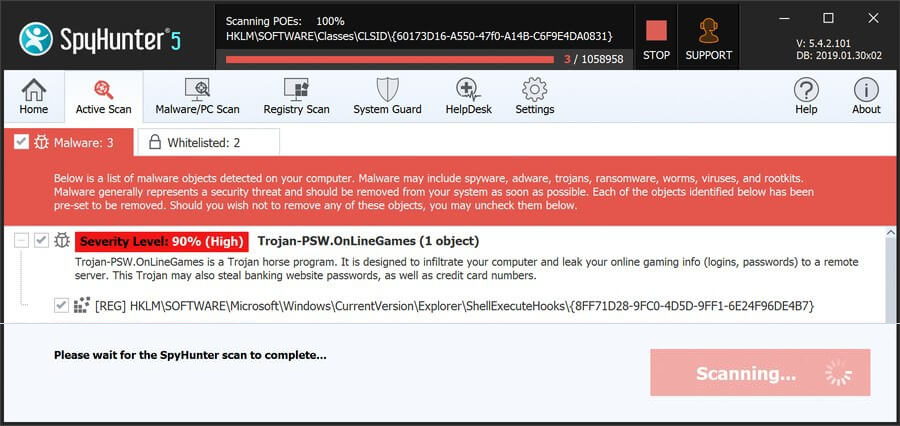
Easy2Convert.exe may expose your browser to redirects, ads, and persistent unwanted components. Install SpyHunter Pro to scan for risks, remove related threats, and enable real-time protection.
 OFFER
OFFER*Source of claim SH can remove it. Trial w/Credit card; image is for illustration; full terms.
Easy2Convert Removal Tutorial
Before diving into deep system purges, let’s check for the easy wins. Sometimes, malware disguises itself as a harmless app and sits right under your nose.
Quick Steps to Remove Easy2Convert
- 1.1First, open your Start Menu and search for “Apps & Features.” This will bring up a list of every program installed on your machine.
- 1.2To make things easier, sort the list by installation date – newly installed programs are more likely to be the culprit.
- 1.3Now, scan through the list carefully. Do you see anything weird? Generic-sounding names, unfamiliar software, or apps with sketchy icons are all red flags.
- 1.4If you find something that fits the bill, uninstall it right away. Click it, click Uninstall, and follow the removal prompts, making sure you carefully read the description of each step.
- 1.5After uninstalling, dig into the program’s installation folder and manually delete any leftovers. Some malware is sneaky and leaves behind hidden files to resurrect itself later.
Once you’re sure the software is gone, restart your computer and check if the issue persists. If the malware is still active, it’s time for more advanced tactics.
SUMMARY:
How to Remove the Easy2Convert Virus
Malware often hides itself in system folders, making it harder to find. To level the playing field, you need to reveal hidden files and arm yourself with the right tools. Otherwise, you may not be able to remove Easy2Convert fully, and the malware could remain in the system.
1. Easy2Convert Removal Preparatory Steps
- 1.1
 Start by opening your Start Menu, searching for “Folder Options”, and going to the “View” tab. Enable the setting to “Show hidden files, folders, and drives”, then hit Apply. Congratulations – you’ve just pulled back the curtain.
 - 1.2Next, download LockHunter, a powerful tool that forces Windows to delete locked files. Some malware will try to protect itself by claiming “This file is in use” when you try to delete its data. With LockHunter, you can bypass that nonsense and delete stubborn malware files with ease.
Delete the Easy2Convert Virus Files
After performing the preparatory steps from above, you are now ready to begin hunting down and deleting Easy2Convert files. The malware likely has data in several common system locations, so you’ll have to manually check each one and erase anything suspicious you find there.
2. How to Delete Easy2Convert Data
- 2.1First, visit these locations and search them for anything named Easy2Convert or any other files and folders with unfamiliar or suspicious names:
→ C:\Users\YourUsername\AppData\Roaming
→ C:\ProgramData\Microsoft\Windows\Start Menu\Programs\Startup
→ C:\Users\YourUsername\AppData\Roaming\Microsoft\Windows\Start Menu\Programs\Startup - 2.2
 Next, clear out your Temp folder. Go to:
→ C:\Users\YourUsername\AppData\Local\Temp
Select everything (Ctrl + A) and delete it. These are just temporary files, and getting rid of them won’t harm your system. Malware often hides here, so clearing this folder removes another potential infection source.
- 2.3Lastly, check your Program Files directories:
→ C:\Program Files
→ C:\Program Files (x86)
If you find anything suspicious, look it up online. If it turns out to be malware, delete it immediately.
Remove Easy2Convert Malware Tasks From the Task Scheduler
It’s possible that Easy2Convert has created scheduled tasks in your system that let it automatically start without the need for user input or even get re-installed after you manage to delete it. It’s important not to ignore this step or else all your effort could be in vain.
3. How to Remove Easy2Convert Entries From the Task Scheduler
- 3.1
 To stop this, open your Task Scheduler (search for it in the Start Menu) and navigate to the Task Scheduler Library.
 - 3.2Check each task carefully. Open its properties and inspect the “Actions” tab.
- 3.3If any of the tasks are set to open a suspicious file (especially executables) or run any weird scripts, it’s best to delete them.
Get Rid of Easy2Convert Through the System Registry
Now, you’ll have to go into your system’s registry, look for malware items, and delete them. Most malware plants itself deep into the system by making changes in the registry, so it’s pretty much guaranteed Easy2Convert has done the same.
Be careful with this step. Deleting the wrong registry entries can mess up your system. If you’re unsure, consider using a security tool like SpyHunter to scan for and delete malicious Easy2Convert entries automatically.
4. How to Remove Easy2Convert Items From the Registry
- 4.1If you want to do it manually, open the Registry Editor by searching for “regedit” in the Start Menu, and then run it as an administrator.
- 4.2Press Ctrl + F to search for Easy2Convert. If you find any entries linked to the malware, delete them (right-click > delete).
- 4.3
 Also, check these locations:
 - 4.4You need to click each of these keys in the left panel and then look at the values listed on the right. If you see any values there that seem related to Easy2Convert or other malware, delete them, but leave the keys to the left intact!
Remove Easy2Convert Browser Policies
If Easy2Convert messed with your browser, you might see a “Managed by your organization” message, preventing you from changing settings. This means malware has added rogue policies that need to be removed.
5. How to Remove Rogue Easy2Convert Policies
- 5.1
 To fix this, open the Group Policy Editor (search for “Edit Group Policy” in the Start Menu), and navigate to Computer Configuration > Administrative Templates.
 - 5.2
 Right-click, select “Add/Remove,” and clear out everything.
 - 5.3If you’re using Chrome, you can use Chrome Policy Remover, a tool that resets all Chrome policies automatically. You just need to download it and run it with admin privileges.
- 5.4If Window warns you about it, click “More Info” > “Remove Anyway” to ignore the warning. Don’t worry, the tool is perfectly safe.
Uninstall Easy2Convert From Your Browser
With browser policies restored, clean up any lingering changes. If the Easy2Convert malware got to your browser, it has almost certainly made various changes in its settings, so you need to reverse those changes to fully get rid of the rogue app’s influence.
6. How to Remove Easy2Convert From Your Browser
- 6.1Open your browser’s extensions page and uninstall anything you didn’t personally add.
- 6.2
 Then clear your browsing data by heading to the “Privacy and Security” settings. Choose the “All Time” range, and delete everything except your passwords.
 - 6.3
 Review your Site Settings and revoke permissions for any websites that don’t belong.
 - 6.4
 Then, check your default search engine. Make sure it’s set to something trustworthy. Then visit the Manage Search Engines section and delete from it any unfamiliar search tools.
 - 6.5The last two settings sections to review are On Startup and Appearance. See if you notice any strange, unfamiliar addresses in either one and delete anything you don’t recognize.
So you’ve spotted some weird app or process called Easy2Convert in your Task Manager. Bad news – that’s malware. The good news is that this isn’t the worst thing that could happen to you. But before you breathe a sigh of relief, let’s be clear: Easy2Convert is still a problem. This software will mess up your browser, bombard you with dubious ads and pop-ups, and try to get you to click on who knows what. Everything described above for dealing with this problem is our way of arming you with an arsenal capable of removing this malware from your system.
