

Franoapas.co.in is a type of rogue site that employs a number of underhanded techniques such as misleading browser permission prompts and file bundling to set itself as your browser’s default search engine. It’s very similar to other browser hijacers I’ve covered here, including Networkdefender.co.in and DSR Search. After achieving its goal, this hijacker goes on to redirect your online searches, landing you on modified SERPS that will often promote potentially unsafe pages.
We tested that SpyHunter successfully removes Franoapas.co.in* and we recommend using it. It will block Franoapas.co.in from reinstalling itself and it will make sure your device is clean from any malware.
 Try Free For 7 Days*
Buy now15% OFF if you buy straight without trial.
 OFFER
OFFERWhile Franoapas.co.in itself is not a direct threat to your system security or virtual privacy, it can absolutely expose you to more serious dangers, including phishing sites or sites filled with malware. The solution I recommend is to take action and get rid of this browser hijacker using the methods I’ve provided below.
Franoapas.co.in Removal Guide
If you are lucky, you may be able to remove Franoapas.co.in in just a couple of minutes without needing to resort to the more advanced methods I’ll explain further down. Therefore, I suggest we start with the low-hanging fruit: browser extensions and permissions.
- Open your browser—whether that’s Chrome, Edge, or Firefox—and find the Menu. For Chrome, look for those three little dots in the top-right corner. In Firefox? You’re looking for three horizontal lines.
- Once you’re in the Extensions or Add-ons section, start scanning the list. This is where the hijacker often lurks.
- Look for anything that doesn’t belong—extensions with weird names, ones you don’t remember installing, or tools that promise things like “faster browsing” or “enhanced searches.” These are classic tricks.
- If you find something suspicious, delete it immediately.
- Next, go to Privacy and Security and head to Site Permissions. This is where websites ask for things like notification access, pop-ups, and redirection rights.
- Scroll through the list, and if you see a website you don’t trust, revoke its access. Done.
Now, restart your browser and see if things are back to normal. In a lot of cases, that’s all you need. But if the hijacker’s still there, don’t worry—this is where things get serious.
SUMMARY:
| Name | Franoapas.co.in |
| Type | Browser Hijacker |
| Detection Tool |
We tested that SpyHunter successfully removes Franoapas.co.in* and we recommend downloading it. Manual removal may take hours, it can harm your system if you re not careful, and Franoapas.co.in may reinstall itself at the end if you don't delete its core files. |
Here’s the deal: getting rid of Franoapas.co.in and any rogue programs tied to it isn’t as overwhelming as it sounds. The process takes about an hour and is totally doable if you follow the steps carefully.
Short on time? Tools like SpyHunter 5 can make things easier. A quick scan will locate Franoapas.co.in and related malware, and with a few clicks, your system is clean and running smoothly again.
Whether you go manual or use a tool, the key is to act now. Taking action is what keeps your system secure and prevents further headaches.
How to Remove Franoapas.co.in From Your Browser
The trick that lets many hijackers evade initial removal attempts like the steps I showed above is to introduce a third-party policy to the browser. Such policies block your access to certain browser settings so whatever changes were made there by the hijacker cannot be reversed by you until the policy is taken care of.
If you see a “Managed by your organization” note at the bottom of the browser menu or atop its Settings page, that tells you such a policy is currently active in your browser.

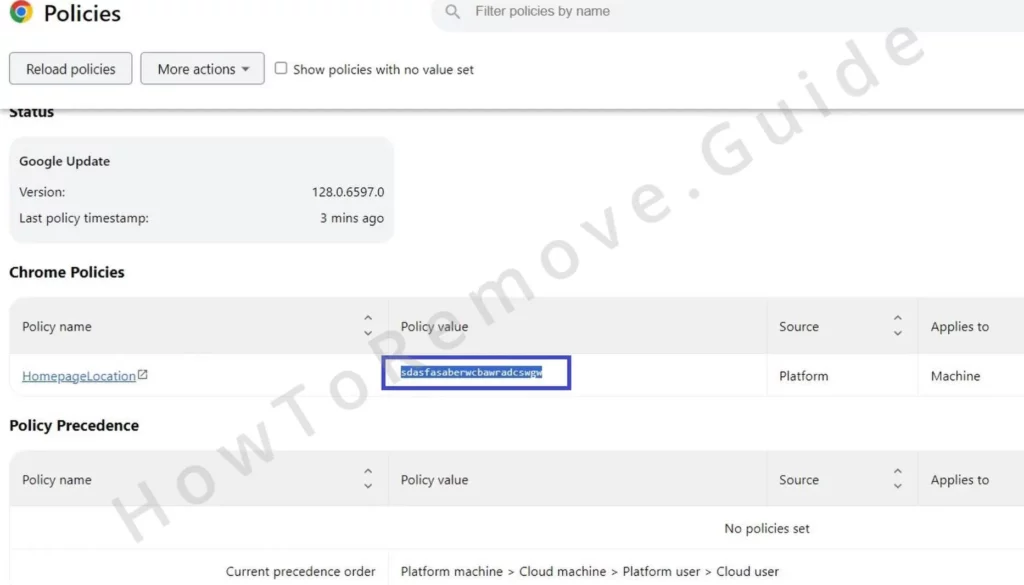
To find out what’s going on, type chrome://policy into Chrome’s address bar. For other Chromium browsers, replace “chrome” with the browser’s name—Edge users would use edge://policy.
Once the policy page loads, look closely at the Value column. Anything that seems out of place—like random strings of letters or settings you don’t recognize—should set off alarm bells. Write these down somewhere (trust me, you’ll need them).
Now, head over to the Extensions Manager by typing chrome://extensions and toggle Developer Mode on. This will reveal the IDs of all your installed extensions. Look for extensions that seem suspicious—maybe ones you noted earlier—and copy their IDs too. If the hijacker blocks access to this page (sneaky, I know), there’s another way.
For Chrome, navigate to this folder on your system:C:\Users\[Your Username]\AppData\Local\Google\Chrome\User Data\Default\Extensions
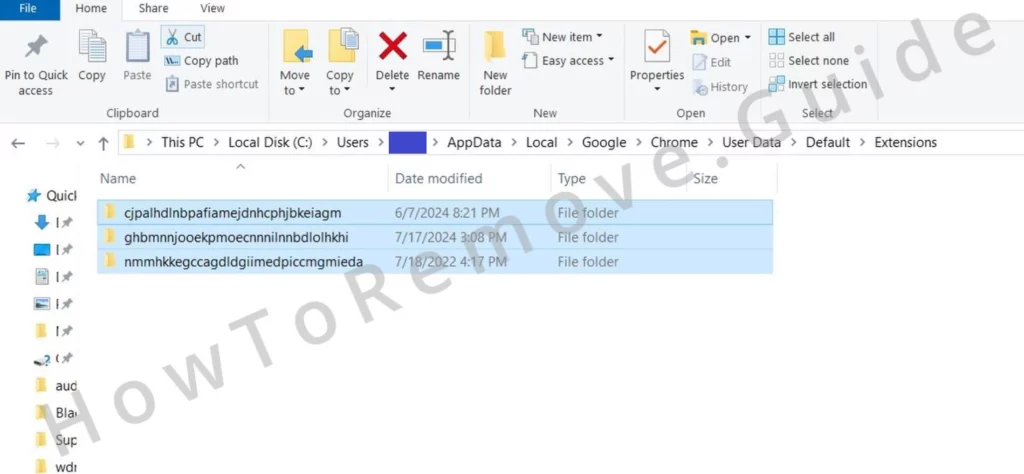
Delete everything in there.
Other browsers like Edge and Brave have similar directories:
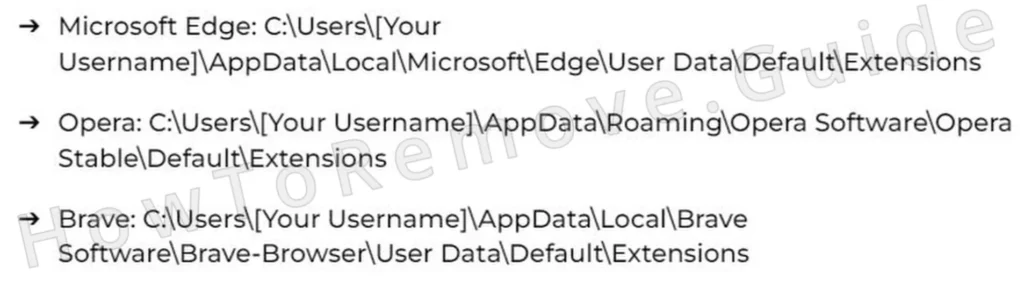
Clearing these folders forces the browser to let you back into the Extensions Manager.
We tested that SpyHunter successfully removes Franoapas.co.in* and we recommend using it. It will block Franoapas.co.in from reinstalling itself and it will make sure your device is clean from any malware.
Try Free For 7 Days*
Buy now15% OFF if you buy straight without trial.
Video walkthrough for this step:
Get Rid of Franoapas.co.in Policies
You have the needed info to find and get rid of the rogue Franoapas.co.in policies. Now you just need to search for them in your system registry and delete any matching keys. Be thorough with this step but also be careful, because you don’t want to delete something not linked to the hijacker. Here’s what you do:
First, open the Registry Editor by pressing Win + R, typing regedit, and hitting Enter. Once inside, click Edit > Find and search for the suspicious policy values and extension IDs you saved earlier. When you find a match, delete it. Keep searching until you’re absolutely sure there’s nothing left.
Sometimes you’ll run into entries that refuse to be deleted. Annoying, right? Here’s the workaround:
- Right-click the stubborn entry and select Permissions.
- Go to Advanced > Change under the Owner section.
- Type “Everyone”, click Check Names, and hit OK.
- Check both “Replace” options to give yourself full access.
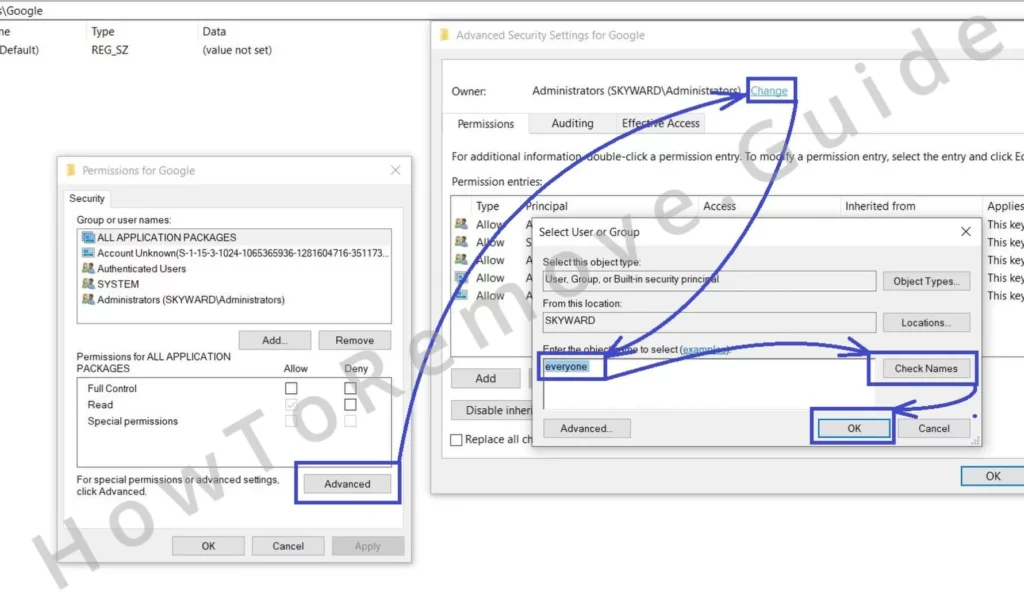
Now you can delete the rogue entry without any fuss. When you’re done, run another search just to be thorough.
Video walkthrough for this step:
Alternative Ways to Delete Franoapas.co.in Virus Policies
There are other ways to deal with rogue policies in case the Registry cleanup doesn’t get rid of everything or if you simply find that step too complex. Here are two other viable options that I suggest you try:
The Group Policy Editor is one of the options. To access it, type “edit group policy” into the Start Menu search bar.
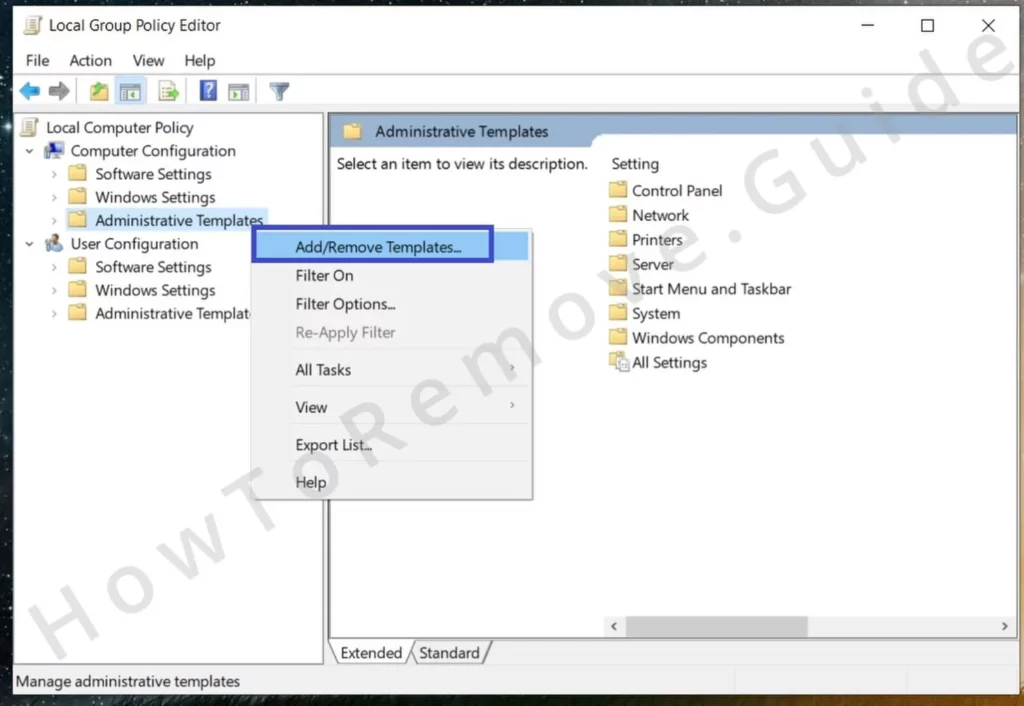
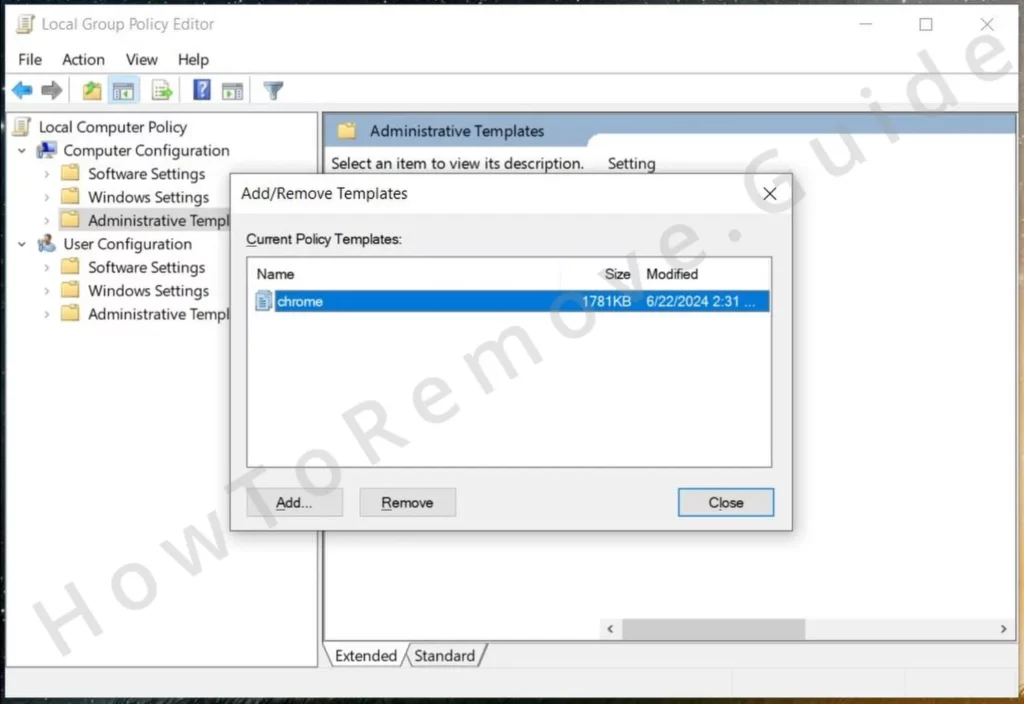
From there, navigate to Administrative Templates and check for any policies that look out of place. If you see something odd, right-click it and select Remove.
Chrome users can also try the Chrome Policy Remover Tool. This handy little program wipes out rogue browser policies in seconds. Just download it, run it as an administrator, and ignore any warnings from Windows (click More Info > Run Anyway).
Video walkthrough for this step:
Manual Group Policy Removal
Automatic Group Policy Removal
Remove Franoapas.co.in From Chrome, Edge, and Other Browsers
The only thing left to do once you’ve taken care of the hijacker policies is to return to your browser and perform a thorough cleanup of its settings. Check the various settings sections that are likely to have been affected by the hijacker and reverse any changes made to them:
First, reopen the Extensions page and delete anything suspicious. I mean everything that even slightly raises an eyebrow—malicious extensions can be sneaky.
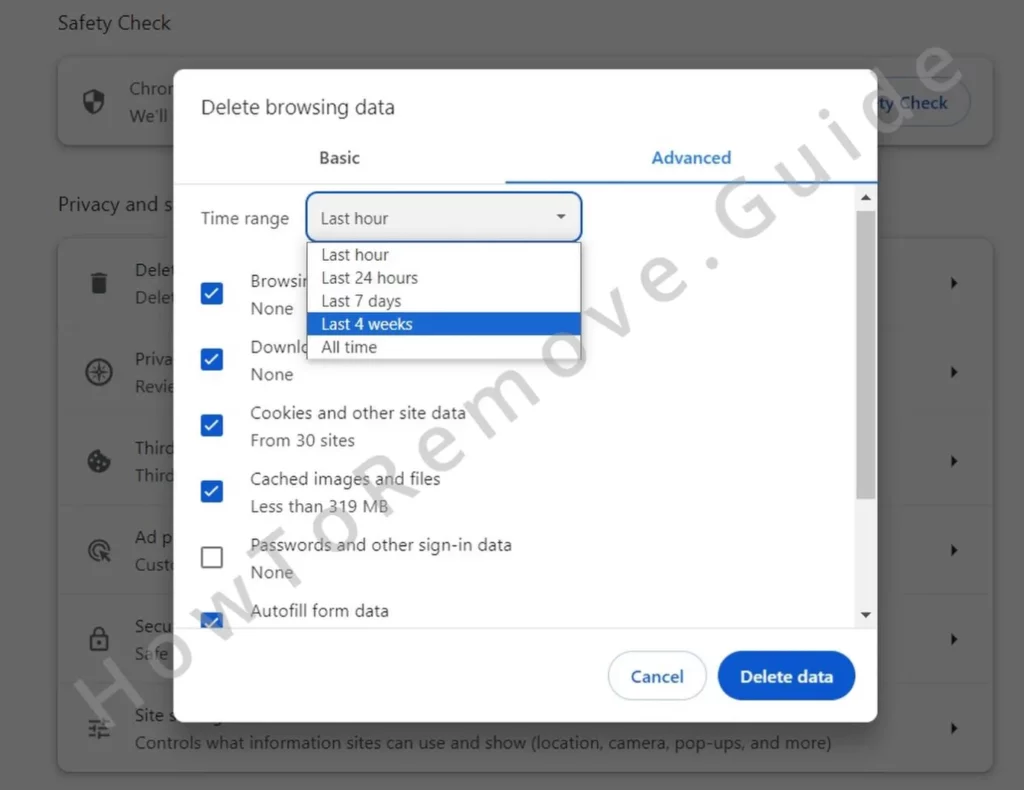
Next, clear your cached data and cookies. Go to your browser’s Clear Data settings, choose the All Time range, and wipe everything except your saved passwords. Cached files can store traces of hijackers, so don’t skip this step.
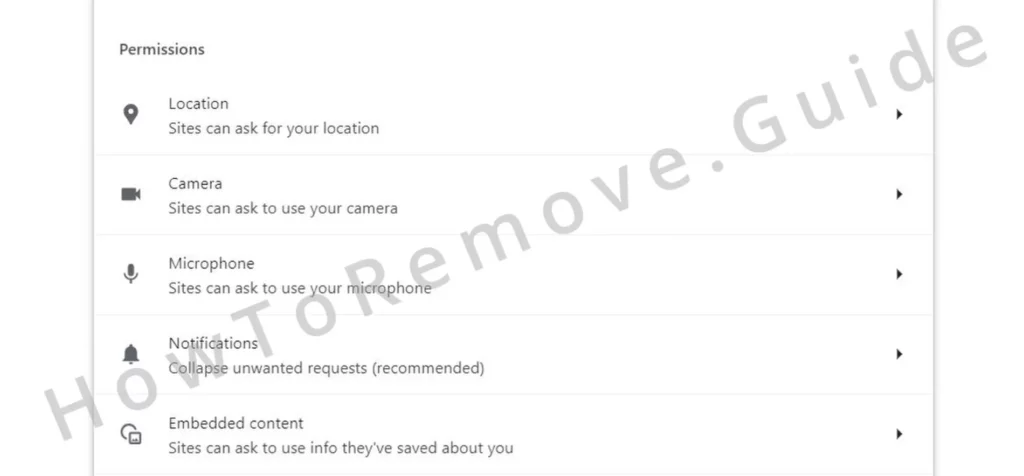
While you’re at it, double-check your Site Permissions under Privacy settings. Block or remove any sketchy websites still hanging around.
Finally, fix your Search Engine settings. Hijackers love to replace your default search provider with shady URLs. Go to the Search Engine settings, delete any unfamiliar entries, and set your preferred provider—Google, Bing, or DuckDuckGo—as the default.
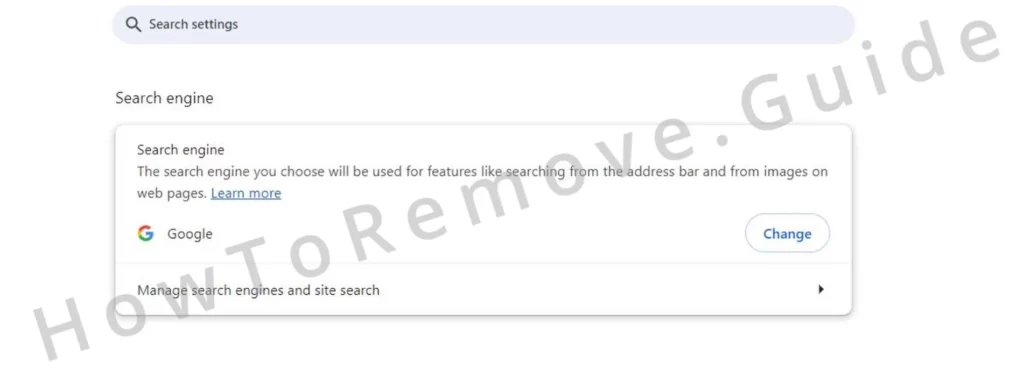
Check the On Startup and Appearance sections, too. If you see any weird URLs, get rid of them.
How to Keep Your Browser Safe for the Long Haul
Congratulations—you’ve kicked Franoapas.co.in to the curb. But don’t let your guard down just yet. Browser hijackers have a way of sneaking back in, so here’s how you can keep them out for good:
- Install a trusted anti-malware program like SpyHunter 5 and scan your system regularly.
- Avoid downloading software from shady websites. Free tools often come bundled with junk you didn’t sign up for.
- Be careful with browser extensions. Only install them from official stores, and check their permissions before you click “Add.”
- Enable your browser’s built-in security features, like pop-up blockers and enhanced protection.
By staying cautious and following these tips, you’ll make it much harder for hijackers like Franoapas.co.in to mess with your system again.
Final Thoughts
Dealing with Franoapas.co.in might feel like a hassle, but trust me—it’s manageable. Start with the quick fixes, and if you need to, work through the advanced steps one by one. Once you clean up the rogue policies, extensions, and browser settings, your system will be back to normal.
And remember: prevention is key. Stay vigilant, use the right tools, and keep an eye on what you’re installing. Your browser—and your peace of mind—will thank you.

Leave a Reply