

NanoPhanoTool is a piece of malware that forces its way onto your computer and doesn’t play fair. It often slips in through redirects on sketchy streaming sites, the kind that promise free movies but deliver headaches instead. I’ve seen similar behavior before with other malware programs such as X-essentiApp.exe or PCAppStore.
We tested that SpyHunter successfully removes NanoPhanoTool* and we recommend using it. It will block NanoPhanoTool from reinstalling itself and it will make sure your device is clean from any malware.
 Try Free For 7 Days*
Buy now15% OFF if you buy straight without trial.
 OFFER
OFFEROnce installed, NanoPhanoTool locks its files so you can’t delete them and throws up error messages claiming the file is “open” or “in use.” It hides in your system, running in the background, and may even set up scheduled tasks to make sure it keeps coming back no matter what you try. It’s invasive, persistent, and designed to make removal as frustrating as possible.
If this sounds all too familiar, don’t panic. You can get rid of NanoPhanoTool, and I’ll guide you through every step. This isn’t just about deleting files—it’s about fully cleaning your system, removing hidden processes, and making sure this malware doesn’t return. Let’s take this one step at a time and get your computer back to normal. You’ve got this, and I’ll help you every step of the way.
NanoPhanoTool Removal Tutorial
For this removal guide, I suggest starting with the basics. Think of this as spring cleaning for your system.
- Head over to your Downloads folder (usually under This PC > Downloads) and delete any files associated with NanoPhanoTool.
- While you’re there, keep an eye out for other suspicious files—randomly named installers or programs you don’t remember downloading. When in doubt, chuck them out.
- Next, access the Apps menu through your system’s Settings.
- Sort the installed programs by date. Malware typically appears as a recently installed, unfamiliar application.
- If you spot NanoPhanoTool—or something sketchy—select it and click Uninstall, following the prompts to complete the process.
- Check the common installation directories, such as
C:\Users\YourUsername\AppData\Local\Programsor the two Program Files folders in the C: drive. - Look for folders linked to NanoPhanoTool, and if you find any, delete them.
Once you’ve done this, restart your computer to ensure any running processes are terminated. If the malware is still bothering you, it’s time to move on to the more advanced steps below.
SUMMARY:
Before getting into the nitty-gritty of advanced malware removal, let me give you a heads-up: this process isn’t exactly beginner-friendly. It demands accuracy and a fair bit of technical skill. A single wrong move can mess up your system in ways you don’t want to deal with.
If this sounds like too much to handle, you might want to try using a reliable tool like SpyHunter 5. It’s built to detect and eliminate malware effectively while keeping your system safe from future threats.
How to Remove the NanoPhanoTool Virus
Malware doesn’t always play fair—it often hides its tracks. That’s why your next move is to unhide those sneaky files. Open Folder Options through the Start menu, go to the View tab, and enable “Show hidden files and folders.”
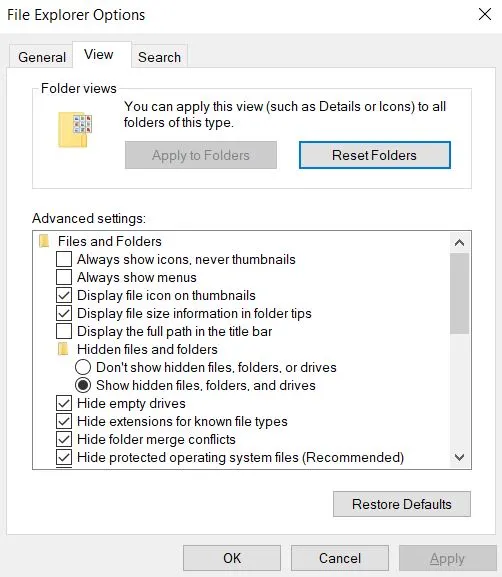
Now, let’s talk about stubborn malware files. Some refuse to go quietly, and this is where LockHunter becomes your best friend. This free tool unlocks files that seem impossible to delete. Download and install it before proceeding further—you’ll thank yourself later.
Video walkthrough for this step:
Get Rid of NanoPhanoTool Background Processes
NanoPhanoTool loves to run behind the scenes, hogging your system’s resources. Open Task Manager with Ctrl + Shift + Esc. If it launches in compact mode, expand it by clicking More Details.
Sort the processes by CPU or Memory usage. Malware often disguises itself under a random name while consuming significant resources. Found something fishy? Right-click on the process and choose Open File Location. Check the folder for connections to NanoPhanoTool. If it matches, delete it.
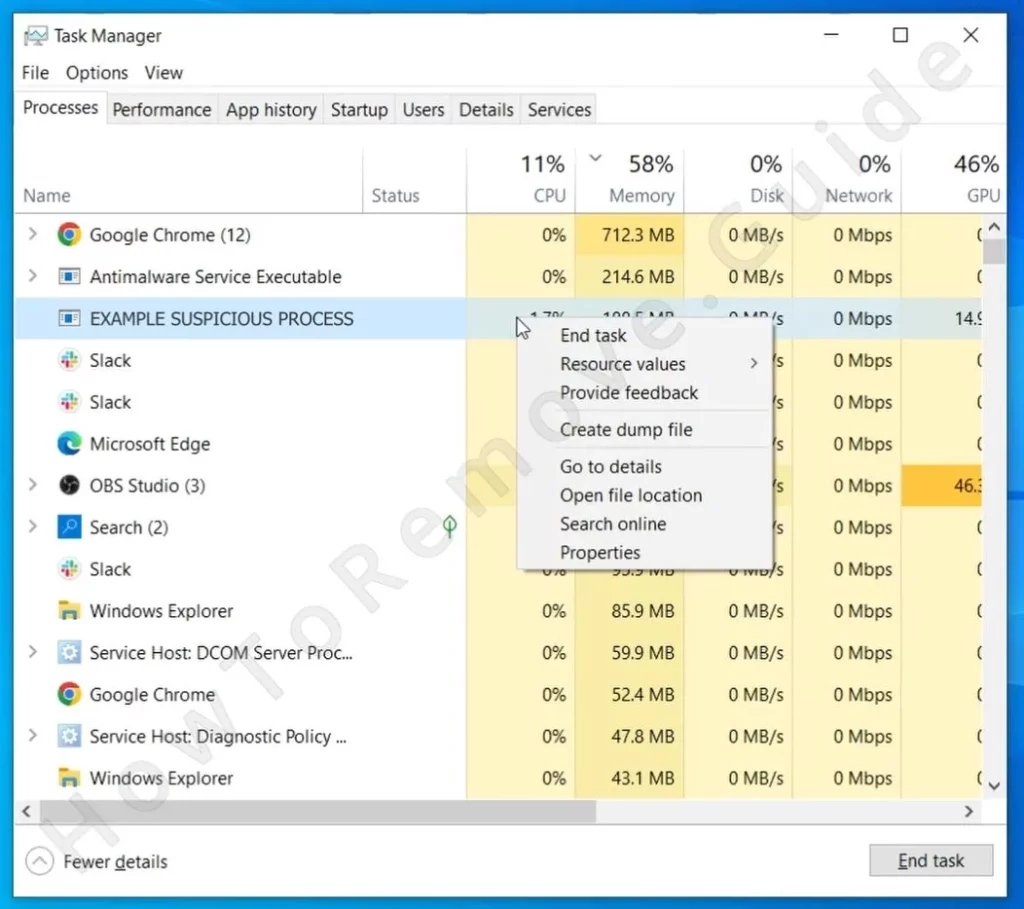
Can’t delete it? Use LockHunter. Right-click the folder, select “What’s locking it?” and hit Delete. Then, return to Task Manager, highlight the suspicious process, and choose End Task. This ensures the malware can’t restart itself while you’re cleaning house.
Quick Tip: If a process name doesn’t look familiar, search it online before deleting anything. You don’t want to accidentally remove a critical system process.
Video walkthrough for this step:
Delete NanoPhanoTool Virus Files
NanoPhanoTool spreads itself across your system, so a thorough sweep is essential. Start with the Startup folders:
C:\ProgramData\Microsoft\Windows\Start Menu\Programs\StartupC:\Users\YourUsername\AppData\Roaming\Microsoft\Windows\Start Menu\Programs\Startup
Delete all files except desktop.ini, which is harmless. Next, explore the Program Files and Program Files (x86) directories. Unrecognized folders or ones tied to NanoPhanoTool are fair game for deletion.
Don’t stop there. Investigate these directories:
C:\Users\YourUsername\AppData\Local\ProgramsC:\Users\YourUsername\AppData\Roaming\Microsoft\Windows\Start Menu\Programs
Lastly, empty your Temp folder (C:\Users\YourUsername\AppData\Local\Temp).
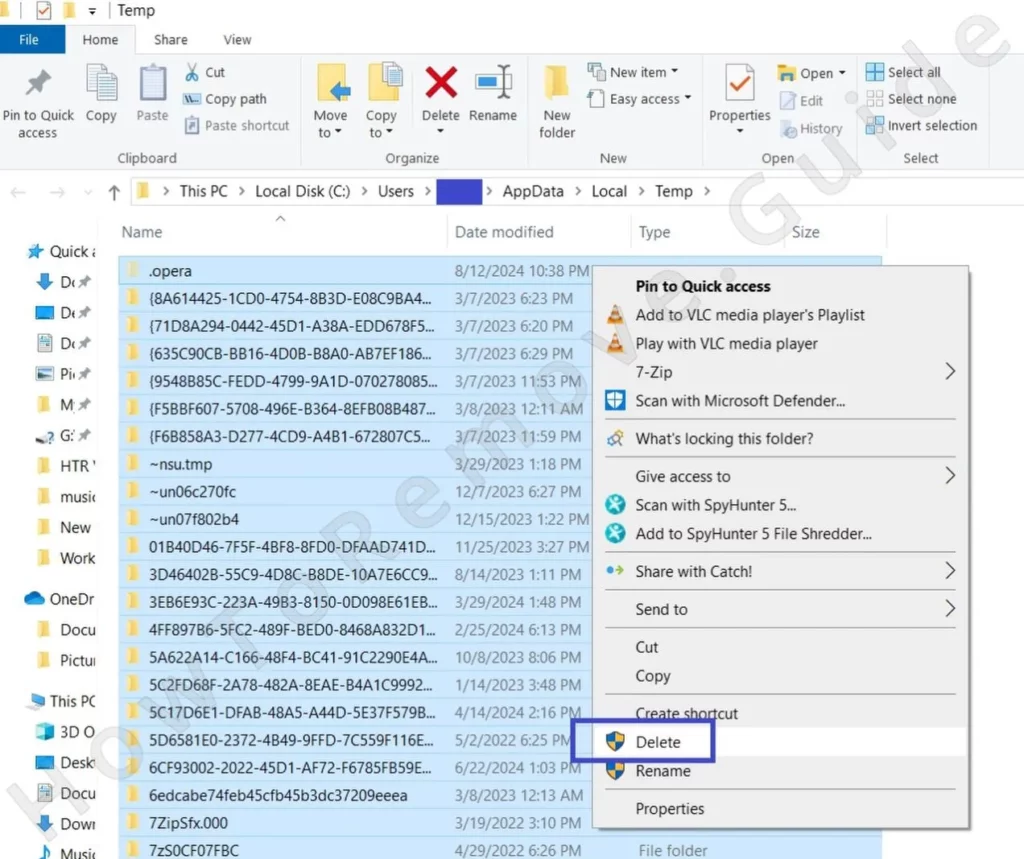
Select everything and delete it. When you’re done, empty the Recycle Bin to make sure no trace of NanoPhanoTool remains.
How to Delete Persistent Files with Lock Hunter
Get Rid of NanoPhanoTool Scheduled Tasks
NanoPhanoTool might have created scheduled tasks to reinstall itself. Open Task Scheduler from the Start menu and navigate to the Task Scheduler Library.
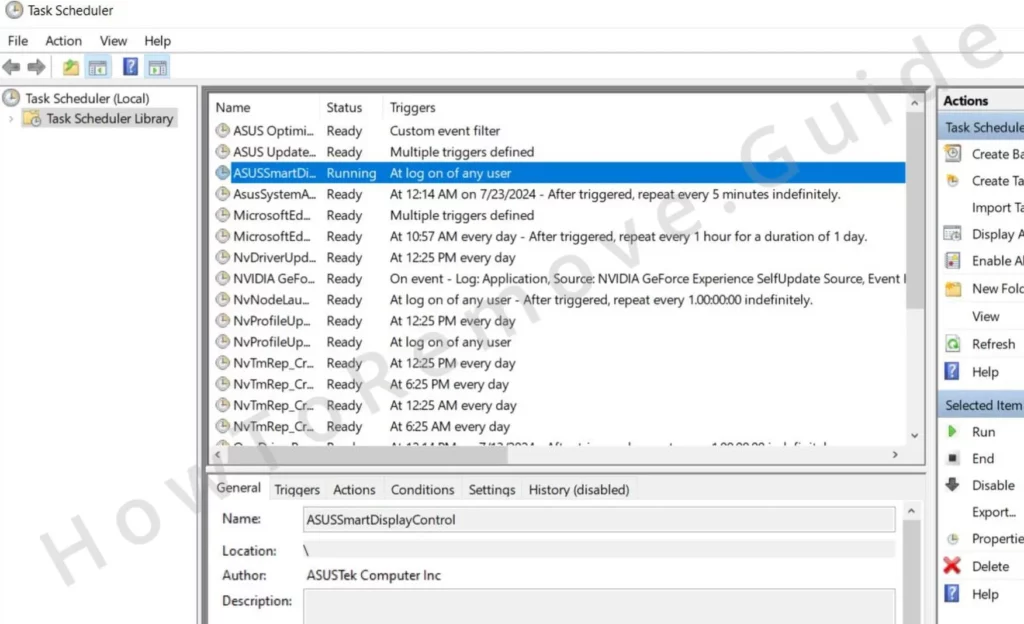
Inspect each task carefully. Double-click a task to view its details, focusing on the Actions tab. If a task points to a suspicious script or .exe file, note its location, delete the task, and then remove the associated file manually. Repeat this process for all questionable tasks.
Video walkthrough for this step:
Uninstall the NanoPhanoTool Malware Through the System Registry
The Windows Registry is the final hiding place for NanoPhanoTool. Open the Registry Editor by pressing Win + R, typing regedit, and hitting Enter.
Use Ctrl + F to search for entries related to NanoPhanoTool. Carefully delete each one. Repeat the search until nothing remains. Then, manually check these keys for anything unusual:
HKCU\Software\Microsoft\Windows\CurrentVersion\RunHKCU\Software\Microsoft\Windows\CurrentVersion\RunOnceHKLM\Software\Microsoft\Windows\CurrentVersion\RunHKLM\Software\Microsoft\Windows\CurrentVersion\RunOnceHKLM\Software\Microsoft\Windows\CurrentVersion\Policies\Explorer\RunHKCU\Software\Microsoft\Windows\CurrentVersion\Policies\Explorer\RunHKEY_LOCAL_MACHINE\Software\Microsoft\Windows\CurrentVersion\RunServicesHKEY_LOCAL_MACHINE\Software\Microsoft\Windows\CurrentVersion\RunServicesOnceHKEY_LOCAL_MACHINE\Software\Microsoft\Windows\CurrentVersion\RunOnce\SetupHKEY_LOCAL_MACHINE\SYSTEM\CurrentControlSet\services
Delete any values linked to NanoPhanoTool, but leave the folders (keys) intact. If you’re unsure about an entry, leave it alone. The Registry is not the place for guesswork.
Note: Modifying the Registry incorrectly can cause serious problems. If you’re unsure, skip this step or consult an expert.
Video walkthrough for this step:
When Manual Removal Isn’t Enough
If NanoPhanoTool persists or the process feels overwhelming, don’t hesitate to use an anti-malware program. Tools like SpyHunter 5 are designed for scenarios just like this. They scan your system thoroughly, identify threats, and remove them with minimal effort. Think of it as calling a locksmith when you’re locked out—it’s efficient and stress-free.
Final Steps: Prevention Is Better Than Cure
Congratulations—you’ve successfully removed NanoPhanoTool! But your job isn’t done yet. To avoid future infections, take these precautions:
- Keep your operating system and software up to date. Updates often patch vulnerabilities that malware exploits.
- Be cautious about downloading files from unverified sources or clicking on random links. If something feels off, trust your gut.
- Install reputable antivirus software with real-time protection. It acts as your first line of defense against threats.
Finally, back up your data regularly. Having a backup means you can recover quickly if anything goes wrong. After all, no one likes losing important files, and prevention beats regret every time.
By following these steps, you’ve not only removed NanoPhanoTool but also fortified your system against future attacks.

Leave a Reply