

If you’ve recently seen a sudden warning on your phone claiming your device is infected with malware, you’re not alone. A growing number of Android and even some iPhone users are encountering a browser-based message that simulates a malware scan and declares their device compromised. This alarming alert appears on a website called Zepiodkler, which at first glance may seem like a legitimate antivirus service.
But don’t be fooled – Zepiodkler.com is not a real cybersecurity tool. It’s a scam website designed to trick you into thinking your phone or computer is infected. The goal? To scare you into downloading an app that supposedly removes the threat. Ironically, the very software it pushes is likely to bring you closer to an actual malware infection.

Here’s the truth: Zepiodkler is neither a genuine antivirus program nor an active virus itself. It falls into the category of rogue scareware – websites that use fear tactics to manipulate users. While simply visiting the site may not infect your device, engaging with it or downloading its suggested software could put your data at risk.
If you’ve already come across this scam, the best course of action is to exit the site immediately and avoid returning. But if the annoying pop-ups persist, even when your browser is closed, don’t worry – there are steps you can take to stop them for good.
How to Get Rid of the Zepiodkler Popups on Android
Alright, so you’re on your Android and out of nowhere, your screen starts lighting up with annoying popups from this site called Zepiodkler. Sound familiar? That’s not just bad luck – it’s probably a browser hijacker that somehow convinced your phone to let it send you stuff. If you’re using Chrome or a browser like it, here’s how to shut that noise down once and for all.
Disabling Scam Notifications in Chrome on Android:
- First things first, go ahead and open up Google Chrome on your Android phone or tablet. This is where we’ll be doing most of the cleanup.
- In the upper-right corner, you’ll see those three little dots – yeah, the menu button. Tap that to see more options.
- Scroll down the list until you find Settings and give it a tap. This is where most of the good stuff is hidden.
- Inside the Settings menu, look for Notifications and tap it. We’re diving right into the problem here.
- There should be a switch next to Show Notifications – go ahead and flip it off. This will block every site from sending you popups, which is a great start if you’re getting flooded.

Now, maybe you don’t want to block all notifications – just the shady ones. Totally fair. Let’s fine-tune it.
- Scroll until you hit the Sites section under Notifications. This is where Chrome shows which websites have permission to bother you.
- Look through the list for anything weird or unrecognizable. You know the kind – random names you never intentionally visited.
- Tap on any sketchy site you find, then turn off or remove their notification permissions. It’s like cutting off their megaphone.
If you want to be extra careful so this kind of thing never happens again, let’s tweak a couple more settings.
- Go into Additional Settings and disable the option that lets sites even ask to show notifications. This is like locking your front door before anyone gets the idea to knock.
Locking Down Your Browser’s Security Settings:
- Head back to Chrome’s Settings menu and tap into Site Settings. This is where we go full lockdown mode.
- Inside there, set Notifications to Ask First – that way, no site gets to pester you without asking politely first.
- Next, find Pop-ups and Redirects and turn those off. That’s how most of these junk pages get in to begin with.
- Keep scrolling until you see Third-party cookies and Intrusive ads, and disable both of those. They’re just open windows for more bad stuff to sneak in.
- Still in Site Settings, look for All Sites. This is like the list of everyone who’s ever knocked on your door.
- Find the one sending the annoying popups – probably Zepiodkler – and delete it. Show it the exit.
- Now back out and go into Delete browsing data in Chrome’s settings. Think of this like cleaning up footprints.
- Choose Advanced, and select everything except Cached images, Saved passwords, and Auto-fill form data. We don’t want to wipe useful stuff.
- Choose a time range that goes back to before the popups started. Hit delete. Boom – you just erased the scam’s tracks.
That should do it – your Android should now be free of those relentless Zepiodkler pop-ups. But hey, if you’ve still got alerts popping up, the problem might be bigger than just your browser. Let’s keep digging.
Zepiodkler Virus Scam Removal for iPhone
Just because you’re using an iPhone doesn’t mean you’re totally in the clear. A lot of folks think iOS is bulletproof, but scams like Zepiodkler and Mintnav still find sneaky ways to get in. If random alerts have started popping up on your iPhone or iPad, don’t panic – we can lock it down fast by digging into your browser settings.
For Google Chrome Users on iOS:
- Fire up Google Chrome on your iPhone or iPad – even if you mostly use Safari, Chrome might be the one that let this in.
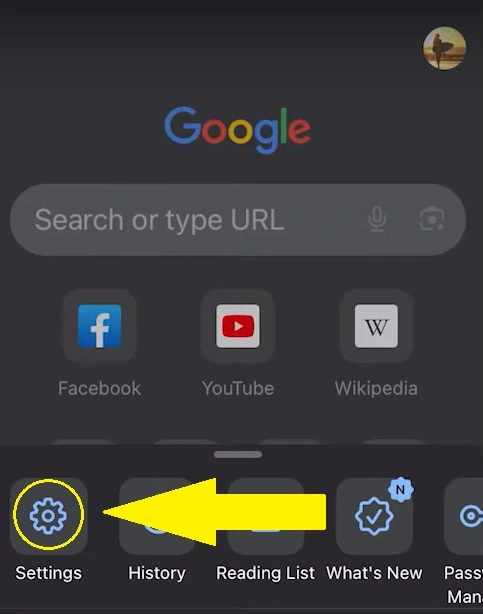
- Tap the three-dot menu in the top-right corner of the screen. That’s where the deeper settings live.
- Scroll all the way down until you see Settings, then tap it. We’re headed for the content controls.
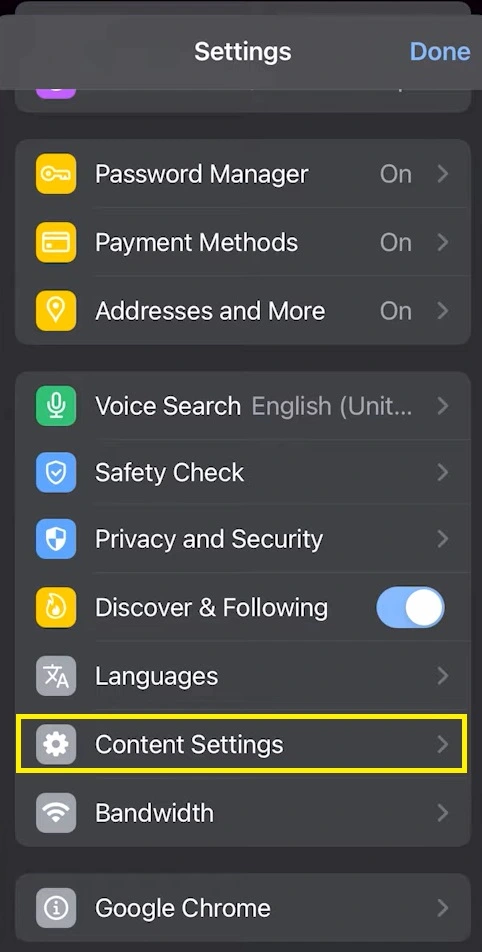
- Once you’re in Settings, look for Content Settings and select it. This is where Chrome manages pop-up behavior.
- Find the toggle for Block Pop-Ups and make sure it’s switched on. That setting is your first line of defense against fake warnings.
Once this is done, Chrome will automatically kick scam popups like Zepiodkler to the curb before they even get a chance to load.
For Safari Users on iPhone or iPad:
- Open the Settings app on your device – not Safari itself, but the main phone settings where you can fine-tune everything.
- Scroll down the menu until you spot Safari, then tap it. All of Safari’s control options are right there.
- Inside the Safari settings, locate Block Pop-Ups – it’s usually listed right under the security and privacy section.
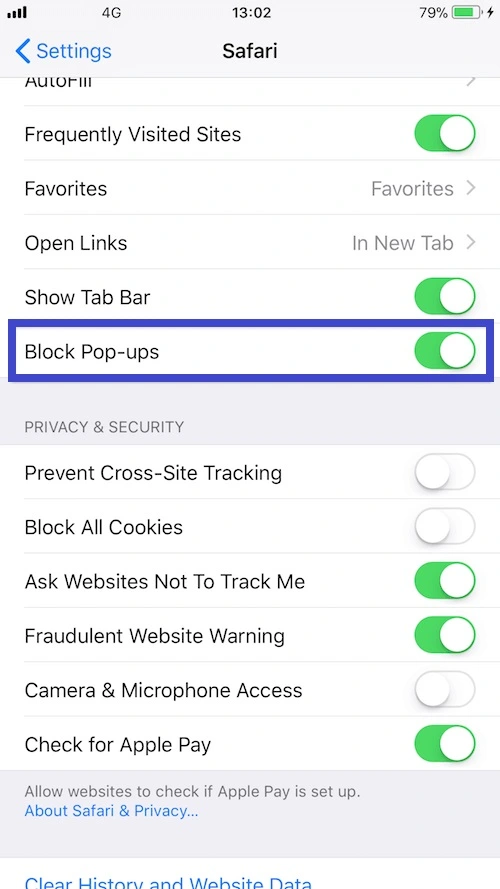
- Switch that option to “on” to prevent sketchy websites from bombarding your screen with scam messages.
Once you flip that switch, Safari will stop shady sites like Zepiodkler from loading popups altogether. But if those popups are still showing up even when your browser’s closed, it’s a sign something else might be up – and we’ll handle that next.
How to Delete a Zepiodkler Virus
So here’s the thing – if you’ve cleaned out your browser and the Zepiodkler popups still won’t leave you alone, then you’re probably dealing with something more persistent. And that “something” is likely a shady app running in the background, quietly pushing scam alerts while pretending to be innocent.
- Think back to any recent apps you installed – especially those you didn’t grab from the App Store or Google Play. If something came from a third-party site, that’s your red flag right there.
- A lot of these off-market apps are bundled with hidden adware. They act normal at first, but then start serving aggressive popups even when they’re not open. If that sounds familiar, find the app and uninstall it immediately.
- But don’t stop at just new apps – older ones can go rogue too. Sometimes a legitimate app gets a shady update, and suddenly it’s flooding you with ads. If something you’ve had for a while starts acting weird, delete it without hesitation.
- On Android, if you installed the app using an .apk file, be sure to also find and delete that installation file. Just removing the app itself might not be enough if the original file is still hiding somewhere on your phone.
Now, even if you’ve cleaned out all the suspicious apps, there’s one more place scams like Zepiodkler might be hiding – and it’s sneakier than you’d think.
Check for Hidden Accounts and Profiles
Some scammy sites don’t just spam your browser. They can actually create hidden accounts or profiles on your phone that allow them to keep sending alerts, even after you’ve blocked every obvious path. Here’s how to find and remove those stealthy setups.
On iPhone or iPad:
- Open the Settings app and scroll to Accounts & Passwords – this section manages everything that’s linked to your device.
- Under Accounts, scan the list and look for anything suspicious or unfamiliar. Trust your gut – if it seems weird, it probably is.
- Tap any account that looks out of place or that you don’t recognize.
- Then, select Delete Account and confirm. That profile’s access is officially gone.
On Android:
- Head into your Settings and tap on Passwords and Accounts. This is where Android keeps track of all accounts associated with your device.
- Carefully go through each listed account. You’re looking for anything that seems fishy, out of place, or just plain unknown.
- If you find one that doesn’t belong, tap on it for more options.
- Then hit Remove Account to cut ties completely. You don’t want any scam service having a backdoor into your phone.
Once you’ve cleared out these hidden accounts or profiles, the spammy notifications should finally stop for good. But just to be safe, let’s talk about how to keep this from ever happening again.
How to Avoid Scam Pop-ups in the Future
Okay, your phone’s clean now. No more sketchy alerts, no fake virus warnings, and no scammy Zepiodkler notifications popping up out of nowhere. Let’s make sure it stays that way – because these scams don’t rest, and neither should your defenses.
- First things first: ignore virus pop-ups. Always. If a site tells you your phone’s infected or compromised, it’s almost certainly lying. These pop-ups are designed to freak you out and rush you into clicking – don’t fall for it.
- Don’t ever give notification permissions to random websites. If a shady-looking page asks to “show notifications,” just hit no. Granting that access is like handing a megaphone to a scammer.
- Stick to official app stores when you download anything. That means the App Store on iOS and Google Play on Android. Apps from sketchy third-party sites are a gamble – and scammers love to stack the odds in their favor.
- Always keep your browser and operating system updated. It may sound boring, but updates usually patch security holes that scammers rely on. Running old software is like leaving the door unlocked.
- Use an ad blocker. Seriously. It can catch a ton of malicious ads and pop-ups before they even load. Most major browsers support one – just be sure it’s from a trusted source.
If you follow these five rules, you’ll be ahead of 90% of people who fall for scams like Zepiodkler. It’s not about being paranoid – it’s about being prepared.
Final Thoughts
Dealing with the Zepiodkler scam might’ve been a pain, but at least now you know what to watch for. Whether it was blocking sketchy notifications, uninstalling rogue apps, or hunting down hidden profiles, you’ve taken all the right steps to reclaim control of your phone.
From here on out, keep your guard up. Don’t trust random messages, be cautious about what you install, and always think twice before clicking on pop-ups – no matter how convincing they look.
Stay sharp, stay skeptical, and enjoy a scam-free device from now on.