

If your system suddenly slows down, your browser fills with unwanted extensions, or mysterious windows demand personal data, Weather Zero may be behind it. The following guide explains what this malware really is, why it poses a risk, and how you can completely remove it from your computer to restore security and normal performance.
Is Weather Zero a Virus?
Strictly speaking, Weather Zero isn’t a classic self-replicating virus – it’s a PUP (potentially unwanted program) that some experts go as far as to categorize as a type of Trojan Horse.
It arrives bundled with free software installers or through deceptive pop-up ads that trigger background downloads. Once on the system, it displays a functional weather widget, which gives it a veneer of legitimacy. Beneath that surface, however, it can alter browser settings, inject ads, and collect user data without clear consent.
Its installer has been observed distributing additional unwanted software, including a cryptocurrency miner that hijacks system resources (hence the Trojan Horse classification).
In some cases, the uninstaller behaves deceptively, reporting that Weather Zero was “installed correctly” even when the user tried to remove it. Such tricks blur the line between annoyance and outright malicious behavior, which is why many security tools flag it as a potential threat rather than a simple utility.
How Dangerous Is Weather Zer0?
While not the most destructive form of malware, Weather Zero can still open serious vulnerabilities. It exposes victims to further infections and potential data theft by tracking their browsing activity and redirecting them to dubious pages. It also slows performance through background processes and unwanted network connections.
Weather Zero may expose your browser to redirects, ads, and persistent unwanted components. Install SpyHunter Pro to scan for risks, remove related threats, and enable real-time protection.
 OFFER
OFFER*Source of claim SH can remove it. Trial w/Credit card; image is for illustration; full terms.
Weather Zero Removal Tutorial
Weather Zero Virus Quick Removal Steps
- 1.1Go to your Start Menu and click the Settings icon (an icon with a gearwheel).
- 1.2Open Apps and sort the list by date of installation.
- 1.3Find Weather Zero in the list of apps, select it, and select Uninstall.
- 1.4
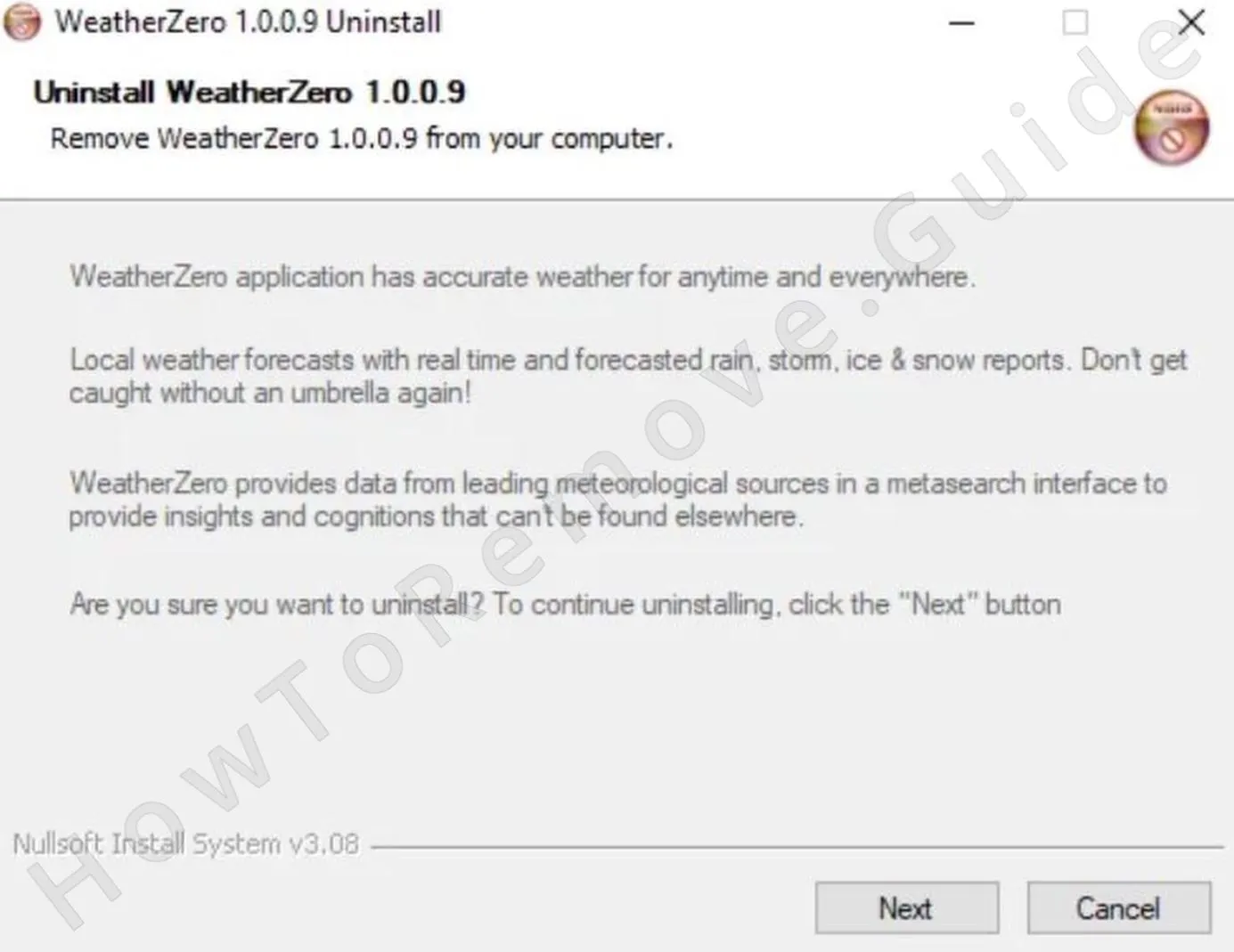 Follow the installation prompts but be careful to not agree to leave any components of the program uninstalled. Everything must go.
How to Remove the Weather Zero Pop up Virus
1. Preparing for the Weather Zero Removal
- 1.1Preparatory Step: Install LockHunter – The free tool Lock Hunter is essential for this guide. It unblocks files and folders that you aren’t allowed to delete normally and you are likely to encounter such files/folders while completing the guide.
- 1.2
 Reveal Hidden Files and Folders – Some of the Weather Zero files and folders could be hidden. To be able to see them, open the Start Menu. Search for “Folder Options”, open it, and click View. Select “Show hidden files, folders, and drives”, then click Apply and Confirm.
How to Uninstall Weatherzero From the Task Manager
2. How to Delete Weather Zero Processes in the Task Manager
- 2.1Open the Task Manager with Ctrl + Shift + Esc. Click “More Details” if it is in compact view. The full Task Manager appears.
- 2.2Sort processes by Memory use, then by CPU use. Look for processes that are using unusually high resources. Needless to say, also keep an eye out for anything named Weather Zero regardless of how much of a given resource it’s using.
You may or may not see a process with the Weather Zero name. If you don’t, this doesn’t mean there’s nothing unwanted running in the Task Manager. Use your judgment here to determine if a particular process has a suspicious name or is using too much of your system resources.
- 2.3
 Right-click suspicious processes. Choose “Open File Location”. Delete everything in the folder.
 - 2.4If the system blocks deletion, use Lock Hunter to unlock the blocked item (if you don’t have the tool installed already, install it now).
Right-click the file/folder and select the “What’s locking it?” option from the context menu. Then you’ll be given the option to delete the item.
- 2.5After deleting the files, return to the Task Manager. Right-click the process again. Select “End Task”.
- 2.6Repeat for any other processes linked to the Weather Zero virus.
Weather Zero may expose your browser to redirects, ads, and persistent unwanted components. Install SpyHunter Pro to scan for risks, remove related threats, and enable real-time protection.
*Source of claim SH can remove it. Trial w/Credit card; image is for illustration; full terms.
How to Delete Weather Zero Virus Files
3. How to Get Rid of Weather Zero Files
- 3.1Navigate to C:\ProgramData\Microsoft\Windows\Start Menu\Programs\Startup. Delete suspicious files stored there. If you aren’t sure what counts as suspicious, simply remove everything except the desktop.ini file (if such is present).
Repeat in C:\Users\YourUsername\AppData\Roaming\Microsoft\Windows\Start Menu\Programs\Startup.
- 3.2Go to your C: drive and check Program Files and Program Files (x86) for Weather Zero folders or any other oddly-named folders. Delete what you find.
-
3.3Then explore these directories:
C:\Users\%user%\AppData\Local\C:\Users\%user%\AppData\Local\Programs\C:\Users\%user%\AppData\Roaming\Microsoft\Windows\Start Menu\Programs\
In case you see something questionable in these locations but you aren’t sure whether to delete it, it’s best to get rid of it. These folders don’t contain anything integral to your system, so even if you delete something safe, it won’t be a problem. At worst, some of your programs may need to be reinstalled. - 3.4
 Finally, clear out your Temp folder. You’ll find it at C:\Users\*YOUR USERNAME*\AppData\Local\Temp. It’s both safe and recommended to delete everything here.
Get Rid of Weatherzero Scheduled Tasks
4. Eliminate Weather Zero Scheduled Tasks
- 4.1
 Use the Start Menu to search for it and open the Task Scheduler – simply search for it in the Start Menu search bar and press Enter. Then, once inside, click the Task Scheduler Library in the top left and have a look at the listed tasks.
 - 4.2Start checking the tasks one by one. Double-click each task and select the Actions tab.
This shows you what program or command is executed by this task and where it’s located. - 4.3Any tasks that run strange executables or scripts or that are set to visit or download something from an unknown site must be deleted.
Same goes for tasks that run items stored in the AppData or Roaming folders – you must delete those too.
- 4.4But before you remove a task, remember the location shown in the Actions tab, so you can later go there and delete the respective file.
How to Uninstall Weather Zero Through the Registry
2. Quick Steps to Remove Weather Zero
- 2.1Search for “regedit” in the Start Menu and run it as Administrator. The Registry Editor opens.
- 2.2Click Edit from the top, then Find. Search for entries related to the Weather Zero virus.
- 2.3Search for both “Weather Zero” and “Weatherzero” so that you don’t miss any relevant items.
- 2.4When/if an item is found, delete the associated key from the left panel.
Continue to search and delete until no related keys remain. - 2.5Finally, I recommend going to each of the following registry keys in the left panel and then checking all their values shown on the right.
Here are the specific keys you must visit:
HKEY_LOCAL_MACHINE\SYSTEM\CurrentControlSet\services
HKCU\Software\Microsoft\Windows\CurrentVersion\Run
HKCU\Software\Microsoft\Windows\CurrentVersion\RunOnce
HKLM\Software\Microsoft\Windows\CurrentVersion\Run
HKLM\Software\Microsoft\Windows\CurrentVersion\RunOnce
HKLM\Software\Microsoft\Windows\CurrentVersion\Policies\Explorer\Run
HKCU\Software\Microsoft\Windows\CurrentVersion\Policies\Explorer\Run
HKEY_LOCAL_MACHINE\Software\Microsoft\Windows\CurrentVersion\RunServices
HKEY_LOCAL_MACHINE\Software\Microsoft\Windows\CurrentVersion\RunServicesOnce
HKEY_LOCAL_MACHINE\Software\Microsoft\Windows\CurrentVersion\RunOnce\SetupThis is where you must look very carefully for anything that looks linked to Weather Zero or another questionable program that shouldn’t be running on your PC. Remember, you are checking the values in the right panel. Here, the keys in the left panel must stay intact.
- 2.6You’ll likely not see the virus’ name in there because you already searched for it, so keep an eye out for anything else that looks unfamiliar or out of place.
If you find a suspicious value, delete only that value, without touching any of the other ones that don’t seem rogue or the key that contains them.
How to Avoid Weather Zero in the Future
Everyone knows the basics – avoid shady download sites, pirated installers, and suspicious email attachments. Yet Weather Zero proves that even cautious users can be tricked into installing unwanted programs through legitimate-looking software bundles or pop-up prompts. To stay ahead of threats like this one, a few practical adjustments to your habits and system settings can make all the difference.
- Disable automatic downloads
Weather Zero often arrives hidden inside other installers or is silently dropped by deceptive pop-ups. Prevent such stealthy installs by going to your browser’s Settings > Downloads and enabling the option to always ask where to save files before downloading. This forces you to manually approve every file transfer, stopping background downloads before they start. - Use enhanced browser security
Modern browsers include protection layers that most people never bother to activate. In Chrome and other Chromium-based browsers, visit Privacy and Security > Security and turn on Enhanced Protection and Always use secure connections. These settings block many of the malicious redirects and fake download pages that typically deliver programs like Weather Zero. Other browsers, such as Firefox and Edge, have comparable options – activate them. - Install an ad-blocker
Many Weather Zero infections begin with intrusive ads that lead to fraudulent “download now” prompts. A trusted ad-blocker filters out these dangerous pop-ups and prevents script-based drive-by installations.
