

So, today I came across some new reports about Alrustiq, a piece of malware I’ve covered before. For those who missed it, Alrustiq is a Trojan Horse cryptominer—it gets into your system, uses your CPU and RAM to mine cryptocurrency, and sends all that digital currency straight to the people behind it. Meanwhile, your computer slows down significantly, making it hard to get anything done. Sound familiar? It’s similar to Altrousik and Altruistics, which I’ve also talked about on HowToRemove.
We tested that SpyHunter successfully removes Alrustiq* and we recommend using it. It will block Alrustiq from reinstalling itself and it will make sure your device is clean from any malware.
 Try Free For 7 Days*
Buy now15% OFF if you buy straight without trial.
 OFFER
OFFERFrom what I’ve seen, most people still end up with this malware after downloading pirated/unofficial software or unofficial game mods – like those for Minecraft or Roblox. If you think your system might be infected, don’t worry. Below, I’ll walk you through the steps to remove it manually. Or, if you’d prefer a quicker solution, you can use the SpyHunter 5 tool linked on this page. It’s a straightforward option that gets the job done. Just a heads-up, though—I’ve added some new info to this article to keep you updated. Stay safe!
Alrustiq App Removal Tutorial
To successfully remove this Trojan miner from your PC using the manual method, you’ll have to be thorough and complete all the steps included in this guide. If you miss even a single step, Alrustiq App may not be fully removed and may continue to bother you.
To give you an overall idea of what the manual removal process entails, here’s a quick breakdown of the specific steps:
- Install LockHunter to help identify and delete any files that Alrustiq is actively using to prevent manual removal.
- Enable visibility for hidden files and folders by opening the Start Menu, typing Folder Options, and selecting the option to show hidden files under the View tab.
- Check the Task Manager for suspicious processes by pressing Ctrl + Shift + Esc, right-clicking any unknown processes, and selecting Open File Location to find their source files before ending the tasks.
- Delete leftover files in key locations such as
C:\ProgramData\Microsoft\Windows\Start Menu\Programs\StartupandC:\Users\YourUsername\AppData\Roaming\Microsoft\Windows\Start Menu\Programs\Startup. - Clear the Task Scheduler to ensure no scheduled tasks are keeping Alrustiq active or reinstalling its files.
- Clean the System Registry by searching for remnants of Alrustiq’s entries and carefully deleting them to prevent persistence.
But before starting, take an extra precaution: open the Start Menu, go to Settings > Apps, and sort programs by installation date. Look for unfamiliar or suspicious recent installs and remove them immediately.
Each step is explained in detail below, so don’t worry if it feels overwhelming. Follow the guide carefully, and you’ll successfully remove Alrustiq from your system. Take your time—step by step, you’ve got this.
SUMMARY:
It’s important to note that some of the following steps will require you to use your own judgment when deciding if/what to delete. That’s just the nature of the manual removal method. Also, know that the entire guide takes about an hour to get through.
In case you are short on time or simply don’t think you can handle all of the steps, the alternative solution is to use SpyHunter, which will quickly take care of Alrustiq App in only a couple of clicks. You can find this professional removal tool linked on the current page.
How to Remove the Alrustiq Virus
To be able to eliminate Alrustiq fully, you’ll need to be able to see and delete all its files. To ensure this, there are two preparatory actions you must perform:
First, to uncover any hidden malware files, open Folder Options via the Start menu, switch to the View tab, and enable Show hidden files and folders.
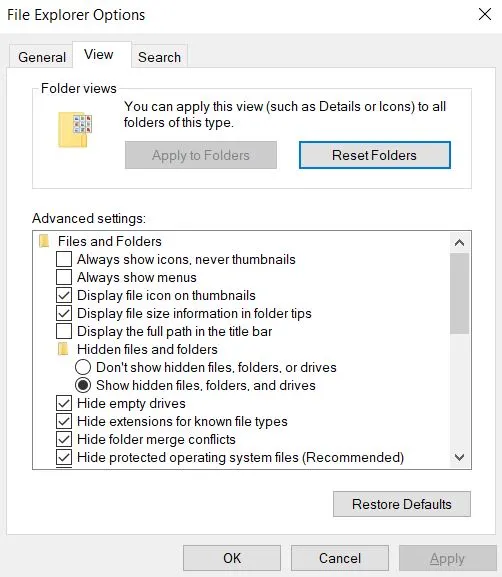
Some of the malware files may resist deletion – they may show a “File used by another process” error. To get around this, I recommend installing the free LockHunter tool. LockHunter is a lifesaver for stubborn files—it unlocks them, making it possible to delete what your system otherwise won’t allow.
Video walkthrough for this step:
Get Rid of Alrustiq App Background Processes
The actual removal process should begin with ending the Alrustiq App process and any other rogue processes in your Task Manager and also deleting their file location folders. Here’s how to do this:
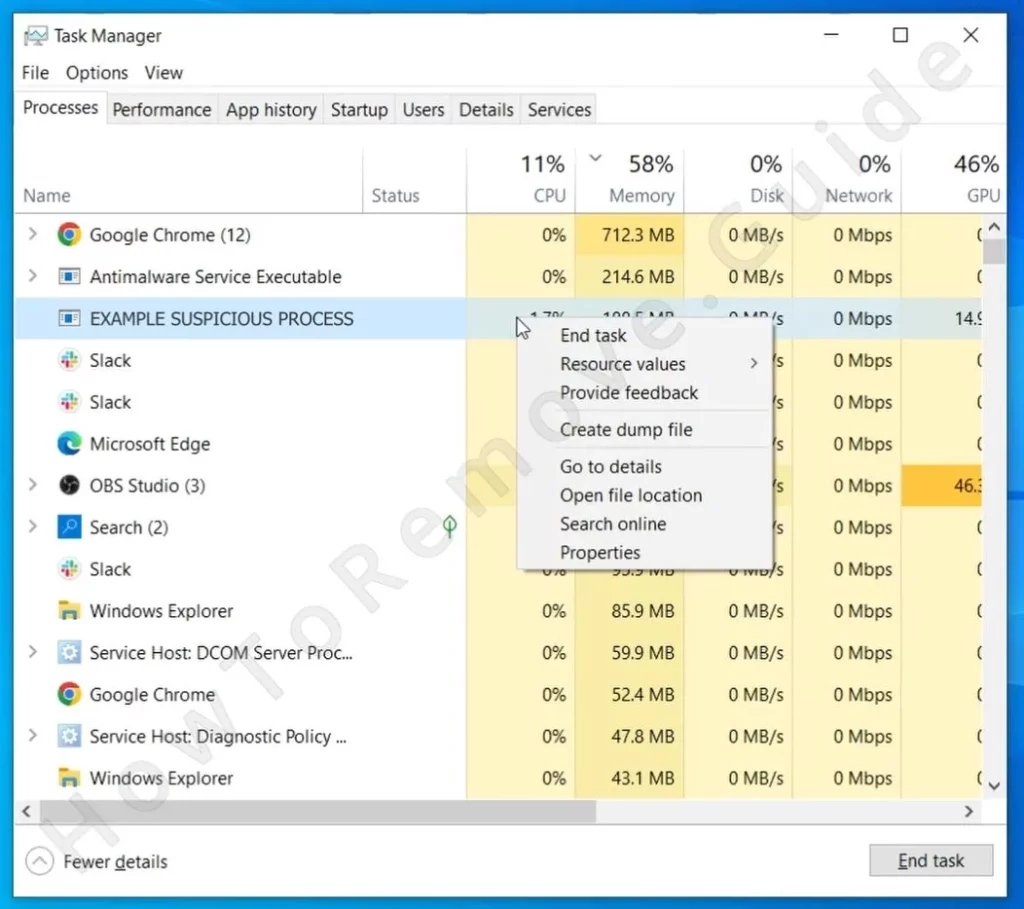
Open Task Manager by pressing Ctrl + Shift + Esc. Expand the view to see detailed information about your running processes. Sort them by CPU or Memory usage to identify anything consuming an unusual amount of resources.
You might see the Alrustiq App process listed in the Task Manager, but it’s also possible that it goes under a different name. Malware often hides behind generic names, but if you see something that doesn’t seem right, right-click and select Open File Location.
This will take you to the folder where the process originates. If the folder connects to Alrustiq, delete it. If the process refuses to terminate, use LockHunter to unlock: right-click the blocked item > What’s locking this file/folder? > Delete it. After that, promptly return to the Task Manager window and end the rogue process.
Repeat this for all suspicious processes in your Task Manager.
How to Delete Persistent Files with Lock Hunter
Video walkthrough for this step:
We tested that SpyHunter successfully removes Alrustiq* and we recommend using it. It will block Alrustiq from reinstalling itself and it will make sure your device is clean from any malware.
Try Free For 7 Days*
Buy now15% OFF if you buy straight without trial.
Delete Alrustiq App Virus Files
You may have deleted the folders linked to the Alrustiq App processes, but there are likely more rogue files left in your system that you need to hunt down. The first locations that you should check for malware remnants are:
- C:\ProgramData\Microsoft\Windows\Start Menu\Programs\Startup
- C:\Users\YourUsername\AppData\Roaming\Microsoft\Windows\Start Menu\Programs\Startup
Delete all files except for desktop.ini, which is harmless. Then, head to your Temp folder (found at C:\Users\YourUsername\AppData\Local\Temp) and clear out everything. Once done, empty your Recycle Bin to ensure nothing tied to Alrustiq lingers.
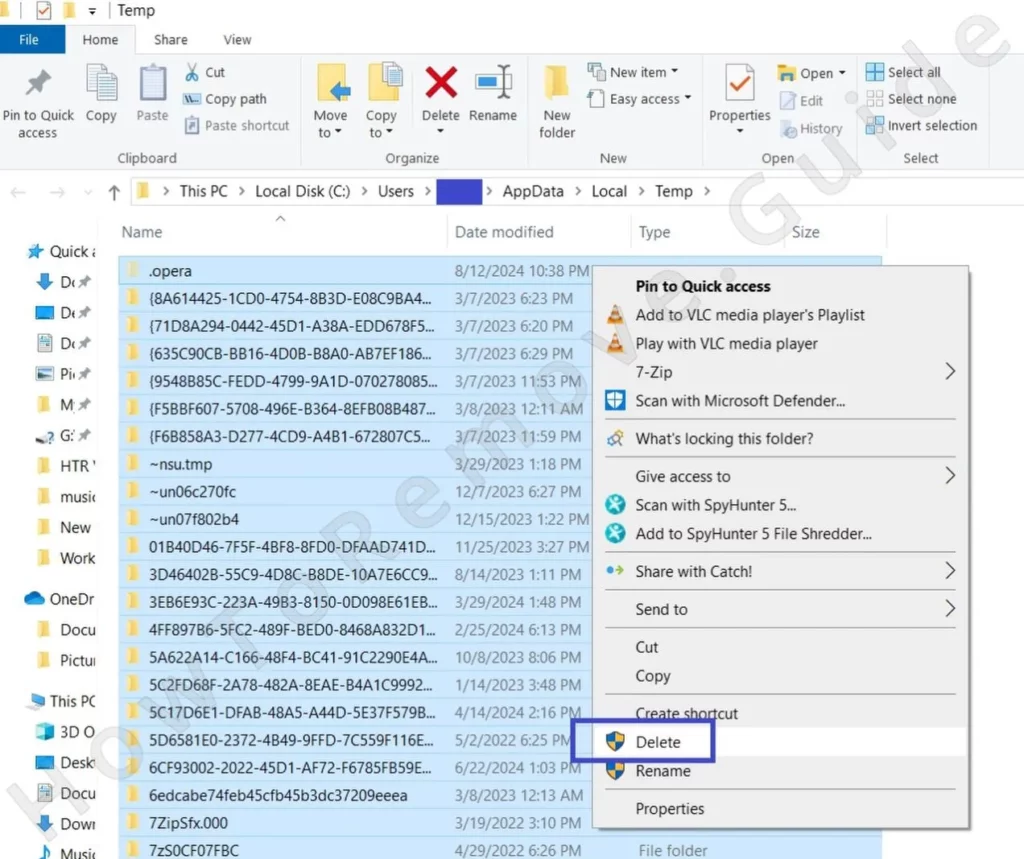
Then also check these two folders for suspicious items and delete anything you find:
- C:\Users\YourUsername\AppData\Local\Programs
- C:\Users\YourUsername\AppData\Roaming\Microsoft\Windows\Start Menu\Programs
Lastly, go go to check the Program Files and Program Files (x86) folders in your C: drive for unfamiliar and recently created folders and delete those if you think they might be linked to Alrustiq.
Get Rid of Alrustiq Scheduled Tasks
Malware like Alrustiq often creates scheduled tasks that allow it to be launched automatically or even reinstall itself after getting deleted. It’s, therefore, crucial that you check for such tasks and delete them before moving on.
Type Task Scheduler in the Start Menu, open it and review all the entries under the Task Scheduler Library.
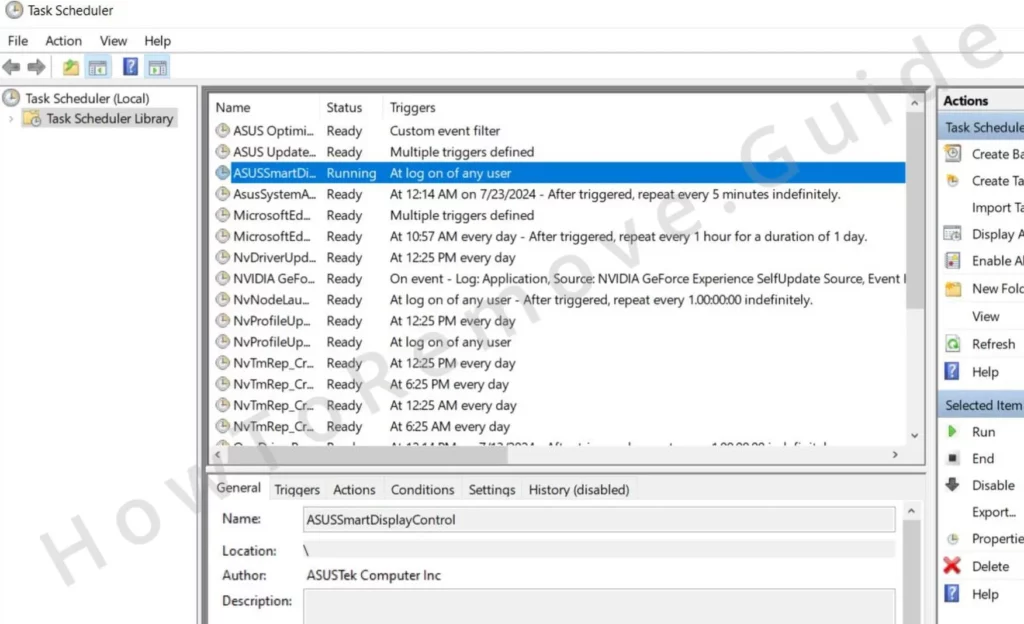
Pay particular attention to the Actions tab within each task. If you find a task that references a suspicious file or script, delete it and then manually remove the associated file.
Video walkthrough for this step:
Uninstall the Alrustiq Malware Through the System Registry
This step requires a lot of personal judgment – you will need to look for Alrustiq items in the System Registry, which can often be confusing and time-consuming. In case you aren’t comfortable tampering with the system’s registry, you can always let SpyHunter 5 take care of things. If not, here’s how to perform a registry cleanup:
Malware often hides its final traces in the Windows Registry. To root out Alrustiq completely, open Registry Editor by pressing Win + R, typing regedit, and hitting Enter. Use Ctrl + F to search for any entries tied to Alrustiq and delete them carefully.
Manually check these keys for anything unusual:
HKCU\Software\Microsoft\Windows\CurrentVersion\RunHKCU\Software\Microsoft\Windows\CurrentVersion\RunOnceHKLM\Software\Microsoft\Windows\CurrentVersion\RunHKLM\Software\Microsoft\Windows\CurrentVersion\RunOnceHKLM\Software\Microsoft\Windows\CurrentVersion\Policies\Explorer\RunHKCU\Software\Microsoft\Windows\CurrentVersion\Policies\Explorer\RunHKEY_LOCAL_MACHINE\Software\Microsoft\Windows\CurrentVersion\RunServicesHKEY_LOCAL_MACHINE\Software\Microsoft\Windows\CurrentVersion\RunServicesOnceHKEY_LOCAL_MACHINE\Software\Microsoft\Windows\CurrentVersion\RunOnce\SetupHKEY_LOCAL_MACHINE\SYSTEM\CurrentControlSet\services
In each of these registry locations, check their contents shown in the right panel and delete anything there that seems linked to Alrustiq. However, remember that the keys themselves (left panel) must stay intact.
Video walkthrough for this step:
Finalizing the Alrustiq Removal Process
Alright, so you’ve gone through the main steps to remove Alrustiq, but here’s the deal: there’s always a chance you missed something. Think of this as the final cleanup to catch any stragglers still hiding in your system. Now, keep in mind, this won’t magically fix everything if you skipped earlier steps, but it’ll help make sure the job is complete.
Here’s what you do. Hit the Win key and type cmd. When you see the Command Prompt, right-click it and choose Run as administrator. This part’s important, so don’t skip it.
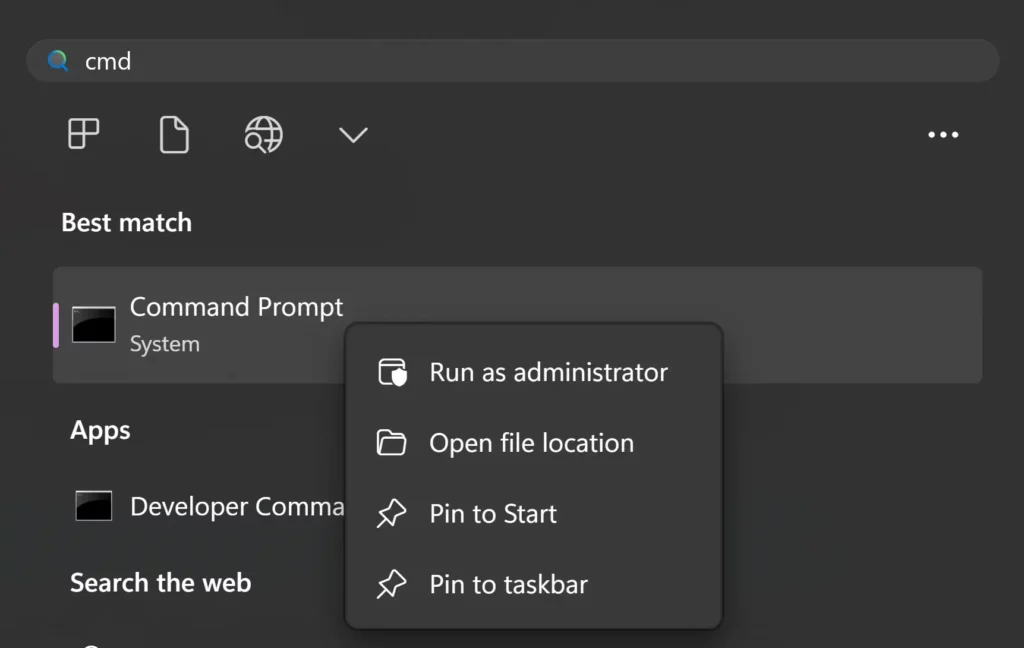
Once the Command Prompt opens, type this exactly:
sc delete Alrustiq
Then press Enter.
In the same way, run these two commands too:
- sc.exe stop “AlrustiqService”
- sc.exe delete “AlrustiqService”
If it works, you’ll get a confirmation that the service has been deleted. If it doesn’t find anything, don’t panic—it just means you’ve already done a good job. Either way, you’re almost there.
Finally, restart your computer. This ensures any changes take effect and clears out anything lingering in memory. Keep an eye on your system for a few days. If something still seems off, consider using a professional tool like SpyHunter 5 to double-check your work. Better safe than sorry, right?
What Is the Alrustiq Virus?
As I explained at the start, the Alrustiq virus is a sneaky cryptocurrency miner that hijacks your computer’s processing power to mine digital currencies like Monero and Zcash. And no, it doesn’t ask for permission. Once it’s on your system, it quietly runs in the background, cranking your CPU and RAM into overdrive. Sounds bad? It is. This constant pressure can lead to overheating, slow performance, and, eventually, hardware failure.
Now, here’s where it gets tricky. Unlike legit mining software that operates transparently with your approval, Alrustiq is designed to slip into your system under the radar. In one case, it came bundled with a tool promising enhanced Roblox shaders—something a lot of players wouldn’t think twice about downloading. But Roblox isn’t the only bait. Alrustiq has been known to hitch rides with mods for games like Minecraft and even third-party console emulators. The worst part? Even if the main app looks legitimate, malware like this can sneak in during installation—especially if you’re in the habit of skipping through prompts without paying attention.
Once Alrustiq is installed, it burrows deep into your system, embedding itself in startup processes so it boots up every time you turn on your device. And it’s not stupid—it’ll limit CPU usage just enough to stay under the radar while still raking in crypto for the people behind it. Meanwhile, you’re left with a sluggish computer, a higher electricity bill, and potentially permanent damage to your hardware.
So, what’s the takeaway? Be cautious. Avoid downloading mods, emulators, or software from unverified sources. Take the time to read those installation prompts and deselect anything you didn’t explicitly agree to. And for the love of all things digital, invest in a reliable antivirus tool. If Alrustiq manages to sneak past your defenses, it’ll happily chew up your hardware while the scammers cash out.
Tips to Avoid Alrustiq in the Future
Let’s face it: we all know the basics. Don’t click shady links, don’t download pirated software, and definitely don’t open random email attachments. If you’re still doing any of that… well, that’s on you. But beyond the obvious, here are a few lesser-known steps to keep you safe from Alrustiq and other malware like it.
Disable Automatic Downloads
This one’s simple but effective. Stop your browser from downloading files automatically. Go to Settings > Downloads and enable the option to ask where to save files before downloading. That way, nothing sneaky gets downloaded without your knowledge.
Turn On Enhanced Security in Your Browser
Most browsers have advanced security features, but they’re not always turned on by default. For instance, in Chrome, head to Privacy and Security > Security and enable Enhanced protection and Always use secure connections. Other browsers have similar options—find them, and turn them on.
Install an Ad-Blocker
Ad-blockers aren’t just for dodging annoying YouTube ads. They’re also great for blocking malicious pop-ups, preventing redirects to sketchy sites, and warning you about unsafe pages. Installing one takes a few seconds but can save you from a world of trouble.
By following these steps, you’ll not only protect yourself from Alrustiq but also make your entire online experience safer and smoother. Why not start now?

Leave a Reply