

We created this page to address a malware infection with a fake extension called NebulaNanoel. If you are reading this, you are probably bombarded with redirects to sites like Boyu and fake bing searches. There is also another extension that serves the same purpose as this one. It’s called Fortyfy. The NebulaNanoel extension specifically targets chrome users but we designed the guide to be compatible with other browsers in case this changes.
At any rate, the guide below is guaranteed to work. We tested it.
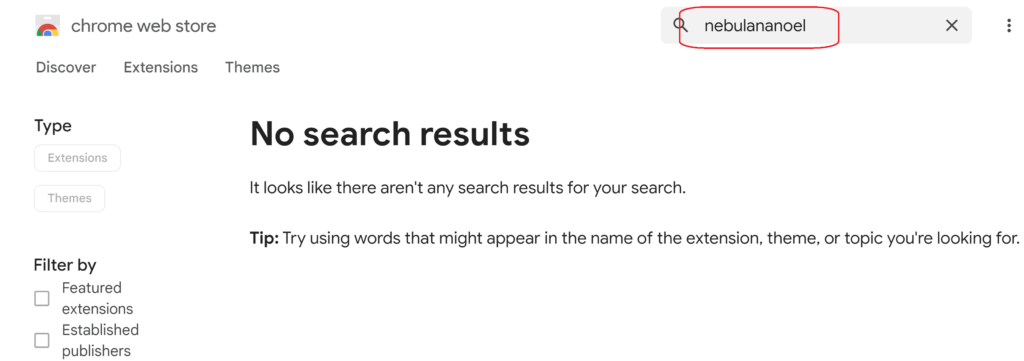
NebulaNanoel Extension Removal Guide (for Chrome)
We hope you did not press allow for any push notifications if you were asked to do so. This gives NebulaNanoel further leverage to tamper with your system. But we will deal with this later.
Note: We are showing Chrome for the guide, but the same applies for other Chromium-based browsers like Edge and Brave, if it turns out they are infected as well. For example when we tell you to type chrome://extensions, just substitute your browser name for “chrome” (e.g. edge://extensions) and it’s the same.
SUMMARY:
| Name | NebulaNanoel |
| Type | Browser Hijacker |
| Detection Tool |
Some threats reinstall themselves if you don’t delete their core files. We recommend downloading SpyHunter to remove harmful programs for you. This may save you hours and ensure you don’t harm your system by deleting the wrong files. |
 OFFER
OFFERFirst off, the NebulaNanoel extension enforces an active policy. Modern hijackers use this to prevent you from removing any URLs and search engines they want to redirect you to.
They do so through a “managed by organization” state typically reserved for work networks that don’t want you to have full admin privileges. We need to remove such a state before we can make changes.
Start up Chrome and enter chrome://management/ in the address bar. If anything is enforced on you, you are locked out of some settings.

Take notice of what shows up on that screen and don’t do anything yet.
The next stop is to check whether you have in your browser any suspicious extensions. Type and enter chrome://extensions/ in the address bar.
Look for anything you haven’t seen before and/or it has the “Remove” button greyed out. Such extensions drive the redirects. Don’t even read their “details” tab, just exercise common sense and remove anything you don’t like. If it’s legitimate, you can put it back on later. If anything showed up in the previous step, you can look for it here.
At the top right of the Extensions page turn on “Developer Mode.” You will now be able to see the dedicated ID of any extension. Highlight and copy the ID of anything infected with Ctrl+C. Store the IDs in a text editor, you will need them later.
The last places to check are your Search Engine and On Startup tabs.
Type and enter chrome://settings/ in the address bar. You want to look at the tabs I highlighted.
Look, I’m not going to state obvious stuff here, but take a look at what these are set set as. If a search engine can’t be removed and has “details” next to the name, then it is enforced by an “organization” again. Similarly, The On Startup tab can be set to a specific page or tab – take note of these.
After we remove the managed by organization state, you’ll have to go back to these settings to fix them. You just can’t right no while they are locked.
Remove NebulaNanoel with the Group Policy Editor
Type Edit Group Policy in the Windows Start Menu, open it, and expand the Computer Configuration entry.
- Right-click on Administrative Templates and click Add/Remove Templates.
- If you see any items in the list that shows up, select them and select Remove.
- Restart the PC, then Chrome. See if the settings you saw earlier are still locked. If they aren’t you should change the settings and remove the NebulaNanoel extension. After that we recommend going through the registries (the step below) or it may return.
Deleting NebulaNanoel from the Registry
If you clean the Group Policy Editor NebulaNanoel’s entries should be gone. But that doesn’t mean anything it installed aside from itself is gone as well, since not all malware use the managed organization state. We urge you to check the registries. Take note of all the extensions ID’s you wrote down earlier. Now is the time to search for them.
- First, go into your browser and visit one of the following URLs depending on what browser you are using: chrome://policy for Chrome.
- See if there is a policy with a Value that consists of letters and/or numbers.
- If there is, copy its value and story it for later.
- Now go to your Registry (type regedit in the Start Menu, right-click the Editor > Run as administrator).
- Press Ctrl + F and paste and ID you wrote until now, one by one. If you find anything, delete it. You can’t mess up badly here. You will only delete whatever this ID does – which is part of the malware.
- Repeat the search, delete the next item, rinse and repeat until no more search results are shown.
Now that the Registry is also cleaned, your browser should no longer be locked by any rogue thrid-party policies. Restart your PC and check if the browser is free. If it’s not, you’ve probably missed something. We recommend downloading an anti-malware program.
Clean up NebulaNanoel’s leftover parts from Chrome
These are some additional steps to clean up Chrome. If you are on another browser, the steps are the same, only certain names and placements might be different. But the method should be consistently the same throughout.
- Start Chrome and navigate to Extensions, and Remove anything unwanted you couldn’t earlier.
- Open the Chrome menu again, and go to Settings > Privacy and Security.
- Select Delete browsing data > Advanced, leave only Passwords unchecked, and click Delete Data.
- Go to the Privacy and Security tab —> Site Settings —> Notifications. We recommend checking Don’t allow sites to send notifications under Default Behavior. I frankly don’t know who would want to receive notifications and why this isn’t the default setting.
Also go through the settings in the earlier steps and restore these to the defaults. I’m talking about stuff in Search Engine and On startup. If anything there was changed, you should now be free to modify it.
Leave a Reply