

If you’ve recently noticed something a strange program called SecuriGuard on your PC, then I strongly advise you to stay on this page to learn how to remove it. At its core, this app is another one of those so-called “secure” browsers that actually does the opposite of protecting you. It claims to be all about privacy and safety, but once you take a closer look, the reality is far sketchier than the marketing suggests.
The truth is that this rogue browser isn’t looking out for you – it’s looking out for itself. At best, SecuriGuard can be categorized as a PUA (potentially unwanted app) – a term used for software that sneaks onto your device and does things you never agreed to. However, some aspects of its behavior bring it suspiciously close to an actual Trojan Horse virus, similar to EpiStart and Alrustiq.
We tested that SpyHunter successfully removes SecuriGuard* and we recommend using it. It will block SecuriGuard from reinstalling itself and it will make sure your device is clean from any malware.
 Try Free For 7 Days*
Buy now15% OFF if you buy straight without trial.
 OFFER
OFFERWhat’s so bad about it? Well, for starters, it demands complete access to your system’s resources without giving you any reason why. That’s a huge warning sign. It might be spying on your activity, eating up your system’s performance, or forcing your searches through shady websites. Some software like this even logs your passwords, browsing history, or payment details.
The obvious takeaway is that you must get rid of this software ASAP and I’ll now show you how to do that.
SecuriGuard Removal Tutorial
Before we start digging deep into complex removal methods, let’s go for the low-hanging fruit first. Sometimes, a few quick and simple steps are all it takes to kick SecuriGuard off your system – no advanced troubleshooting required.
In fact, if you’re lucky, these basic fixes might be all you need to get rid of the problem entirely. So let’s start small and see if we can clear this mess up the easy way, before moving on to the heavy-duty solutions.
- Navigate to This PC > Downloads and inspect everything.
- If you spot SecuriGuard or anything else that looks out of place, delete it immediately. This folder tends to accumulate not just intentional downloads but also files installed automatically or accidentally, such as deceptive advertisements masquerading as updates or tools.
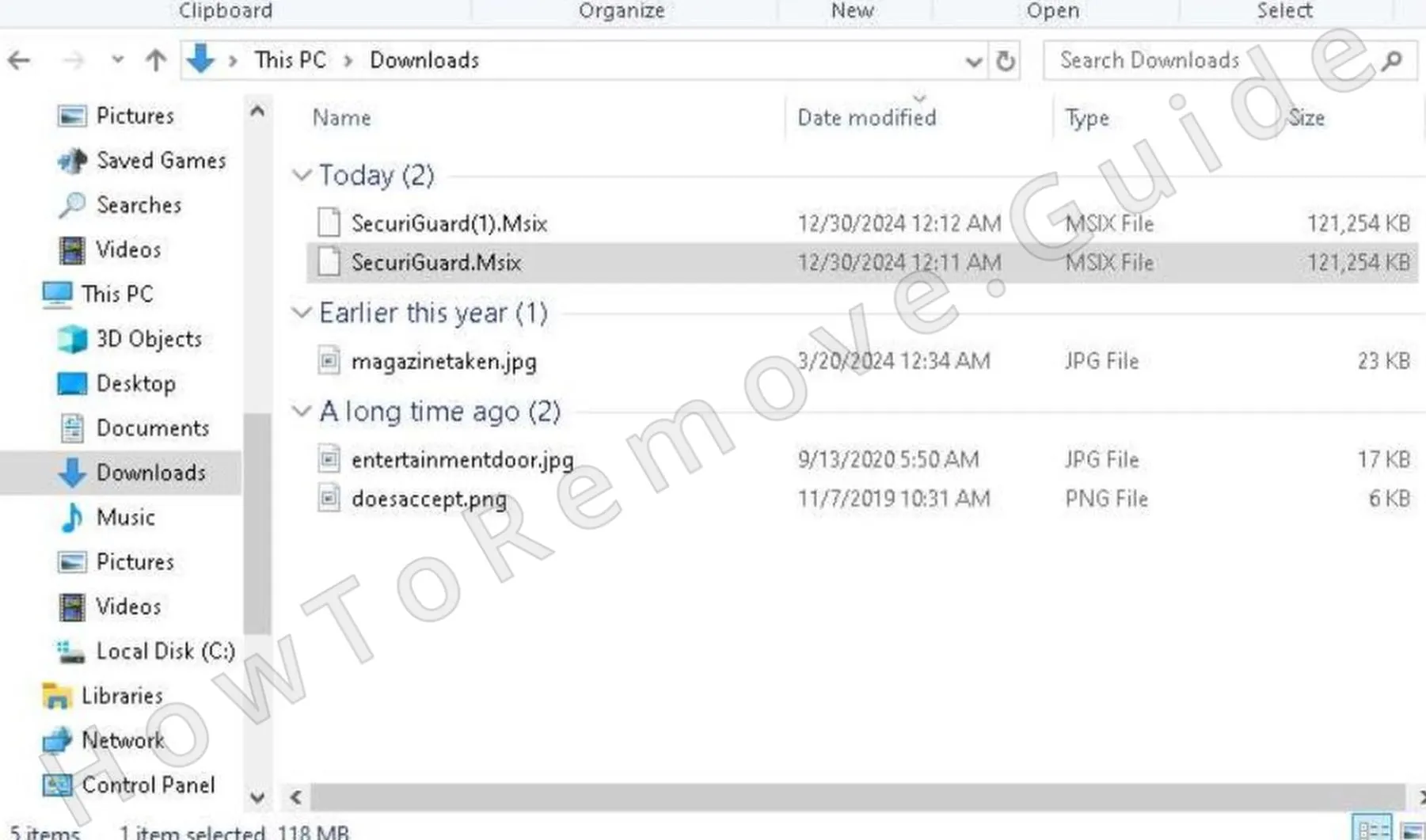
- Be thorough – malware thrives on being overlooked. For instance, a file with a generic name like “setup123.exe” or “update_tool” might seem harmless but could hide malicious intentions.
- Next, head to the Settings menu through the Start button and click on Apps.
- Sort the list by installation date and look for SecuriGuard or anything else that seems sketchy. Malware often disguises itself as recent software, so pay close attention to unfamiliar names.
- If you find something questionable, select it, click Uninstall, and follow the prompts.
- Next, visit C:\Users\YourUsername\AppData\Local\Programs, a common hiding spot for malware.
- Delete folders related to SecuriGuard or anything suspicious. Look out for directories with names that mimic legitimate software but slightly differ—these subtle discrepancies can signal malware.
Then, restart your computer to solidify these changes. This step is crucial because certain malware components are programmed to reload or reinstall themselves if the system isn’t rebooted after deletion.
If SecuriGuard is still causing trouble, don’t lose hope. The next steps dive deeper into your system, targeting hidden and persistent components.
SUMMARY:
Before You Begin: Something to Keep in Mind
This guide is designed to be as straightforward as possible, but if you’re not used to dealing with malware manually, some steps might feel a bit overwhelming. That’s totally understandable.
If you’d rather skip the hassle or you’re worried about missing something, there’s an easier way to handle this. SpyHunter 5 is a powerful tool that can scan, detect, and wipe out SecuriGuard automatically – plus any other sneaky malware that might be hiding on your system. If you’re looking for a faster, stress-free fix, this might be your best bet to make sure your PC is completely clean.
How to Remove the SecuriGuard Virus
Before you start digging through your system for SecuriGuard files, suspicious processes, or altered settings, there are two key prep steps you need to take. Take a minute to go through these steps properly – they set the stage for completely wiping out every last trace of unwanted software on your PC.
Begin by opening Folder Options from the Start menu, navigate to the View tab, and select Show hidden files and folders.
This setting unveils files malware often uses to hide in plain sight. Without enabling this option, you could miss crucial components of SecuriGuard that are tucked away in hard-to-find locations.
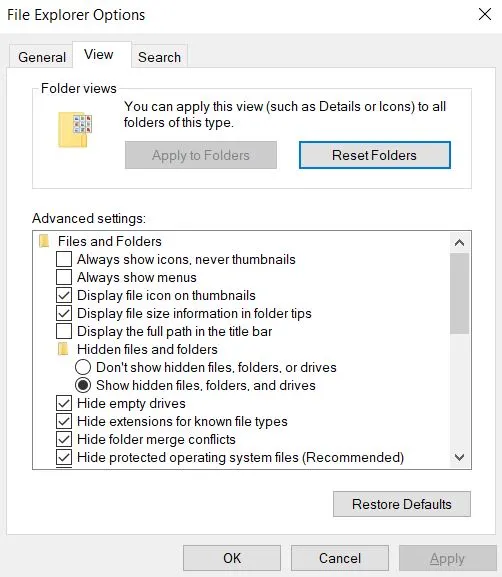
Next, arm yourself with the free LockHunter tool. It’s invaluable for removing stubborn files that refuse to budge. Malware often locks files to prevent deletion, which is where LockHunter steps in to “unlock” the file, allowing you to remove it. This tool will be particularly handy in the steps ahead.
Once you’re equipped and your system is ready, it’s time to track down the malware’s core.
Video walkthrough for this step:
Get Rid of SecuriGuard Background Processes
To fully remove the SecuriGuard malware, you’ll need to track down and terminate its active processes, along with deleting any associated files. Malware often disguises itself within system tasks, so shutting it down properly is crucial before you proceed.
- For this step, you’ll likely need LockHunter, so make sure it’s already installed in your system.
Now, let’s go through the process of identifying and eliminating SecuriGuard’s running tasks so you can start cleaning up your system:
Sort processes by CPU or memory usage; anything using significant resources with an unfamiliar name deserves scrutiny.
For example, if you see a process running under a name like “SystemUpdater” but consuming an unusually high percentage of CPU, that’s a red flag. Obviously, also be on the lookout for anything named SecuriGuard or similar.
Right-click on suspicious processes and select Open File Location. Investigate the folder. If it’s tied to SecuriGuard, delete it.
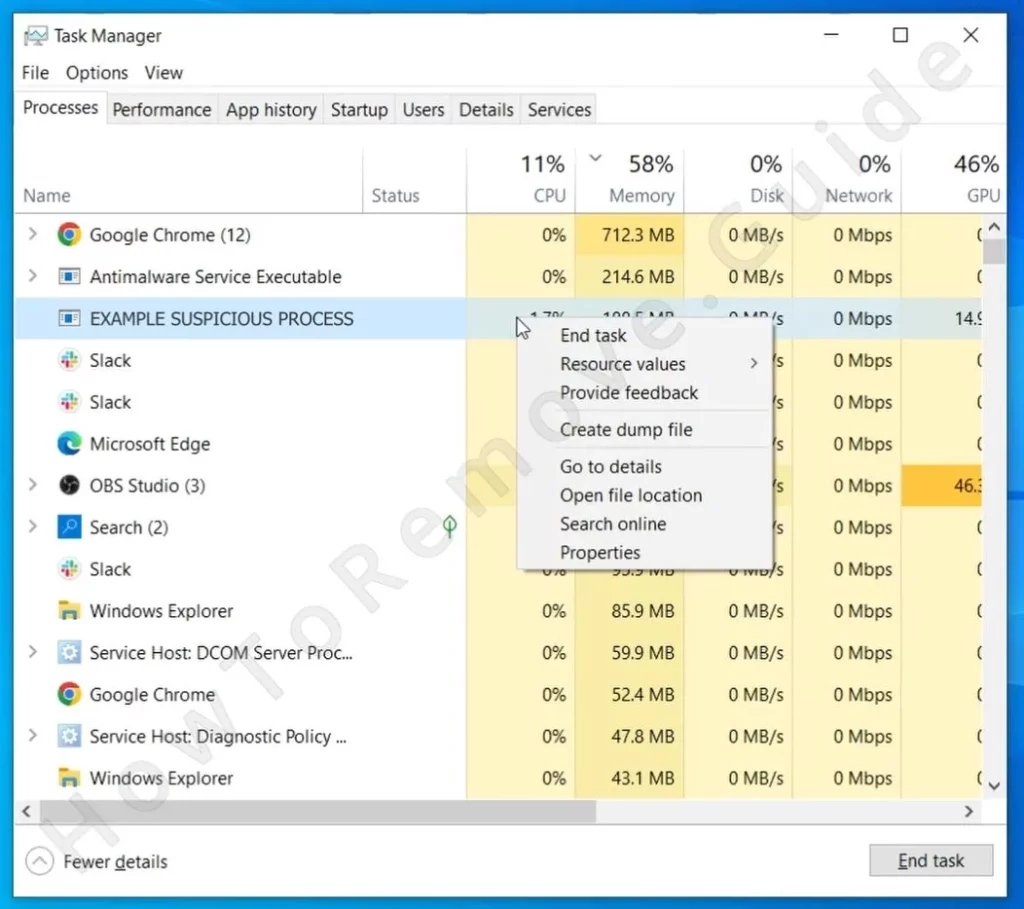
If the folder resists, this is where LockHunter shines. You just need to right-click the stubborn folder (or file), click the “What’s locking…?” option from the context menu, and then click Delete in the LockHunter window that opens up.
Afterward, return to Task Manager, note down the process name (you’ll need that later), and click End Task to stop it from running.
Video walkthrough for this step:
How to Delete Persistent Files with Lock Hunter
Delete SecuriGuard Virus Files
SecuriGuard likely has more files in other parts of your system so you’ll need to do some manual investigation to find them. Start with the Startup folders at these locations:
- C:\ProgramData\Microsoft\Windows\Start Menu\Programs\Startup
- C:\Users\YourUsername\AppData\Roaming\Microsoft\Windows\Start Menu\Programs\Startup
Delete everything except desktop.ini, which is harmless.
Next, examine your Program Files and Program Files (x86) directories for unfamiliar folders or those linked to SecuriGuard. Be meticulous – anything overlooked could give the malware a second chance. For instance, folders with generic names like “Updater” or “Tools” might seem ordinary but warrant closer inspection.
Next, search directories like C:\Users\YourUsername\AppData\Local\Programs and C:\Users\YourUsername\AppData\Roaming\Microsoft\Windows\Start Menu\Programs.
Finally, clear the Temp folder at C:\Users\YourUsername\AppData\Local\Temp. Temporary files are a favorite hiding spot for malware. They often contain the scripts or executables used during malware installation.
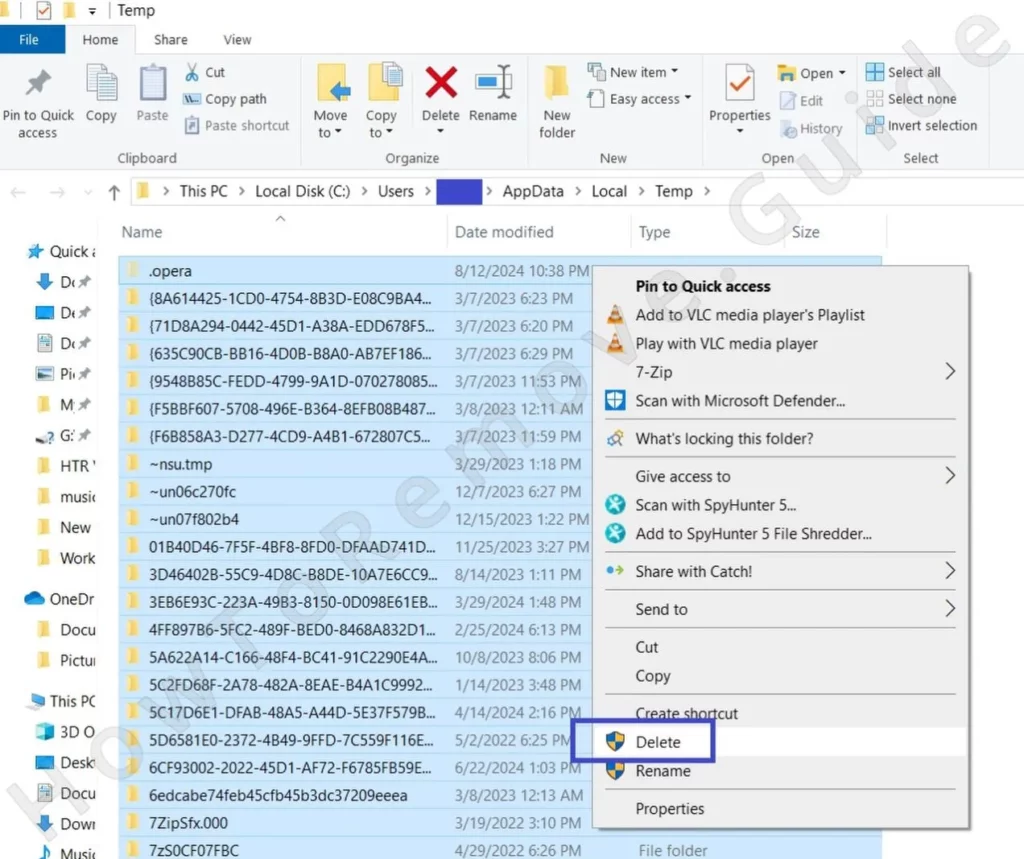
Once cleaned, empty your Recycle Bin to finalize the process.
Get Rid of SecuriGuard Scheduled Tasks
If SecuriGuard keeps popping up out of nowhere, there’s a high chance it’s using a scheduled task in your Task Scheduler to restart itself automatically. This is a common malware tactic – even if you shut it down manually, it forces its way back every time you reboot.
To deal with this, open it via the Start menu and explore the Task Scheduler Library.
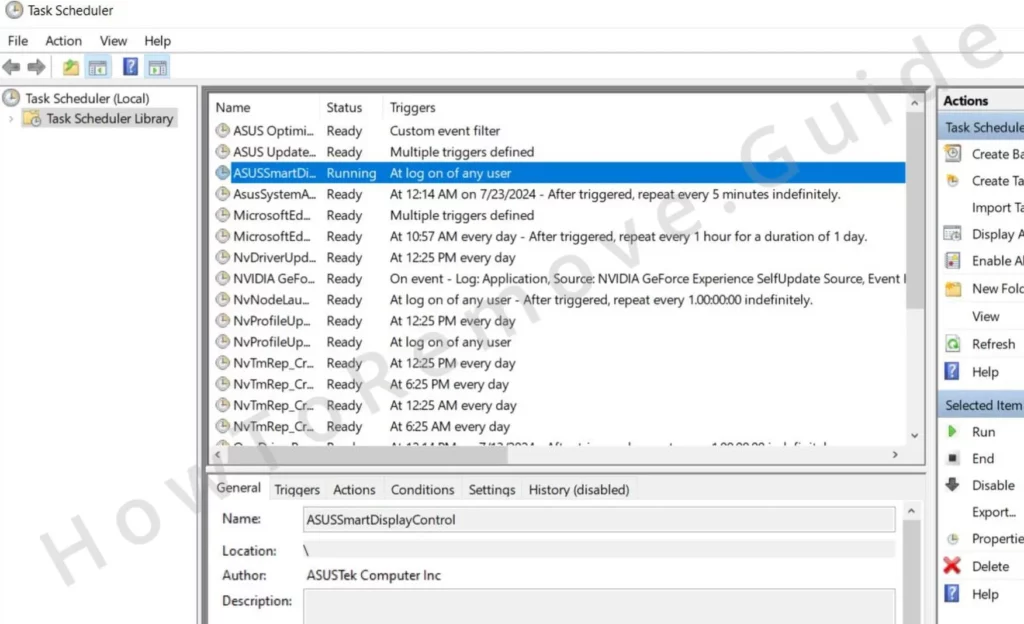
Double-click each task and check its Actions tab. If a task references an unfamiliar script or executable, it’s a red flag.
Note the file path, delete the task, and head to the location to remove the file. Repeat this process for any questionable tasks. Some malware creators program tasks to execute harmful processes at specific intervals, so clearing these ensures SecuriGuard can’t reactivate.
Video walkthrough for this step:
Uninstall the SecuriGuard Malware App Through the Windows Registry
SecuriGuard has likely planted itself in your System Registry, so you need to go there and root it out. Now, you’ll need to find and remove its entries – but be careful. Deleting the wrong one could affect system settings, so double-check before proceeding.
If this feels risky, SpyHunter 5 can do it automatically. Otherwise, here’s what to do next:
Open Registry Editor using Win + R, type regedit, and press Enter. Use Ctrl + F to search for entries tied to SecuriGuard, including any process names you identified earlier. Delete all matching entries, but proceed carefully—mistakes here can destabilize your system.
Manually inspect these Registry keys for suspicious entries:
HKCU\Software\Microsoft\Windows\CurrentVersion\RunHKCU\Software\Microsoft\Windows\CurrentVersion\RunOnceHKLM\Software\Microsoft\Windows\CurrentVersion\RunHKLM\Software\Microsoft\Windows\CurrentVersion\RunOnceHKLM\Software\Microsoft\Windows\CurrentVersion\Policies\Explorer\RunHKCU\Software\Microsoft\Windows\CurrentVersion\Policies\Explorer\RunHKEY_LOCAL_MACHINE\Software\Microsoft\Windows\CurrentVersion\RunServicesHKEY_LOCAL_MACHINE\Software\Microsoft\Windows\CurrentVersion\RunServicesOnceHKEY_LOCAL_MACHINE\Software\Microsoft\Windows\CurrentVersion\RunOnce\SetupHKEY_LOCAL_MACHINE\SYSTEM\CurrentControlSet\services
Delete any values tied to SecuriGuard, but leave the folder structures intact. If you’re unsure, err on the side of caution and leave the entry alone. Once this step is complete, you’re on the home stretch.
Video walkthrough for this step:
Ensuring Success: Verifying the Cleanup
After following these steps, restart your system. Pay close attention to its behavior—are apps running smoothly? Is performance back to normal? These are good signs that SecuriGuard is gone. However, if issues persist, revisit the guide. Malware can be elusive, and a second pass often uncovers components you might have missed.
Building a Defense: Preventing Future Threats
Now that your system is clean, let’s make sure it stays that way. Adjust your browser settings to prompt you before downloading files, preventing accidental installations. This adds an extra layer of control, ensuring that nothing sneaks onto your system without your explicit consent.
Install reputable antivirus software and keep it updated to detect threats early. Tools like malware scanners can also help you periodically audit your system for vulnerabilities.
This experience, while frustrating, arms you with valuable knowledge. By taking proactive steps, you not only secure your system but also gain confidence in handling similar issues in the future. Celebrate your hard work—your device is safe, functional, and ready for anything!

Leave a Reply