

Force Quit Command on a Mac – how to use it?
Mac computers are known to be reliable, but in some cases, they also may encounter a sudden glitch, freezing of the screen or unresponsiveness, especially if multiple apps are open at the same time. When such a thing happens, no command will work. The mouse pointer may not want to move or quit the application (typically reported issue on MacOS High Sierra) and the app window may become totally unresponsive. In such a case, apart from rebooting your Mac, the Force Quit feature can help you quit the troublesome program in a several ways.
Here we will describe five different ways the Fore Quit command can help you in case you encounter unresponsive apps on your Mac computer.
How to Force Quit Command on a Mac
Method 1: Use the keyboard shortcut
If your mouse pointer freezes or doesn’t want to respond, it is extremely useful to know the keyboard command which can open the Force Quit menu. Just press and hold the Command+Option+Escape buttons. The Force Quit window will open, where you will have to select the unresponsive program and close it. Use the arrows to navigate and the Return button to force quit if the mouse is unresponsive. 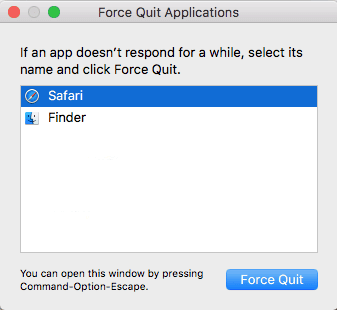
Method 2: Use the Dock menu
When a given app on your Mac becomes unresponsive, the chances are that the menu at the top will also not follow your commands and even if you click the Quit icon of the application, most probably you won’t close the window. There is a quick go around to this issue and this is the Dock menu. To force quit the unresponsive app, right-click on its icon on the Dock menu and select the “Options” menu. There you will see the Force Quit option and will have to hit it. 
Method 3: Use the Finder Menu
If using keyboard shortcuts is not your thing, then the Finder Menu can also quickly pull out the Force Quit function. Just click the Apple icon at the top left corner and from the falling menu select the Force Quit option. In the application window, select the unresponsive program to close it.
Method 4: Use the Activity Monitor
The Activity Monitor can also help you quit an unresponsive program. To open the Activity Monitor screen, click on the Spotlight icon at the top-right corner and type “Activity Monitor” in the text box. 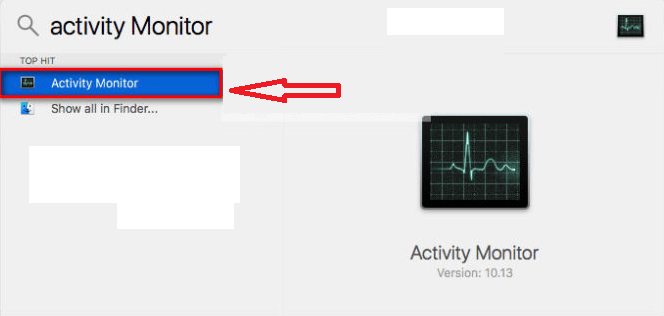
Scroll down to the unresponsive application, double-click on it and then click the Quit button and choose Force Quit. 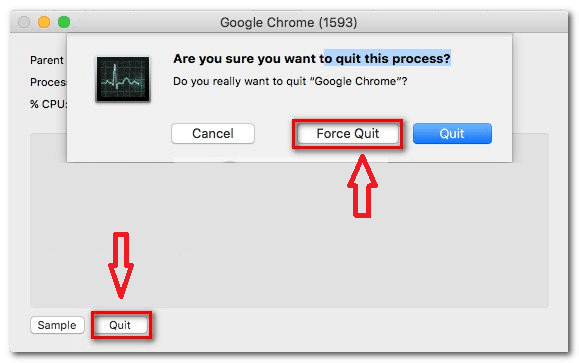
Method 5: Use the Command Terminal
The tech-savvy users may also prefer to use the Command Terminal to get rid of the unresponsive application. To access the terminal use the Spotlight icon at the top right corner and type “terminal”.
Tips: To open the Spotlight search menu more quickly press Command key + Space 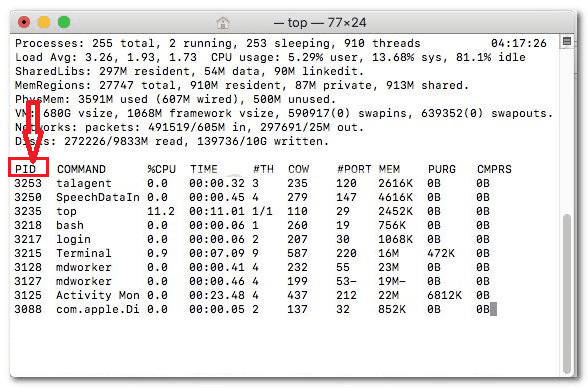
When you access the terminal, type “top” and hit “Return” to see the list with your running applications. Then, find the unresponsive app and remember (or copy) it’s PID number as shown in the picture. Next, close the current terminal. Open a new terminal, type “kill” followed by the PID number of the unresponsive application and press the Return key. This will close the app instantly.

Leave a Reply