

If you’ve recently noticed a program called PDF Editor on your device and things suddenly feel “off” – slow browsers, strange ads, or your homepage mysteriously changing – then you’re probably dealing with adware. Now, here’s the tricky part: this app tries hard to look like a normal productivity tool, even claiming to help you handle PDF files. In reality, it’s pulling some shady moves behind the scenes. For starters, researchers found versions of PDF Editor tied to the trojan ManualFinder, which can secretly turn your system into a residential proxy for cybercriminals. The scheme is engineered to evade detection, using staged JavaScript components and scheduled tasks from the OneStart Browser to survive reboots. What looks like productivity software is, in reality, a persistent gateway for exploitation. Other builds, like PDF Editor by AppSuite, hijack browsers, swap your search engine with search-redirect.com, and open the door to scams or more unwanted downloads. None of this is obvious at first glance – the program may even seem helpful – but that’s exactly the point. PUP like this hides its teeth until you’re already exposed, so removal is strongly advised.
PDF Editor may expose your browser to redirects, ads, and persistent unwanted components. Install SpyHunter Pro to scan for risks, remove related threats, and enable real-time protection.
 OFFER
OFFER*Source of claim SH can remove it. Trial w/Credit card; image is for illustration; full terms.
PDF Editor Removal Guide
Okay, so here’s the deal – PDF Editor is malicious software, and depending on your luck, getting rid of it can be a breeze or a total nightmare. Some folks manage to remove it in a few easy steps, but if that doesn’t work, buckle up. The deeper cleanup is no joke. Always try the simple fixes first, and only move on to the heavy stuff if PDF Editor refuses to leave.
Quick Steps to Remove PDF Editor
- 1.1Open the Start Menu, search for “Apps & Features”, and press Enter. This will display a comprehensive list of all programs currently installed on your system, allowing you to identify and remove unwanted software.
- 1.2To make the malware easier to spot, sort the list by installation date. Unwanted programs often appear as recent additions, making this a useful way to narrow down your search.
- 1.3Carefully review the list of installed programs. Look for unfamiliar apps, odd names, or generic icons that seem out of place. If something appears suspicious, mark it for further investigation to ensure it’s not part of the malware.
- 1.4If a program looks questionable, select it and click Uninstall. Trust your instincts – if something feels off, it’s better to remove it than risk leaving the malware intact.
- 1.5Navigate to C:\Program Files and C:\Program Files (x86). Locate the folder where the suspicious program was installed and manually delete any leftover files. Malware often hides additional components here to reinstall itself later, so thorough cleanup is essential.
Restart your computer and verify if PDF Editor has been removed. If it persists, proceed to the next steps for a more in-depth cleanup.
SUMMARY:
Important! Read Before Continuing
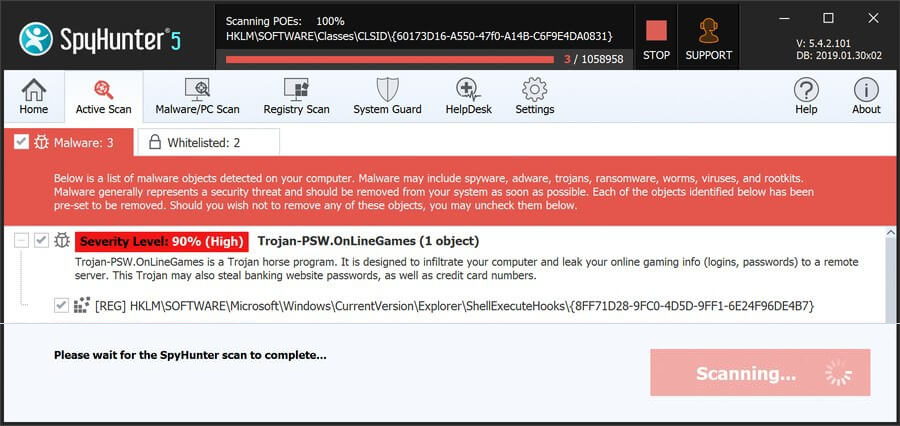
If you’re looking to remove PDF Editor, the following guide will walk you through the necessary steps. However, be aware that some parts of the process might be tricky, especially if you’re not familiar with troubleshooting. If you run into any difficulties or feel overwhelmed, consider using SpyHunter 5 – a tool designed to handle the entire cleanup for you. It simplifies the removal process by scanning, detecting, and eliminating PDFEditor automatically, ensuring your system is completely free of the adware without requiring advanced technical skills.
How to Remove the PDF Editor Virus
If the quick removal steps didn’t work, you’ll need to perform a manual cleanup. Before starting, ensure hidden files are visible and you have the necessary permissions to delete locked files. PDF Editor uses these tactics to protect itself. Skipping this preparation will prevent complete removal.
1. PDF Editor Removal Preparatory Steps
- 1.1
 To reveal hidden files, open File Explorer, click the View tab, and select Options (or Folder Options in older Windows versions). In the new window, go to the View tab again and check the box for Show hidden files, folders, and drives. Click Apply and OK to save your changes.
 - 1.2Malware often locks its files to prevent deletion. Use a tool called LockHunter, a free program that forcibly removes locked files. Download and install it now – it’s essential for the next steps.
While some users avoid third-party tools, LockHunter is necessary here. It’s free, reliable, and highly effective for this purpose.
Delete the PDF Editor Virus Files
Here’s the thing – PDF Editor hides files in key spots to keep itself alive. Your job? Find those folders, dig through them, and delete anything linked to the malware. If you skip this step, PDF Editor will just pop back up like nothing happened. Be thorough, or you’ll end up dealing with it all over again. Trust me, it’s not worth the risk.
2. How to Delete PDF Editor Files
- 2.1Open File Explorer and visit these directories:
C:\Users\YourUsername\AppData\Roaming
C:\ProgramData\Microsoft\Windows\Start Menu\Programs\Startup
C:\Users\YourUsername\AppData\Roaming\Microsoft\Windows\Start Menu\Programs\Startup
Examine the contents carefully. Delete any files with unusual names, strange icons, or anything that seems out of place. Malware often hides in these locations to maintain persistence. - 2.2
 Clear your Temp folder to remove temporary files where malware might lurk:
Go to C:\Users\YourUsername\AppData\Local\Temp.
Press Ctrl + A to select all files.
Press Delete to remove them.
This folder is a dumping ground for temporary files, and deleting its contents won’t harm your system. - 2.3Inspect C:\Program Files and C:\Program Files (x86). While most files here are legitimate, malware can blend in. If something seems suspicious, research it online. If confirmed malicious, delete it to prevent further issues.
- 2.4If a file refuses to delete, right-click it, select What’s locking it?, and use the Delete option in the window that appears. This ensures stubborn files are removed completely.
Remove PDF Editor Malware Tasks From the Task Scheduler
Let’s be real – you can’t just hit “Uninstall” and expect PDF Editor to disappear. It buries files deep in your system, making sure it can restore itself whenever it wants. You’ve got to hunt those files down in specific locations and wipe them out. If you don’t, PDF Editor isn’t really gone – it’s just waiting to strike again.
3. How to Remove PDF Editor Entries From the Task Scheduler
- 3.1
 Open the Start Menu, type Task Scheduler, and press Enter. Navigate to Task Scheduler Library to view all scheduled tasks.
 - 3.2Review each task. Under the Actions tab, check for any tasks running suspicious .exe files or scripts. If found, note the file location and delete the task to prevent the malware from reactivating.
- 3.3Go to the file location you noted earlier and delete the associated file. This ensures the malware cannot restore itself through scheduled tasks.
PDF Editor may expose your browser to redirects, ads, and persistent unwanted components. Install SpyHunter Pro to scan for risks, remove related threats, and enable real-time protection.
*Source of claim SH can remove it. Trial w/Credit card; image is for illustration; full terms.
Get Rid of PDF Editor Through the System Registry
Okay, heads up – PDF Editor modifies the Windows Registry to stick around. That means you’ve got to go in and delete every trace. But be careful – one wrong move can mess up your system. If you’re not sure about this step, use a tool like SpyHunter. If you’re confident, clear out those registry entries before PDF Editor locks itself in for good.
4. How to Remove PDF Editor Items From the Registry
- 4.1Type regedit in the Start Menu and run it as Administrator to open the Registry Editor with full permissions.
- 4.2Press Ctrl + F, type Koaiw App, and search. Delete any results linked to the malware. Repeat the search until no traces remain to ensure complete removal.
- 4.3
 Manually inspect these registry locations:
 - 4.4If you find PDF Editor references, delete the values in the right panel – but avoid deleting the registry keys themselves to prevent system instability.
Remove PDF Editor Browser Policies
So, here’s the deal – if you’re seeing “Managed by your organization” in your browser, that’s PDF Editor’s handiwork. It locks your settings, so you can’t change your homepage or search engine. To fix this, you’ve got to dig into policy settings and remove them manually. Until you do, PDF Editor controls your browser – not you.
5. How to Remove Rogue PDF Editor Policies
- 5.1
 Open the Start Menu, type Edit Group Policy, and select the first result. Navigate to:
Computer Configuration > Administrative Templates to access policy settings. - 5.2
 Right-click Administrative Templates, choose Add/Remove, and clear the list. Only items you’ve added should remain, ensuring no rogue policies are left behind.
 - 5.3For Chrome users, download the Chrome Policy Remover tool. Run it as Administrator to reset all policies automatically and remove any restrictions imposed by the malware.
- 5.4If Windows warns about the tool, click More Info > Run Anyway. The tool is safe to use and will help restore your browser’s default settings.
Uninstall PDF Editor From Your Browser
Listen up – kicking PDF Editor’s policies out of your browser isn’t enough. It changed settings behind your back, and if you don’t reverse them, it still has influence. Check every option, clear bad permissions, and take back control. If you don’t, PDF Editor might just sneak back in. Don’t let that happen.
6. How to Remove PDF Editor From Your Browser
- 6.1Remove suspicious extensions: Open your browser’s Extensions page and uninstall anything unfamiliar or unnecessary to eliminate potential threats.
- 6.2
 Clear browsing data: Go to Privacy and Security settings, select All Time, and delete everything except saved passwords to remove any traces of the malware.
 - 6.3
 Review site permissions: Revoke access for any questionable websites that may have been granted excessive permissions by the malware.
 - 6.4
 Reset search engine settings: Choose a trusted search engine and remove any suspicious URLs that may have been added without your knowledge.
 - 6.5Check On Startup and Appearance settings: Ensure no unknown URLs are listed, as these could redirect your browser or cause unwanted behavior.
Okay, time to restart your computer and check if PDF Editor is completely gone. If you still spot any traces, don’t sweat it – just grab a reliable security tool like SpyHunter 5 and let it handle the cleanup. It’ll take care of any leftover bits from the malware, so you can breathe easy knowing your system’s clean.
