

If you’ve noticed a strange installer called ProWSetup.exe popping up out of nowhere or lingering in your Downloads folder even after deletion, you’re not alone. Users across several forums have reported the same: ProW File Compressor showing up uninvited, offering to install itself without ever being requested. That’s your cue something’s off. While it may look like just another harmless compression tool – allegedly by a company called Pwactech – ProWSetup behaves more like a Potentially Unwanted Program (PUP) or worse. It keeps reinstalling, dodges standard uninstall attempts, and often slips into systems via bundled downloads. Some users said they scanned with different tools and found nothing – but that’s part of the trick. These threats often evade detection while making Registry changes, dropping helper files, and creating scheduled tasks to stay persistent. If it’s on your system, assume it’s not benign – and follow the removal steps below to fully eliminate it.
We tested that SpyHunter successfully removes ProWSetup* and we recommend using it. It will block ProWSetup from reinstalling itself and it will make sure your device is clean from any malware.
 Try Free For 7 Days*
Buy now15% OFF if you buy straight without trial.
 OFFER
OFFERProWSetup Removal Tutorial
Time to confront ProWSetup.exe directly. This pesky intruder can be unpredictable – sometimes it’s gone in a flash, while other times ProW File Compressor digs in, refusing to budge without a full cleanup. You might be lucky and resolve the issue with just a few actions. But if it’s stubborn? Be ready to dig deep. Start with foundational fixes, and escalate your efforts only if needed. It’ll be worth it when your system is clean again.
Quick Steps to Remove ProWSetup
- 1.1Click the Start Menu button, type “Apps & Features” into the search bar, then press Enter. This will pull up a list of all installed software on your system, making it easier to find and remove suspicious items like ProWSetup.
- 1.2To streamline your search, reorder the list by installation date. This allows newer additions – where ProWSetup may be hiding – to stand out more clearly and be identified faster.
- 1.3Go through the displayed programs carefully. Watch for entries you don’t recognize – those with strange names, unfamiliar publishers, or generic icons. Highlight anything unusual for further scrutiny to ensure you’re not overlooking hidden threats.
- 1.4If a questionable program catches your attention, click to select it and hit the Uninstall option to get rid of it. Don’t ignore your instincts – ProWSetup might be camouflaged as something benign or nondescript, fooling even experienced users at first glance.
-
1.5Afterward, look for the installation directory. You’ll often find it at
C:\UserNames\UserName\AppData\Local\Programs\, but it might also be Use File Explorer to navigate to C:\Program Files and C:\Program Files (x86). Search for folders associated with the program you removed and erase them manually. Malware like ProWSetup often leaves behind residual files that can reactivate it if not completely deleted.
When you’ve finished, restart your computer to complete the process and check whether ProWSetup has been successfully eliminated. If it’s still hanging around, don’t worry – there are additional techniques to ensure its complete removal.
SUMMARY:
| Name | ProWSetup |
| Type | Trojan |
| Danger Level | High (Trojans are often used as a backdoor for Ransomware) |
| Detection Tool |
We tested that SpyHunter successfully removes ProWSetup* and we recommend downloading it. Manual removal may take hours, it can harm your system if you re not careful, and ProWSetup may reinstall itself at the end if you don't delete its core files. |
READ BEFORE PROCEEDING!
PUP like ProW File Compressor evolves quickly. Its creators constantly refine their methods to hide their software within your system and make it more difficult to delete. This makes the manual removal of threats like ProWSetup challenging and slow.
Also, while the provided removal steps are effective at the time of writing, we can’t promise that a future update to ProWSetup may render them less effective. We do our best to keep things up-to-date, but we can’t always react immediately.
For these reasons, some of you may prefer to remove the virus using an automatic removal tool. SpyHunter is a good choice for such situations as it’s designed to find and eliminate malware data that conventional antiviruses might miss. Therefore, if you don’t think you have the time or experience for this guide or if the steps didn’t get rid of everything, consider giving SH a try – you won’t regret it.
Preparing for Removal
First, gather tools. Namely, the free LockHunter tool that you must download and install. It finds what’s blocking files or folders from being deleted.
We understand if you don’t want to download anything for the removal but, in this case, LockHunter is necessary. It’s possible that some of the steps in this guide can’t be performed without its help
Uninstall the ProWSetup Virus App
Preparing for the ProWSetup Removal
- 1.1Start here. Open the Start Menu. Type “Apps & Features“. Sort by installation date and review the list.
- 1.2
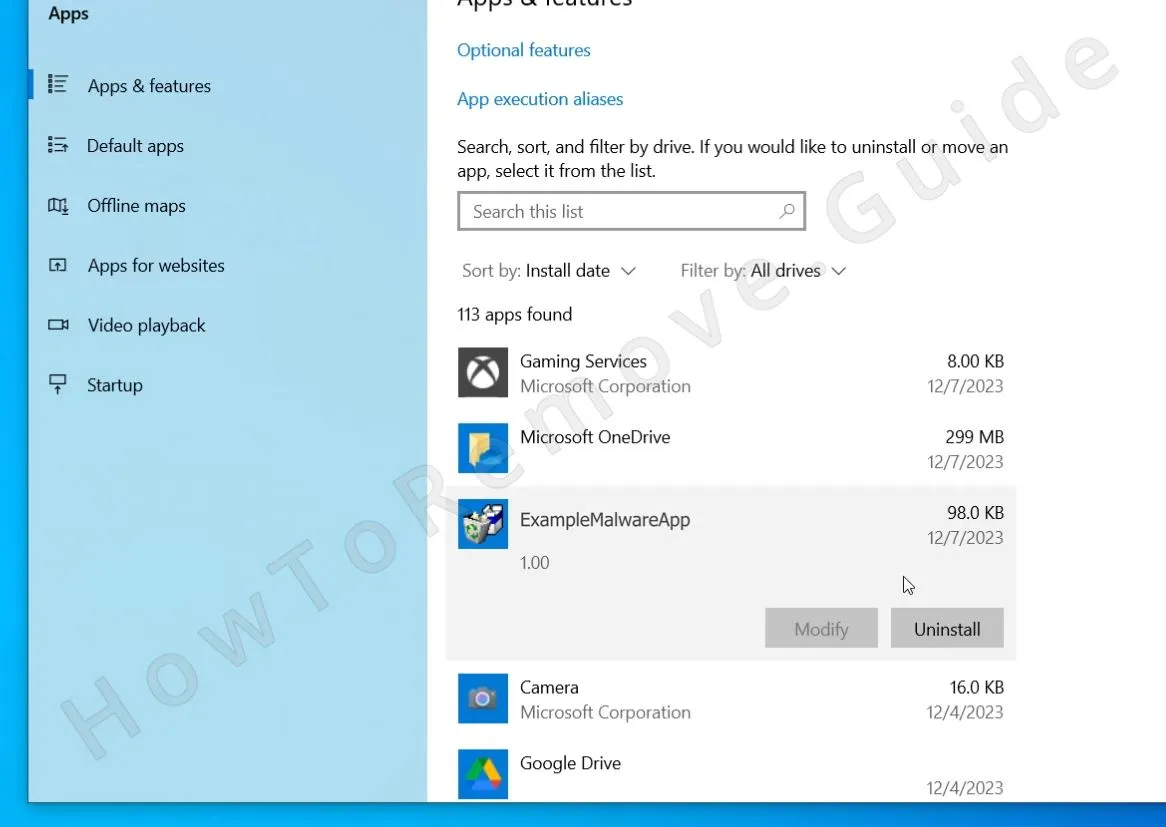 See any questionable programs installed around the time adware appeared? Uninstall immediately. Anything suspicious must go. Just remember the program’s name before removing it, because you’ll need this information later.
 - 1.3ProWSetup might appear in the list. If so, uninstall it too. This first step is vital but insufficient – there’s a lot more to be done.
- 1.4ProWSetup hides its files, so you’ll have to reveal them. Open the Start Menu. Type “Folder Options”. Press Enter.
- 1.5
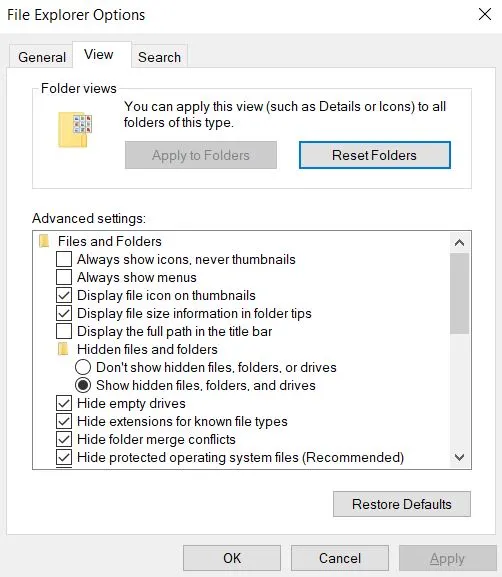 View tab: select “Show hidden files, folders, and drives”. Click OK.
 - 1.6Now the hidden files in your system will be visible.
Get Rid of ProWSetup in the Task Manager
It’s important to identify and quit any rogue processes related to ProWSetup as well as to delete their folders.
Note that this step requires a good deal of personal judgment because malware programs often changes the names of their processes, so we can’t provide you with a specific name that you must look for.
2. How to Delete ProWSetup Processes in the Task Manager
- 2.1To check the Task Manager for rogue items, open it with the Ctrl + Shift + Esc keyboard combination and click the More Details option you are currently viewing the compact variant.
- 2.2Now look for a process named ProWSetup. However, it’s perfectly possible that the malware uses a different name for its process, so bear this in mind.
- 2.3What can help you identify rogue tasks is to sort the items in the Task Manager by Memory usage and then by CPU usage. Are there any processes that you don’t recognize that are using suspiciously big amounts of either resource?
- 2.4
 If yes, then right-click the suspect, open its File Location folder, and delete everything there. Then delete the containing folder itself.
 - 2.5If you are blocked from deleting a given file or folder, use Lock Hunter. Just right-click the file/folder. Select the “What’s locking…” option, and then click Delete in the LockHunter window.
- 2.6Once the rogue folder is gone, return to the Task Manager, right-click the rogue process again, and this time click End Task.
Perform these steps with all processes that seem suspicious and potentially linked to ProWSetup.
We tested that SpyHunter successfully removes ProWSetup* and we recommend using it. It will block ProWSetup from reinstalling itself and it will make sure your device is clean from any malware.
Try Free For 7 Days*
Buy now15% OFF if you buy straight without trial.
Delete ProWSetup Files and Folders
3. How to Get Rid of ProWSetup Files
-
3.1Navigate to
C:\ProgramData\Microsoft\Windows\Start Menu\Programs\Startupand delete any suspicious files that seem linked to ProWSetup. In case you aren’t sure what to eliminate, just delete everything in that folder except the desktop.ini file. -
3.2Then do the exact same thing in this folder:
C:\Users\YourUsername\AppData\Roaming\Microsoft\Windows\Start Menu\Programs\Startup. -
3.3Next, go to
C:\Program FilesandC:\Program Files (x86)and look for a folder named ProWSetup, ProWSetup Application, ProWSetup App, or anything else that seems related to the malware. If you find anything, eliminated it. - 3.4
 Finally, go to the Temp folder by typing “%TEMP%” in the Start Menu and hitting Enter. Then delete everything there.
 - 3.5These are temporary files and folders so it’s safe to remove them all and there could be leftover files from the malware left among them.
Checking the Task Scheduler for ProWSetup
Scheduled tasks may resurrect ProWSetup. You must prevent it.
4. Eliminate ProWSetup Scheduled Tasks
- 4.1Open the Start Menu. Type “Task Scheduler.” Press Enter.
- 4.2
 Examine the items listed in the Task Scheduler Library.
 - 4.3Unfamiliar tasks? Right-click, select Properties.
- 4.4Actions tab: if the task points to AppData or Roaming or executes some suspicious .exe file or script, it’s likely tied to ProWSetup, so it must go.
Cleaning the Registry from ProWSetup
Lastly, it’s time to clean the Registry. This is a very important step, but you must be careful not to delete the wrong thing or else your system may become unstable. If you aren’t sure you can do this on your own, consider using SpyHunter to take care of the malware for you.
If you are determined to do this manually, here’s how:
5. Quick Steps to Remove ProWSetup
- 5.1Type “regedit” in the Start Menu and hit Enter to go to the Registry Editor.
- 5.2Then click Edit > Find to open the search box and look for entries referencing Almoristics or any variant names you caught in Task Manager
- 5.3Click Find Next and if a result comes up, click the registry key (folder) in the left panel that contains it and delete that key. Each time you find a relevant key, delete it, then keep searching – Trojan authors often scatter references to ensure one missed piece can resurrect the entire infection.
- 5.4Next, search for the name of any other programs you attempted to delete. Also search for the names of processes you ended in the Task Manager earlier in the guide.
-
5.5Next, verify these locations:
HKCU\Software\Microsoft\Windows\CurrentVersion\RunHKCU\Software\Microsoft\Windows\CurrentVersion\RunOnceHKLM\Software\Microsoft\Windows\CurrentVersion\RunHKLM\Software\Microsoft\Windows\CurrentVersion\RunOnceHKLM\Software\Microsoft\Windows\CurrentVersion\Policies\Explorer\RunHKCU\Software\Microsoft\Windows\CurrentVersion\Policies\Explorer\RunHKEY_LOCAL_MACHINE\Software\Microsoft\Windows\CurrentVersion\RunServicesHKEY_LOCAL_MACHINE\Software\Microsoft\Windows\CurrentVersion\RunServicesOnceHKEY_LOCAL_MACHINE\Software\Microsoft\Windows\CurrentVersion\RunOnce\SetupHKEY_LOCAL_MACHINE\SYSTEM\CurrentControlSet\services - 5.6In each one, check the right panel carefully for suspicious entries. Delete them if they match ProWSetup or the installation date. But try to leave the main folders intact, as some system keys are essential for normal operation.
Once all rogue keys are deleted, there will hopefully be nothing left from the malware in your Registry and your system.
