

Recently, if you’ve come across a software named RAV VPN on your device, it’s natural to be curious about its origin. Here we aim to address any queries you might have regarding this software and the team behind its creation. Additionally, we’ll shed light on the method through which it was likely installed on your computer without your knowledge. Towards the conclusion of this article, we’ll also provide you with instructions on how to remove this software if you decide you don’t want it.
What is RAV VPN?
Before we go any further, we should say that RAV VPN is a safe program developed by the legitimate cybersecurity vendor ReasonLabs. The program has both a free and a paid version. RAV VPN is one of its several products and, like other VPNs, its goal is to improve your security and safeguard your privacy while you are using the Internet.
The reason some users may be confused about the true nature of this program is that it sometimes appears on their computers seemingly out of nowhere. This is mostly due to the file-bundling distribution method that is used by RAV VPN – something that we will talk about in a bit.
But as far as the program itself is concerned, there’s nothing to be worried about even if you suddenly notice it on your computer without knowing where it came from.
What is ReasonLabs?
ReasonLabs is a cybersecurity company mainly known for its RAV antivirus/RAV Endpoint Protection software. When doing our research on RAV VPN, we visited the ReasonLabs site and explored its contents to learn more about the creators of this software.
There, we found several brief and accessible descriptions of its various products and a pricing page for each of them. We also found detailed “About Us” and “Terms and Conditions” pages alongside Product and Privacy policies. There were also several contact options, including an emergency phone number in case you get attacked by malware and need immediate assistance. We also found a rich resources section with useful information on various cybersecurity topics.
The only thing that confused us was the fact that there wasn’t a download page for the free version of RAV VPN. We assume that this variant of the app is only available through file bundles and if you go to the ReasonLabs site, you need to get one of the paid options.
But other than that, everything on the website seems legitimate and helpful. Because of this, we have no reason to think that users should be concerned about the presence of RAV VPN on their PCs. Even if the program got installed through a file bundle, this doesn’t mean it’s something problematic. Obviously, if you don’t need it and still want to remove it, you are in your right to do so and we’ll help you with that. But if you are worried about the safety of your system, you can take a breather – this app won’t cause any trouble.
Other ReasonLabs Programs You Might Encounter
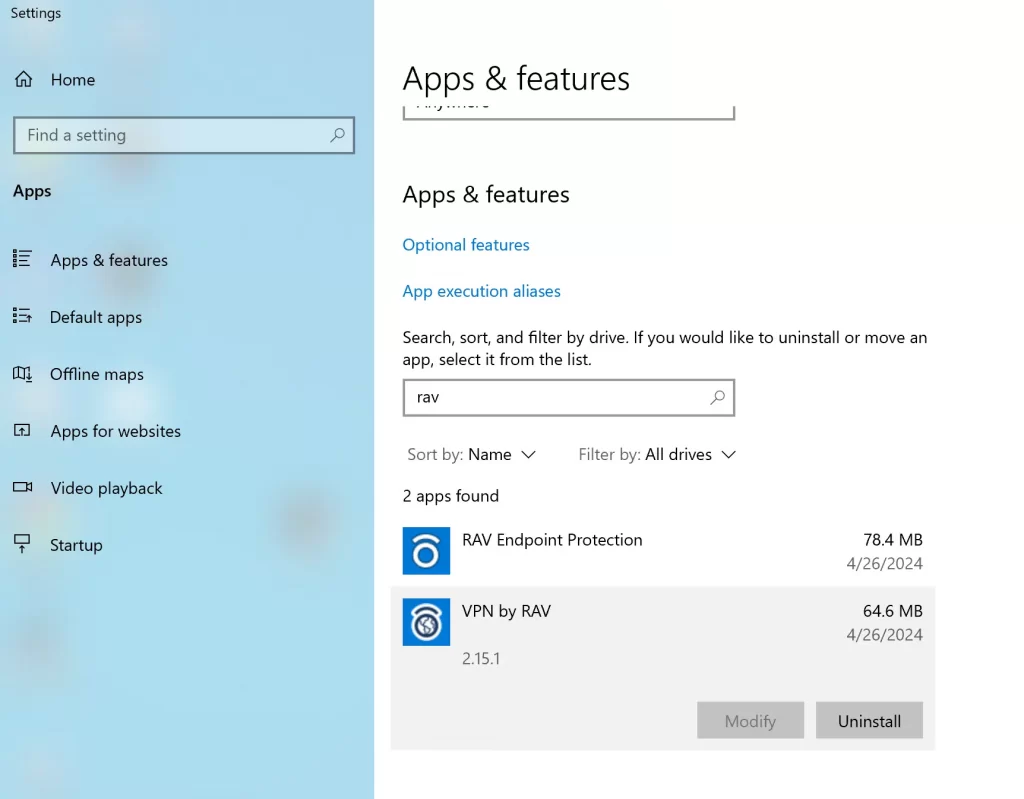
It’s pretty common for users who encounter RAV VPN on their machines to also have other ReasonLabs software. Apps developed by this company are often distributed together, so it’s possible that you may also have the RAV Endpoint Protection antivirus or the Safer Web browser extension. You may also notice the Reason Security Engine or the rsEngineSvc processes in your Task Manager as they are directly linked to the RAV Endpoint Protection program.
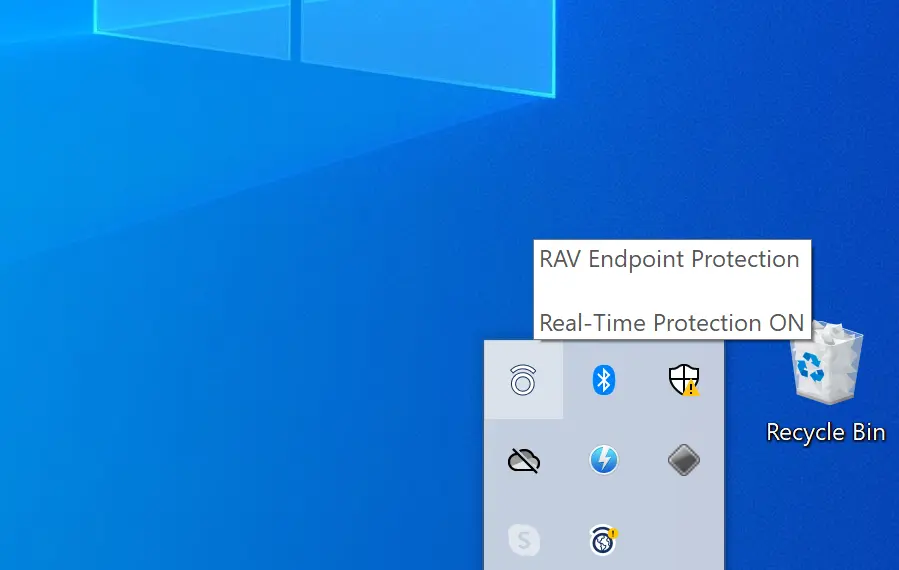
Normally, each of these programs should be easy to uninstall by simply following the instructions provided on the ReasonLabs website. When we tried to uninstall RAV VPN and the RAV Antivirus in this way, everything worked as intended. However, some users on Reddit have complained that they are unable to fully delete everything and some files and processes from ReasonLabs products are still on their computers. For this reason, we’ve provided a detailed removal tutorial below that includes extra steps for manual cleanup. If you complete them, we are confident that everything linked to these programs will be uninstalled.
How You Got RAV VPN Installed on Your PC
Above, we pointed out that file-bundling is how the free RAV VPN version gets installed on most systems. A file bundle is an installation package that contains a main program and one or more extra apps. If you currently have RAV VPN and don’t know how it got on your machine, it’s more than likely because you’ve recently installed a file bundle that contained it.
Most users on online forums who have the VPN report that it appeared on their PC after installing a program called Cheat Engine. This software is a safe and legitimate tool that game developers use for debugging their games through the use of cheats. Apparently, the RAV VPN is often included in its installer and if the user forgets to customize the setup settings, the VPN gets installed alongside Cheat Engine.
Other programs that commonly have the VPN attached to them are popular game emulators like Nox Player, MEmu, or Cemu. Some users also report getting this app after installing uTorrent and BitTorrent Web.
None of the mentioned examples of software that distributes RAV VPN represents a problematic or dangerous app. All of those programs are legitimate, but the reason users get from them an additional application without realizing it is that they overlook the options in the setup wizard. There’s normally an “Advanced” or a “Custom” installation section where they can choose what to install and what to leave out. But since most people directly go for the “Default” installation package, they get everything included in the bundle.
How to Uninstall RAV VPN (Quick Method)
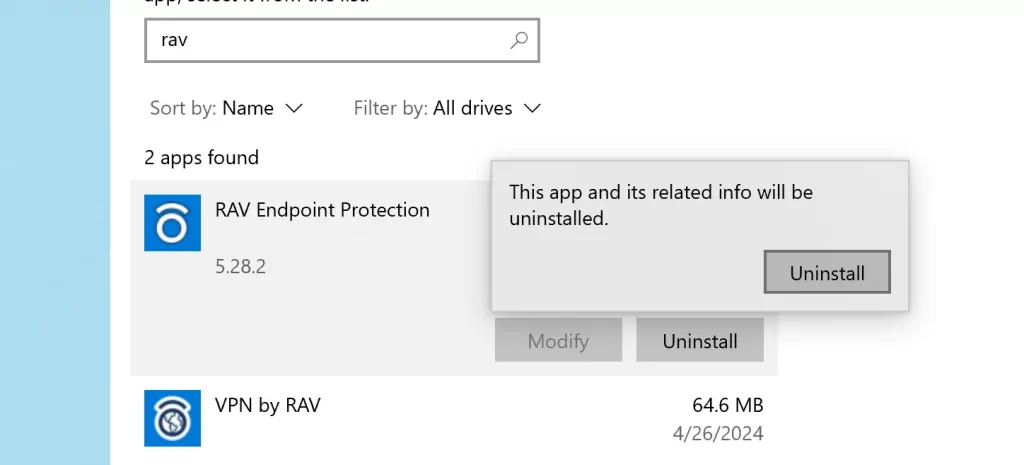
The easy way to uninstall RAV VPN is to go to the list of installed programs in your Windows settings, click the app’s uninstall button, and follow the uninstallation wizard steps:
- Click the Start Menu icon, type “Add or Remove Programs” and open the first result.
- In the search box above the list of apps, type RAV VPN.
- Click on the app when it appears and click Uninstall.
- Go through the prompts, carefully reading the description of each step, and complete the uninstallation.
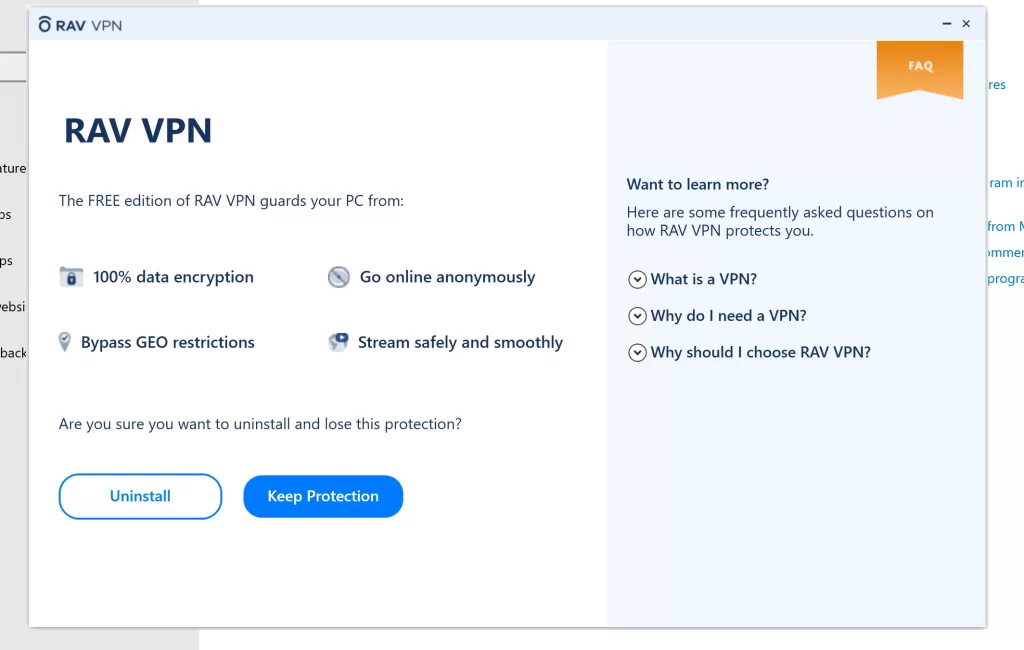
Note that it’s possible the uninstaller suggests you keep some components of the app or install something else in its place to keep your system secure. If you are sure you don’t want anything related to the VPN on your computer, decline any such suggestion to delete everything.
If after completing these steps RAV VPN isn’t completely removed or there are other ReasonLabs applications on your system you also want to remove, check out the more advanced steps shown below.
RAV VPN Removal (Advanced Steps)
Sometimes it’s not enough to simply run a program’s uninstaller because some leftover data can stay behind. If you want to ensure that everything linked to RAV VPN or other ReasonLabs products is removed from your system, here’s what you need to do:
- Press Ctrl + Shift + Esc to open the Task Manager. If you don’t see the full list of processes, click More Details.
- Look for the RAV VPN process or for other processes that may be linked to a ReasonLabs program. Two common names you may encounter are “Reason Security Engine” and “rsEngineSvc”.
- Right-click the first process you find, open its Properties, and go to Security > Advanced.
- There, click the Disable Inheritance option and click OK.
- Again right-click the same process, select Open File Location, and delete the contents of the folder.
- If you’re blocked from deleting something in the file location folder, you must download and install the Lock Hunter tool.
- Once the tool is installed, right-click each file or folder you can’t delete and select “What’s locking this file/folder?”. In newly-opened window, click the “Delete it” option and now the file should get deleted without an issue.
- Finally, right-click the process a third time and now select End Task to quit it.
- Perform these steps (3-8) for each RAV/ReasonLabs process you see in your Task Manager.
- After that visit the Startup tab of the Task Manager to see if there are any RAV VPN items there. If you see anything, click it and select Disable.
- Next, search for “Task Scheduler” in the Start Menu, open the first result, and select the Task Scheduler Library folder in the top-right.
- Search for tasks that appear linked to RAV VPN or another ReasonLabs product, right-click them, and click Delete.
- Last but not least, type “regedit” in the Start Menu and right-click the first entry that shows up. Then click Run as Administrator and allow the app to make changes to the system.
- In the Registry Editor window, click the Edit menu, then click Find, type RAV in the search bar, and hit Enter.
- Delete the first result that shows up, search again, delete the next item, and continue until there are no more RAV items left.
- Then search again for items with “Reason” in their names and delete them too.
After you’ve performed all those steps, restart your computer and check your Task Manager and System Tray to see if RAV VPN is gone. If somehow the app is still on your PC, we recommend visiting the ReasonLabs website and using one of their provided contacts to request their assistance. We are certain that they will provide you with the necessary assistance with the removal of their software.

Leave a Reply