

If you’ve just noticed a strange new browser on your computer called EpiBrowser and you’re wondering how it got there, you’re not alone – and you’re definitely not imagining things. This isn’t some weird off-brand Chrome clone you accidentally installed. It’s a shady, potentially malicious program that’s been showing up on more and more machines, often without users realizing where it came from.
We tested that SpyHunter successfully removes EpiBrowser* and we recommend using it. It will block EpiBrowser from reinstalling itself and it will make sure your device is clean from any malware.
 Try Free For 7 Days*
Buy now15% OFF if you buy straight without trial.
 OFFER
OFFERSimilar to Altrsik and other malware programs, EpiBrowser doesn’t ask for permission. It slips in through fake downloads, usually disguised as PDF tools, font packs, or photo editors. Once it’s in, it hijacks your browser settings, redirects your searches, and even mimics Chrome so closely that people don’t notice until things start breaking. Some users have even reported it launching on its own through a process called EpiStart while their computer is idle.
What’s worse is how little exists about this thing online. The official website is a joke – no download button, fake reviews, and zero real info. That’s not just suspicious. That’s scam behavior. Antivirus programs sometimes detect it as a PUP, but honestly, it’s acting more like a Trojan.
If EpiBrowser.exe is on your system, you need to treat it like a real threat. In this article, I’ll break down what it is, why it’s dangerous, and exactly how to get rid of it.
Epibrowser.exe Removal Tutorial
Let’s start with the easy wins – the stuff you can try right away without getting too technical. In some cases, these quick steps are all it takes to kick EpiBrowser.exe off your system. And even if they don’t do the full job, they’ll still lay the groundwork for the deeper cleanup steps that come next. Think of this as the first line of defense.
Quick Steps to Remove EpiBrowser.exe
- 1.1First, head over to your Downloads folder: This PC > Downloads
- 1.2Look for anything suspicious, especially files with names that don’t seem familiar. Delete them immediately. Malware often disguises itself as harmless files, so don’t take any chances.
- 1.3
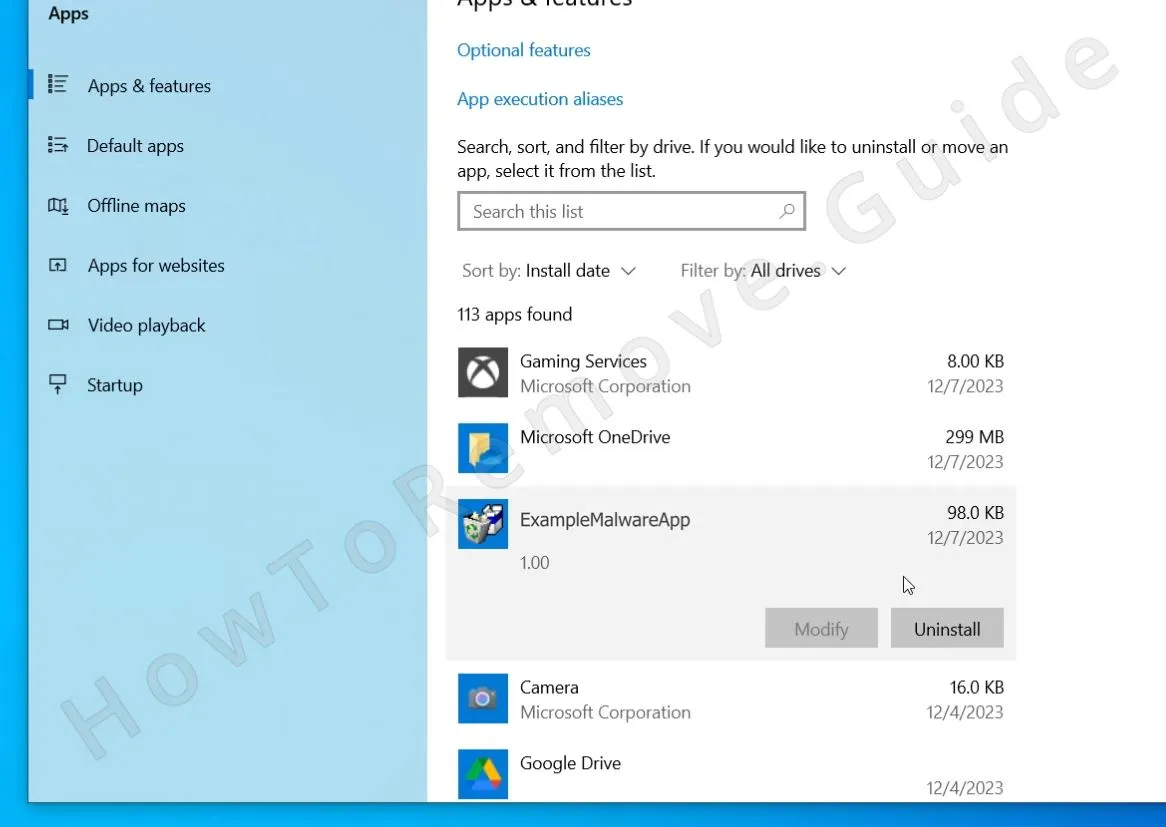 Then go to the Start Menu > Apps, sort the list by install date, and get rid of any unfamiliar or suspicious recent installs, by clicking their Uninstall buttons.
 - 1.4Now, check your AppData directory. Open this folder: C:\Users\YourUsername\AppData\Local\Programs
See anything linked to EpiBrowser? Delete it immediately.
- 1.5After that, restart your computer.
Sometimes, a simple reboot can clear out minor infections. If the malware persists, don’t worry – we’re just getting started.
SUMMARY:
Epi Browser Uninstall Steps (Advanced)
Before we get into the advanced removal techniques, we need to make sure we can actually see everything EpiBrowser has installed. By default, Windows hides certain files and folders, but you will need to reveal them to successfully complete the next guide:
1. Preparing for the EpiBrowser Uninstallation
- 1.1
 Search for Folder Options in the Start Menu. Under the View tab, enable Show hidden files and folders, then click Apply.
 - 1.2Some of the malware files might be blocked, so that you can’t delete them. That’s why I strongly recommend that you install LockHunter. It’s a free tool that can delete even the most stubborn files.
Remove EpiBrowser Background Processes
The first place in your system to focus on is the Task Manager, where you must look for EpiBrowser.exe processes that you need to delete along with any files linked to them.
In the case of this Trojan, you are likely to find a process with its exact name, but even if you don’t keep looking for suspicious entries that are using lots of resources as those are likely linked to the malware.
Here’s what you need to do in this step:
2. How to Delete EpiBrowser.exe Processes in the Task Manager
-
2.1Open Task Manager (
Ctrl + Shift + Esc). - 2.2Click More Details to expand the full list of running processes.
- 2.3
 Sort by CPU or Memory Usage – malware often hogs system resources.
Look for processes linked to EpiBrowser.exe or EpiStart or anything else suspicious and unfamiliar.
- 2.4If you find something shady, right-click it and select Open File Location. If it leads to an EpiBrowser-related folder, try deleting it. If Windows won’t let you, use LockHunter:
→ Right-click the file or folder
→ Select What’s Locking It?
→ Click Delete - 2.5Once you’ve handled the folder, go back to Task Manager, right-click the process, and hit End Task. Now, EpiBrowser is no longer running in the background, so we can move on to wiping out its hidden files.
We tested that SpyHunter successfully removes EpiBrowser* and we recommend using it. It will block EpiBrowser from reinstalling itself and it will make sure your device is clean from any malware.
Try Free For 7 Days*
Buy now15% OFF if you buy straight without trial.
Delete EpiBrowser.exe Virus Files
EpiBrowser has almost certainly created additional files/folders in other places in your system so you must go look for them in several likely locations where malware tends to hide.
3. How to Get Rid of EpiBrowser Files
-
3.1Start by looking in these directories:
→ C:\ProgramData\Microsoft\Windows\Start Menu\Programs\Startup
→ C:\Users\YourUsername\AppData\Roaming\Microsoft\Windows\Start Menu\Programs\Startup
→ C:\Users\YourUsername\AppData\Local\Programs
→ C:\Users\YourUsername\AppData\Roaming\Microsoft\Windows\Start Menu\ProgramsDelete everything related to EpiBrowser – but leave
desktop.inialone. -
3.2Now check these folders:
→C:\Program Files
→C:\Program Files (x86)
Malware sometimes pretends to be a legitimate app, so if you see anything unfamiliar that’s not installed by you, delete it. -
3.3
 Now, let’s clean up the Temp folder, where malware loves to hide:
→C:\Users\YourUsername\AppData\Local\TempDelete everything inside. Then, empty your Recycle Bin to wipe out any remaining traces.
Get Rid of EpiBrowser Scheduled Tasks
One place many users forget to check is the Task Scheduler, where malware often creates scheduled tasks that let it reinstall itself after it’s been removed. Here’s what to do to make sure this doesn’t happen:
4. Eliminate EpiBrowser Scheduled Tasks
- 4.1
 Open Task Scheduler (search for it in the Start Menu) and click Task Scheduler Library.
 - 4.2Look at each task’s Actions tab – this tells you what files or scripts are being run.
- 4.3If you see a task tied to EpiBrowser or a tasks that’s set to run any suspicious files or scripts, note their file paths, delete the respective task, then go to the location and remove the file itself.
If you skip this step, EpiBrowser might reinstall itself the next time you restart.
Uninstall the EpiBrowser Malware App Through the Windows Registry
You must now clean the Registry of your PC, but be careful not to delete the wrong thing as this could cause further problems in your system. If you aren’t sure you can handle this yourself, use SpyHunter 5 to take care of it for you. If are okay with manually performing the Registry cleanup, follow these steps:
5. Remove EpiBrowser Through the Registry
-
5.1Press
Win + R, typeregedit, and hit Enter to open the Registry Editor. -
5.2Use
Ctrl + Fto search for “EpiBrowser” and delete every entry you find from the left panel. Run a second search each time ou delete an item to see if there are any more left. - 5.3Then also run a search for “Epi Browser” and “EpiStart” and delete any related keys.
-
5.4Lastly, manually check these keys in the left panel:
→HKCU\Software\Microsoft\Windows\CurrentVersion\Run
→HKCU\Software\Microsoft\Windows\CurrentVersion\RunOnce
→HKLM\Software\Microsoft\Windows\CurrentVersion\Run
→HKLM\Software\Microsoft\Windows\CurrentVersion\RunOnce
→HKLM\Software\Microsoft\Windows\CurrentVersion\Policies\Explorer\Run
→HKCU\Software\Microsoft\Windows\CurrentVersion\Policies\Explorer\Run
→HKEY_LOCAL_MACHINE\Software\Microsoft\Windows\CurrentVersion\RunServices
→HKEY_LOCAL_MACHINE\Software\Microsoft\Windows\CurrentVersion\RunServicesOnce
→HKEY_LOCAL_MACHINE\Software\Microsoft\Windows\CurrentVersion\RunOnce\Setup
→HKEY_LOCAL_MACHINE\SYSTEM\CurrentControlSet\services - 5.5Go to each key, check its values in the right panel, and if you find EpiBrowser-related values, delete them, but leave the keys themselves intact.
Final Thoughts: Stay One Step Ahead
You did it. You wiped EpiBrowser off your system. But remember – malware isn’t going away anytime soon.
The best way to protect yourself? Stay informed. Stay cautious. And most importantly, stay in control of your system.
What Is EpiBrowser?
EpiBrowser is a rogue web browser that installs itself through misleading download links, usually bundled with fake PDF viewers, font packs, or other free utilities. It mimics Google Chrome so convincingly that most people don’t realize anything’s wrong – at least not right away. If you suddenly see a browser with a beach chair background or find yourself redirected to Yahoo every time you search something, that’s EpiBrowser doing its thing.
Here’s the shady part. EpiBrowser isn’t just a knockoff browser – it’s part browser, part EpiBrowser. It sets itself to launch on startup using a process called “EpiStart,” hides in your AppData folder, and adds scheduled tasks so it keeps coming back even after you think you’ve removed it. It hijacks your default browser settings, clones your bookmarks, and in some cases, messes with Chrome itself – killing it in the background or stripping away shortcuts and UI elements.
And it doesn’t stop there. Some users report that EpiBrowser sets up BITS jobs (a Windows background transfer service), likely to send your data off to who-knows-where. It might be scraping browsing history, login details, and even financial info. Antivirus tools often miss it, or flag it as a “potentially unwanted program” rather than full-blown malware.
So yeah – if EpiBrowser showed up out of nowhere, you didn’t just install a weird browser. You might’ve invited a scammy Trojan into your system, one that looks clean on the surface but runs deep under the hood. Block it, delete it, and don’t look back.
Is EpiBrowser Dangerous?
Yes – EpiBrowser is dangerous, even if it doesn’t look like it at first glance. It doesn’t scream “virus” the way some malware does, and that’s exactly what makes it effective. It installs quietly, mimics Chrome almost perfectly, and slips under the radar of most antivirus tools. But once it’s on your system, it hijacks your search engine, inserts itself into startup tasks, and won’t leave without a fight.
The browser’s true threat comes from what it’s doing behind the scenes. It can collect your browsing data, login credentials, and possibly even financial info – all without your knowledge. Some reports even mention it creating scheduled tasks and BITS jobs to communicate with outside servers, which raises serious red flags about data exfiltration.
So while it might look harmless or even legit, EpiBrowser is absolutely not safe. If it’s on your computer, treat it like a Trojan, not just a nuisance. Remove it immediately.
How to Stay Away From EpiBrowser in the Future?
If you don’t want to deal with EpiBrowser – or anything like it – again, start by locking down your browser.
- First thing: disable automatic downloads. Go into your browser settings and make sure it always asks where to save a file before downloading. That one toggle can save you from clicking something shady and having a rogue .msi drop into your system without you even noticing.
- Next, turn on enhanced security settings. In Chrome, head to Privacy and Security > Security, then enable “Enhanced protection” and “Always use secure connections.” Other browsers have similar options – use them. These settings give you stronger warnings about sketchy sites and stop a lot of malicious stuff before it even loads.
- Also, install an ad-blocker. Not just to kill annoying ads, but to block pop-ups, redirects, and fake “Download Now” buttons – the exact stuff that spreads EpiBrowser in the first place.
And honestly, stop clicking every free PDF converter or font pack you see. If the download feels off, it probably is. Prevention is way easier than removal, especially when the thing you’re dealing with looks like Chrome but acts like spyware. Stay alert, slow down, and lock up your browser like your data depends on it – because it does.

Leave a Reply